

Get Slack notification when a Razorpay payment fails
When a Razorpay payment fails, this workflow posts an alert to a Slack channel with the payment details, so your team can follow up with the customer.
 Razorpay
 Slack
2 steps Setup ~5 min Used on 910 sites Free to import
What this workflow does
A failed payment usually means a customer who wanted to buy and could not. Razorpay records the failure, but unless someone checks the dashboard, nobody contacts that customer. This workflow puts each failure in a Slack channel, where your team can see it and decide what to do.
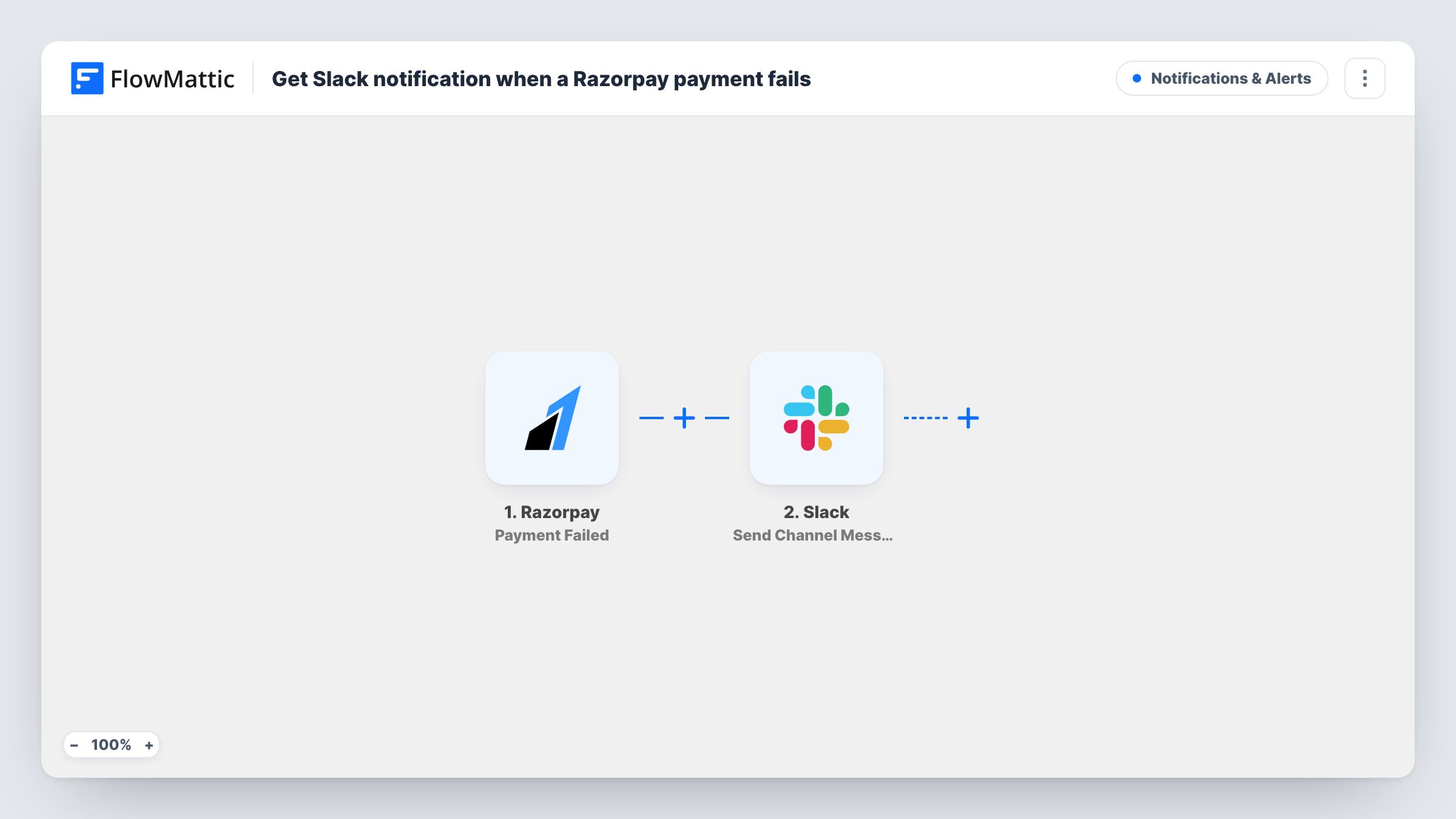
The Razorpay trigger fires when a payment fails. FlowMattic passes the payment data from that event to Slack, where Send Channel Message posts to the channel you choose. Build the message from the payment values Razorpay sends, such as the amount, the customer's contact details and the error reason, if present.
Each failed attempt posts one message. A customer who retries and fails again produces another alert, and a later successful payment does not remove earlier ones. Task History shows each run and the data Razorpay sent.
Recovering a failed checkout
A sales rep sees the alert in Slack, checks the customer's contact details and sends a new payment link.
Watching for gateway problems
A burst of failure alerts in the channel tells the team to check Razorpay's status or their checkout setup.
Finance follow-up on invoices
The finance channel gets each failed payment and logs who needs a reminder about an unpaid invoice.
How this workflow runs
What happens at each step once the workflow is on, and what you need before you import it.
 Razorpay Payment Failed
Fires when a payment fails in your Razorpay account. The payment data, including any error details Razorpay sends, is passed to the Slack step.
- Slack Send Channel Message
Sends a failure alert to the Slack channel you choose. Write the message and insert Razorpay values such as the amount and customer contact, then connect your Slack workspace.
What you need
- FlowMatticCore
- Razorpay AccountAccount
- Slack AccountAccount
After importing, map your own data. To keep the template universal, not every step is pre-filled. Open each step in the builder and connect your accounts and fields (channels, lists, sheets, recipients) before you switch the workflow on.
Make it yours
Changes worth making after you import it.
- Put the error reason in the Slack message, if Razorpay provides one, so the team can tell a declined card from a technical problem.
- Add a Filter on the amount if you only want alerts above a certain value. Razorpay reports amounts in the smallest currency unit, such as paise, so set the threshold to match.
- Use a separate private channel for these alerts, since the message may include customer contact details.
Questions about this workflow
Will Slack get an alert for every failed Razorpay attempt?
Yes, as imported. Every Payment Failed event posts one message, including repeated attempts by the same customer.
Does a successful retry update the earlier Slack alert?
No. The workflow only posts on failures. Razorpay's Payment Captured trigger could drive a separate workflow if you want success messages too.
Does this retry the Razorpay payment for the customer?
No. It only notifies your team. Any follow-up, such as sending a new payment link, is done by a person.
More Notifications & Alerts workflows
Other ready-to-import templates from the same category.





Import this workflow into your WordPress site
Download the JSON, import it from the Workflows screen and connect your accounts. Every run stays on your server, with no per-task fees.
30-day money-back guarantee Unlimited workflows and runs Self-hosted