

Create an Airtable record for every new RecruitApp.ai archived interest card
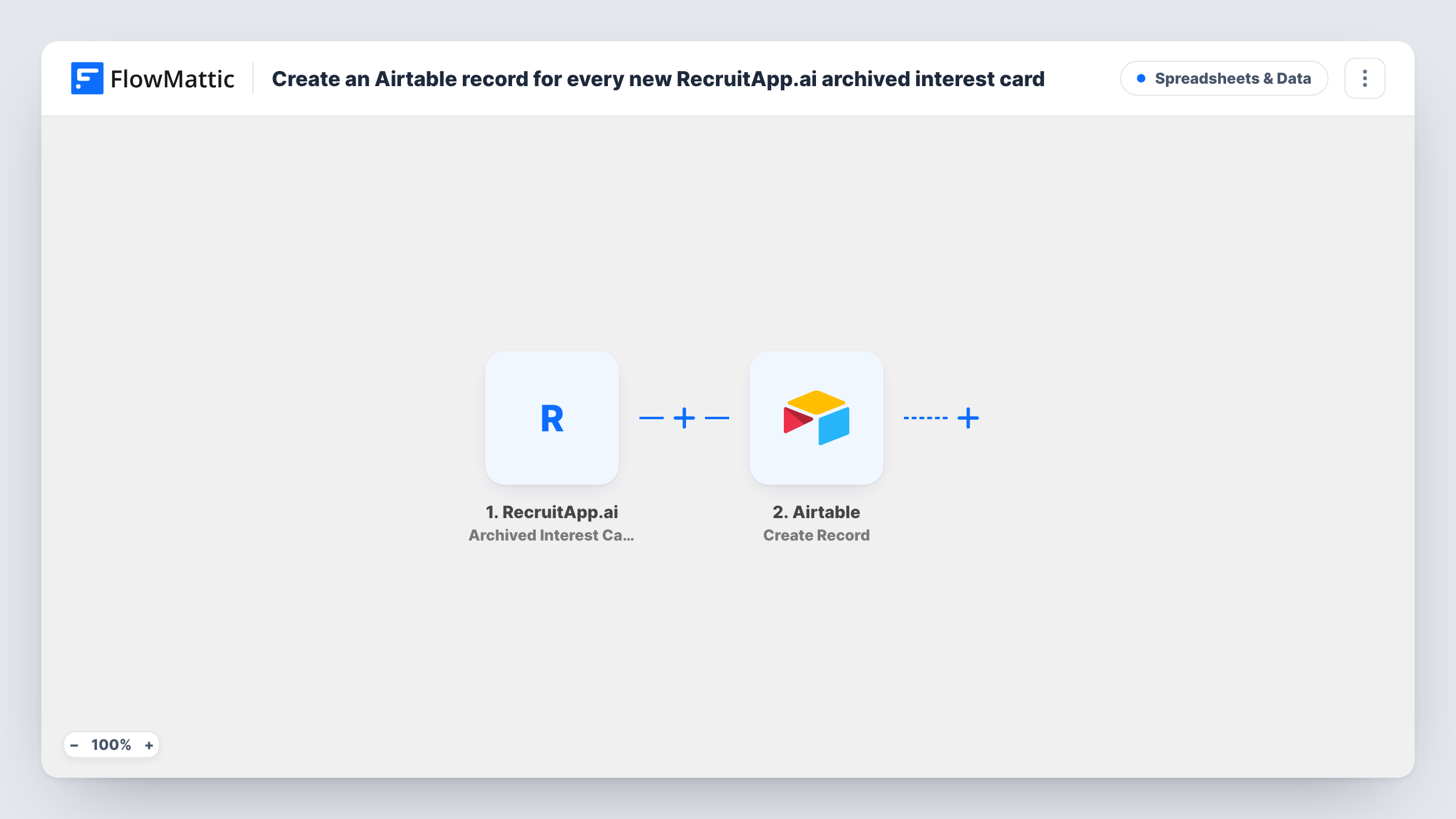
When RecruitApp.ai archives an interest card, this workflow creates a matching record in your Airtable base, giving you a lasting, searchable log of the candidates and leads that left your active pipeline.
 RecruitApp.ai
 Airtable
2 steps Setup ~5 min Used on 1.9k sites Free to import
What this workflow does
Interest cards in RecruitApp.ai do not stay active forever. According to FlowMattic's trigger description, cards are archived after 30 days, and once that happens they drop out of the view your team works in. If you want to report on them later or reach out again, you need a copy somewhere you control.
The RecruitApp.ai trigger fires each time an interest card is archived. FlowMattic captures the card data RecruitApp.ai sends with that event. The Airtable step then runs Create Record in the base and table you choose, with the card fields mapped to your columns.
Every archived card produces one new Airtable record. The step only creates records; it never edits one it made earlier. Each run shows up in Task History, so you can see what was sent to Airtable for a given card.
A talent pool for future roles
Candidates whose cards were archived without a hire stay in an Airtable table you can filter by role or skill when a new opening comes up.
Pipeline reporting for a recruiting agency
Build Airtable views or charts over archived cards to see how many interest cards expire each month and for which positions.
Re-engagement lists
Your team works through the Airtable table of archived cards and picks people to contact again with a fresh opportunity.
How this workflow runs
What happens at each step once the workflow is on, and what you need before you import it.
 RecruitApp.ai Archived Interest Card
Runs when RecruitApp.ai archives an interest card, which its FlowMattic trigger describes as happening after 30 days. The card data from that event is passed on for mapping.
- Airtable Create Record
Adds one record per archived card to the Airtable table you select. Connect your Airtable account, then map the interest card fields from RecruitApp.ai to the table's fields.
What you need
- FlowMatticCore
- RecruitApp.ai AccountAccount
- Airtable AccountAccount
After importing, map your own data. To keep the template universal, not every step is pre-filled. Open each step in the builder and connect your accounts and fields (channels, lists, sheets, recipients) before you switch the workflow on.
Make it yours
Changes worth making after you import it.
- Add a date field to your Airtable table and map a date from the card data into it, if a test run shows the card carries one, so you can sort archived cards by when they left the pipeline.
- Run a test once a card has been archived so FlowMattic captures real card data, then map each field in the Airtable step before switching the workflow on.
- Want only certain cards in the table? Add a Filter between the two steps on a field from the card data, as a test run shows it, and let the other archived cards stop there.
Questions about this workflow
When does RecruitApp.ai archive an interest card?
FlowMattic's trigger description says interest cards are archived after 30 days. The workflow runs at the moment RecruitApp.ai archives the card, not when the card is created.
Are cards archived before I import this copied to Airtable?
No. Only cards archived after the workflow is turned on reach Airtable. Older archived cards would need to be added another way.
Must the Airtable table for archived cards exist before import?
Yes. Create a base and table with the columns you want, then pick them in the Create Record step. The step writes into existing fields; it does not build the table for you.
Does archiving in RecruitApp.ai change anything in the Airtable record later?
No. The workflow only creates a record when the card is archived. Later changes to the card in RecruitApp.ai are not sent to Airtable.
More Spreadsheets & Data workflows
Other ready-to-import templates from the same category.




Import this workflow into your WordPress site
Download the JSON, import it from the Workflows screen and connect your accounts. Every run stays on your server, with no per-task fees.
30-day money-back guarantee Unlimited workflows and runs Self-hosted