

Log every new Pipe video recording in a Google Sheets submissions tracker
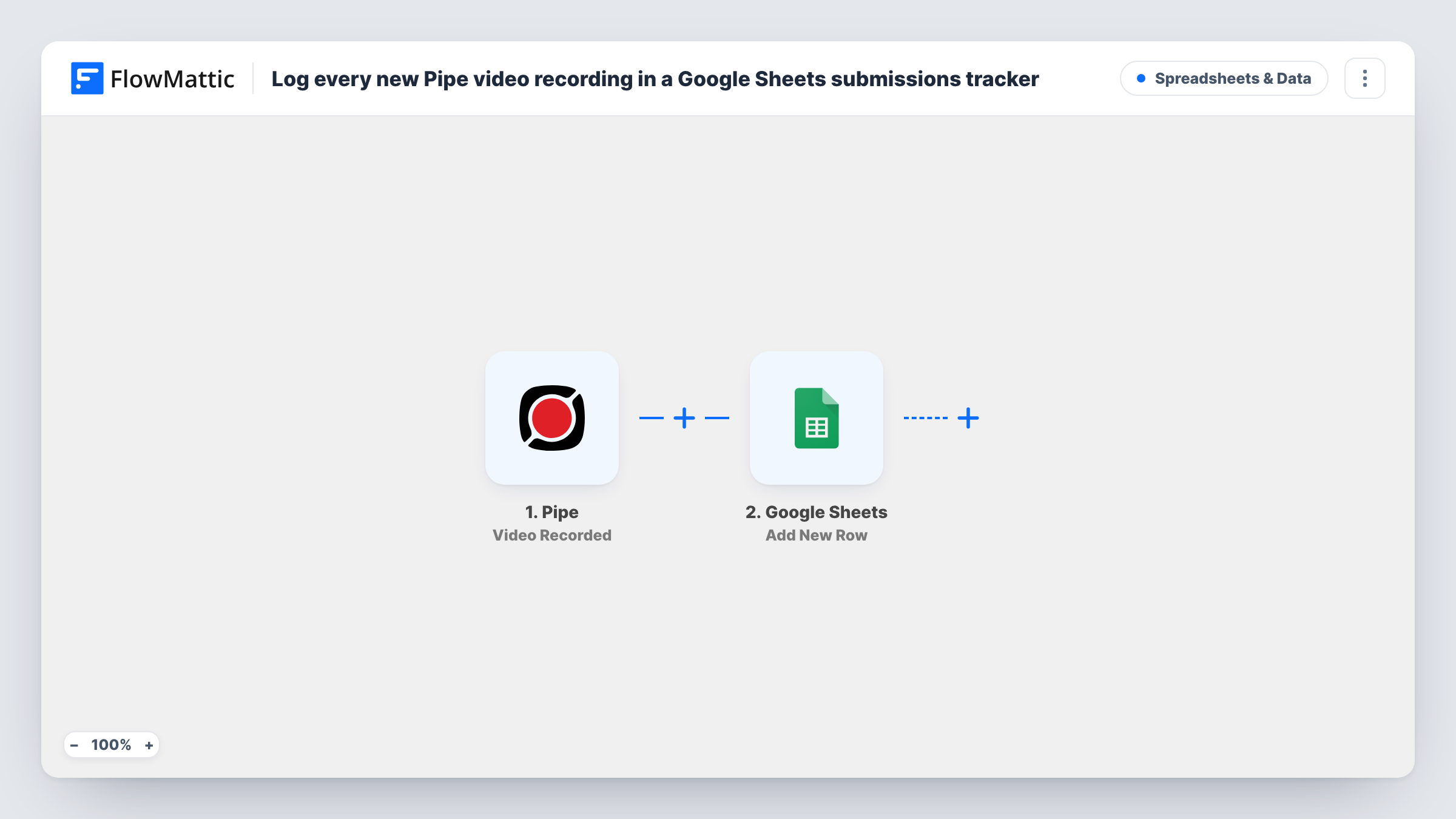
As soon as Pipe finishes and saves a new video recording, this workflow adds a row about it to a Google Sheets tracker, so you have one list of every video submission to review and follow up.
 Pipe
 Google Sheets
2 steps Setup ~5 min Used on 3.3k sites Free to import
What this workflow does
Pipe lets people record video in your forms and pages: testimonials, applications, support clips. When many arrive, it helps to have one list showing who recorded what and when, that your team can mark as reviewed. This workflow writes each recording to a Google Sheets tracker.
The Pipe trigger fires as soon as a new recording is finished, saved and assigned for processing. FlowMattic passes the recording's data to Google Sheets, which adds a new row with the values you map to each column.
The trigger fires before Pipe converts the video to MP4 or copies it to storage, so anything that depends on those stages may not exist yet. If you want the row only after conversion, Pipe also has a Video Converted trigger you can use instead. Add your own columns, such as a status or reviewer, for your team to fill in. Task History shows the data from every run.
Customer video testimonials
Each testimonial recorded through Pipe appears in the sheet, and the marketing team marks which ones to publish.
Video job applications
Candidates record an introduction. The recruiter works through the sheet and adds a column for interview decisions.
Student video assignments
A course collects video homework with Pipe, and the tutor tracks submissions and grades in the shared spreadsheet.
How this workflow runs
What happens at each step once the workflow is on, and what you need before you import it.
 Pipe Video Recorded
Fires as soon as a new Pipe recording is finished, saved to the database and assigned for processing. The recording's data is passed on for mapping.
- Google Sheets Add New Row
Adds a row about the recording to your submissions tracker in Google Sheets. Map Pipe values to your columns, and run a test recording to see what data arrives.
What you need
- FlowMatticCore
- Pipe AccountAccount
- Google Sheets AccountAccount
After importing, map your own data. To keep the template universal, not every step is pre-filled. Open each step in the builder and connect your accounts and fields (channels, lists, sheets, recipients) before you switch the workflow on.
Make it yours
Changes worth making after you import it.
- Record a short test video through Pipe after import, so FlowMattic captures the recording data and you can map it to columns.
- Switch the trigger to Pipe's Video Converted event if your sheet should only list recordings that already have an MP4 version.
- Add a Slack step after the sheet so the reviewer gets a message each time a new video arrives.
Questions about this workflow
Is the Pipe video ready to watch when the row is added?
Not always. This trigger fires when the recording is saved and queued for processing, before conversion to MP4. Use the Video Converted trigger if you need the converted file first.
Does the Google Sheet store the video itself?
No. The sheet holds the values you map from Pipe's data. The video stays with Pipe or your connected storage.
Are older Pipe recordings added to the tracker?
No. Only recordings finished after the workflow is on are logged.
More Spreadsheets & Data workflows
Other ready-to-import templates from the same category.



Import this workflow into your WordPress site
Download the JSON, import it from the Workflows screen and connect your accounts. Every run stays on your server, with no per-task fees.
30-day money-back guarantee Unlimited workflows and runs Self-hosted