

Create a Google Docs file for every Detectify asset change
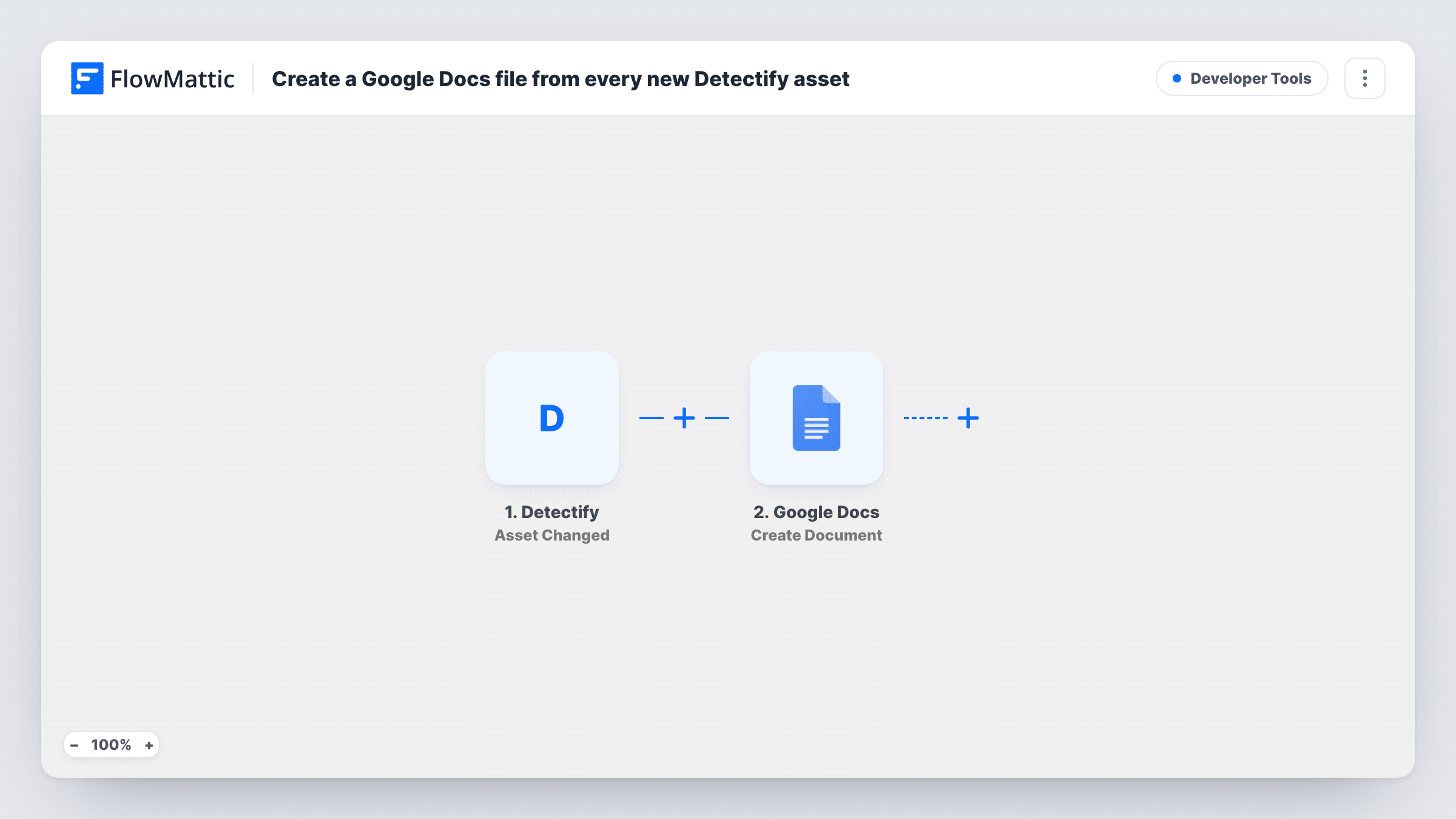
Each time an asset on your attack surface changes in Detectify, FlowMattic creates a new Google Docs file with the details you map, giving your security team a written record of every change it can share and annotate.
 Detectify
 Google Docs
2 steps Setup ~5 min Used on 851 sites Free to import
What this workflow does
Changes to your external attack surface, such as a new subdomain or an asset that moves, are worth writing down. A document per change gives auditors, managers and engineers something they can open, comment on and file, without a Detectify login.
The Detectify trigger fires when an asset on the attack surface changes. Every change starts a run, so a busy week can produce many documents. A test run shows which asset details Detectify sends, for example the asset name and what changed.
The Google Docs step creates a new Google Doc with optional content. It ships unmapped: after import connect your Google account, then set a title and write the body, mapping Detectify values into both. A title that includes the asset name and date makes the files easy to find in Drive.
The workflow creates a fresh document each time and never adds to an earlier one. If you would rather keep one running log, see the tips for an append-based setup with another Google Docs action.
Change records for a security audit
A compliance lead keeps a folder of Google Docs, one per attack surface change, to show auditors when each asset appeared or changed.
Review notes for the security team
Engineers open the document for each changed asset and add comments on whether it needs a fix, an owner or no action.
Updates for non-technical stakeholders
An agency shares the generated documents with a client's manager, who reads about asset changes in plain text instead of logging in to Detectify.
How this workflow runs
What happens at each step once the workflow is on, and what you need before you import it.
 Detectify Asset Changed
Fires when an asset on your attack surface changes in Detectify. The asset details Detectify sends with the change are passed to the Google Docs step.
- Google Docs Create Document
Creates a new Google Doc for the change. The step ships unmapped: connect Google, then write a title and body that include the Detectify asset values you want on record.
What you need
- FlowMatticCore
- Detectify AccountAccount
- Google Docs AccountAccount
After importing, map your own data. To keep the template universal, not every step is pre-filled. Open each step in the builder and connect your accounts and fields (channels, lists, sheets, recipients) before you switch the workflow on.
Make it yours
Changes worth making after you import it.
- For one running log instead of many files, replace Create Document with Google Docs' Append Text to Document action and pick a single log document, so each change adds a paragraph.
- If you only want documents for some assets, put a Filter between the Detectify trigger and the Google Docs step on the asset name, for example one that contains your main domain. Use your own value.
- Start the document title with the date and asset name, so files sort in order in Google Drive.
Questions about this workflow
Does every Detectify asset change create a Google Doc?
Yes. The trigger fires for each change to an asset on your attack surface, and each run creates its own document. For fewer files, put a Filter between the Detectify trigger and the Google Docs step.
What goes into each Google Doc?
The text you put into the Create Document step. The template leaves it empty, so you add the wording and map the Detectify values after import.
Can I use a document template for a consistent layout?
Yes. Switch to the Create Document From Template action, which makes a new document from a template and replaces its placeholder variables with values you map from Detectify.
More Developer Tools workflows
Other ready-to-import templates from the same category.









Import this workflow into your WordPress site
Download the JSON, import it from the Workflows screen and connect your accounts. Every run stays on your server, with no per-task fees.
30-day money-back guarantee Unlimited workflows and runs Self-hosted