

Send parsed CSV file data back to webhook response
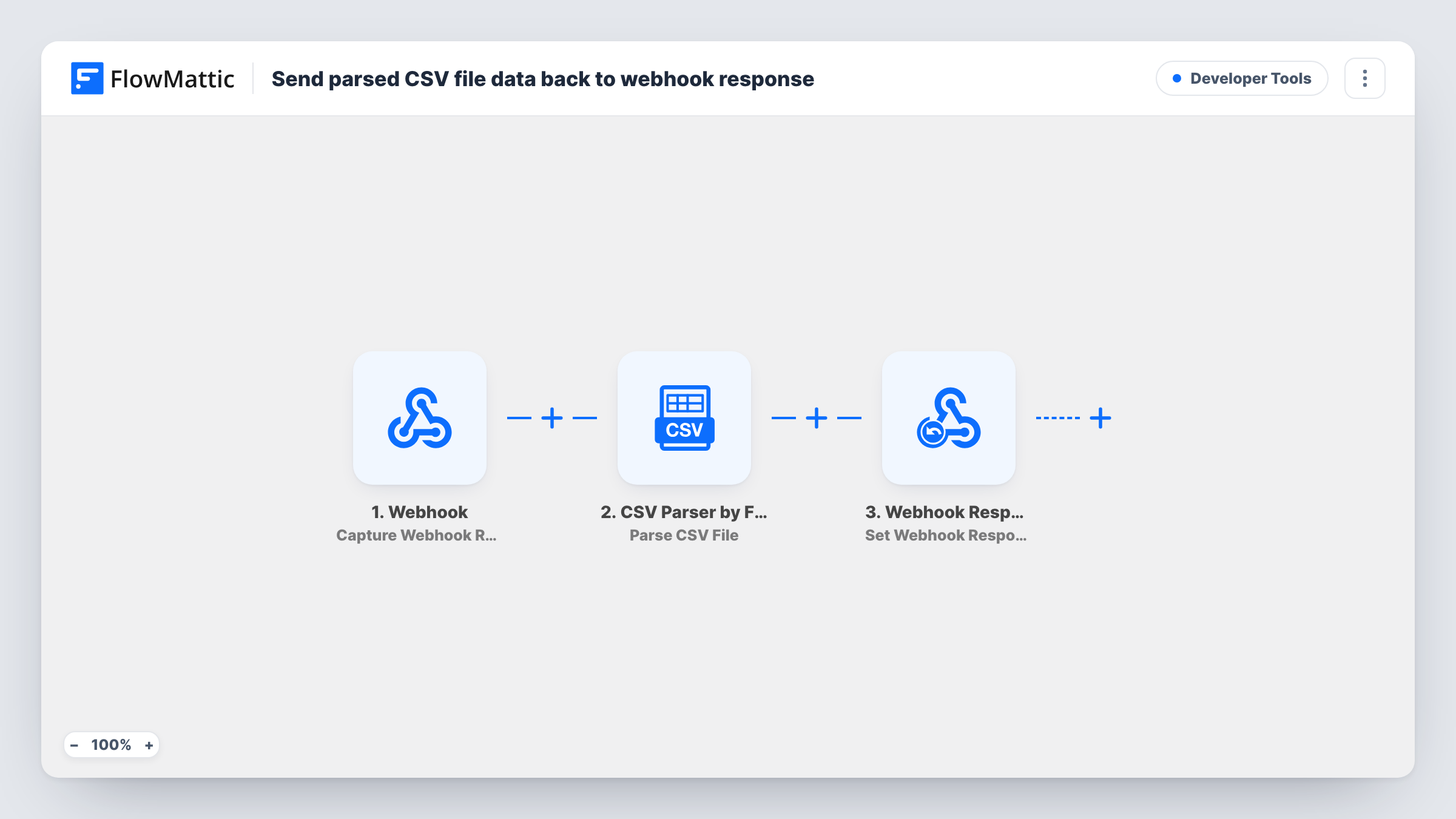
Post a CSV file’s URL to a FlowMattic webhook, and this workflow parses the file into JSON and sends that data back as the webhook’s response, so the calling app gets structured rows in the same request.
 Webhook
 CSV Parser by FlowMattic
 Webhook Response
3 steps Setup ~5 min Used on 848 sites Free to import
What this workflow does
Plenty of tools export CSV files, but the app or script you are building wants JSON it can loop over. Writing a parser for every project is tedious. This workflow turns your WordPress site into a small CSV-to-JSON endpoint: the caller sends a file link and gets the parsed data back in the reply.
A Webhook trigger gives you a URL that accepts incoming requests. Whatever the caller posts, including the address of the CSV file, becomes data you can map. The CSV Parser step reads the file at that address, whether it is hosted on your WordPress site or at a remote URL, and returns its contents as JSON. The last step uses Webhook Response to set what FlowMattic sends back to the caller, and you map the parsed output into it.
Nothing is stored in a sheet or database along the way. The data passes through FlowMattic and returns to whoever made the request. Task History keeps a record of each run, so you can see the payload that came in and the response that went out.
Read a supplier price list from a script
A supplier publishes a CSV price list at a fixed link. Your script posts that link to the webhook and reads the prices from the JSON reply instead of parsing the file itself.
Feed CSV exports to a no-code front end
A front-end builder can call a URL and display JSON but cannot read CSV. Point it at this webhook with the export's address and show the rows it returns.
Check an uploaded CSV before importing it
Files uploaded to your WordPress media library can be passed to the webhook by URL, so you can look at the parsed rows and spot bad columns before a bulk import.
How this workflow runs
What happens at each step once the workflow is on, and what you need before you import it.
 Webhook Capture Webhook Response
Gives you a webhook URL and starts a run each time a request reaches it. Send the CSV file's URL in the request so the next step can use it; every field the caller sends is available to map.
- CSV Parser by FlowMattic Parse CSV File
Reads the CSV file at the URL you map from the webhook data and converts its contents to JSON. The file can sit on your WordPress site or at any remote address the site can reach.
- Webhook Response Set Webhook Response
Sets the response FlowMattic returns to the caller of the webhook. Map the parsed CSV output from the previous step into it, so the caller receives the JSON data as the reply to its request.
What you need
- FlowMatticCore
After importing, map your own data. To keep the template universal, not every step is pre-filled. Open each step in the builder and connect your accounts and fields (channels, lists, sheets, recipients) before you switch the workflow on.
Make it yours
Changes worth making after you import it.
- Turn on the Webhook trigger's "Require authentication on incoming requests" setting and give callers the key, so only your own scripts can use the endpoint to parse files.
- Send one test request with a real CSV link after import. FlowMattic then captures the incoming fields and the parsed output, which makes the mapping in the last two steps easier.
- If you also want a copy of the rows, add a Google Sheets or FlowMattic Tables step after the parser. Each run then keeps a record while the caller still gets its reply.
Questions about this workflow
Can I post the CSV contents to the webhook instead of a link?
The CSV Parser step is described as parsing a CSV file URL, so the template expects the address of a file. Host the file somewhere your site can reach, such as the media library, and send its URL.
Who can call this CSV-to-JSON webhook?
Anyone who has the webhook URL can start a run, unless you turn on the trigger's authentication setting. With it on, requests must carry the key or signature you set.
Can the reply include only some of the parsed CSV data?
Yes. Set Webhook Response sends back what you map into it, so you choose which parsed values to include. It ships unmapped, so map the CSV Parser output in after a test request, and check Task History to see the parsed values you can pick from.
Does parsing the CSV save any data on my site?
No step in the template stores the rows. The parsed data goes back in the response, and the run itself is logged in Task History.
More Developer Tools workflows
Other ready-to-import templates from the same category.






Import this workflow into your WordPress site
Download the JSON, import it from the Workflows screen and connect your accounts. Every run stays on your server, with no per-task fees.
30-day money-back guarantee Unlimited workflows and runs Self-hosted