

Convert New HARO Queries into RSS Feed Items for Easy Sharing
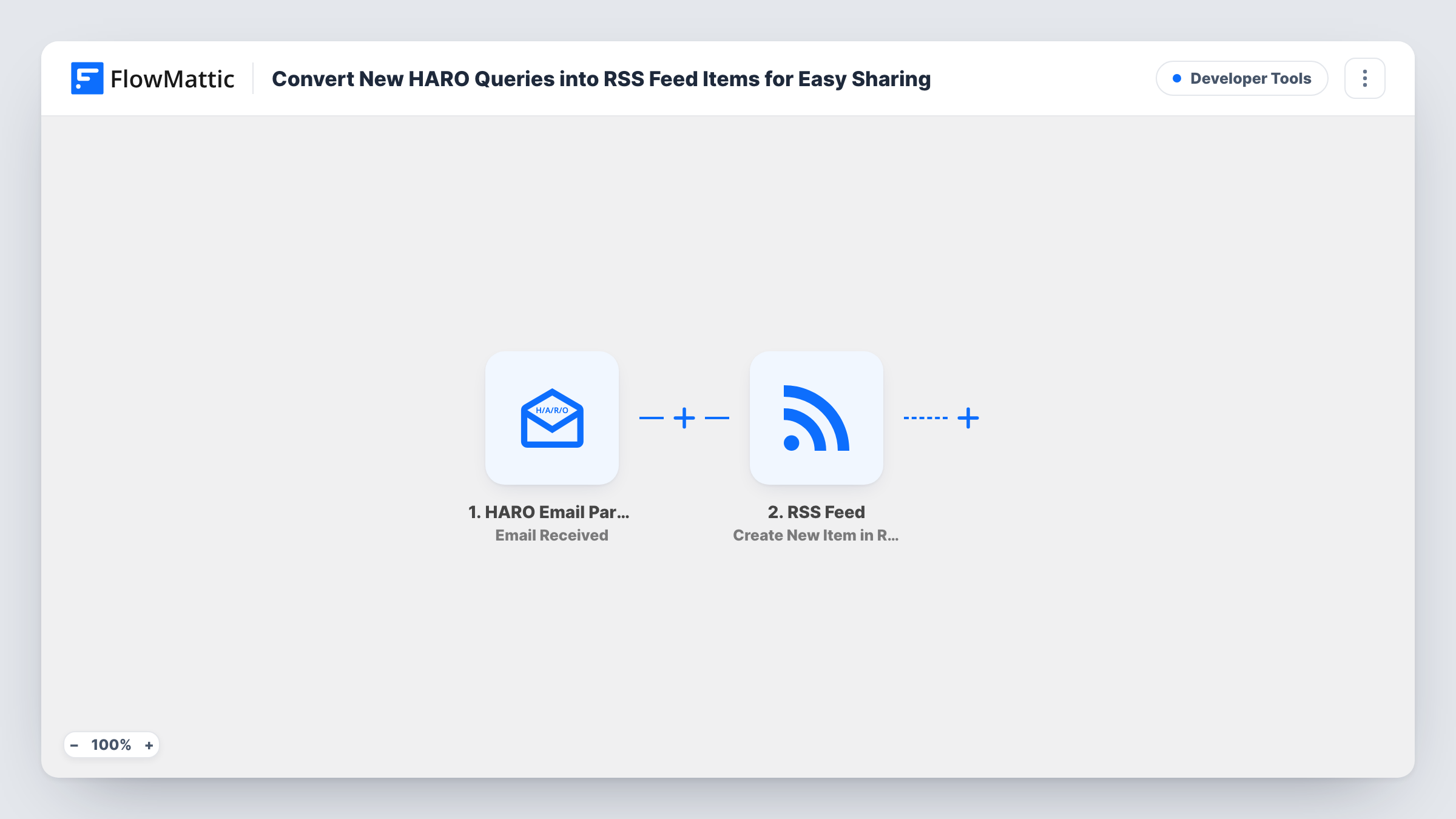
HARO query emails sent to FlowMattic’s HARO Email Parser become items in an RSS feed hosted by FlowMattic, so you and your team can follow new media requests in any feed reader.
 HARO Email Parser
 RSS Feed
2 steps Setup ~5 min Used on 1.5k sites Free to import
What this workflow does
HARO sends media queries in long digest emails, and scanning them in an inbox is slow, especially when several people want to see them. An RSS feed lets everyone follow the same queries in the reader they already use. This workflow builds that feed from the emails.
The HARO Email Parser trigger fires when an email is received at the parser's email address. You forward your HARO emails there, and the parser extracts the information from them so you can map it. FlowMattic then runs the RSS Feed action Create New Item in RSS Feed, which adds an item to a feed that FlowMattic serves from your site. You map the query details into the item.
Nothing reaches the parser until you forward HARO mail to it, either by hand or with a forwarding rule in your email account. A test email after import shows what the parser extracted and what you can map into the feed item. Every parsed email and the item it produced appear in Task History.
PR team sharing queries
Several people in a PR team subscribe to the same feed in their readers and pick up the queries that fit their clients.
Founders pitching their own story
A founder who doesn't want HARO mail in their main inbox forwards it to the parser and checks the feed when they have time to pitch.
Feeding a team chat
Point a feed-to-chat tool, or another FlowMattic workflow on the RSS Feed trigger, at the feed so new queries reach a shared channel.
How this workflow runs
What happens at each step once the workflow is on, and what you need before you import it.
 HARO Email Parser Email Received
Fires when an email arrives at the HARO Email Parser address. Forward your HARO emails there; the parser extracts their contents so you can map them into the feed item.
- RSS Feed Create New Item in RSS Feed
Adds a new item to your FlowMattic RSS feed from the parsed HARO email. Map the query details into the item, then subscribe to the feed URL in your reader.
What you need
- FlowMatticCore
After importing, map your own data. To keep the template universal, not every step is pre-filled. Open each step in the builder and connect your accounts and fields (channels, lists, sheets, recipients) before you switch the workflow on.
Make it yours
Changes worth making after you import it.
- Set a forwarding rule in your email account that sends HARO messages to the parser address, so you don't have to forward each one by hand.
- Add a Filter after the trigger on a keyword in the parsed query text, so only queries in your field become feed items.
- Create a second RSS Feed step on a Router route for a different topic, giving each team its own feed. Use conditions that can't both match one query.
Questions about this workflow
How do HARO emails reach the FlowMattic parser?
You forward them to the email address shown in the HARO Email Parser trigger. A forwarding rule in your mail account does this for every new HARO email.
Where is the RSS feed hosted?
The RSS Feed app in FlowMattic serves the feed from your WordPress site. Copy its URL from the step after import and add it to your reader.
Does every HARO email become a single feed item?
This template adds one feed item per email the parser receives. Send a test email first to see what the parser extracts before mapping the item.
Can I reply to a HARO journalist from the feed?
No. The feed only lists the queries. Reply by email as you normally would.
More Developer Tools workflows
Other ready-to-import templates from the same category.








Import this workflow into your WordPress site
Download the JSON, import it from the Workflows screen and connect your accounts. Every run stays on your server, with no per-task fees.
30-day money-back guarantee Unlimited workflows and runs Self-hosted