

When a new WordPress user registers, create a secret link and email it to them
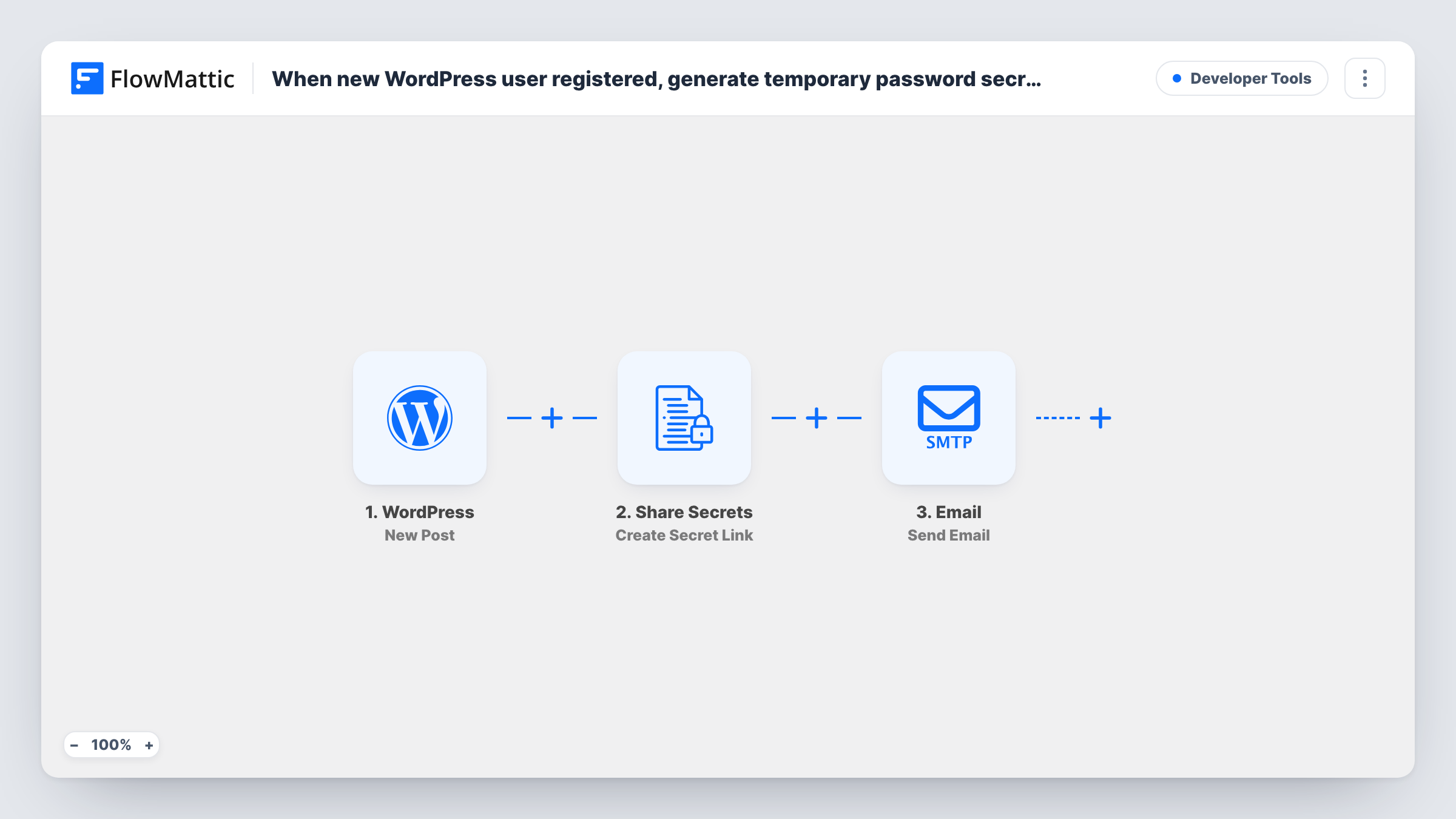
When a new account is registered on your WordPress site, FlowMattic creates an expiring Share Secrets link to the sensitive details you choose and emails that link to the new user.
 WordPress
 Share Secrets
 Email
3 steps Setup ~5 min Used on 670 sites Free to import
What this workflow does
Some onboarding details shouldn't sit in plain text in someone's inbox forever: an access code, a shared login for a members' tool, a licence key. This workflow lets you hand those over to each new user through a link that expires, instead of pasting them into an email.
The WordPress New User trigger fires for every new account, whether the person signs up themselves, an administrator adds them, or a plugin or import creates the account. The user's details, including their email and display name, are passed on.
The Share Secrets step stores the content you enter, encrypted, on your own site and returns a link to it. The template leaves the secret content empty, and the step won't create a link without it, so after import enter the text to share or map it from the user's data. By default a link expires after 24 hours; you can also limit it by number of views or add a password.
The Email step is ready to go: it sends to the new user's email address with the subject "Your secure link", greets them by display name and includes the secret link. It uses WordPress mail or your SMTP account, and you can edit the wording before going live.
Access codes for a members' area
A coworking space's website emails each newly registered member an expiring link that shows the door code and Wi-Fi password.
Licence keys for software buyers
A developer whose customers get a WordPress account at purchase shares a licence key through a link that stops working after it has been viewed.
Shared tool logins for new staff
An agency that creates WordPress accounts for new hires sends each one a one-time link to the login for the team's shared social media tool.
How this workflow runs
What happens at each step once the workflow is on, and what you need before you import it.
 WordPress New User
Fires whenever a new user account is created in WordPress, from a sign-up form, the admin dashboard or a plugin. The user's email, display name and other profile data are passed on.
- Share Secrets Create Secret Link
Encrypts the secret content you provide, stores it on your site and returns an expiring link. Enter or map the content after import; the step returns an error while it is empty.
 Email Send Email
Emails the new user at their account address with the subject "Your secure link". The message greets them by display name and contains the secret link from the previous step.
What you need
- FlowMatticCore
After importing, map your own data. To keep the template universal, not every step is pre-filled. Open each step in the builder and connect your accounts and fields (channels, lists, sheets, recipients) before you switch the workflow on.
Make it yours
Changes worth making after you import it.
- Limit the secret link to a single view if the details should only be read once, so the link stops working after the user opens it.
- Put a Filter between the New User trigger and the Share Secrets step that continues only for the role that should get the details, so accounts created for other roles don't receive them.
- Add a password to the secret and tell the user what it is through another channel, such as a text message, for details that need extra care.
- Rewrite the email body to say what the link contains and when it expires, so the user knows to open it soon.
Questions about this workflow
Does this workflow create a password for the new WordPress user?
No. It shares whatever content you put in the Share Secrets step. It doesn't change the user's WordPress password or generate one.
When does the secret link in the welcome email stop working?
24 hours by default. In the Create Secret Link step you can set a different time, a maximum number of views, or both.
Are users I add in the WordPress dashboard sent a link too?
Yes. The New User trigger fires for every new account, including ones an administrator or a plugin creates. To leave some out, put a Filter on the role between the New User trigger and the Share Secrets step.
Where is the secret content stored?
On your own WordPress site, encrypted, by FlowMattic's Share Secrets app. The link points to your site, and expired secrets are cleaned up automatically.
More Developer Tools workflows
Other ready-to-import templates from the same category.






Import this workflow into your WordPress site
Download the JSON, import it from the Workflows screen and connect your accounts. Every run stays on your server, with no per-task fees.
30-day money-back guarantee Unlimited workflows and runs Self-hosted