

Create a ClickUp task when Checkly detects an outage
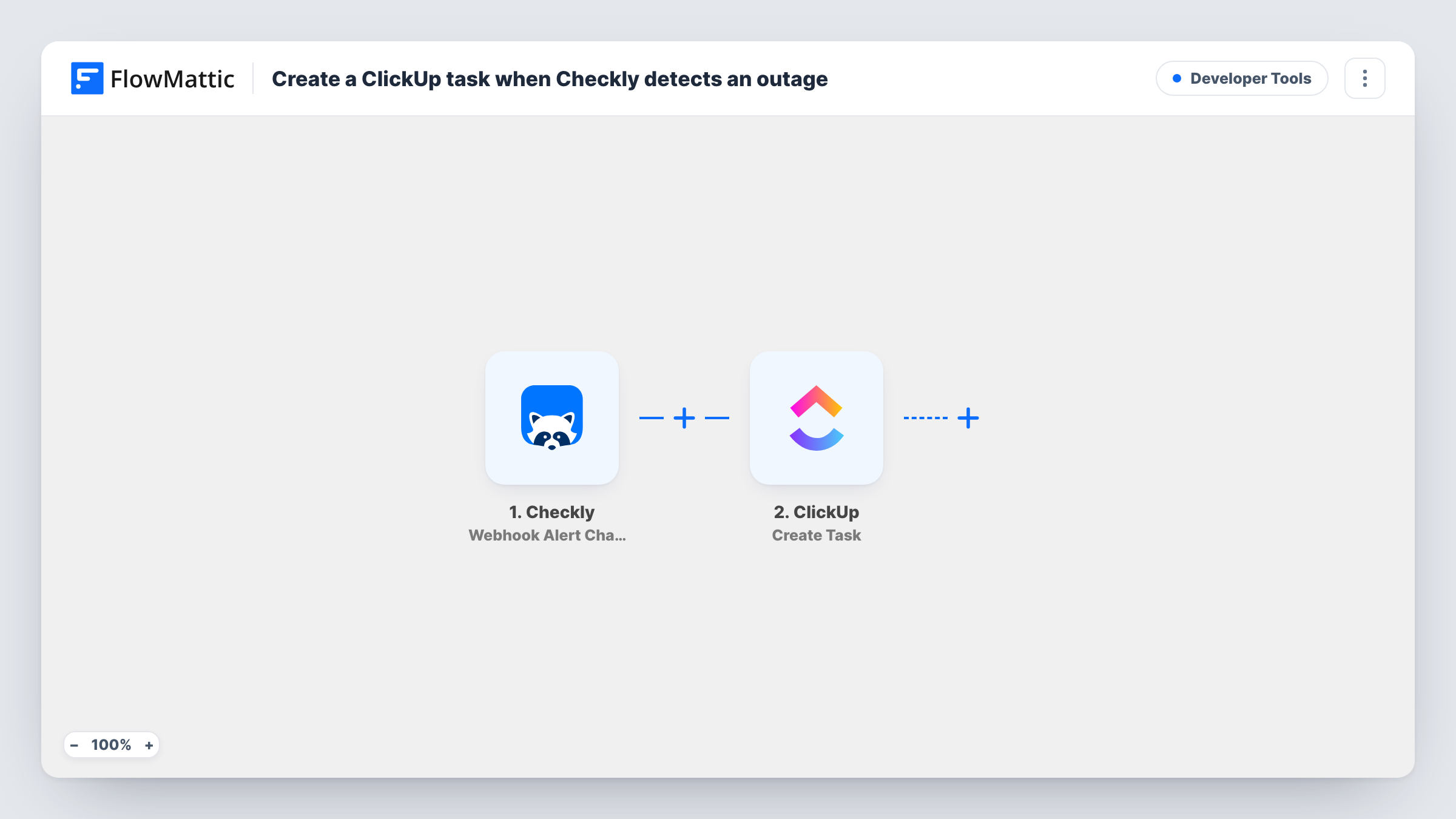
When Checkly reports a failed check through a webhook alert channel, FlowMattic creates a task in ClickUp, so every outage becomes work someone owns. Recovery and degradation alerts are filtered out.
 Checkly
 Filter
 ClickUp
3 steps Setup ~5 min Used on 3.4k sites Free to import
What this workflow does
An alert tells you something broke; a task makes sure someone follows it up, writes down the cause and closes it. If your team plans its work in ClickUp, this workflow turns each Checkly failure into a task there, so outages don't get lost in a notifications feed.
The Checkly trigger receives alerts from a webhook alert channel that you create in Checkly with the workflow's URL. It fires when a check fails, recovers or degrades. Put the alert type in the webhook payload under the key ALERT_TYPE, plus any check details you want on the task.
The Filter lets the run continue only when ALERT_TYPE is ALERT_FAILURE, ignoring upper and lower case. Recoveries and degradations stop there, so they don't open tasks.
Finally, a ClickUp step creates a new task. It ships unmapped: choose the list the task should go into and map a name, such as the check name with the word "down", plus a description with the details Checkly sent. Each failure alert creates its own task, so a check that fails repeatedly can produce several; send a test alert to see what your Checkly settings produce.
Incident follow-up for a dev team
A product team gets a ClickUp task in its incidents list for every failed Checkly API check, and the on-call developer assigns it to themselves.
Client site outages for an agency
An agency monitors client websites in Checkly and keeps a ClickUp task per failure, which it later uses for the client's monthly report.
Tracking flaky checks
A QA lead collects failed browser checks as ClickUp tasks to see which checks fail most often and fix the tests or the pages behind them.
How this workflow runs
What happens at each step once the workflow is on, and what you need before you import it.
 Checkly Webhook Alert Channel
Fires when Checkly sends an alert to your webhook alert channel: a failure, recovery or degradation. Include ALERT_TYPE and the check details you need in the payload you set up in Checkly.
- Filter Continue If Condition Meet
Lets the run continue only for alerts whose ALERT_TYPE is ALERT_FAILURE. Recoveries, degradations and alerts missing that key stop here without creating a task.
- ClickUp Create Task
Opens a ClickUp task for the outage. Nothing in this step is preset, so pick the list, then map a task name and description from the check details Checkly sends.
What you need
- FlowMatticCore
- Checkly AccountAccount
- ClickUp AccountAccount
After importing, map your own data. To keep the template universal, not every step is pre-filled. Open each step in the builder and connect your accounts and fields (channels, lists, sheets, recipients) before you switch the workflow on.
Make it yours
Changes worth making after you import it.
- Add the check name and a link to the result in Checkly's webhook payload, then use them in the ClickUp task name and description so the task explains itself.
- Create a dedicated ClickUp list for outages, so failure tasks don't mix with planned work and are easy to report on later.
- To also hear about failures in chat, add a Slack Send Channel Message step after the ClickUp step. Recoveries still stop at the Filter before both.
Questions about this workflow
Does a Checkly recovery close the ClickUp task?
No. Recoveries stop at the Filter, and nothing in this workflow updates or closes tasks. Close the task in ClickUp once the outage is dealt with.
What does the Checkly webhook payload need to include?
The alert type under the key ALERT_TYPE, because the Filter reads it. Add the check name and any other details you want in the ClickUp task under keys you choose.
Which ClickUp list do the outage tasks go to?
Whichever list you select when you set up Create Task. The template doesn't choose one, so set the list along with the task name and description.
More Developer Tools workflows
Other ready-to-import templates from the same category.







Import this workflow into your WordPress site
Download the JSON, import it from the Workflows screen and connect your accounts. Every run stays on your server, with no per-task fees.
30-day money-back guarantee Unlimited workflows and runs Self-hosted