

When your plugin fires an action hook, send a template message to WhatsApp using WhatsApp Cloud API, and forward the data to Zapier
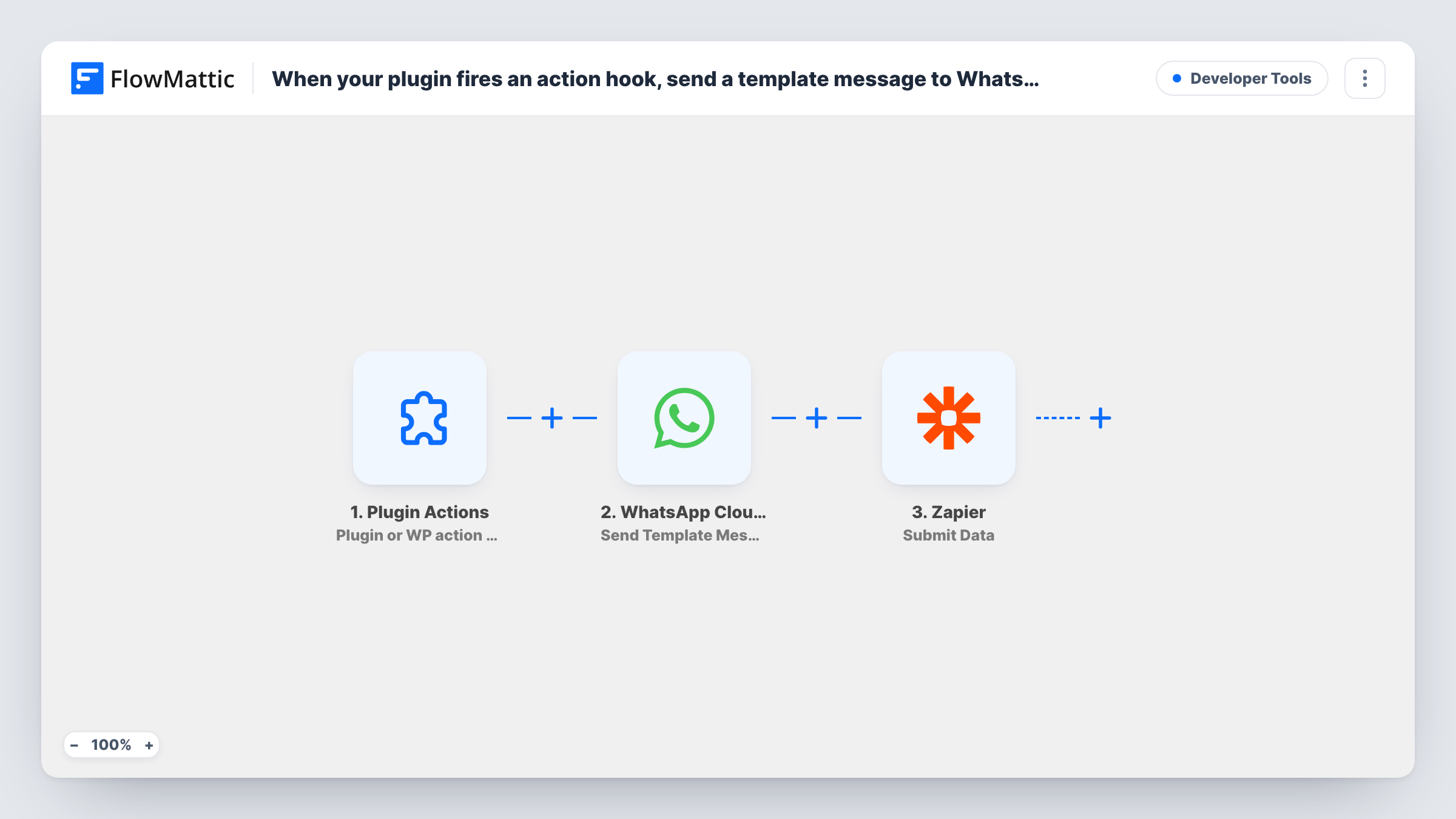
When a WordPress or plugin action hook you name fires, FlowMattic sends an approved WhatsApp template message through WhatsApp Cloud API and then submits the hook’s data to Zapier.
 Plugin Actions
 WhatsApp Cloud API
 Zapier
3 steps Setup ~5 min Used on 1.5k sites Free to import
What this workflow does
Many WordPress plugins fire action hooks for their own events, even when no ready-made integration exists for them. If you know the hook name, this workflow can react to it: one message goes out on WhatsApp, and the same data is handed to Zapier so a Zap can carry it to apps you already run there.
The Plugin Actions trigger starts a run when the action you provide is fired by your plugin or by WordPress. Whatever arguments that hook passes become data you can map. Which values are available depends entirely on the hook, so fire it once and look in Task History to see what arrived.
The second step sends a WhatsApp template message through WhatsApp Cloud API. You pick an approved template, map a phone number in international format and fill its variables. The number must come from the hook's data or be a fixed one, such as your own. The last step is Zapier Submit Data, which forwards the values you map to Zapier, where a Zap picks them up.
None of the steps are set in the template. After import, enter the hook name, set up the template message and map the fields you want Zapier to receive.
Membership plugin events without an integration
A site uses a membership plugin that fires a hook when a plan is upgraded. The member gets a WhatsApp template, and a Zap updates the accounting tool.
Owner alerts from a custom plugin
A developer's own booking plugin fires a hook for each new booking. The site owner gets a WhatsApp template on their phone, and Zapier logs the booking elsewhere.
Keeping an existing Zap while adding WhatsApp
A team that already processes form data in Zapier adds a WhatsApp notice for the customer, while the Zap keeps doing the rest.
How this workflow runs
What happens at each step once the workflow is on, and what you need before you import it.
 Plugin Actions Plugin or WP action triggered
Starts a run whenever the action hook you enter is fired by a plugin or by WordPress. The arguments the hook passes become values you can map in the next steps.
- WhatsApp Cloud API Send Template Message
Messages someone on WhatsApp with one of your approved templates. Choose the template, map a phone number from the hook data or enter a fixed one, and fill the variables.
- Zapier Submit Data
Submits the values you map to Zapier, where a Zap receives them. Map the fields from the hook that your Zap needs after import.
What you need
- FlowMatticCore
- WhatsApp Cloud API AccountAccount
- Zapier AccountAccount
After importing, map your own data. To keep the template universal, not every step is pre-filled. Open each step in the builder and connect your accounts and fields (channels, lists, sheets, recipients) before you switch the workflow on.
Make it yours
Changes worth making after you import it.
- Fire the hook once on a staging site and check Task History before mapping, since every plugin hook passes different arguments.
- Use a fixed recipient number in the WhatsApp step if the hook doesn't pass a customer phone, so the message goes to you or your team instead.
- Add a Filter between the Plugin Actions trigger and the WhatsApp step if the hook fires for cases you don't want messages for. The condition depends on what your hook passes, so set it from a test run.
Questions about this workflow
How do I know which action hook name to use?
Check the plugin's developer documentation or code for the do_action calls it makes, then enter that hook name in the Plugin Actions trigger.
Do I need an approved WhatsApp template for the message?
Yes. The Send Template Message step sends templates approved for your WhatsApp Business account. Free-form text isn't used here.
What do I need on the Zapier side to receive the data?
A Zap that starts from the data FlowMattic submits. Set up the Zap, send a test from this workflow, and map the received fields in Zapier.
Does the plugin action hook pass the same data every time?
It passes whatever the plugin sends each time it fires that hook. The structure normally stays the same, but the values change with each event.
More Developer Tools workflows
Other ready-to-import templates from the same category.







Import this workflow into your WordPress site
Download the JSON, import it from the Workflows screen and connect your accounts. Every run stays on your server, with no per-task fees.
30-day money-back guarantee Unlimited workflows and runs Self-hosted