

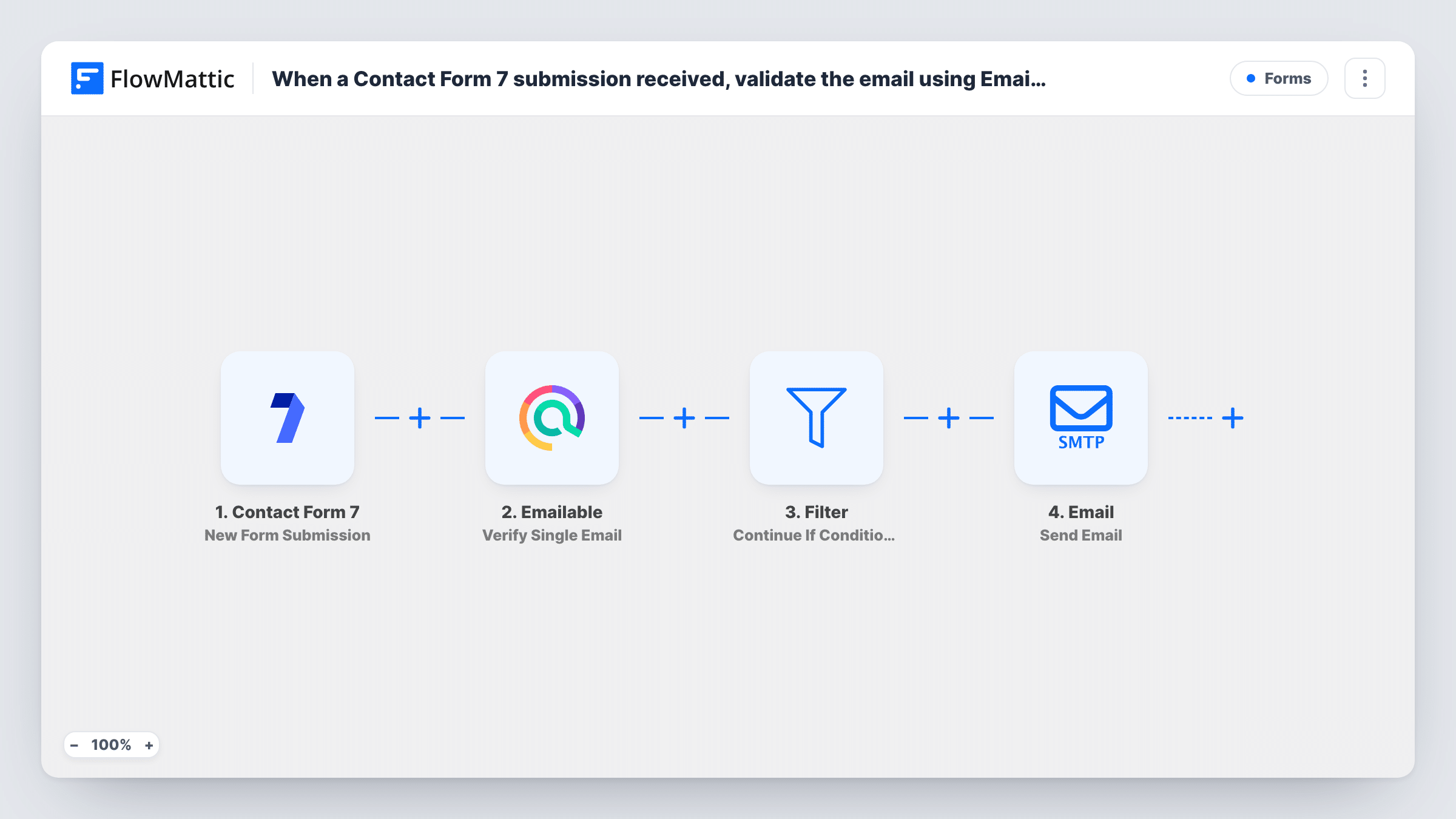
When a Contact Form 7 submission received, validate the email using Emailable, check if response is valid using Filters, and send an email to the email address using Email Module
Check each Contact Form 7 submitter’s email address with Emailable, pass it through a Filter you set to valid results, and send that address an email from FlowMattic’s Email module.
 Contact Form 7
 Emailable
 Filter
 Email
4 steps Setup ~8 min Used on 311 sites Free to import
What this workflow does
Sending a reply to every form entry means sending some to mistyped or made-up addresses. Those bounce, and bounces count against your sending domain. This workflow checks the address first and emails only the ones that pass.
When someone submits a Contact Form 7 form, FlowMattic sends the submitted email address to Emailable with Verify Single Email. Emailable's answer becomes data the next steps can use.
A Filter sits after the check, but the template ships it with no condition. As imported, an empty Filter stops every run, so nobody gets an email until you add a rule. Set it to continue only when Emailable's result shows a valid address; a test submission shows you the exact field and value to compare.
Addresses that pass reach the last step, FlowMattic's Email module, which sends through WordPress mail or the SMTP account you connect. You write the subject and body, so it can be a confirmation, a reply or a download link.
Confirmation emails for enquiries
A consultant's Contact Form 7 enquiry form sends a confirmation only to addresses Emailable accepts, so typos don't bounce back to the site's mail account.
Guide or brochure requests
Visitors ask for a price guide through the form. The email with the download link goes only to addresses that pass the check.
Event registration replies
Registrants for a workshop get the venue details by email, while fake or mistyped addresses stop at the Filter and receive nothing.
How this workflow runs
What happens at each step once the workflow is on, and what you need before you import it.
 Contact Form 7 New Form Submission
Starts the run as soon as a Contact Form 7 entry comes in from any form you choose to watch. The email field and the other answers are passed to the following steps.
- Emailable Verify Single Email
Sends the submitted address to Emailable for verification. Map the form's email field here and connect your Emailable account; the result is available to the Filter.
- Filter Continue If Condition Meet
Ships with no condition, and an empty Filter stops every run. Add a rule on Emailable's result so only valid addresses continue to the email step.
 Email Send Email
Sends your email to the verified address through WordPress mail or your SMTP account. Map the form's email field as the recipient and write the subject and message.
What you need
- FlowMatticCore
- Contact Form 7 PluginPlugin
- Emailable AccountAccount
After importing, map your own data. To keep the template universal, not every step is pre-filled. Open each step in the builder and connect your accounts and fields (channels, lists, sheets, recipients) before you switch the workflow on.
Make it yours
Changes worth making after you import it.
- Make the email field required in Contact Form 7 (email* in the form tag) so every submission gives Emailable an address to check.
- Submit one entry with a real address and one with a made-up address after import. Task History then shows the result values to use in the Filter condition.
- Want a record of rejected addresses? Swap the Filter for a Router with two routes, one that sends the email and one that adds a row to Google Sheets for the failures.
Questions about this workflow
Why does nobody get an email right after I import this Contact Form 7 workflow?
The Filter has no condition as imported, and an empty Filter stops every run. Add a condition on Emailable's result and the email step will run for addresses that pass.
Does Contact Form 7 still send its own mail?
Yes. The workflow starts after the submission and doesn't change the form's mail settings, so its usual notification still goes out.
Do I need an Emailable account to use this?
Yes. The verification step runs through your Emailable account, which you connect on import.
Can I send through Gmail instead of the Email module?
Yes. Enter Gmail's SMTP details in the Email step, or replace the step with the Gmail app's Send Email action.
More Forms workflows
Other ready-to-import templates from the same category.




Import this workflow into your WordPress site
Download the JSON, import it from the Workflows screen and connect your accounts. Every run stays on your server, with no per-task fees.
30-day money-back guarantee Unlimited workflows and runs Self-hosted