

When an UpGuard organization score drops, log it in Google Sheets and alert Slack
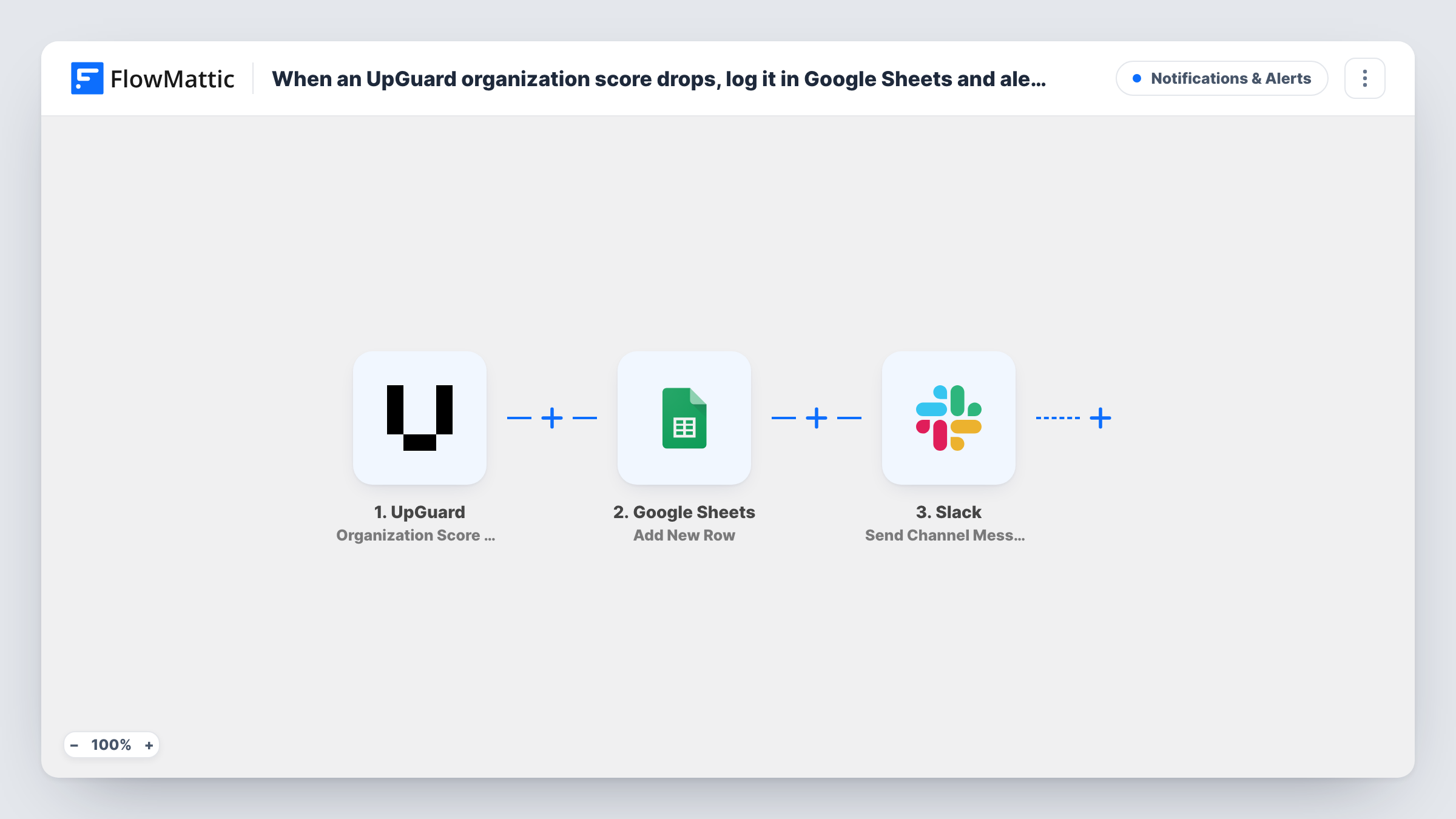
When UpGuard reports that your organization’s security score has dropped, FlowMattic adds a row to a Google Sheets log and posts an alert to a Slack channel, so the drop is recorded and seen.
 UpGuard
 Google Sheets
 Slack
3 steps Setup ~5 min Used on 3.3k sites Free to import
What this workflow does
A falling UpGuard score usually means something changed on your external attack surface: an expired certificate, an exposed service, a new finding. Security and IT teams want two things when that happens: a record they can review later and a prompt for someone to look now. This workflow gives you both from a single UpGuard event.
The UpGuard trigger, Organization Score Drop, is described by FlowMattic as firing when the organization score drops by a given amount in the specified period. FlowMattic receives the details UpGuard sends with that event; one test run shows which fields, such as the old and new score, are available.
A Google Sheets step adds a row for each drop, and a Slack step then posts a channel message. Neither is mapped in the template. After import you pick the spreadsheet and match UpGuard values to your columns, then choose the Slack channel and write the alert text with the score details mapped in.
Over time the sheet becomes a history of score drops you can bring to a review meeting or a vendor discussion. Check Task History after the first real event to see what UpGuard sent and how each step responded.
Security channel heads-up
A small IT team without a SOC gets a Slack post in its security channel when the company's UpGuard score falls, so someone checks the new findings that day.
Quarterly risk review evidence
A compliance lead opens the Google Sheet before each quarterly review to show every score drop, when it happened and what the team did about it.
Managed service provider reporting
An MSP imports the workflow per client, giving each one its own sheet of score drops to include in monthly reports.
How this workflow runs
What happens at each step once the workflow is on, and what you need before you import it.
 UpGuard Organization Score Drop
Starts the workflow when UpGuard reports that your organization score dropped by a given amount within the specified period. The score data from UpGuard is passed to the next steps.
- Google Sheets Add New Row
Appends one row per score drop to your chosen sheet. The template leaves the columns unmapped: pick the spreadsheet and map the UpGuard fields, such as the scores and date, into your columns.
- Slack Send Channel Message
Sends the score drop alert into the Slack channel you pick. Write the message after import, mapping in the score details so readers know how far it fell.
What you need
- FlowMatticCore
- UpGuard AccountAccount
- Google Sheets AccountAccount
- Slack AccountAccount
After importing, map your own data. To keep the template universal, not every step is pre-filled. Open each step in the builder and connect your accounts and fields (channels, lists, sheets, recipients) before you switch the workflow on.
Make it yours
Changes worth making after you import it.
- Add a notes or owner column to the sheet that the workflow leaves blank, so your team can record what caused each drop and who handled it.
- Mention the on-call person or a Slack user group in the message text if a score drop should get a reply quickly.
- For a private security channel, swap the Slack step for the Send Private Channel Message action, since Send Channel Message is for standard channels.
Questions about this workflow
How big does the UpGuard score drop need to be?
FlowMattic describes the trigger as firing when the score drops by a given amount in a specified period. Check the trigger's setup after import to see where that amount and period are set.
Does this track vendor scores as well as my own organization?
No. The trigger is the organization score drop. Vendor risk changes are separate UpGuard events and would need their own workflow.
Can the UpGuard score drop alert also go out by email?
Yes. Add FlowMattic's Email step after the Slack step, enter your security team's address and map the same UpGuard fields into the subject and body.
More Notifications & Alerts workflows
Other ready-to-import templates from the same category.




Import this workflow into your WordPress site
Download the JSON, import it from the Workflows screen and connect your accounts. Every run stays on your server, with no per-task fees.
30-day money-back guarantee Unlimited workflows and runs Self-hosted