

Send an Email SMTP report summarizing each new Optimizely bounce
Each time Optimizely creates a new bounce event, this workflow emails a short report about it through WordPress mail or your SMTP server, so the people who track bounces hear about each one in their inbox.
 Optimizely
 Email
2 steps Setup ~5 min Used on 1.5k sites Free to import
What this workflow does
Bounce events in Optimizely are easy to miss if nobody is watching the account. This workflow turns each new bounce into an email you write yourself, so the person responsible gets the details without logging in to check.
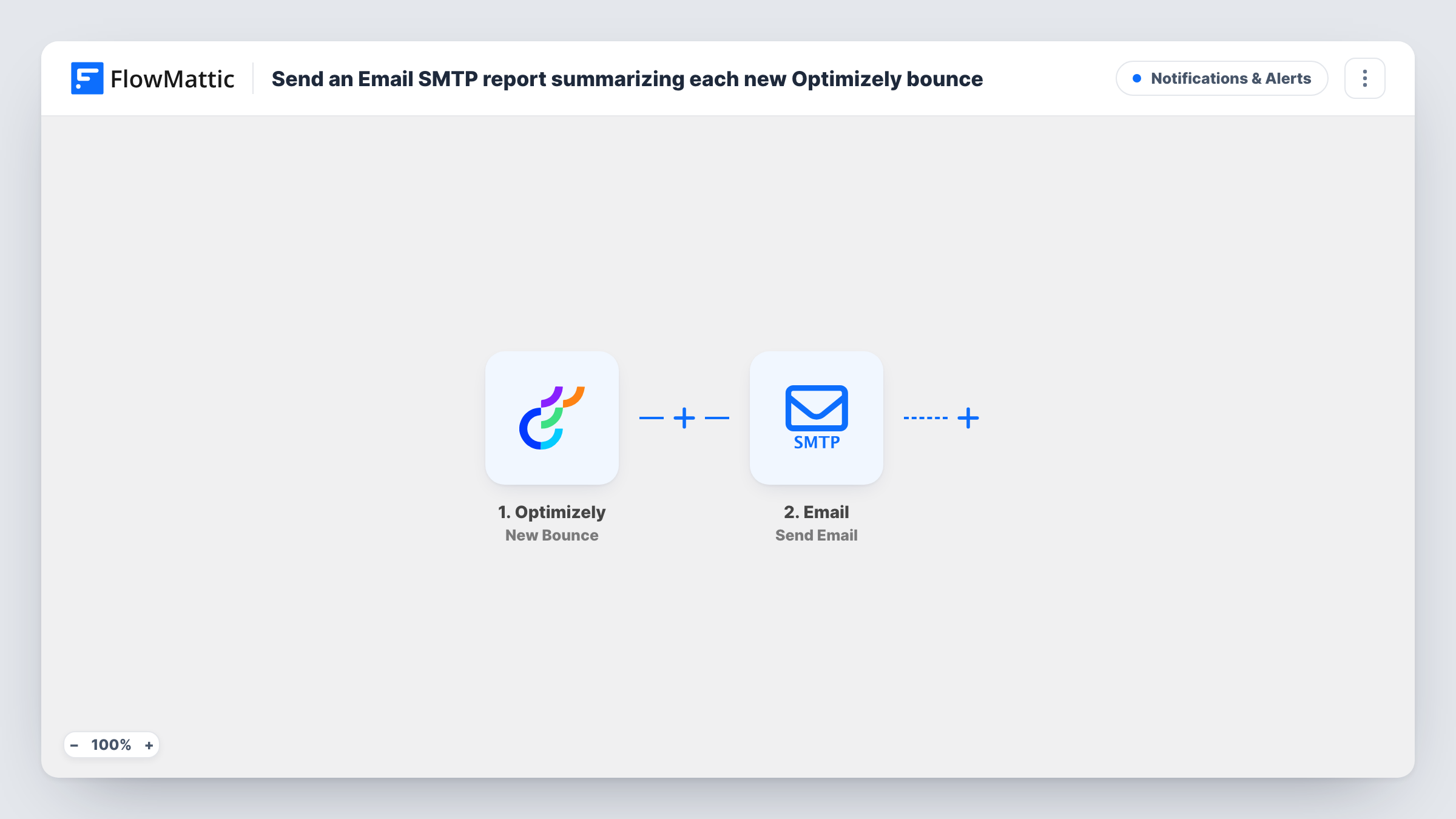
The Optimizely trigger fires when a new bounce event is created. The data Optimizely sends with that event becomes available in FlowMattic. The Email step then sends a message through WordPress mail or the SMTP server you set up. You choose the recipients and write the subject and body, placing the bounce details where you want them.
One bounce means one email, since the template has no Filter or batching step. If bounces arrive in bursts, your inbox receives a burst too. Task History keeps a record of each run, including the message that was sent.
Alerting the person who owns the account
The marketer who manages your Optimizely account gets an email for every new bounce, with the details laid out in a format they chose.
Copy to a shared mailbox
Send each bounce report to a team address, so whoever is on duty can look into it and the mailbox keeps a running record.
Client reporting for an agency
An agency running Optimizely for a client emails each bounce report to the client contact as well as the account manager.
How this workflow runs
What happens at each step once the workflow is on, and what you need before you import it.
 Optimizely New Bounce
Fires when a new bounce event is created in Optimizely. The data Optimizely includes with the event is passed to the email step for mapping.
 Email Send Email
Sends an email through WordPress mail or the SMTP server you configure. Set the recipients, write a subject, and map the Optimizely bounce details into the body.
What you need
- FlowMatticCore
- Optimizely AccountAccount
After importing, map your own data. To keep the template universal, not every step is pre-filled. Open each step in the builder and connect your accounts and fields (channels, lists, sheets, recipients) before you switch the workflow on.
Make it yours
Changes worth making after you import it.
- Trigger one bounce event, or wait for the first, then look at the run in Task History to see which Optimizely fields you can place in the report.
- Add a Filter after the trigger if you only want reports for bounces that match a value in the event data, so routine ones don't reach your inbox.
- Prefer one row per bounce in a spreadsheet? Add a Google Sheets step after the email, or swap the email for it, to keep a log you can sort.
Questions about this workflow
What counts as a new bounce in Optimizely?
The trigger fires whenever Optimizely creates a new bounce event. FlowMattic doesn't decide what a bounce is; it passes on what Optimizely reports.
Can the Optimizely bounce report go to several people?
Yes. Add every address you want in the recipient settings of the Email step, or send it to a group mailbox.
Does it send a daily summary instead of one email per bounce?
Not as imported. Each bounce event sends its own email. For a daily digest, log bounces to a sheet and send a summary from a separate scheduled workflow.
Do I need an SMTP provider to send the Optimizely reports?
No. The Email step can use WordPress's built-in mail function. Connect an SMTP server instead if you want to send from a particular provider.
More Notifications & Alerts workflows
Other ready-to-import templates from the same category.




Import this workflow into your WordPress site
Download the JSON, import it from the Workflows screen and connect your accounts. Every run stays on your server, with no per-task fees.
30-day money-back guarantee Unlimited workflows and runs Self-hosted