

Log each new PageProof proof in a Google Sheets spreadsheet
Every time a proof is created in PageProof, this workflow adds a row to a Google Sheets spreadsheet, giving you a running list of proofs your team and clients can see without logging in to PageProof.
 PageProof
 Google Sheets
2 steps Setup ~5 min Used on 3.4k sites Free to import
What this workflow does
PageProof keeps proofs and their reviews in one place, but it isn't where you plan workload, bill clients or report to a manager. A spreadsheet of every proof is easier to share, filter and total. This workflow builds that list as proofs are created.
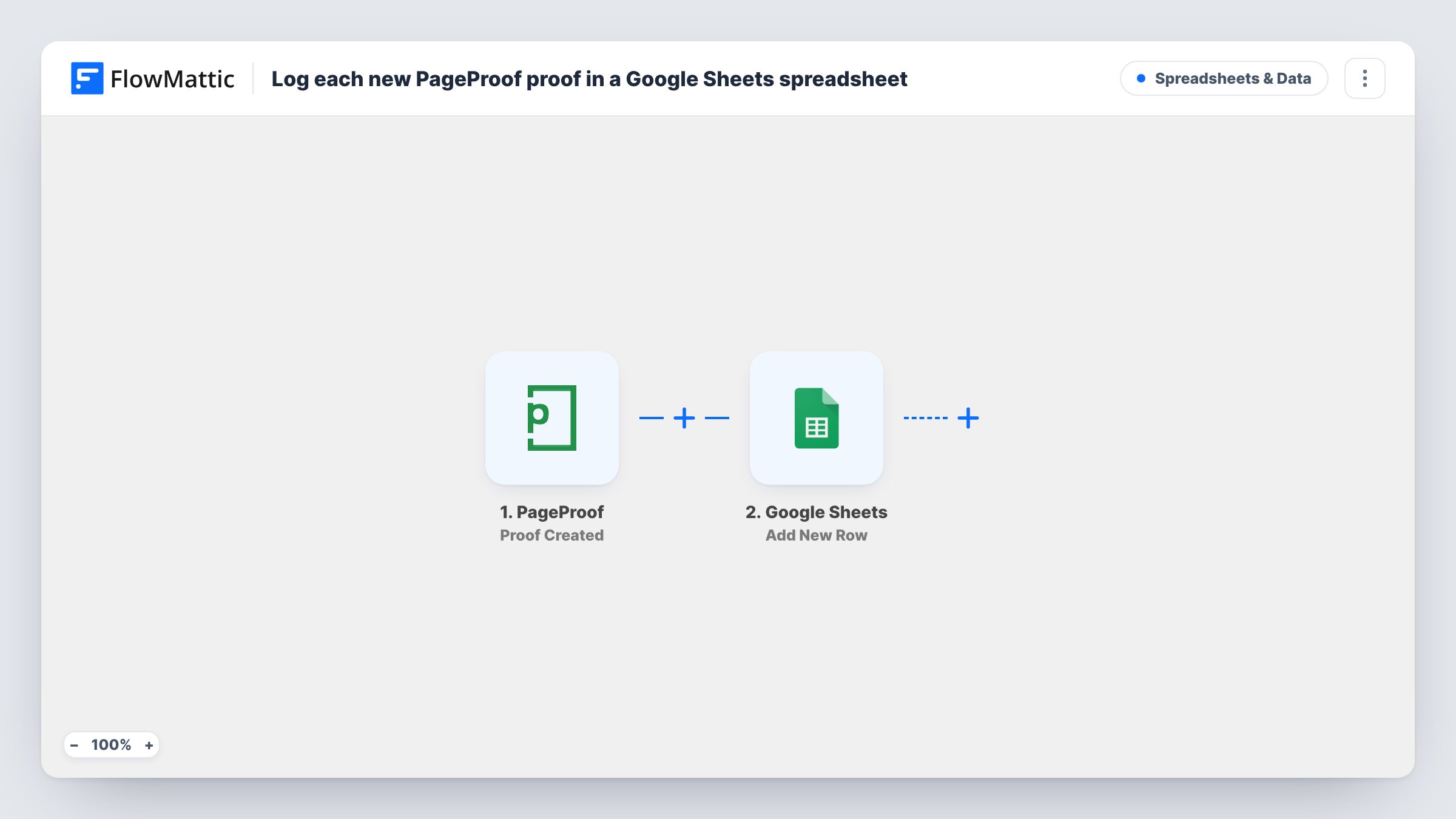
The PageProof trigger fires when a proof is created in your connected account. FlowMattic passes the proof data PageProof sends on to Google Sheets, where the Add New Row action writes it to the spreadsheet and columns you pick.
Only new proofs start a run. Later changes, such as a review decision on a proof, don't update its row, because the template has no trigger for them. The row is a record of the moment the proof was created.
Weekly workload view for a design studio
A studio manager counts the rows per project each Friday to see how much proofing the week produced, without opening each project in PageProof.
Billing record for agency clients
An agency that charges per round of proofing uses the sheet as the list of proofs created for each client when it prepares invoices.
Proof log for a print shop
A print shop keeps one sheet of every proof sent out, which front-desk staff can read when a customer calls about an artwork.
How this workflow runs
What happens at each step once the workflow is on, and what you need before you import it.
 PageProof Proof Created
Runs when a proof is created in your connected PageProof account. The proof data PageProof sends becomes available to map in the next step.
- Google Sheets Add New Row
Appends a row to the Google Sheets spreadsheet you select for each new proof. Map the PageProof proof data into your columns and connect your Google account on import.
What you need
- FlowMatticCore
- PageProof AccountAccount
- Google Sheets AccountAccount
After importing, map your own data. To keep the template universal, not every step is pre-filled. Open each step in the builder and connect your accounts and fields (channels, lists, sheets, recipients) before you switch the workflow on.
Make it yours
Changes worth making after you import it.
- Create a test proof in PageProof after import so FlowMattic captures the proof fields, then map them to your sheet columns before you switch the workflow on.
- Add a Filter after the trigger with a rule on a proof value you care about, so only the proofs for one client or project reach this spreadsheet. Proofs that fail the rule add no row.
- Add a Slack or email step after Google Sheets if your team also wants a message each time a new proof is logged.
Questions about this workflow
Are PageProof proofs created before the import added to the sheet?
No. The trigger runs for proofs created after you turn the workflow on. Add older proofs to the sheet yourself if you want a complete history.
Does the row change when a PageProof proof is approved?
No. The workflow only runs on proof creation and adds a new row each time. It never edits rows it added earlier.
Do I need a PageProof account to use this?
Yes. You connect your PageProof account to the trigger and a Google account with edit access to the spreadsheet you want to fill.
More Spreadsheets & Data workflows
Other ready-to-import templates from the same category.




Import this workflow into your WordPress site
Download the JSON, import it from the Workflows screen and connect your accounts. Every run stays on your server, with no per-task fees.
30-day money-back guarantee Unlimited workflows and runs Self-hosted