

Log every new Kustomer conversation in a Google Sheets spreadsheet
Each new conversation created in Kustomer is added as a row in Google Sheets, giving your support team a running record of incoming threads that anyone can sort, chart or share outside the help desk.
 Kustomer
 Google Sheets
2 steps Setup ~5 min Used on 764 sites Free to import
What this workflow does
Kustomer holds your support conversations, but not everyone who cares about them works inside it. Managers want weekly counts, product teams want to scan what customers raise, and some reports are easier to build in a spreadsheet. This workflow gives them a sheet that grows with every new conversation.
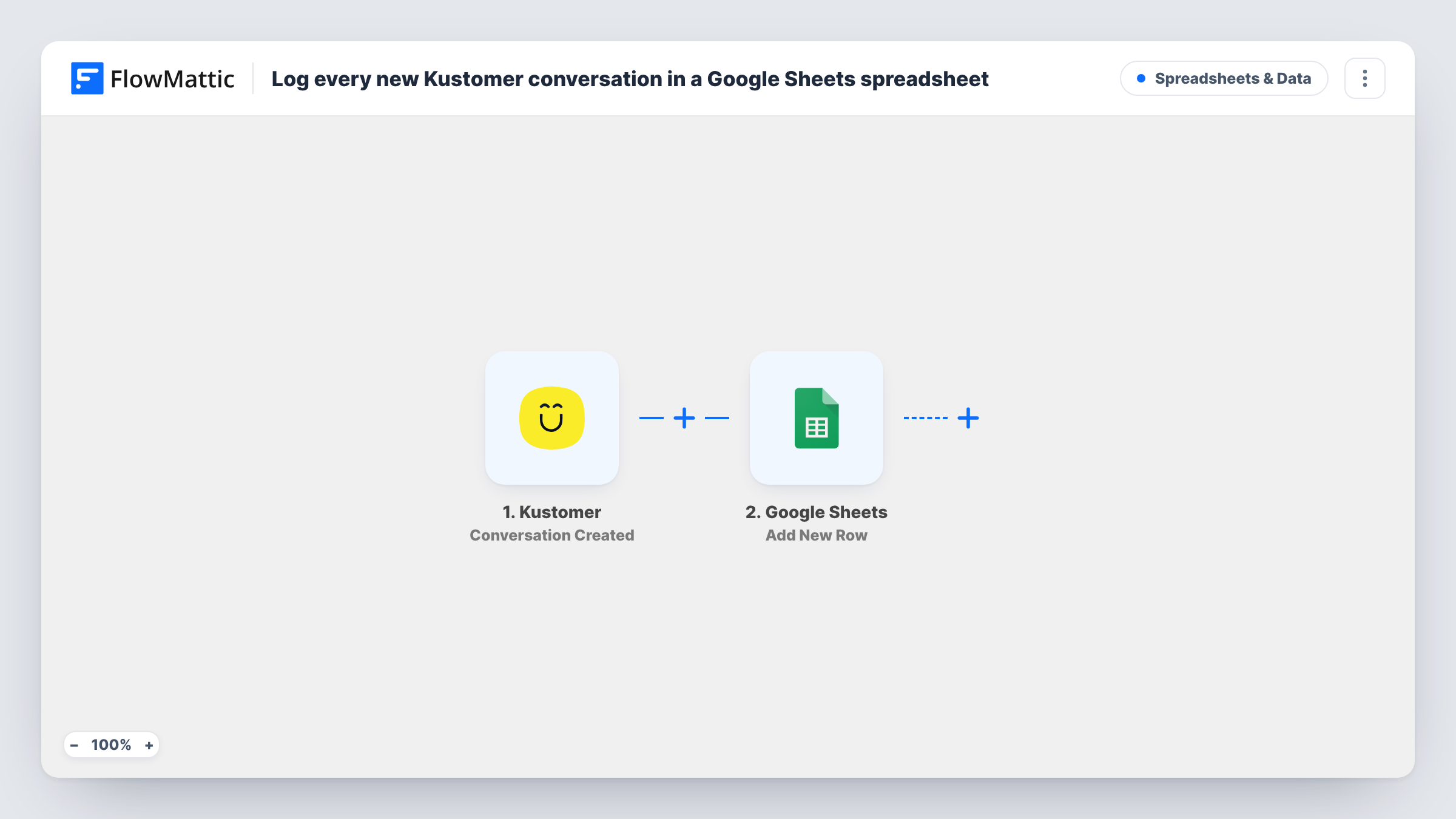
The Kustomer trigger fires when a new conversation is created. FlowMattic passes the conversation's data to Google Sheets, which adds a row to the spreadsheet you choose. You pick the columns and map the Kustomer values that belong in each.
The row is a snapshot from the moment the conversation was created. Later replies, status changes and reassignments in Kustomer don't change it; those come through the separate Conversation Updated trigger. Task History lists every run if you need to trace a missing row.
Weekly support volume report
A support lead charts new conversations per day from the sheet, without needing extra Kustomer seats for the people who read the report.
Sharing customer topics with product
The product team scans a shared spreadsheet of new Kustomer conversations each week to spot recurring requests and bugs.
Backup log for audits
A regulated business keeps a separate record of when each customer conversation started, kept in a Google Sheet outside the help desk.
How this workflow runs
What happens at each step once the workflow is on, and what you need before you import it.
 Kustomer Conversation Created
Fires when a new conversation is created in your Kustomer account. The conversation's data is handed to the Google Sheets step for mapping.
- Google Sheets Add New Row
Logs the conversation on a new row of the spreadsheet you choose. Connect your Google account and map the Kustomer values to your column headers.
What you need
- FlowMatticCore
- Kustomer AccountAccount
- Google Sheets AccountAccount
After importing, map your own data. To keep the template universal, not every step is pre-filled. Open each step in the builder and connect your accounts and fields (channels, lists, sheets, recipients) before you switch the workflow on.
Make it yours
Changes worth making after you import it.
- Start a test conversation in Kustomer after import so FlowMattic captures the values it sends, then map them to the sheet's columns.
- Add a Filter after the trigger if only some conversations belong in the log, such as those from one channel, using a value the test run shows.
- If you want a log of each customer as well, Kustomer's Customer Created trigger can feed a second sheet in a copy of this workflow.
Questions about this workflow
Does the Google Sheets row update when the Kustomer conversation changes?
No. The workflow adds a row when the conversation is created and doesn't touch it again. Updates come through Kustomer's Conversation Updated trigger, which this template doesn't use.
Are new messages in an existing Kustomer conversation logged?
No. Only new conversations start a run. Kustomer's Message Created trigger is a separate event you could log in its own workflow.
Will Kustomer conversations from before import be copied?
No. Only conversations created after you turn the workflow on are added to the sheet.
More Spreadsheets & Data workflows
Other ready-to-import templates from the same category.



Import this workflow into your WordPress site
Download the JSON, import it from the Workflows screen and connect your accounts. Every run stays on your server, with no per-task fees.
30-day money-back guarantee Unlimited workflows and runs Self-hosted