

Send a Slack alert when an Onfleet task is completed
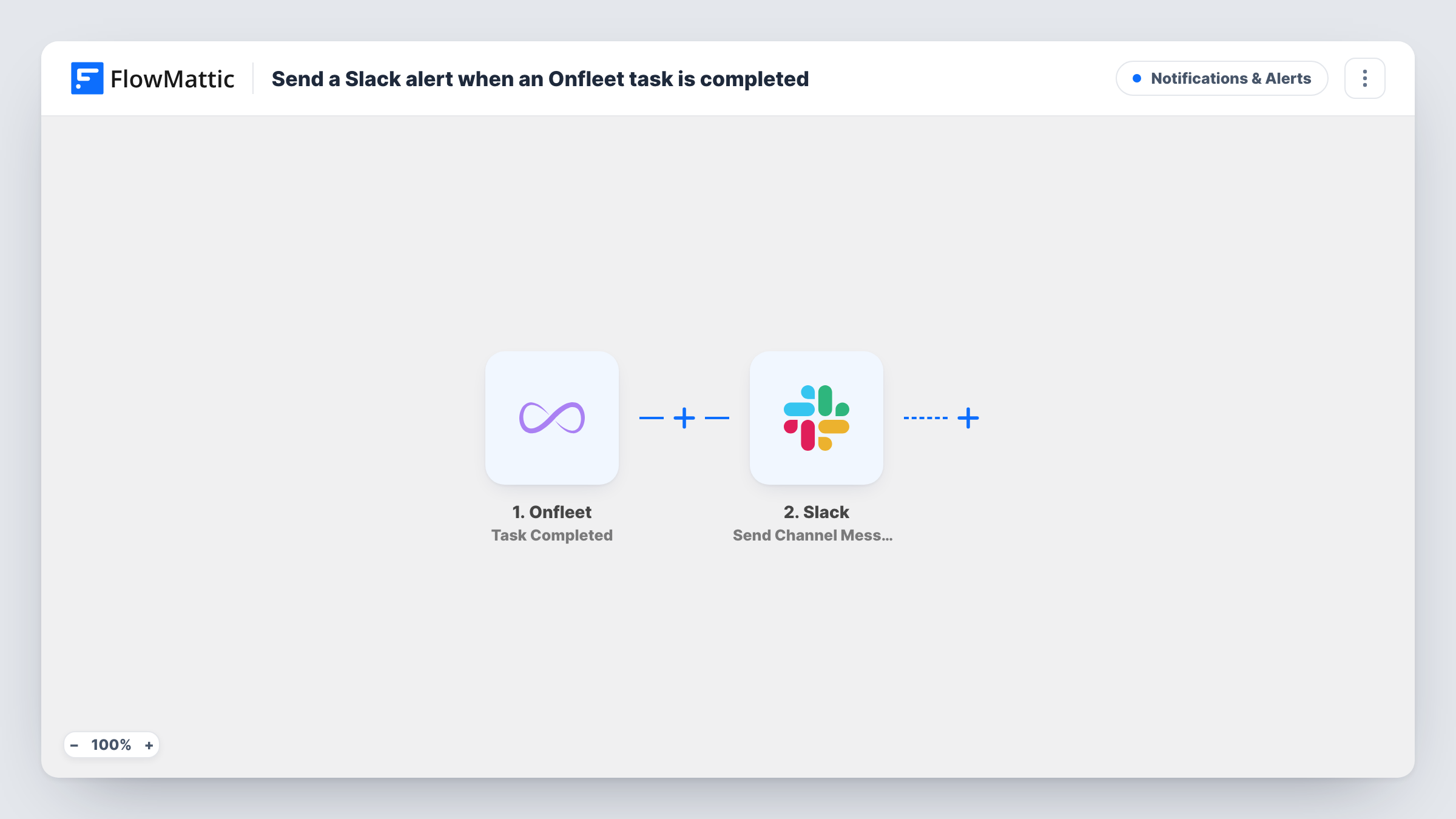
When a driver completes an Onfleet task, this workflow posts a message to the Slack channel you pick, so dispatchers and support staff see finished deliveries without watching the Onfleet dashboard.
 Onfleet
 Slack
2 steps Setup ~5 min Used on 2.8k sites Free to import
What this workflow does
Dispatchers, support agents and account managers all want to know when a delivery is done, but not all of them live in Onfleet. Customers call to ask where their order is, and the answer is often already sitting in the dashboard. This workflow puts each completed task in front of the team where they already talk.
The Onfleet trigger uses Task Completed, which fires when a task is completed. The task data Onfleet sends with that event becomes available to map. The Slack step then drops a message into a channel of your choice, made of the text you write and the task fields you add.
The template has no Filter, so every completed task in the connected Onfleet account produces one Slack message. On a busy day that can be a lot of posts, so pick a channel set aside for delivery updates. Its single job is the Slack post. It does not change the task in Onfleet or contact the recipient. Task History shows each run and what Slack sent back.
Support team answering delivery questions
Agents watch a #deliveries channel. When a customer asks about an order, the completion message is already there to check.
Dispatcher tracking a route from the office
A dispatcher follows the day's progress in Slack as each stop is completed, without keeping the Onfleet dashboard open on another screen.
Catering or florist deliveries for events
The events team needs to know the order reached the venue. A Slack message for each completed task tells them the driver has closed out that stop.
How this workflow runs
What happens at each step once the workflow is on, and what you need before you import it.
 Onfleet Task Completed
Fires when a task is completed in your Onfleet account. The task details Onfleet sends become available for mapping into the Slack message.
- Slack Send Channel Message
Posts one message per completed task to the Slack channel you set. Write the text and map Onfleet task fields into it, then connect your Slack workspace on import.
What you need
- FlowMatticCore
- Onfleet AccountAccount
- Slack AccountAccount
After importing, map your own data. To keep the template universal, not every step is pre-filled. Open each step in the builder and connect your accounts and fields (channels, lists, sheets, recipients) before you switch the workflow on.
Make it yours
Changes worth making after you import it.
- Complete a test task in Onfleet after import so FlowMattic captures the task fields. Then map the details your team needs, such as the recipient or address, into the message.
- If one channel should only see a single team's deliveries, add a Filter after the trigger on whichever task field identifies the team, as your test run shows it.
- Want a head start before the drop-off? Import a second copy and switch its trigger to Onfleet's Task Started event, so the channel also hears when a driver sets off.
Questions about this workflow
Does every completed Onfleet task post to Slack?
Yes, as imported. There is no Filter, so each task completed in the connected account sends one message. Add a Filter on a task field to narrow it down.
Can the Onfleet completion message go to a private Slack channel?
Replace the step with Slack's Send Private Channel Message action. The current Send Channel Message step posts to the channel you pick in its settings.
Does the workflow notify the delivery recipient?
No. It only posts in your Slack workspace. It does not message the recipient or change anything in Onfleet.
Are tasks completed before import posted to Slack?
No. Only tasks completed while the workflow is turned on start a run. Earlier tasks stay in Onfleet's history.
More Notifications & Alerts workflows
Other ready-to-import templates from the same category.



Import this workflow into your WordPress site
Download the JSON, import it from the Workflows screen and connect your accounts. Every run stays on your server, with no per-task fees.
30-day money-back guarantee Unlimited workflows and runs Self-hosted