

When an idea marked as bug in Frill.co, notify QA team in Slack
When an idea on your Frill.co board is marked as a bug, this workflow posts a message to a Slack channel, so your QA team hears about it in the place they already watch.
 Frill.co
 Slack
2 steps Setup ~5 min Used on 2.7k sites Free to import
What this workflow does
Frill.co collects ideas and feedback from your users. Some of those turn out to be bug reports rather than feature requests, and once your team marks them that way, the people who test and fix need to know. Waiting for someone to check the Frill board means reports sit unseen. This workflow sends each one to Slack as soon as it is marked.
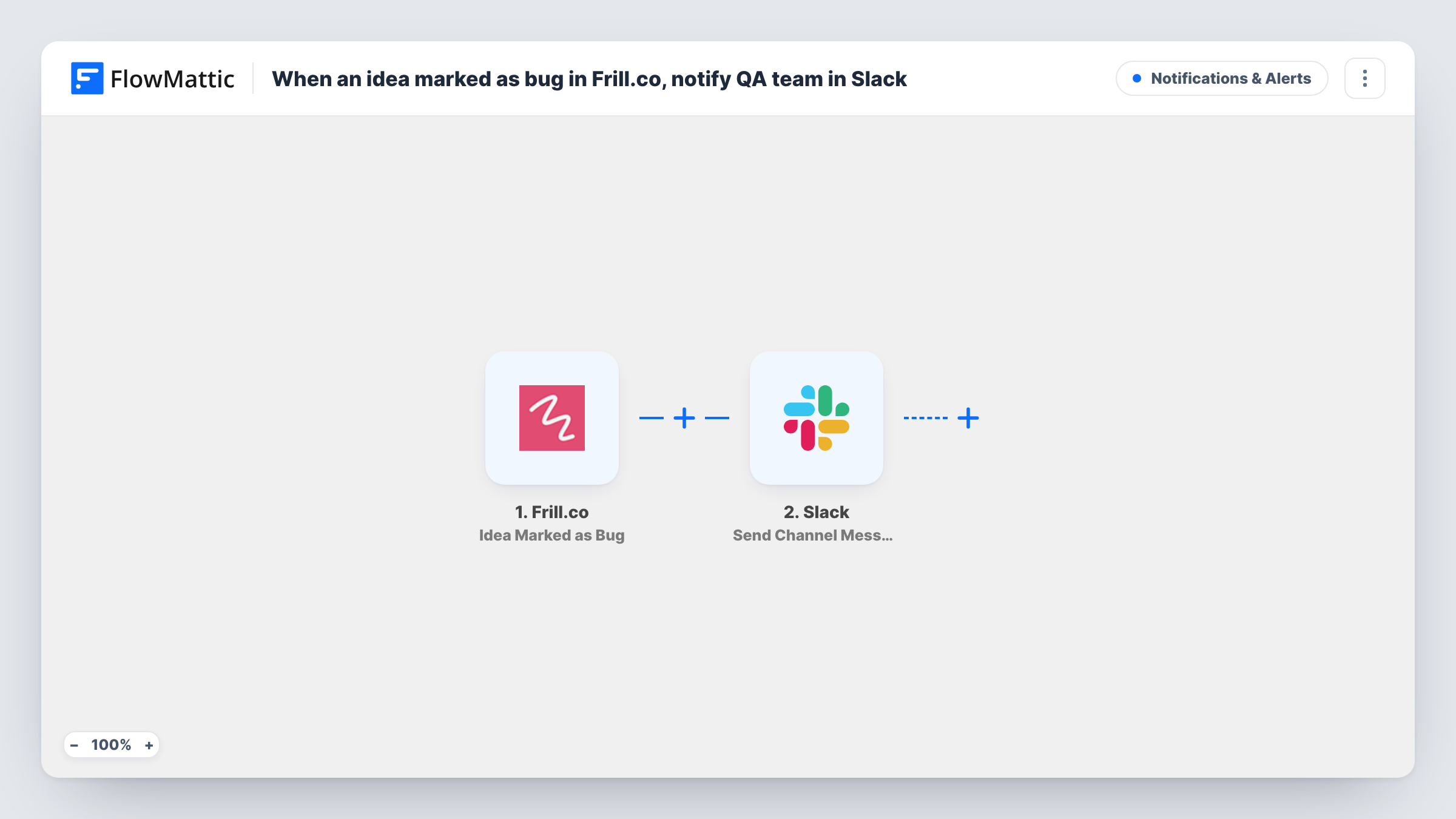
The Frill.co trigger fires when an idea is marked as a bug. The idea's details, such as its title and description, become data you can map. The second step uses Slack to send a message to the channel you choose, built from those details.
You write the message text yourself after import, so it can say whatever your QA team needs: the idea's title, a short summary, or a line asking someone to pick it up. Ideas that are never marked as bugs do not trigger the workflow. Every alert sent is recorded in Task History.
A dedicated QA alerts channel
Product managers triage the Frill board and mark real defects as bugs. Each one appears in a #qa-alerts Slack channel where testers take turns reproducing it.
Small teams without a bug tracker
A two-person software business uses Frill for all feedback. A Slack message whenever an idea is marked as a bug keeps fixes from slipping between releases.
Keeping developers in the loop
Support staff mark user reports as bugs in Frill, and the development team sees them in its own Slack channel without needing a Frill login.
How this workflow runs
What happens at each step once the workflow is on, and what you need before you import it.
 Frill.co Idea Marked as Bug
Runs each time an idea on your Frill.co board is marked as a bug. Details of that idea are passed to the Slack step so you can include them in the message.
- Slack Send Channel Message
Posts a message to a Slack channel you pick. Connect your Slack workspace, choose the QA channel, and write the message using the idea's details from Frill.co.
What you need
- FlowMatticCore
- Frill.co AccountAccount
- Slack AccountAccount
After importing, map your own data. To keep the template universal, not every step is pre-filled. Open each step in the builder and connect your accounts and fields (channels, lists, sheets, recipients) before you switch the workflow on.
Make it yours
Changes worth making after you import it.
- Mark a test idea as a bug in Frill.co after import so FlowMattic captures real idea data. You can then map the title and description into the Slack message.
- Add a Router if different products on your board should alert different Slack channels, with one route per product and its own Send Channel Message step.
- If the test alert doesn't show up in the QA channel, open Task History. The Slack step's response there tells you what went wrong, such as a channel the connected account cannot post to.
Questions about this workflow
Does every new Frill.co idea send a Slack message?
No. Only ideas marked as a bug start the workflow. New ideas and other status changes do not.
Which Slack channel receives the bug alert?
The one you pick in the Send Channel Message step after import. You can choose any channel your connected Slack account can post to.
Can the Slack message link back to the idea in Frill.co?
If Frill.co includes a link or ID for the idea in the data it sends, you can map it into the message. Run a test to see which values arrive.
More Notifications & Alerts workflows
Other ready-to-import templates from the same category.



Import this workflow into your WordPress site
Download the JSON, import it from the Workflows screen and connect your accounts. Every run stays on your server, with no per-task fees.
30-day money-back guarantee Unlimited workflows and runs Self-hosted