

Send a Slack alert to the fundraising team when a new Grassrootz donation is created
Post a message to your fundraising team’s Slack channel each time a donation is created in Grassrootz, so the people following up on gifts see them as they come in.
 Grassrootz
 Slack
2 steps Setup ~5 min Used on 2.1k sites Free to import
What this workflow does
A fundraising team that lives in Slack should not have to open another dashboard to learn that a gift arrived. Seeing donations in the channel lets someone pick up a thank-you quickly and keeps everyone aware of how a campaign is going. This workflow posts that message for you.
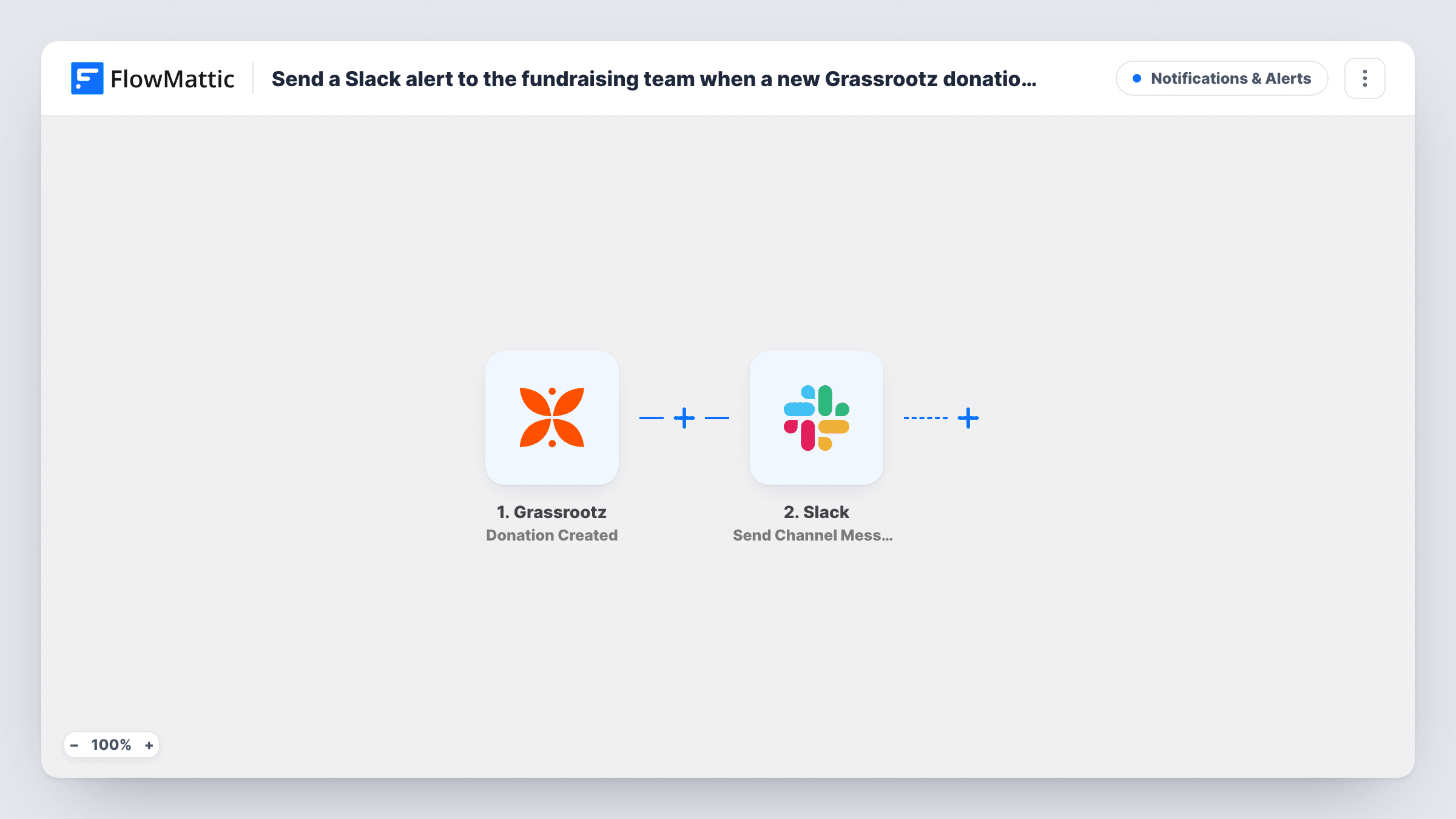
It starts with a Grassrootz trigger that fires for each new donation. FlowMattic passes the donation details it receives to the Slack Send Channel Message action. You pick the channel and write the message text, dropping in the donation details where you want them.
Every new donation produces one message. Nothing is changed in Grassrootz; the workflow only reads the event and posts to Slack. You can see each run, and the message that was sent, in Task History.
Same-day thank-yous
A team member sees the Grassrootz donation in the channel, replies in the thread to claim it, and sends the donor a personal thank-you that afternoon.
Campaign day updates
During a giving day, every Grassrootz donation shows up in a dedicated Slack channel so staff and volunteers can follow progress without refreshing a page.
Keeping leadership in the loop
Post donations to a channel your director and board chair follow, so they see each gift without asking for a report.
How this workflow runs
What happens at each step once the workflow is on, and what you need before you import it.
 Grassrootz Donation Created
Runs each time a donation is created in your Grassrootz account. The donation details it carries can be placed into the Slack message.
- Slack Send Channel Message
Sends your message to a Slack channel of your choice. Connect your Slack workspace, pick the channel, and write the text with the Grassrootz donation details you want your team to see.
What you need
- FlowMatticCore
- Grassrootz AccountAccount
- Slack AccountAccount
After importing, map your own data. To keep the template universal, not every step is pre-filled. Open each step in the builder and connect your accounts and fields (channels, lists, sheets, recipients) before you switch the workflow on.
Make it yours
Changes worth making after you import it.
- Add a Filter after the trigger that continues only when the amount is greater than a figure you set, so the channel hears about major gifts only. A blank amount counts as 0 and would not pass.
- Add a Google Sheets step after the Slack message to keep a row for each donation as well, giving you both the alert and a log.
- Use a Router with a condition on a campaign detail to post donations for different campaigns into different Slack channels.
Questions about this workflow
Which Slack channel do Grassrootz donation alerts go to?
The one you choose in the Send Channel Message step. Make sure the connected Slack account can post in that channel.
Will donors see these Slack messages?
No. The message goes only to your Slack workspace. The workflow sends nothing to the donor and changes nothing in Grassrootz.
Can the Slack message mention the donor and the campaign?
If the Donation Created event includes those details, yes. Run the trigger once after import to see what Grassrootz sends, then place those values in the message text.
Do donations from before the import trigger messages?
No. Only donations created in Grassrootz after you turn the workflow on are posted to Slack.
More Notifications & Alerts workflows
Other ready-to-import templates from the same category.




Import this workflow into your WordPress site
Download the JSON, import it from the Workflows screen and connect your accounts. Every run stays on your server, with no per-task fees.
30-day money-back guarantee Unlimited workflows and runs Self-hosted