

Send a Slack alert whenever a Pimcore object is updated
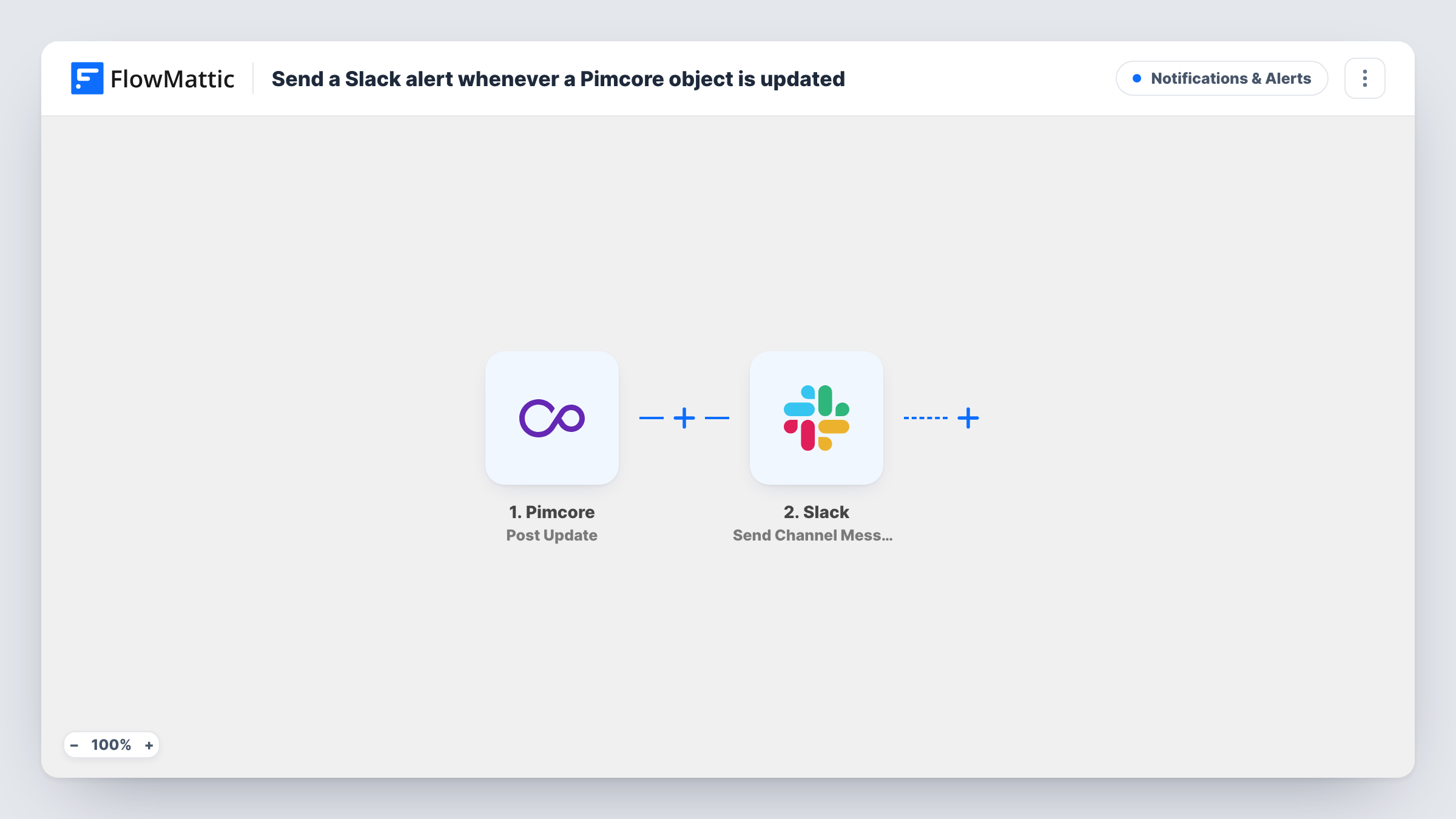
Each time Pimcore fires its postUpdate event for a saved element, this workflow posts a message in a Slack channel, so your team hears about changes to product and content data without checking Pimcore.
 Pimcore
 Slack
2 steps Setup ~5 min Used on 1.9k sites Free to import
What this workflow does
Changes in Pimcore can affect a lot downstream: a product price, a description on the shop, a document in a catalog. The people who care about those changes are often in Slack, not in the Pimcore admin. This workflow posts to a Slack channel each time Pimcore reports an update.
The Pimcore trigger listens for Pimcore's postUpdate event, which happens after an existing element is saved. The data sent with that event is passed to the Slack step, which posts a message to the channel you choose. You write the message and map in the values you want people to see, such as the element's key or path.
Expect a message for every save, not only meaningful edits. If editors save often, the channel can get busy, and a Filter is the way to narrow it down. The message reports that an update happened. Unless Pimcore's event data includes them, it does not show the old and new values, so check what a test save sends before you write the text.
Product data changes for the web team
Your e-commerce team sees a Slack message whenever a product in Pimcore is saved, so they know to check the shop listing.
Watching a sensitive folder
With a Filter on the path, only updates to elements in your pricing or legal folder post to a private Slack channel.
Keeping translators in the loop
Translators get a Slack post when source content in Pimcore is updated, so they know which items may need new translations.
How this workflow runs
What happens at each step once the workflow is on, and what you need before you import it.
 Pimcore Post Update
Runs on Pimcore's postUpdate event, after an existing element is saved. The data sent with that event is available to place in the Slack message.
- Slack Send Channel Message
Posts your message to the Slack channel you pick. Write the text and map in the Pimcore values that identify the element, then save a test element to see how the message reads.
What you need
- FlowMatticCore
- Pimcore AccountAccount
- Slack AccountAccount
After importing, map your own data. To keep the template universal, not every step is pre-filled. Open each step in the builder and connect your accounts and fields (channels, lists, sheets, recipients) before you switch the workflow on.
Make it yours
Changes worth making after you import it.
- Add a Filter after the Pimcore trigger that continues only for elements under a chosen path, so routine saves elsewhere do not flood the channel.
- Post to a dedicated Slack channel for Pimcore changes, so these alerts do not bury other conversations.
- Include the element's path or key in the message, so readers can find the right item in Pimcore straight away.
Questions about this workflow
Will every Pimcore save post to Slack?
Yes, as imported. Each postUpdate event runs the workflow, even when the save changed little. Add a Filter to limit it to the elements you care about.
Does the Slack message show what changed in Pimcore?
Only if Pimcore sends that information with the event. Save a test element after import and look at the captured data to see what you can include.
Does adding a new Pimcore element trigger this Slack alert?
No. This template uses Post Update. New elements fire Pimcore's postAdd event, which has its own Post Add trigger in FlowMattic.
More Notifications & Alerts workflows
Other ready-to-import templates from the same category.





Import this workflow into your WordPress site
Download the JSON, import it from the Workflows screen and connect your accounts. Every run stays on your server, with no per-task fees.
30-day money-back guarantee Unlimited workflows and runs Self-hosted