

Add rows to Smartsheet sheets from new emails parsed by FlowMattic
Emails sent to your FlowMattic Email Parser address become new rows in a Smartsheet sheet, so orders, requests or notices that arrive by email end up in a sheet your team can work from.
 Email Parser by FlowMattic
 Smartsheet
2 steps Setup ~5 min Used on 2.2k sites Free to import
What this workflow does
Plenty of useful data still arrives as email: order notices, booking confirmations, supplier updates, forwarded requests. Copying them into a tracker is slow and easy to get wrong. This workflow takes each email received by FlowMattic's Email Parser and adds it to Smartsheet as a row.
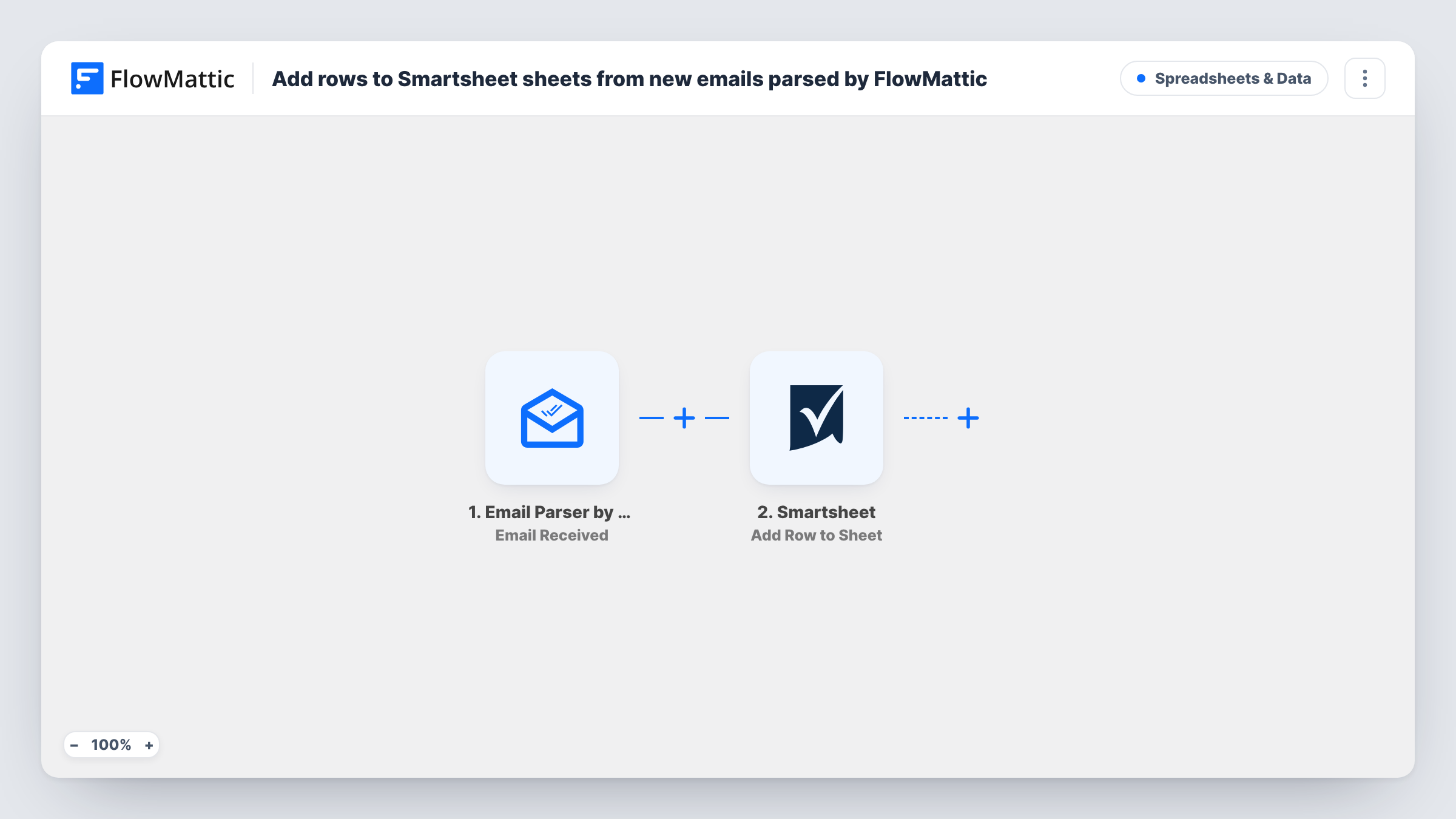
The Email Parser by FlowMattic trigger fires when an email arrives at the parser's email address. You send or forward messages there, and FlowMattic makes the email's data available to later steps. The Smartsheet step then adds a row to the sheet you pick, with each column filled from the values you map.
Every email that reaches the parser address produces one row. There is no check on the sender or subject as imported, so anything sent to that address ends up in the sheet. Task History shows each run, including the email data that was received.
Supplier order confirmations
Set your supplier's confirmation emails to forward to the parser address, and each one becomes a row in the Smartsheet you use to track deliveries.
Requests from a shared inbox
A team forwards customer requests to the parser address, and Smartsheet gets a row per request that can be assigned and tracked.
System notifications from tools without integrations
Software that can only send email alerts can still feed a Smartsheet log by sending its notices to the parser address.
How this workflow runs
What happens at each step once the workflow is on, and what you need before you import it.
 Email Parser by FlowMattic Email Received
Fires when an email is received at your Email Parser by FlowMattic address. The email's data is passed to the Smartsheet step so you can map it into columns.
- Smartsheet Add Row to Sheet
Writes a new row into whichever Smartsheet sheet you select at setup. Map values from the parsed email into the sheet's columns and connect your Smartsheet account.
What you need
- FlowMatticCore
- Smartsheet AccountAccount
After importing, map your own data. To keep the template universal, not every step is pre-filled. Open each step in the builder and connect your accounts and fields (channels, lists, sheets, recipients) before you switch the workflow on.
Make it yours
Changes worth making after you import it.
- Add a Filter after the trigger that continues only when the sender or subject matches what you expect, so stray emails sent to the parser address stay out of the sheet.
- Forward one sample email to the parser address after import, then use that run to map values in the Smartsheet step.
- If a column needs part of the email body, such as an order number, add a Text Formatter step between the two steps to pull it out before mapping.
Questions about this workflow
Which emails reach Smartsheet?
Every email received at the Email Parser address. Nothing filters them as imported, so add a Filter if only some senders or subjects should become rows.
Do I need a separate mailbox for the Email Parser?
The trigger listens to the email parser address that FlowMattic provides for the workflow, so you send or forward messages there rather than connecting a mailbox.
Can the Smartsheet step update an existing row instead?
Not as imported, because this template's Smartsheet step creates new rows and never edits old ones. Smartsheet's Update Existing Row action in FlowMattic needs the row to target, so it would require an extra step that finds it.
More Spreadsheets & Data workflows
Other ready-to-import templates from the same category.




Import this workflow into your WordPress site
Download the JSON, import it from the Workflows screen and connect your accounts. Every run stays on your server, with no per-task fees.
30-day money-back guarantee Unlimited workflows and runs Self-hosted