

When a product is updated in StoreHippo, update the corresponding item in Notion database
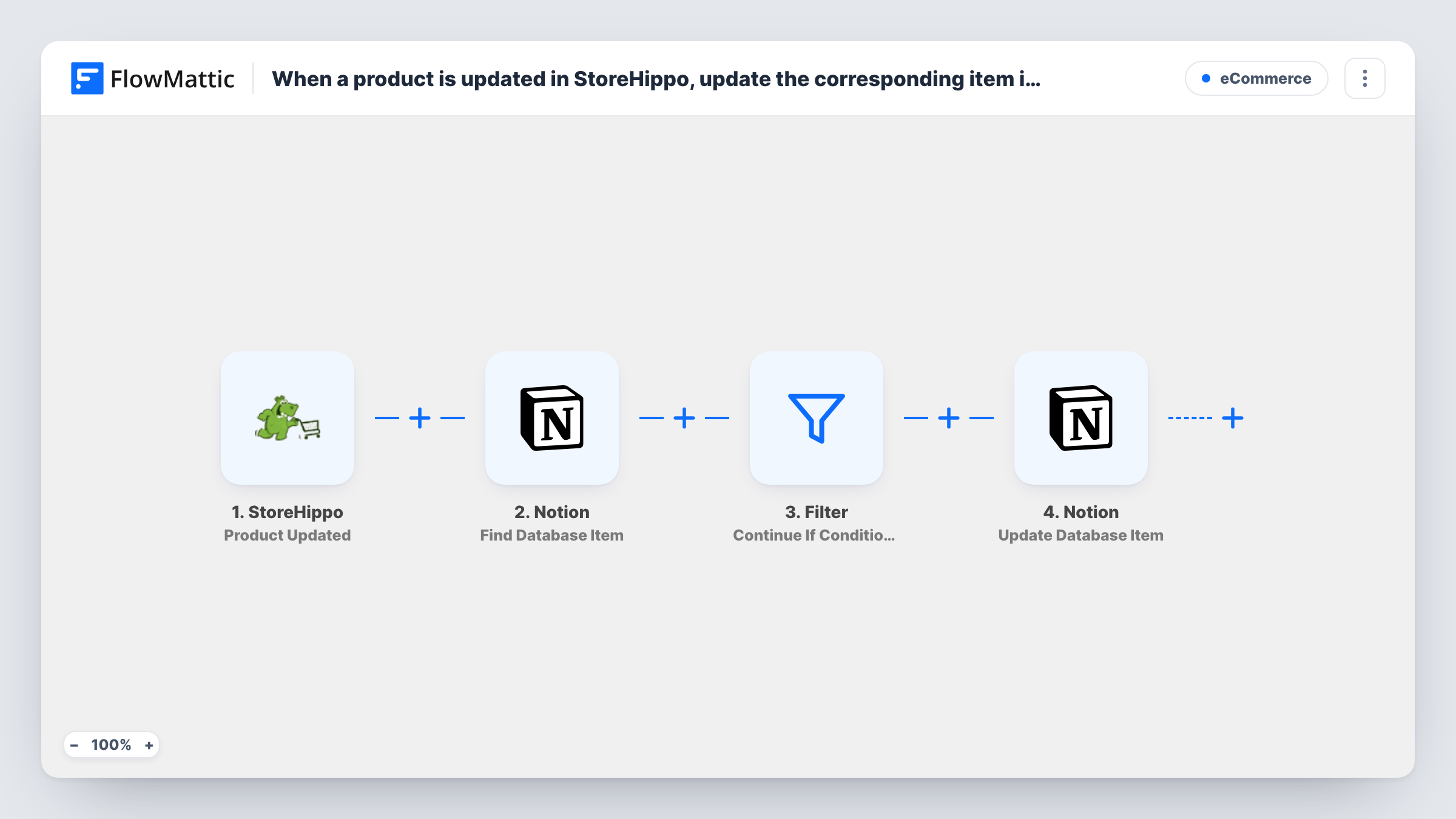
When a product is updated in StoreHippo, FlowMattic finds the Notion database item with the same product name and, if it exists, updates that item with the new details.
 StoreHippo
 Notion
 Filter
4 steps Setup ~8 min Used on 1.2k sites Free to import
What this workflow does
Many store teams keep a product tracker in Notion for content, launches or stock planning. When prices or descriptions change in StoreHippo, that tracker goes out of date unless someone edits it by hand. This workflow updates the matching Notion item each time the product changes in your store.
The StoreHippo trigger fires when a product is updated, and passes the product's current details on. The first Notion step then searches your database for an item whose name matches the StoreHippo product name, which the template already maps.
A Filter checks that the search returned an item ID. If no item matched, the run stops there, so nothing is written to Notion. When there is a match, the second Notion step updates that item, using the ID from the search. Which properties change is up to you: the update step ships without property mapping, so map fields such as price, SKU or stock from StoreHippo after import.
Matching is by name. Products need an item in Notion with the same name before this workflow can update them, and renaming a product in StoreHippo means the search looks for the new name. Test with a product you know is in the database and check Task History.
Keeping a Notion product tracker current
A fashion brand plans launches in a Notion database, and price and stock changes made in StoreHippo appear on each product's Notion page.
Content team working from Notion
Copywriters keep product descriptions in Notion, and updates the store team makes in StoreHippo are copied into the matching items so both stay aligned.
Inventory notes for operations
An operations lead tracks reorder notes in Notion and sees the latest stock figure from StoreHippo on each product item.
How this workflow runs
What happens at each step once the workflow is on, and what you need before you import it.
 StoreHippo Product Updated
Fires when a product is updated in StoreHippo. The product's current details, including its name, become available to the Notion steps.
- Notion Find Database Item
Searches your Notion database for the item whose name matches the StoreHippo product name. The name is mapped already; connect Notion and choose the database after import.
- Filter Continue If Condition Meet
Continues only when the Notion search returned an item ID. Products with no matching Notion item stop here, so the update step isn't run with an empty ID.
- Notion Update Database Item
Updates the Notion item found by the search, using its ID. The properties to change aren't mapped, so pick the StoreHippo fields, such as price or stock, and map them to your Notion properties.
What you need
- FlowMatticCore
- StoreHippo AccountAccount
- Notion AccountAccount
After importing, map your own data. To keep the template universal, not every step is pre-filled. Open each step in the builder and connect your accounts and fields (channels, lists, sheets, recipients) before you switch the workflow on.
Make it yours
Changes worth making after you import it.
- Make sure each product's Notion item uses exactly the product name from StoreHippo, since the search matches on name.
- To add missing products instead of skipping them, pair this with a second workflow on StoreHippo's Product Created trigger that creates the Notion item.
- Map only the properties StoreHippo should own, such as price and stock, in the Update Database Item step, so notes your team writes in Notion aren't overwritten.
Questions about this workflow
What happens if the StoreHippo product isn't in my Notion database?
The search finds nothing, the Filter stops the run, and Notion isn't changed. Add the item in Notion with the same name, or build a workflow on Product Created to add new products.
Which Notion properties get updated?
Only the ones you map in the Update Database Item step. The template maps the item ID but no properties, so choose the StoreHippo fields after import.
What if I rename a product in StoreHippo?
The search uses the product's current name, so it won't find a Notion item that still has the old name. Rename the Notion item as well, then the next update will match it.
More E-Commerce workflows
Other ready-to-import templates from the same category.






Import this workflow into your WordPress site
Download the JSON, import it from the Workflows screen and connect your accounts. Every run stays on your server, with no per-task fees.
30-day money-back guarantee Unlimited workflows and runs Self-hosted