

Log every disposed Aloware call in a Google Sheets spreadsheet
When an Aloware call is disposed, FlowMattic adds a row with the call details you map to a Google Sheets spreadsheet, building a call log you can sort, chart and share outside Aloware.
 Aloware
 Google Sheets
2 steps Setup ~5 min Used on 3.4k sites Free to import
What this workflow does
Call outcomes are the numbers sales and support managers ask about most: how many calls ended in a booking, how many went to voicemail, which agent handled them. Pulling that from a phone system by hand each week takes time. This workflow keeps a running log in Google Sheets instead.
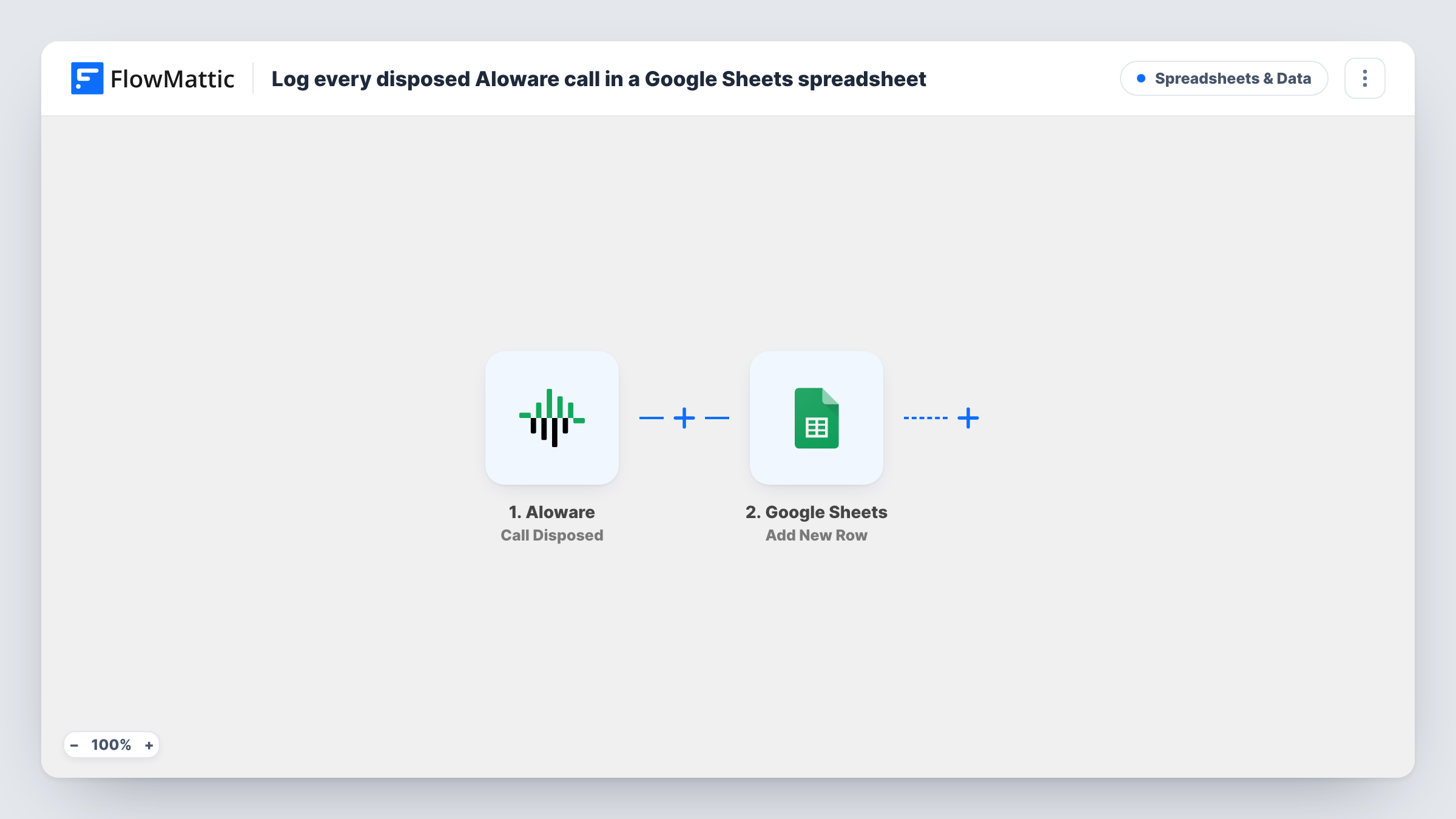
The Aloware trigger, Call Disposed, fires when a call is disposed, which is when the call is given its outcome. The call data Aloware sends becomes available in FlowMattic. The Google Sheets step then appends one row per call to the sheet you choose, with the values you mapped to each column.
No Filter sits between the two steps, so every disposed call adds a row. Dispose one test call after import to capture the data Aloware sends, then map the columns and confirm the row in Task History.
Weekly outcome report for a sales team
A pivot table on the call log counts dispositions per agent each week, so the sales lead sees bookings and no-answers without exporting from Aloware.
Support quality review
A team lead picks rows from the sheet at random to review, using the disposition and contact details to find the calls worth listening back to.
Sharing call results with a client
An outsourced calling team shares the sheet with the client, who sees each call's outcome without a seat in Aloware.
How this workflow runs
What happens at each step once the workflow is on, and what you need before you import it.
 Aloware Call Disposed
Fires when a call is disposed in Aloware, meaning the call has been given its outcome. The call details Aloware sends are passed on for mapping.
- Google Sheets Add New Row
Appends one row per disposed call to the Google Sheets file you choose. Add column headers first, map each to an Aloware call value such as the disposition or the contact, and connect your Google account.
What you need
- FlowMatticCore
- Aloware AccountAccount
- Google Sheets AccountAccount
After importing, map your own data. To keep the template universal, not every step is pre-filled. Open each step in the builder and connect your accounts and fields (channels, lists, sheets, recipients) before you switch the workflow on.
Make it yours
Changes worth making after you import it.
- Add a Filter after the trigger that continues only for one disposition, such as a booked appointment, if you want a sheet of those calls alone.
- Use a Router with a route for each agent or team, each writing to its own sheet, so every team lead sees only their calls. Set each route's agent condition so one call can never match two routes.
- Keep raw rows on one tab and build summaries on another tab with formulas, so new rows from the workflow never land inside your report.
Questions about this workflow
Which Aloware call details can go in the sheet?
Whatever the Call Disposed trigger sends. After you dispose a test call, open the Google Sheets step to see the values you can map, then add a column for each one you want.
Do calls without a disposition get logged?
No. The trigger fires when a call is disposed, so a call only reaches the sheet once it has been given its outcome in Aloware.
Will my older Aloware calls be added?
No. Only calls disposed after you turn the workflow on start a run. Older calls are not copied into the sheet.
More Spreadsheets & Data workflows
Other ready-to-import templates from the same category.




Import this workflow into your WordPress site
Download the JSON, import it from the Workflows screen and connect your accounts. Every run stays on your server, with no per-task fees.
30-day money-back guarantee Unlimited workflows and runs Self-hosted