

When a new registration happens in Tutor LMS, base64 encode the course name using Data Transformer, then add to Google Sheets and send confirmation email
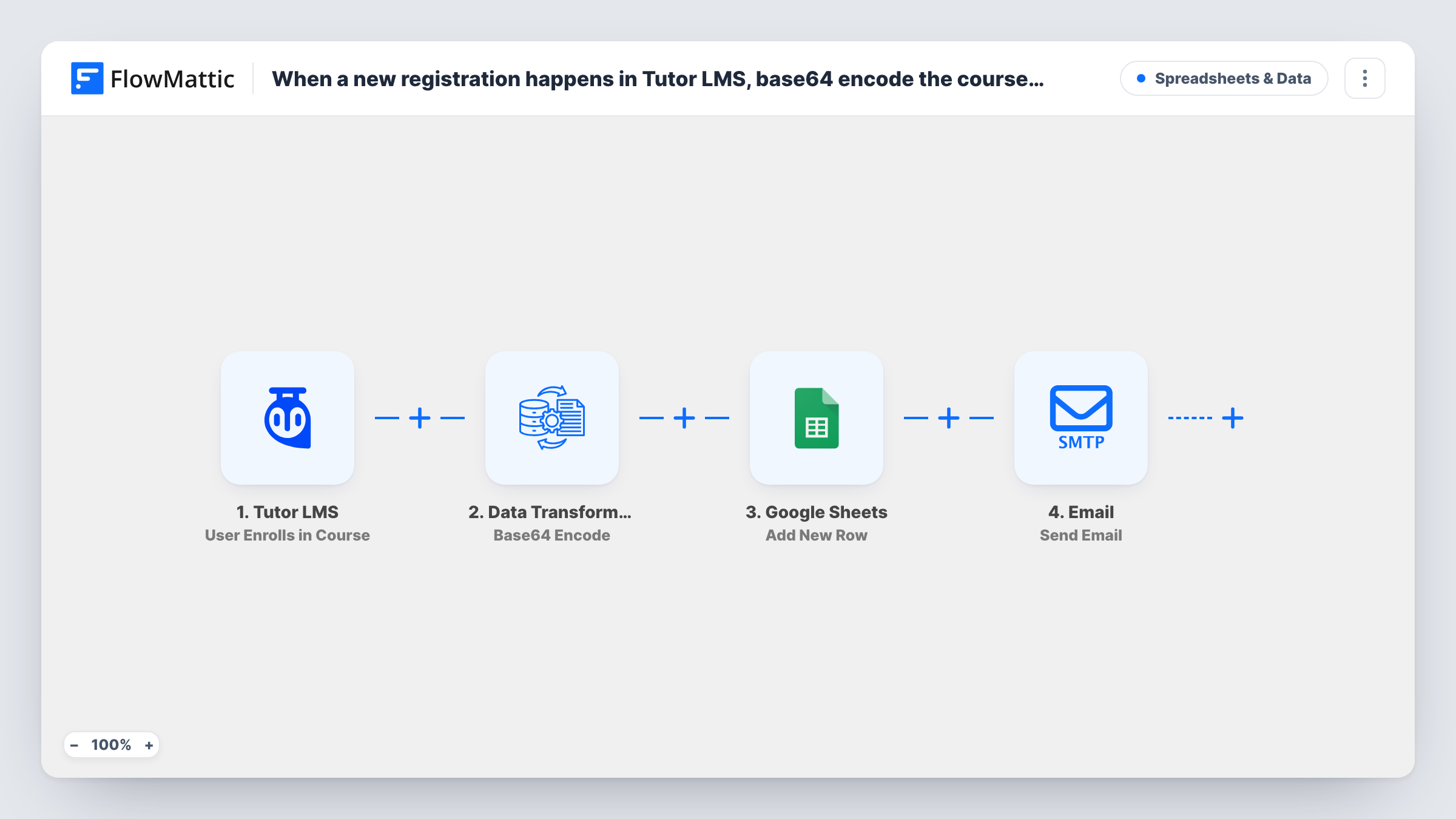
When a student enrolls in a Tutor LMS course, this workflow Base64-encodes the course name, adds the enrollment to a Google Sheets row and sends an email, so you get a log entry and a confirmation message per sign-up.
 Tutor LMS
 Data Transformer by FlowMattic
 Google Sheets
 Email
4 steps Setup ~8 min Used on 2.3k sites Free to import
What this workflow does
Some systems you pass enrollment data to expect text in Base64, for example a link parameter or an import that can't handle spaces and special characters in course titles. This workflow prepares that encoded value as each student enrolls, stores it with the enrollment in a spreadsheet and sends a confirmation email.
The Tutor LMS trigger User Enrolls in Course fires when a user enrolls in a course on your site. The Data Transformer by FlowMattic step then runs Base64 Encode on the course name, turning the plain text into a Base64 string. Next, Google Sheets adds a new row where you can place the student's details, the course name and the encoded version side by side. Last, the Email step sends a message through WordPress mail or your SMTP settings.
Base64 is an encoding, not encryption, so anyone can decode it back to the course name. Use the encoded value where another system needs it, and give students the readable course name in their email. Task History shows each run, including the encoded output.
Building links for an external tool
Another service takes the course as a Base64 parameter in its URL. The encoded value in your sheet is ready to paste into those links for each enrollment.
Enrollment log for a training business
Every enrollment lands in Google Sheets with the student and course, so you can count sign-ups per course without opening the WordPress admin.
Welcome email for each new student
Students get a confirmation email naming the course they joined, sent from your site as soon as they enroll.
How this workflow runs
What happens at each step once the workflow is on, and what you need before you import it.
 Tutor LMS User Enrolls in Course
Fires when a user enrolls in a Tutor LMS course on your WordPress site. The student's details and the course are passed to the later steps.
- Data Transformer by FlowMattic Base64 Encode
Encodes the plain-text course name from the enrollment into Base64. Map the course name as the input; the encoded string is then available to the Google Sheets and email steps.
- Google Sheets Add New Row
Adds a row to the spreadsheet you pick. Map columns for the student, the readable course name and the Base64 output from the previous step, and connect your Google account.
 Email Send Email
Sends an email through WordPress mail or your custom SMTP server. Map the student's email as the recipient and write a confirmation that names the course.
What you need
- FlowMatticCore
- Tutor LMS PluginPlugin
- Google Sheets AccountAccount
After importing, map your own data. To keep the template universal, not every step is pre-filled. Open each step in the builder and connect your accounts and fields (channels, lists, sheets, recipients) before you switch the workflow on.
Make it yours
Changes worth making after you import it.
- If nothing downstream needs Base64, delete the Data Transformer step and remove its column from the sheet. The rest of the workflow works without it.
- Swap the trigger for Tutor LMS's User Completes a Course to log and email completions instead of enrollments.
- Add a Filter after the trigger that continues only for one course, so the sheet and emails cover just that course.
Questions about this workflow
Why would I Base64-encode a Tutor LMS course name?
Mainly when another system expects the value that way, such as a URL parameter or an API field. If you don't have such a system, you can remove that step.
Is the Base64 course name secure?
No. Base64 only changes how the text is written. Anyone can decode it, so don't treat it as a way to hide information.
Does the confirmation email replace Tutor LMS's own emails?
No. This workflow sends its own email and does not change Tutor LMS settings. If Tutor LMS also sends enrollment emails, students may get both.
Will students who enrolled before import be added to the Google Sheet?
No. Only enrollments made after the workflow is turned on run the steps.
More Spreadsheets & Data workflows
Other ready-to-import templates from the same category.




Import this workflow into your WordPress site
Download the JSON, import it from the Workflows screen and connect your accounts. Every run stays on your server, with no per-task fees.
30-day money-back guarantee Unlimited workflows and runs Self-hosted