

Log Qlik app events to a Google Sheets spreadsheet for an inventory
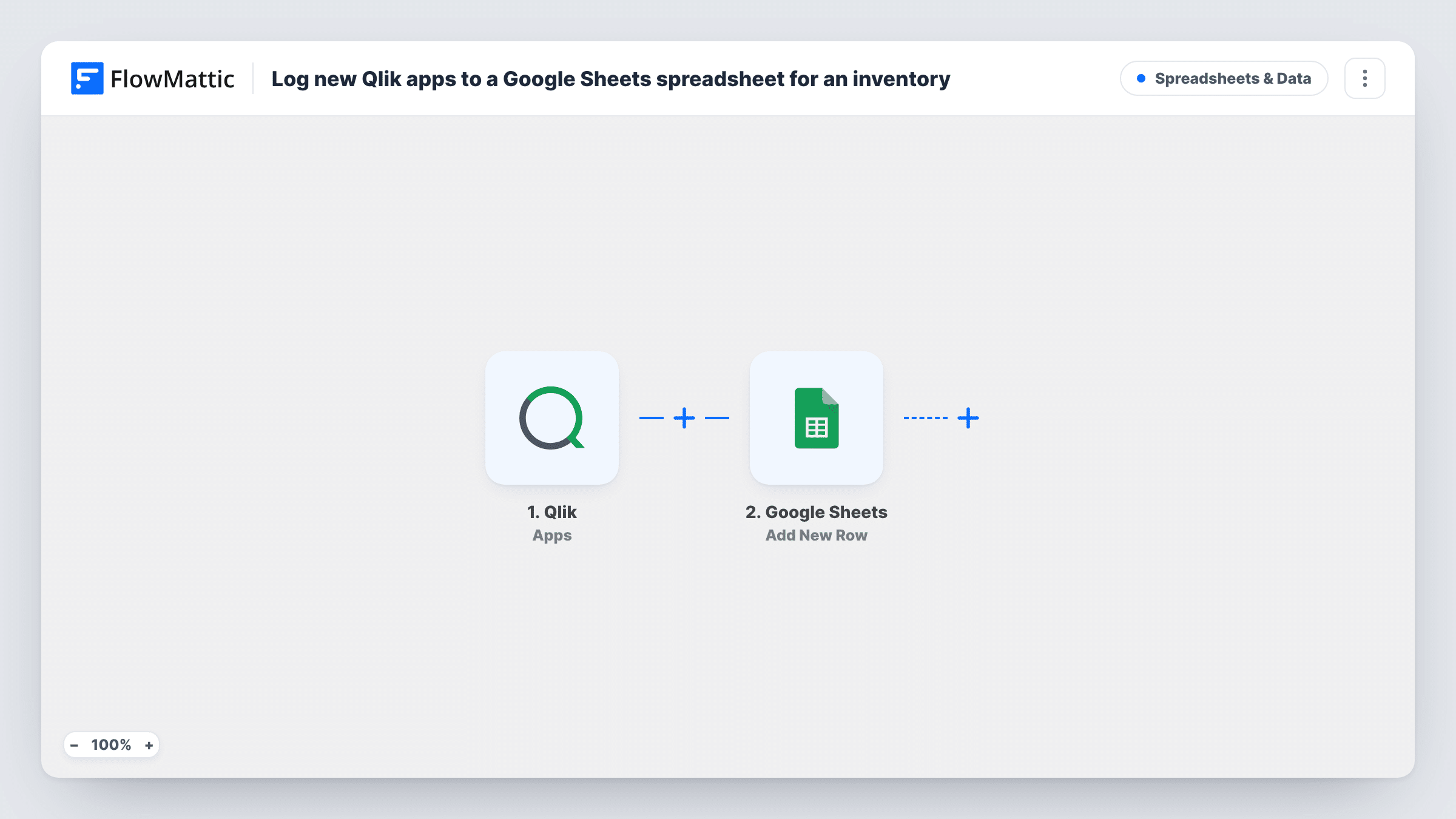
Each Qlik app event you choose, such as an app being created, reloaded or published, adds a row to a Google Sheets spreadsheet, building a running log of your Qlik apps.
 Qlik
 Google Sheets
2 steps Setup ~5 min Used on 3.1k sites Free to import
What this workflow does
As a Qlik tenant grows, it gets hard to say which apps exist, who made them and when they last changed. A spreadsheet that gains a row for each app event gives admins and analysts a record they can sort, filter and share without opening the Qlik hub.
The Qlik Apps trigger fires for app events. FlowMattic describes it as covering apps being created, deleted, data updated, reloaded, published or exported. Which of those reach the workflow depends on the events you select when you set up the webhook in Qlik. For a list of new apps only, select Created. Pick more events when you want an activity log.
The Google Sheets step then adds one row per event. It ships without column mapping, so after import you choose the spreadsheet and sheet and map the fields the Qlik event carries, such as the app name and event type, into your columns.
Each event is a new row, so one app can appear several times when you log reloads or updates. Keep an event type column to tell those rows apart. Open Task History to see each Qlik event that arrived and the row it produced.
Inventory of new Qlik apps
With only the Created event selected in Qlik, the sheet becomes a list of every app added to the tenant, with the details each Created event carries, such as the app name.
Reload history for data teams
Selecting the Reloaded event gives the data team a sheet of every app reload, which they can sort by app to see how often each one refreshes.
Audit trail of deletions and exports
An admin logs Deleted and Exported events so there is a shared record of apps removed from the tenant or exported out of it.
How this workflow runs
What happens at each step once the workflow is on, and what you need before you import it.
 Qlik Apps
Fires for Qlik app events: created, deleted, data updated, reloaded, published or exported. Select in Qlik only the events you want to log, such as Created alone for a list of new apps.
- Google Sheets Add New Row
Adds a row to the Google Sheets spreadsheet you pick for each Qlik event. The step ships unmapped: connect Google, choose the sheet and map the app name, event type and other fields into columns.
What you need
- FlowMatticCore
- Qlik AccountAccount
- Google Sheets AccountAccount
After importing, map your own data. To keep the template universal, not every step is pre-filled. Open each step in the builder and connect your accounts and fields (channels, lists, sheets, recipients) before you switch the workflow on.
Make it yours
Changes worth making after you import it.
- Add a column for the event type and map it, so you can filter the sheet to created apps or reloads when you log several kinds of event.
- If the event carries the app ID, map it into its own column. Names can repeat or be changed, so the ID is the safer way to match rows to one app.
- FlowMattic's Qlik integration also has a Users trigger. Import a second copy of this workflow with that trigger and a separate sheet to keep a user list too.
Questions about this workflow
Will every Qlik app event create a row?
Every event that reaches the workflow does. The Qlik trigger covers created, deleted, data updated, reloaded, published and exported apps, so choose in Qlik which of those events to send.
Does the sheet update an app's existing row when it changes?
No. The Add New Row step always adds a row, so an app that is reloaded or published gets another row for each event you log.
Which Qlik fields can I put in the Google Sheet?
The ones the Qlik event carries. Trigger a test event, such as creating a sample app, then map the fields you see into the Add New Row step.
More Spreadsheets & Data workflows
Other ready-to-import templates from the same category.



Import this workflow into your WordPress site
Download the JSON, import it from the Workflows screen and connect your accounts. Every run stays on your server, with no per-task fees.
30-day money-back guarantee Unlimited workflows and runs Self-hosted