

When user watches the video partially, add details to Google Sheet
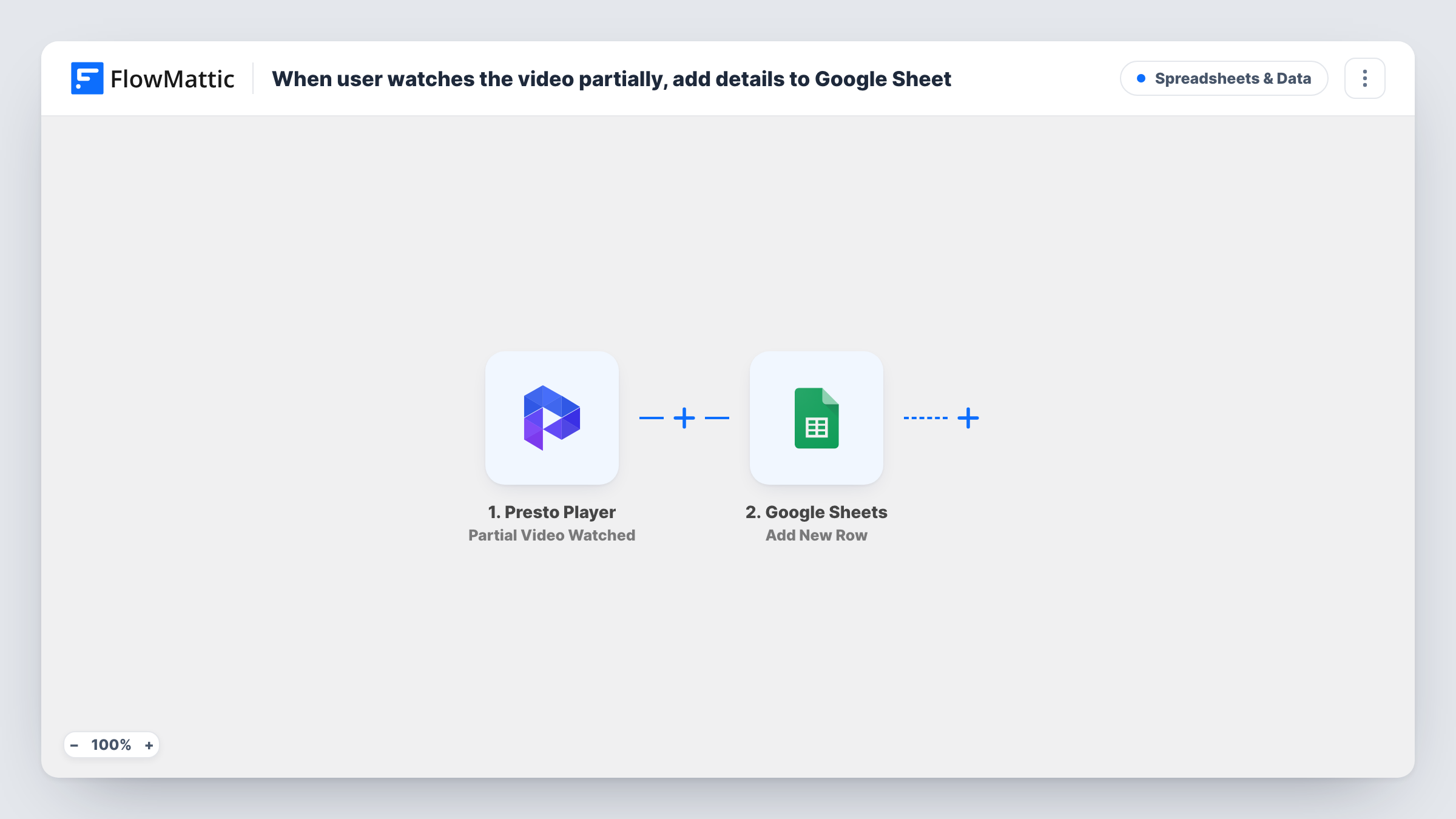
When a viewer watches a set percentage of a Presto Player video on your site, this workflow adds a row to Google Sheets with the details of that view, giving you a log of who got partway through.
 Presto Player
 Google Sheets
2 steps Setup ~5 min Used on 733 sites Free to import
What this workflow does
Knowing that someone started a video tells you little. Knowing they reached a certain point tells you more: whether a lesson, demo or sales video holds attention, and which viewers got far enough to follow up with. Presto Player can report that progress, and this workflow writes it to a spreadsheet.
The Presto Player trigger fires when someone's viewing reaches a specific percentage of the video. FlowMattic passes the data from that event, such as the video and the viewer, to Google Sheets. Add New Row then writes those values into the columns you map, one row per event.
The sheet is a running log, not a summary. Every time the trigger fires you get a new row, so the same person watching two videos, or the same video twice, can appear more than once. Sort or pivot the sheet to see totals per video or per viewer.
Course creator checking lesson engagement
Lesson videos on a WordPress course site log a row when students get partway through, so the creator can see which lessons people reach the middle of.
Sales team following up on demo viewers
Logged-in prospects who get partway through a product demo show up in the sheet, giving sales a list of people who watched enough to call.
Internal training records
Staff training videos on an intranet site log each partial view, so a manager can see who has started each module.
How this workflow runs
What happens at each step once the workflow is on, and what you need before you import it.
 Presto Player Partial Video Watched
Runs when a user watches a specific percentage of a Presto Player video on your site. The event data, such as the video and the viewer, is passed on for mapping.
- Google Sheets Add New Row
Writes one new row per partial view into your chosen spreadsheet. Map the video title, the viewer's details and the time into separate columns.
What you need
- FlowMatticCore
- Presto Player PluginPlugin
- Google Sheets AccountAccount
After importing, map your own data. To keep the template universal, not every step is pre-filled. Open each step in the builder and connect your accounts and fields (channels, lists, sheets, recipients) before you switch the workflow on.
Make it yours
Changes worth making after you import it.
- Watch a test video past the point while logged in, then again as a logged-out visitor, and compare the two runs in Task History to see which viewer details each one carries.
- Only care about one video? Add a Filter after the trigger that continues when the video title or ID matches it, so other videos don't add rows.
- Add a date column to the sheet and map the run time into it, so you can track partial views week by week.
Questions about this workflow
Which percentage of the Presto Player video counts?
The trigger fires when a viewer reaches a specific percentage. Check the trigger's options after import to see where that point is set for your videos, then test it with one video.
Does the Google Sheet record the viewer's name or email?
Only if the event carries it. Viewers who are logged in to WordPress are more likely to be identified, so check a test run before you rely on those columns.
Will one viewer appear in the sheet more than once?
They can. Each time the trigger fires, a new row is added, so repeat views or several videos from the same person give several rows.
More Spreadsheets & Data workflows
Other ready-to-import templates from the same category.




Import this workflow into your WordPress site
Download the JSON, import it from the Workflows screen and connect your accounts. Every run stays on your server, with no per-task fees.
30-day money-back guarantee Unlimited workflows and runs Self-hosted