

Send a Slack alert to finance when a Hitpay payout is created
Each time Hitpay completes a payout, this workflow posts a message to a Slack channel your finance team watches, with the payout details you choose to include.
 Hitpay
 Slack
2 steps Setup ~5 min Used on 480 sites Free to import
What this workflow does
Payouts are when money leaves Hitpay and heads to your bank. Finance people want to know when that happens so they can match the transfer against their books, but logging in to check the dashboard is easy to forget. This workflow puts a note in Slack every time a payout goes through.
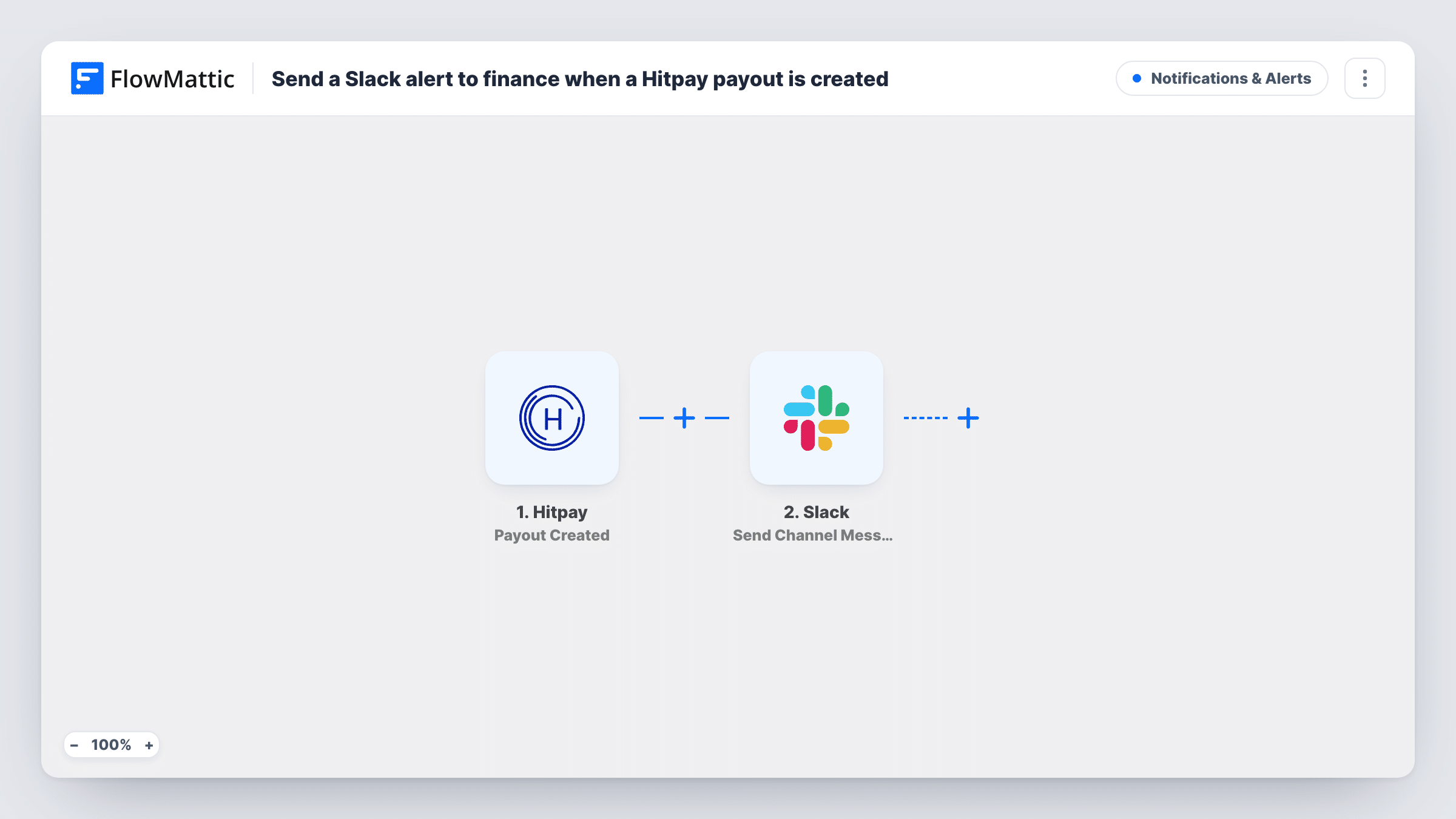
The Hitpay trigger is Payout Created. Per FlowMattic's catalog, it fires when a payout is successfully completed, so pending payouts don't post anything. The payout's data then goes to Slack, where Send Channel Message posts to the channel you pick. You write the message and map in the payout fields, such as the amount or reference, that your team needs.
Every completed payout posts one message, with no filtering in between. Task History keeps a record of each run, so you can check what Hitpay sent if a message looks wrong.
Daily bank reconciliation
Your bookkeeper matches each Hitpay payout to a bank deposit. The Slack message gives them the amount and reference to look for without opening Hitpay.
Cash flow awareness for a founder
A small shop owner follows a #finance channel on their phone and sees each payout land, which helps when planning supplier payments.
Shared record for an accounting firm
An outside accountant is a guest in your Slack. The channel gives them a running list of payouts to tick off at month end.
How this workflow runs
What happens at each step once the workflow is on, and what you need before you import it.
 Hitpay Payout Created
Fires when Hitpay successfully completes a payout. The payout data Hitpay sends is passed on for mapping into the Slack message.
- Slack Send Channel Message
Sends a message into the Slack channel your finance team reads. Write the text and map in the payout fields they need, then connect your Slack workspace on import.
What you need
- FlowMatticCore
- Hitpay AccountAccount
- Slack AccountAccount
After importing, map your own data. To keep the template universal, not every step is pre-filled. Open each step in the builder and connect your accounts and fields (channels, lists, sheets, recipients) before you switch the workflow on.
Make it yours
Changes worth making after you import it.
- Run a test payout notification, or wait for the next real one, before you write the message. FlowMattic then shows the exact fields Hitpay sends, so you know what you can map.
- If the finance channel is private, use Slack's Send Private Channel Message action instead of Send Channel Message.
- To alert one person instead of a channel, swap the Slack step for Send Direct Message and pick that teammate.
Questions about this workflow
Does the Hitpay trigger fire when a payout is first scheduled?
No. FlowMattic's description of Payout Created says it triggers when a payout is successfully completed, so the Slack message appears once the payout has gone through.
Can the Slack message include the payout amount?
You can map any field Hitpay includes in the payout event. Check a test run to see which fields are present, then add them to the message text.
Can I post Hitpay payments as well as payouts?
You can, by building a separate workflow for them. Hitpay's Charge Created trigger fires when a payment is completed, and you can pair it with its own Slack step.
Will past Hitpay payouts be posted to Slack?
No. The trigger reacts to new payout events, so only payouts completed after you turn the workflow on create a message.
More Notifications & Alerts workflows
Other ready-to-import templates from the same category.




Import this workflow into your WordPress site
Download the JSON, import it from the Workflows screen and connect your accounts. Every run stays on your server, with no per-task fees.
30-day money-back guarantee Unlimited workflows and runs Self-hosted