

Post a Slack message when a Zoom meeting ends
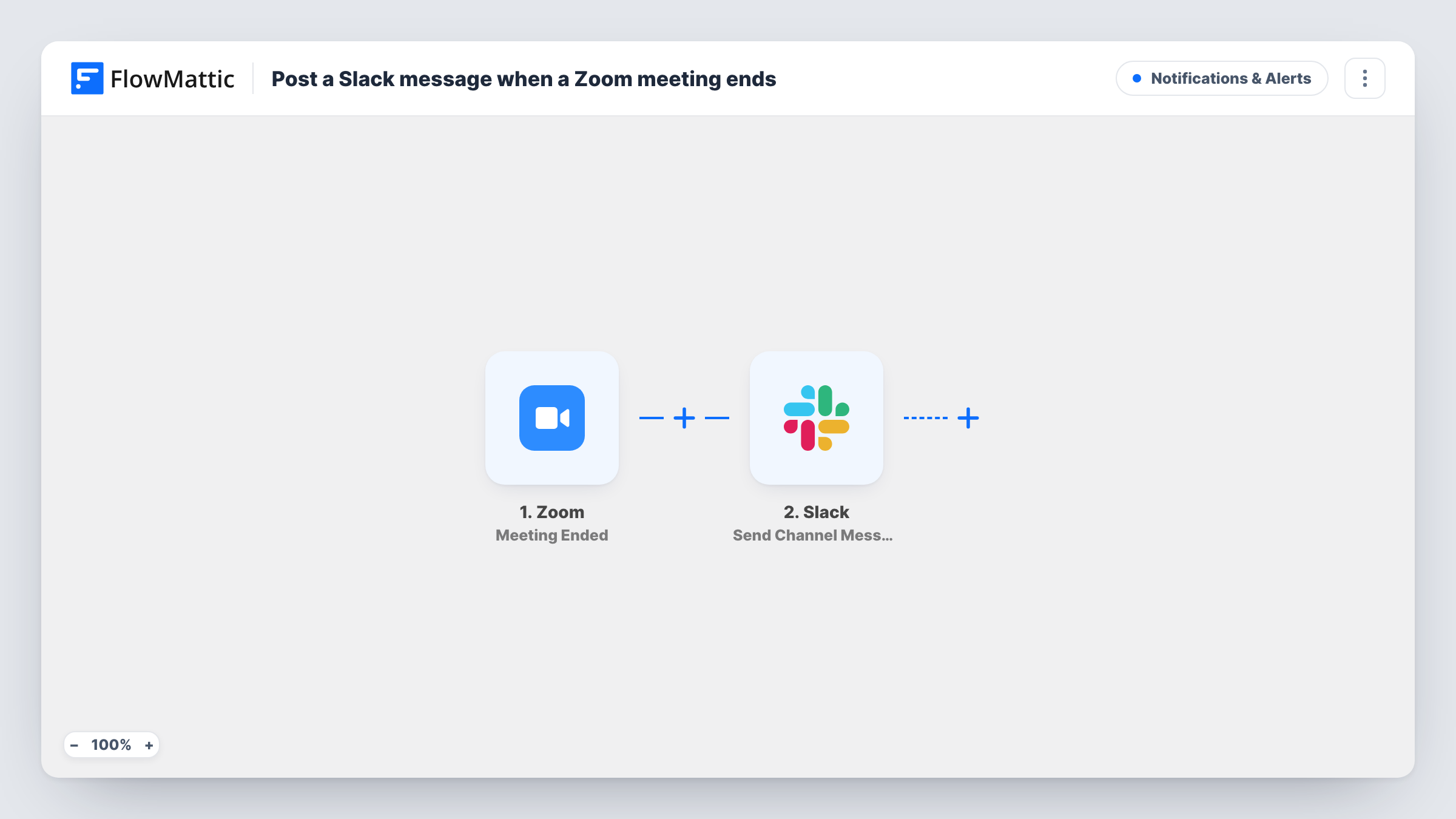
When a host ends a Zoom meeting, this workflow posts a message to the Slack channel you pick, so people who were not on the call can see that it has finished.
 Zoom
 Slack
2 steps Setup ~5 min Used on 3.4k sites Free to import
What this workflow does
Teams that run back-to-back calls often lose track of which ones are over. Someone waiting to brief the host, a colleague holding a follow-up task, or a manager tracking client calls has to ask or check Zoom. This workflow puts that signal in Slack, where the team already reads.
The Zoom trigger fires every time a meeting host ends a meeting on the connected account. FlowMattic receives the event from Zoom and passes its details on as data you can map. The Slack step then posts a message to a channel. You write the message text after import and drop in values from the Zoom event, such as the meeting topic, wherever you want them.
The message reports that a meeting ended. It does not include a recording, a transcript or a list of who attended, because the template has no step that fetches those. Every ended meeting on the account produces a post, so if you only care about some meetings, add a Filter as described in the tips. Task History keeps a record of each run and of what was sent to Slack.
Client call wrap-up in a sales channel
An account manager ends a client call and a post lands in #sales. The colleague who prepares the proposal sees it and starts on the next step without waiting for a message.
Support office hours
Your team hosts open Zoom office hours. When the host closes the session, the support channel gets a note so the next person on the rota knows the room is free.
Training sessions for new staff
Each onboarding session ends with a post in the HR channel naming the meeting topic, giving the coordinator a running log of which sessions have taken place.
How this workflow runs
What happens at each step once the workflow is on, and what you need before you import it.
 Zoom Meeting Ended
Runs every time a host ends a meeting on the Zoom account you connect. Details from the Zoom event become available to map into the Slack message.
- Slack Send Channel Message
Sends a post to a Slack channel of your choosing once the meeting is over. Write the text after import and insert values from the Zoom event, for example the meeting topic, so each post says which meeting finished.
What you need
- FlowMatticCore
- Zoom AccountAccount
- Slack AccountAccount
After importing, map your own data. To keep the template universal, not every step is pre-filled. Open each step in the builder and connect your accounts and fields (channels, lists, sheets, recipients) before you switch the workflow on.
Make it yours
Changes worth making after you import it.
- Add a Filter after the Zoom trigger that continues only when the meeting topic contains a word you use for client calls. Internal stand-ups then end quietly.
- Add a Google Sheets step after the Slack post that adds a row with the meeting topic and end time, so you keep a searchable log of finished meetings alongside the channel posts.
- End a short test meeting after import so FlowMattic captures a real Zoom event, then check which values it offers before you write the Slack message.
Questions about this workflow
Does the Slack post include the Zoom recording link?
No. The template only reacts to the meeting ending. Recordings are processed separately in Zoom, and nothing in this workflow fetches them. You would need to add a different trigger or step for that.
Will every Zoom meeting on my account post to Slack?
Yes, as imported. Any meeting the connected account ends will trigger a post. Add a Filter after the Zoom step if you want to limit it to certain meetings.
Can the Slack message mention who hosted the Zoom meeting?
You can map any value the Meeting Ended event carries into the message text. Run a test meeting and look at the captured data in the trigger step to see what Zoom sends.
Which Slack channels can the Zoom alert go to?
Any channel your connected Slack account can post to. Choose it in the Slack step after import, then end a test meeting and confirm the message appears where you expect.
More Notifications & Alerts workflows
Other ready-to-import templates from the same category.




Import this workflow into your WordPress site
Download the JSON, import it from the Workflows screen and connect your accounts. Every run stays on your server, with no per-task fees.
30-day money-back guarantee Unlimited workflows and runs Self-hosted