

Store every Fynzo Survey submission as an Airtable record
Every response submitted to a Fynzo Survey is written to your Airtable base as a new record, so survey answers sit in a table you can sort, filter, link and share with your team.
 Fynzo-Survey
 Airtable
2 steps Setup ~5 min Used on 1.5k sites Free to import
What this workflow does
Survey answers are most useful next to the rest of your data. If your projects, customers or events already live in Airtable, exporting Fynzo results and pasting them in after each survey gets old quickly. This workflow puts each response into an Airtable table as it arrives.
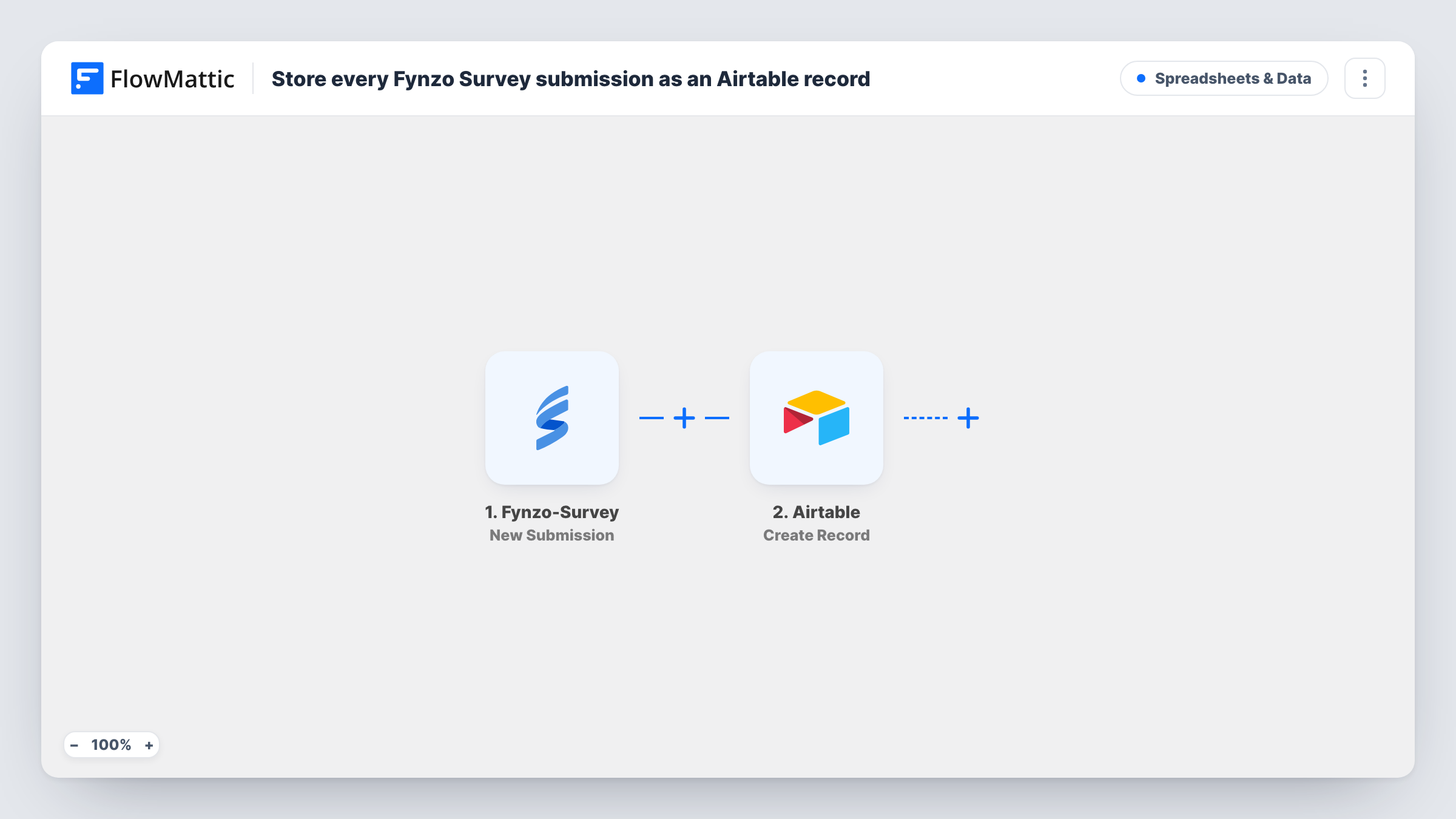
Whenever someone completes your survey, the Fynzo Survey trigger receives the new response and hands its answers to FlowMattic. The second step uses Airtable's Create Record action to add one record to the base and table you pick in Airtable. While mapping the step, you pair each survey answer with the Airtable field it should fill.
There is no Filter in this template, so every response produces a record, including partial or test answers if Fynzo counts them as submitted. Responses collected before you turn the workflow on stay in Fynzo. If an Airtable write is refused, for example because a mapped value doesn't suit the field type, Task History shows the error on that step.
Customer feedback next to account records
A Fynzo feedback survey sends each reply into an Airtable table that your account managers already use, where they can link it to the customer's record.
Event follow-up surveys
Attendees rate sessions in Fynzo after an event, and the organiser reviews every rating in an Airtable grid grouped by session.
Internal staff pulse checks
HR runs a short Fynzo survey each month, and the answers build up in one Airtable table you can chart with Airtable's own views.
How this workflow runs
What happens at each step once the workflow is on, and what you need before you import it.
 Fynzo-Survey New Submission
Starts a run each time a respondent submits your Fynzo survey. The answers in that response become values you can map into Airtable.
- Airtable Create Record
Adds one record to the Airtable base and table you choose for each survey response. Connect your Airtable account and map the Fynzo answers to the table's fields.
What you need
- FlowMatticCore
- Fynzo Survey AccountAccount
- Airtable AccountAccount
After importing, map your own data. To keep the template universal, not every step is pre-filled. Open each step in the builder and connect your accounts and fields (channels, lists, sheets, recipients) before you switch the workflow on.
Make it yours
Changes worth making after you import it.
- Create your Airtable fields before mapping, with types that fit the answers: a number field for rating questions and a long text field for open comments.
- Add a Filter after the trigger if only some responses belong in Airtable, for example ones where a rating answer is less than 3 so the table becomes a follow-up list.
- Submit one test response in Fynzo after import, so FlowMattic captures the answer fields before you map them in the Airtable step.
Questions about this workflow
Does each Fynzo Survey response become its own Airtable record?
Yes. The trigger fires once per submitted response, and the Create Record step adds one new record each time. Existing Airtable records are left as they are.
Can I send answers from several Fynzo surveys to one Airtable table?
Check what the trigger offers when you set it up. If it watches one survey, import the workflow again for each survey and point every copy at the same table.
Will past Fynzo responses be copied to Airtable?
No. Fynzo answers given before you switch the workflow on never reach Airtable through it. Export older ones from Fynzo and import them into Airtable yourself.
What if an answer doesn't fit the Airtable field type?
Airtable can reject the record, and Task History shows the error on the Create Record step. Change the field type in Airtable or map a different answer, then test again.
More Spreadsheets & Data workflows
Other ready-to-import templates from the same category.




Import this workflow into your WordPress site
Download the JSON, import it from the Workflows screen and connect your accounts. Every run stays on your server, with no per-task fees.
30-day money-back guarantee Unlimited workflows and runs Self-hosted