

When a new row is added in Google Sheets, create a presentation from a template in Google Slides
Each row added to a Google Sheets spreadsheet makes a new Google Slides presentation from a template you choose, so every entry in your sheet gets its own copy of the deck to work on.
 Google Sheets
 Google Slides
2 steps Setup ~5 min Used on 1.6k sites Free to import
What this workflow does
Teams that track work in a spreadsheet often keep a matching deck for each line: a pitch per prospect, a report per client, a briefing per project. Making that deck means opening the template and copying it every time a row appears. This workflow does the copying for you.
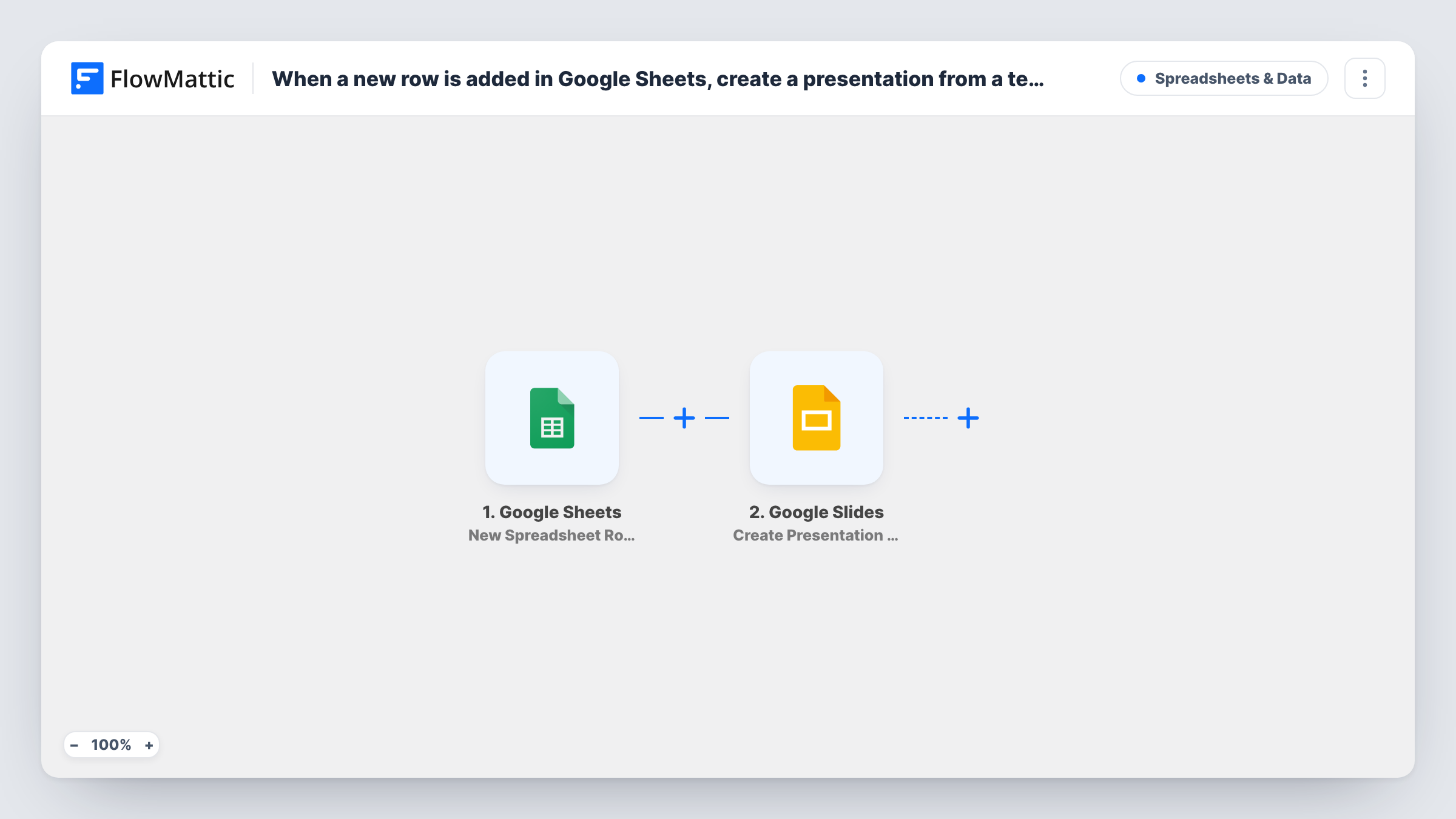
The Google Sheets trigger watches the spreadsheet you pick and runs when a new row is added. The cells in that row are passed on as data. Next, Google Slides runs Create Presentation From Template, which creates a new presentation from your template in the connected Google account.
As shipped, the row values are not written onto the slides. Look at the step after import to see what you can map, for example a presentation name built from a cell. To place row values on a slide, add Google Slides' Insert Text action after this step. The new presentation can then be passed along so Insert Text writes the mapped value into a text box or shape. Task History keeps a record of each run and Google's reply.
One pitch deck per prospect
Sales adds a prospect to a shared sheet. A fresh copy of the pitch template is created for that prospect, ready for the rep to tailor before the meeting.
Monthly client report decks
An account manager adds a row for each client report due. Each row produces a new presentation from the report template, so nobody starts from a blank file or edits the master.
Training session briefings
A coordinator logs each upcoming workshop in Google Sheets. Every row yields its own copy of the briefing deck for the trainer to fill in.
How this workflow runs
What happens at each step once the workflow is on, and what you need before you import it.
 Google Sheets New Spreadsheet Row
Runs when a new row is added to the Google Sheets spreadsheet you select. The values in that row become data you can map in the Google Slides step.
- Google Slides Create Presentation From Template
Makes a new presentation in Google Slides from the template you choose. Connect your Google account, select the template, and map any values the step offers, for example a name taken from a cell.
What you need
- FlowMatticCore
- Google Sheets AccountAccount
- Google Slides AccountAccount
After importing, map your own data. To keep the template universal, not every step is pre-filled. Open each step in the builder and connect your accounts and fields (channels, lists, sheets, recipients) before you switch the workflow on.
Make it yours
Changes worth making after you import it.
- Add Google Slides' Insert Text action after this step to put a cell value, such as the client name, into a text box on the new presentation.
- Use a cell from the row in the presentation name so each copy is easy to find in Google Drive later.
- If only some rows need a deck, add a Filter between the steps and continue only when a column, such as a Type column, holds the value you choose.
Questions about this workflow
Do my Google Sheets values show up on the new slides?
Not as imported. The presentation is created from the template as it is. Add the Insert Text action after it to write cell values onto a slide.
Is the Google Slides template itself edited?
No. Each run creates a separate presentation from the template, so the original stays clean for the next row.
What happens to rows already in the sheet when I turn it on?
Only rows added after the workflow is active start a run. Rows that were in the spreadsheet before then do not get a presentation.
Where are the new presentations saved?
In the Google account you connect to the Google Slides step. They follow that account's sharing settings until you share them.
More Spreadsheets & Data workflows
Other ready-to-import templates from the same category.




Import this workflow into your WordPress site
Download the JSON, import it from the Workflows screen and connect your accounts. Every run stays on your server, with no per-task fees.
30-day money-back guarantee Unlimited workflows and runs Self-hosted