

Send a Pushover push notification for Halo Security alerts
Every event Halo Security sends to your FlowMattic webhook becomes a Pushover push notification on your phone or desktop, so security alerts reach you away from the dashboard.
 Halo Security
 Pushover
2 steps Setup ~5 min Used on 1.8k sites Free to import
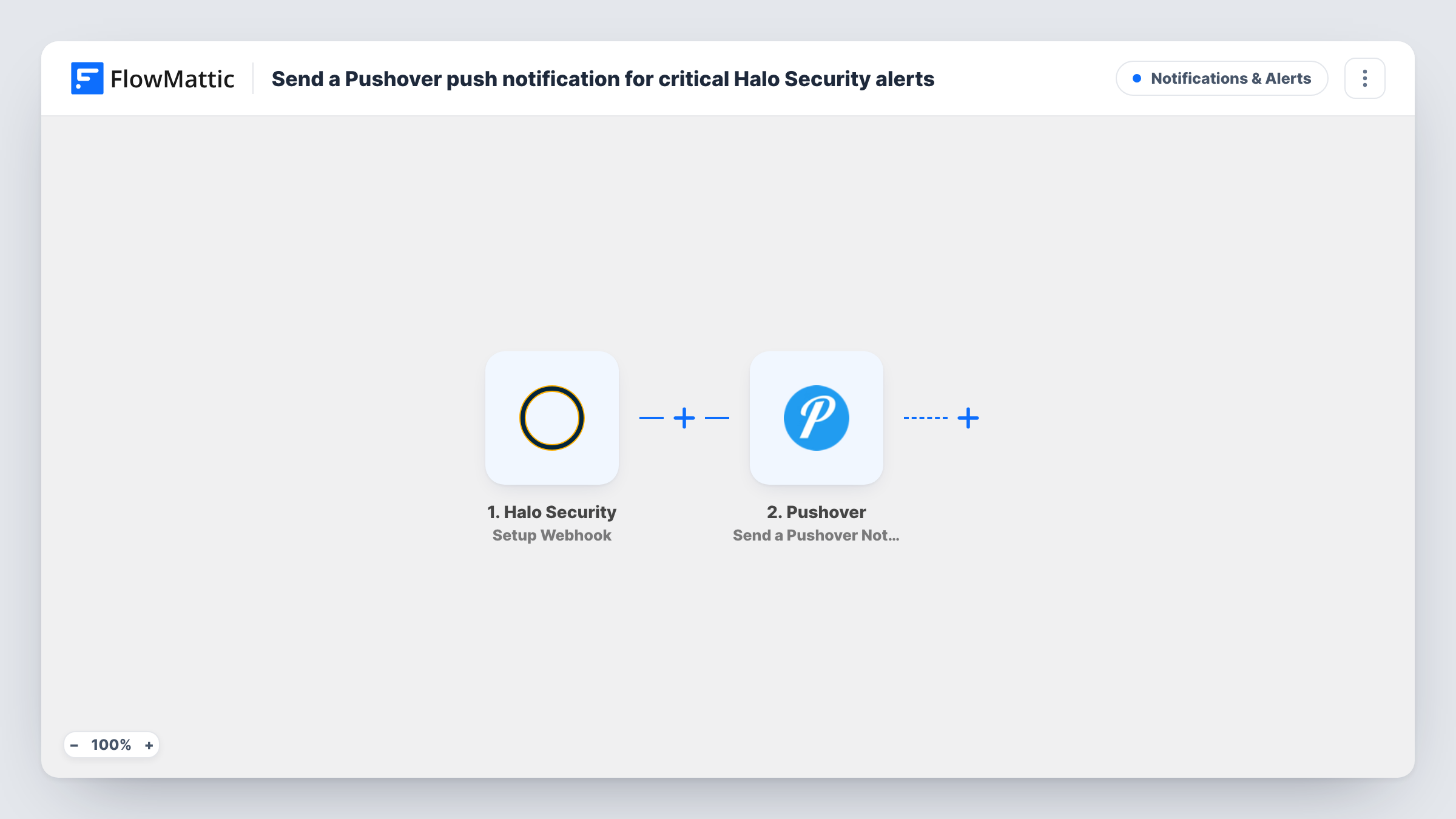
What this workflow does
Security alerts are only useful if someone sees them in time. If you aren't watching the Halo Security dashboard or your inbox, a push notification on your phone is harder to miss. This workflow sends one through Pushover for each event Halo Security reports.
The Halo Security Setup Webhook trigger gives you a webhook address to add in Halo Security. FlowMattic describes it as a trigger for all the events, so every event Halo Security posts to that address starts a run. Send a test event during setup to see the fields it carries.
The Pushover step then sends a notification to your subscribed devices. No wording ships with it, so after import you connect Pushover, write the message, and map in the Halo Security details you want to read on the lock screen.
As imported, nothing narrows which events notify you. If Halo Security lets you choose which events go to the webhook, pick only the ones worth a push. Otherwise, add the Filter described in the tips so routine events don't buzz your phone.
Solo site owner on the move
A freelancer who looks after a few client sites gets a Pushover alert from Halo Security on their phone instead of waiting to check email.
Small IT team without an on-call tool
A three-person IT team installs Pushover on the devices tied to one shared account, so each Halo Security event reaches all of them.
Desktop alerts during working hours
A security analyst runs Pushover on a work laptop and sees Halo Security events pop up next to their other tools.
How this workflow runs
What happens at each step once the workflow is on, and what you need before you import it.
 Halo Security Setup Webhook
Provides a webhook address for Halo Security. Every event Halo Security sends there starts a run; send a test event to see its fields before writing the Pushover message.
- Pushover Send a Pushover Notification
Pushes the alert to the devices on your Pushover account. The message isn't written in the template, so connect Pushover and add the text, mapping in the Halo Security event details.
What you need
- FlowMatticCore
- Halo Security AccountAccount
- Pushover AccountAccount
After importing, map your own data. To keep the template universal, not every step is pre-filled. Open each step in the builder and connect your accounts and fields (channels, lists, sheets, recipients) before you switch the workflow on.
Make it yours
Changes worth making after you import it.
- Put a Filter between the Halo Security trigger and the Pushover step on the event's severity or type field, so only the alerts you choose send a push. Check a test event for the field and its values.
- Put the event type and affected asset at the start of the Pushover message, so the most useful words come first when the notification appears.
- Add a Google Sheets Add New Row step after the Pushover step if you also want a log of every Halo Security event you were notified about.
Questions about this workflow
Does every Halo Security event send a Pushover notification?
Yes, as imported. The trigger accepts all events Halo Security posts to the webhook. Narrow it in Halo Security if you can, or with a Filter between the trigger and the Pushover step.
What do I need from Pushover to use this?
A Pushover account with the app on the devices that should be alerted. Connect it in the Pushover step after import and write the message there.
Can I see the Halo Security details in the notification?
Yes. Map the fields from a test event, such as the event type or affected asset, into the Pushover message. Only what you map appears in the push.
More Notifications & Alerts workflows
Other ready-to-import templates from the same category.






Import this workflow into your WordPress site
Download the JSON, import it from the Workflows screen and connect your accounts. Every run stays on your server, with no per-task fees.
30-day money-back guarantee Unlimited workflows and runs Self-hosted