

Send a Slack alert when a new Okta event occurs
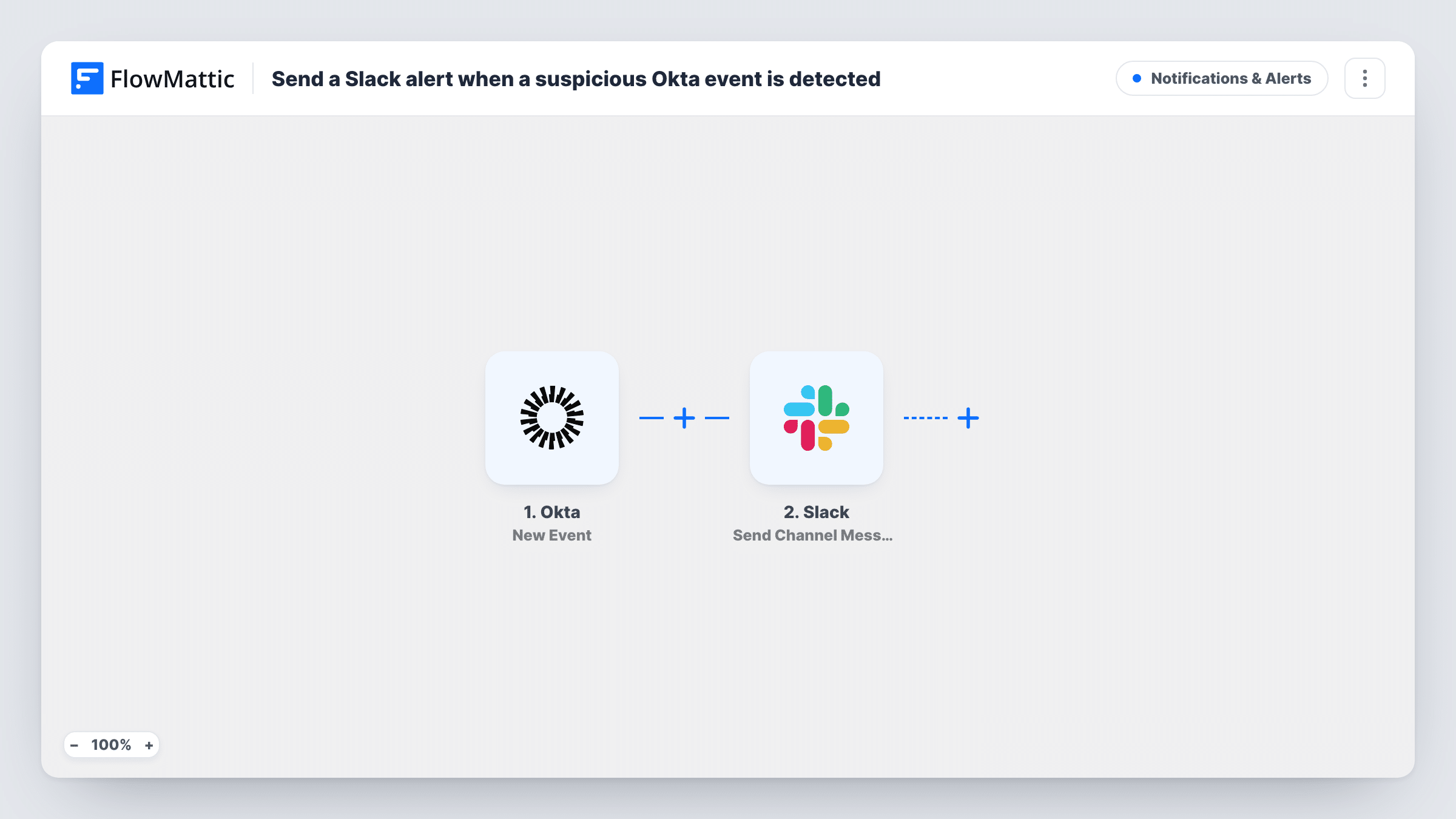
Each new event Okta sends to FlowMattic is posted as a message in a Slack channel you choose, so your IT or security team sees identity activity where they already talk.
 Okta
 Slack
2 steps Setup ~5 min Used on 3.3k sites Free to import
What this workflow does
Okta records a steady stream of identity activity: sign-ins, password resets, group changes, new users and more. Reading it in the admin console means someone has to go and look. This workflow brings each event into Slack, where your IT or security team can see it, discuss it in a thread and act on it.
The Okta trigger fires for each new event that occurs in Okta and reaches FlowMattic. Its data, such as the event type, the user involved and the time, is available to map into the message. The template doesn't sort events by type or risk, so every event that arrives becomes a post.
Nothing is mapped yet in the Slack Send Channel Message step. After import you connect Slack, pick the public channel and write the message, mapping in the Okta fields that help your team decide what to do. Run a test event and check Task History to see which fields Okta passes.
Busy Okta orgs produce many events, so a channel can fill up fast. Adding a Filter on the event type keeps the alerts to what your team wants to watch.
Security channel for identity changes
A security team watches a dedicated #okta-alerts channel and starts a thread when an event looks unusual, such as a sign-in from an unexpected place.
IT helpdesk sees lockouts and resets
Helpdesk staff notice account activity in Slack and can reach out to a colleague who seems stuck before a ticket comes in.
Audit trail people can search
An operations lead uses Slack search to find when a user's account changed, instead of logging in to the Okta admin console.
How this workflow runs
What happens at each step once the workflow is on, and what you need before you import it.
 Okta New Event
Fires for each new event that occurs in Okta and reaches FlowMattic. The event's details, such as its type, the user involved and the time, are passed on to the Slack step.
- Slack Send Channel Message
Publishes the Okta event as a post in a public Slack channel of your choice. No message is written in the template, so connect Slack, pick the channel and map the Okta event fields into the text after import.
What you need
- FlowMatticCore
- Okta AccountAccount
- Slack AccountAccount
After importing, map your own data. To keep the template universal, not every step is pre-filled. Open each step in the builder and connect your accounts and fields (channels, lists, sheets, recipients) before you switch the workflow on.
Make it yours
Changes worth making after you import it.
- Put a Filter between the Okta trigger and the Slack step on the event type field, so only the kinds of events you care about, such as failed sign-ins, create a message. A test event shows the field's name.
- For a private channel, swap the step for Slack's Send Private Channel Message action; to alert one admin, use Send Direct Message.
- Start each message with the event type and the user's name, so people scanning the channel can tell at a glance what happened.
Questions about this workflow
Does every Okta event end up in Slack?
Every event the trigger receives does, as imported. The template has no check on the event type, so add a Filter between the Okta trigger and the Slack step if you only want some of them.
Can the Okta alerts go to a private Slack channel?
The template's Send Channel Message action isn't meant for that. Replace it with Slack's Send Private Channel Message action, or Send Direct Message to reach a single person.
Which Okta details can I put in the Slack message?
The fields the New Event data includes, such as the event type and the user involved. Run a test and open Task History to see them before you write the message.
Does this workflow block suspicious sign-ins in Okta?
No. It only posts to Slack. Any response, such as suspending a user, happens in Okta by a person on your team.
More Notifications & Alerts workflows
Other ready-to-import templates from the same category.





Import this workflow into your WordPress site
Download the JSON, import it from the Workflows screen and connect your accounts. Every run stays on your server, with no per-task fees.
30-day money-back guarantee Unlimited workflows and runs Self-hosted