

When a Zoho People webhook event is received, notify the manager via Slack and create a ClickUp task
Each event Zoho People sends to the workflow’s webhook posts a Slack message to the channel your manager watches and creates a ClickUp task, so HR requests get seen and tracked.
 Zoho People
 Slack
 ClickUp
3 steps Setup ~5 min Used on 2.2k sites Free to import
What this workflow does
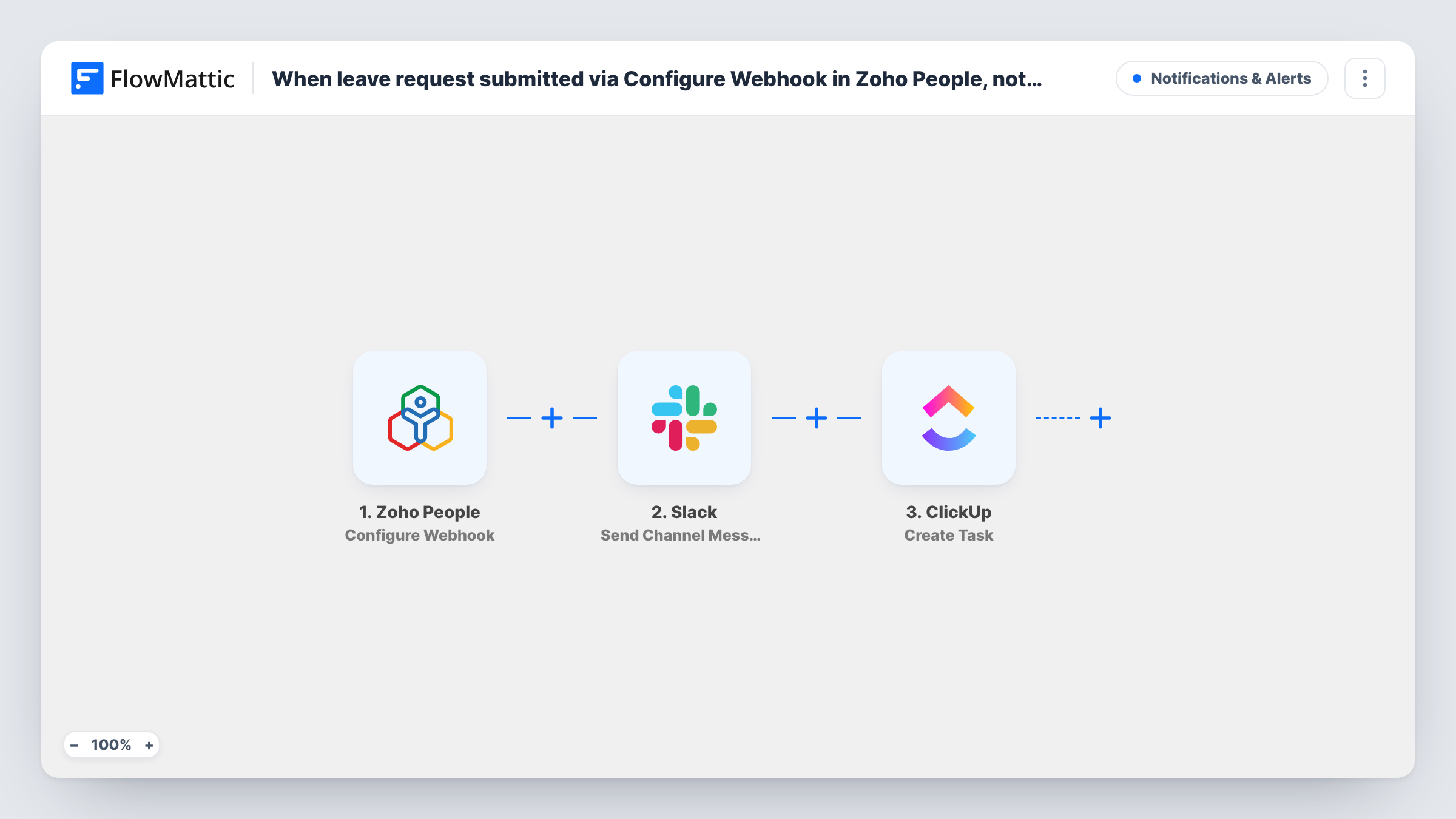
HR events such as a leave request or a new employee record often need two things: someone with authority has to see them, and someone has to follow up. This workflow takes each event Zoho People sends and turns it into a Slack notice plus a ClickUp task, so nothing waits in an inbox.
The Zoho People trigger is a webhook. FlowMattic describes it as firing on any event from Zoho People forms, such as Employee, Leave or Attendance. You decide which events reach it by where you set up the webhook in Zoho People, so point it only at the form and action you want, for example new leave requests.
The Slack step posts a message to a public channel you choose, such as a managers' channel. The ClickUp step then creates a task, so the follow-up has a place on your team's board.
None of the three steps has its fields filled in yet. After import you copy the webhook URL into Zoho People, send one test event, then map the employee name, dates or request type into the Slack message and the task name. Task History shows the data Zoho People sent and what Slack and ClickUp returned.
Leave requests that reach the team lead
Each leave request a staff member files in Zoho People appears in the team leads' Slack channel and becomes a ClickUp task to approve and plan cover.
Onboarding tasks for new hires
When HR adds an employee record in Zoho People, the IT channel in Slack hears about it and a ClickUp task covers laptop and account setup.
Attendance issues flagged for follow-up
An operations manager has Zoho People send attendance form events, so each one is posted in Slack and tracked as a ClickUp task until it's resolved.
How this workflow runs
What happens at each step once the workflow is on, and what you need before you import it.
 Zoho People Configure Webhook
Starts the workflow when Zoho People sends an event to the webhook URL. Set the webhook up in Zoho People only for the form and event you want, such as new leave requests, so other events don't start runs.
- Slack Send Channel Message
Sends the notice to a public Slack channel of your choice. The step ships unmapped: pick the channel your manager reads and map the employee and request details into the text.
- ClickUp Create Task
Opens a ClickUp task so someone owns the next action. Set where the task goes after import and map details from the Zoho People event into the task name and description, then confirm the result with a test run.
What you need
- FlowMatticCore
- Zoho People AccountAccount
- Slack AccountAccount
- ClickUp AccountAccount
After importing, map your own data. To keep the template universal, not every step is pre-filled. Open each step in the builder and connect your accounts and fields (channels, lists, sheets, recipients) before you switch the workflow on.
Make it yours
Changes worth making after you import it.
- To message one manager instead of a channel, swap the Slack step for Send Direct Message. A private managers' channel needs the Send Private Channel Message action from Slack instead.
- If the webhook carries several event types, put a Filter between the Zoho People trigger and the Slack step that continues only when a field from the event names the kind you want. Events it stops create no message and no task.
- Map the start and end dates of a leave request into the ClickUp task, so the task shows when cover is needed.
- To send different events to different ClickUp lists, replace the single Create Task step with a Router placed after the Slack step, one route per event type, each ending in its own Create Task. Pick event values that can never match two routes at once.
Questions about this workflow
Which Zoho People events start this workflow?
Whatever Zoho People sends to the webhook URL. FlowMattic's trigger accepts events from Zoho People forms such as Employee, Leave and Attendance, so set the webhook up only where you want it to fire.
Does the Slack message go to the manager directly?
Not as imported. Send Channel Message posts to a channel, so the manager sees it there. Switch to Send Direct Message if you want it in their own Slack messages.
Who gets assigned the ClickUp task?
The template doesn't set an assignee or any other task detail. Configure the Create Task step after import, and check a test run to see the task ClickUp created.
Is this workflow only for leave requests?
No. It works with any Zoho People event the webhook sends. Leave requests are a common choice, but employee and attendance events work the same way.
More Notifications & Alerts workflows
Other ready-to-import templates from the same category.




Import this workflow into your WordPress site
Download the JSON, import it from the Workflows screen and connect your accounts. Every run stays on your server, with no per-task fees.
30-day money-back guarantee Unlimited workflows and runs Self-hosted