

Send a Slack alert to the support team when a 2Checkout refund is issued
Whenever 2Checkout processes a full or partial refund, this workflow posts a message to the Slack channel your support team watches, with the refund details you choose to include.
 2Checkout
 Slack
2 steps Setup ~5 min Used on 642 sites Free to import
What this workflow does
Refunds often reach support last. A customer writes in about money they already got back, or about a refund they expected, and the agent has to dig through the payment dashboard to see what happened. Posting each refund in Slack puts that information where the support team already talks.
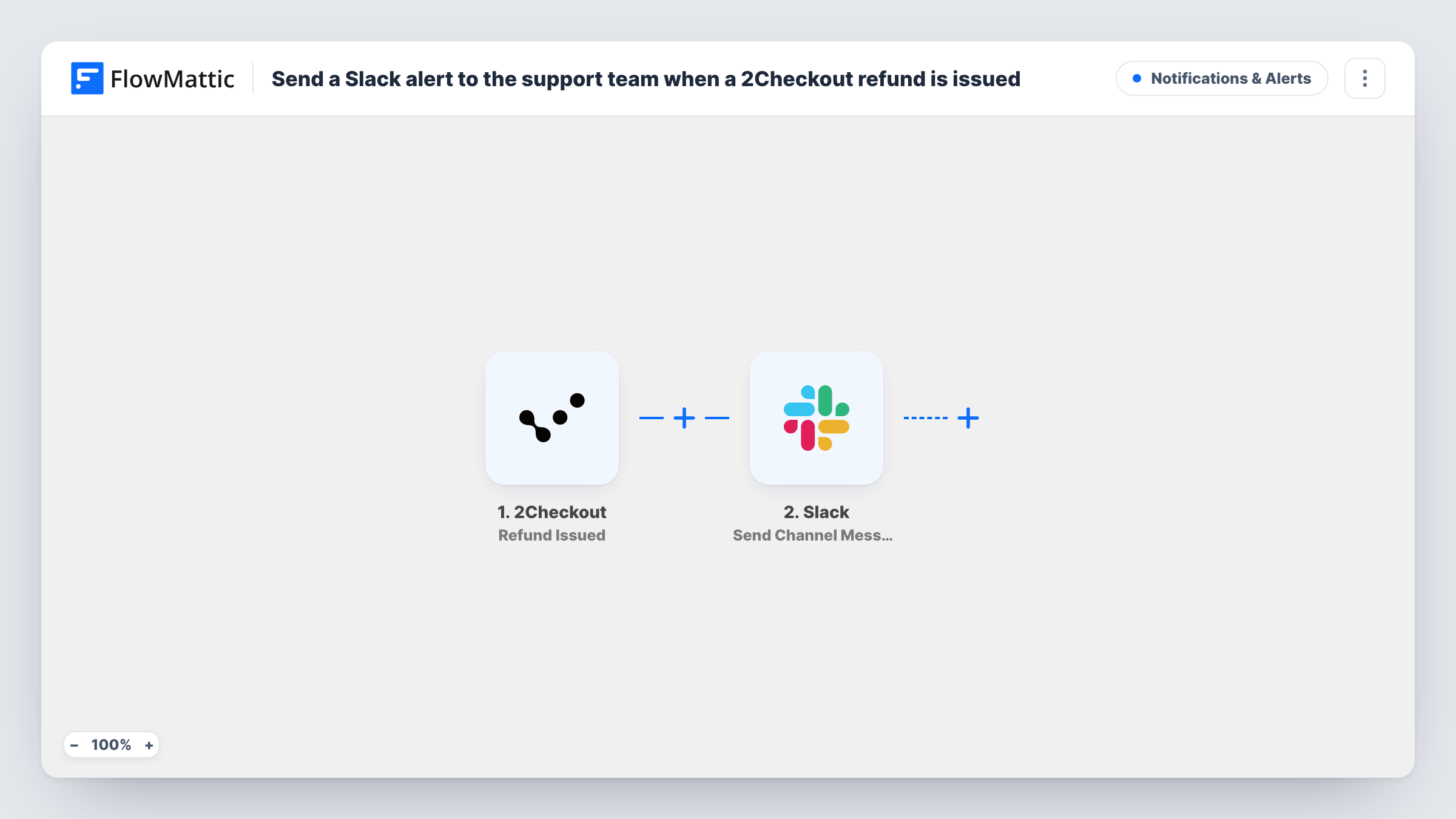
The 2Checkout trigger is Refund Issued, which fires when a refund, full or partial, is processed. The refund data from 2Checkout becomes fields you can map. The Slack step then uses Send Channel Message to post in the channel you pick. Write the message once and drop in values such as the order reference, the customer and the amount refunded.
Every refund posts, whatever its size or reason, because the template has no conditions. The alert is a notice only: it doesn't open a ticket or contact the customer. Run a test refund or wait for the first real one, then check Task History to see which 2Checkout fields arrived for mapping.
Software company selling licences
A customer is refunded for a licence. The support channel sees it straight away, so whoever handles the follow-up email knows the refund is done.
Spotting a pattern in refunds
Several refunds for the same product show up in the channel in one week, and the team raises it with the product owner.
Partial refunds after a billing dispute
Finance issues a partial refund in 2Checkout, and the support agent who logged the dispute sees the amount in Slack before replying to the customer.
How this workflow runs
What happens at each step once the workflow is on, and what you need before you import it.
 2Checkout Refund Issued
Fires when 2Checkout processes a refund, whether full or partial. The refund details from 2Checkout are passed on so you can use them in the Slack message.
- Slack Send Channel Message
Drops the refund alert into the Slack channel your support team follows. Write the alert text and map in 2Checkout refund details such as the order reference and amount.
What you need
- FlowMatticCore
- 2Checkout AccountAccount
- Slack AccountAccount
After importing, map your own data. To keep the template universal, not every step is pre-filled. Open each step in the builder and connect your accounts and fields (channels, lists, sheets, recipients) before you switch the workflow on.
Make it yours
Changes worth making after you import it.
- Add a Filter after the trigger with a greater-than condition on the refund amount, so only larger refunds reach the channel. Amounts compare as whole numbers, so 49.99 counts as 49.
- Use Slack's Send Direct Message action as a second step to tell the account owner or finance lead about each refund personally.
- Build a similar workflow on 2Checkout's Fraud Status Changed trigger and post to the same channel, so payment issues are in one place.
Questions about this workflow
Does the Slack alert fire for partial 2Checkout refunds?
Yes. The Refund Issued trigger fires when a refund, full or partial, is processed, so both kinds post a message.
Can the 2Checkout refund alert go to a private Slack channel?
As imported, the Slack step posts to a regular channel. Slack also has a Send Private Channel Message action in FlowMattic, so swap the step if your support channel is private.
Does this tell the customer about the refund?
No. It only posts in Slack. 2Checkout's own refund emails, if you use them, work as before.
Will refunds made before I turn this on show up in Slack?
No. The trigger reacts to refunds processed after the workflow is live.
More Notifications & Alerts workflows
Other ready-to-import templates from the same category.





Import this workflow into your WordPress site
Download the JSON, import it from the Workflows screen and connect your accounts. Every run stays on your server, with no per-task fees.
30-day money-back guarantee Unlimited workflows and runs Self-hosted