

Send a Slack message when a new row is added in Zoho Sheet
When a new row is added to a Zoho Sheet worksheet, this workflow posts a message to a Slack channel with the row’s values, so your team learns about new entries without opening the spreadsheet.
 Zoho Sheet
 Slack
2 steps Setup ~5 min Used on 711 sites Free to import
What this workflow does
Shared spreadsheets fill up quietly. A colleague adds an order, a request or a lead to Zoho Sheet, and nobody notices until they next open the file. This workflow posts each new row to Slack, where your team already talks.
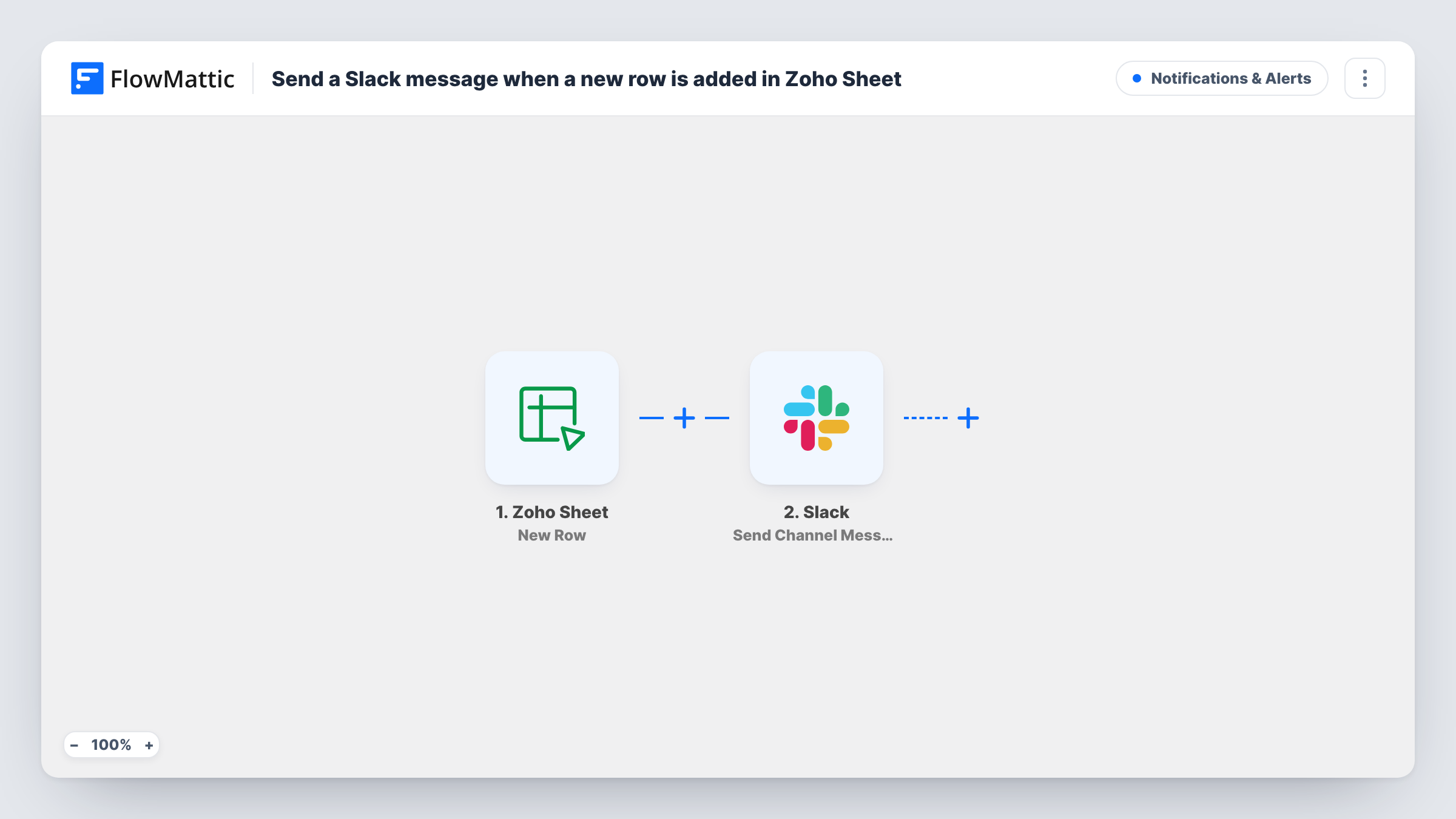
The Zoho Sheet trigger, New Row, watches the worksheet you pick. It is a polled trigger: FlowMattic checks the sheet at intervals rather than being told instantly, so a short wait between adding a row and seeing the message is normal. The values in each new row become available to map.
Next, Slack runs Send Channel Message. You choose the channel and write the message, placing column values where you want them, such as a customer name and amount. Every new row produces one message. Edits to existing rows don't trigger it, since the trigger only looks for new rows. Task History shows what was posted for each row.
Orders logged by a sales team
Reps record deals in a shared Zoho Sheet. Each new row posts to #sales with the client and amount so the team sees every deal logged.
Requests collected in a tracking sheet
Office or IT requests are entered as rows. A Slack message alerts the person who handles them each time a new request is added.
Rows written by another tool
A form or integration already appends rows to Zoho Sheet. This workflow adds a Slack heads-up without changing that setup.
How this workflow runs
What happens at each step once the workflow is on, and what you need before you import it.
 Zoho Sheet New Row
Checks the Zoho Sheet worksheet you choose at intervals and fires for each new row it finds. The row's column values are passed on for the Slack message.
- Slack Send Channel Message
Sends one Slack channel message per new Zoho Sheet row. Write the text and map in the row's column values so the message shows what was added.
What you need
- FlowMatticCore
- Zoho Sheet AccountAccount
- Slack AccountAccount
After importing, map your own data. To keep the template universal, not every step is pre-filled. Open each step in the builder and connect your accounts and fields (channels, lists, sheets, recipients) before you switch the workflow on.
Make it yours
Changes worth making after you import it.
- Add a Filter after the trigger that continues only when a column matches a value, such as Priority equal to High, so only important rows reach Slack.
- Use the header row names in your message, like Client: followed by the mapped value, so the Slack post reads clearly without opening the sheet.
- Want the same rows in a CRM or task tool too? Add another action after Slack and map the same Zoho Sheet columns into it.
Questions about this workflow
How quickly does a new Zoho Sheet row appear in Slack?
The New Row trigger is polled, so FlowMattic checks the worksheet at intervals. Expect a short delay rather than an instant message.
Does editing an existing Zoho Sheet row send a Slack message?
No. The trigger fires for rows added to the worksheet. Changes to rows that already exist are not picked up.
Can I watch more than one Zoho Sheet worksheet?
Each trigger watches one worksheet. Import the workflow again and point the copy at another worksheet, with the same or a different Slack channel.
Which Slack channel receives the Zoho Sheet alerts?
The one you choose in the Send Channel Message step, from the Slack workspace you connect. Change it at any time by editing that step.
More Notifications & Alerts workflows
Other ready-to-import templates from the same category.



Import this workflow into your WordPress site
Download the JSON, import it from the Workflows screen and connect your accounts. Every run stays on your server, with no per-task fees.
30-day money-back guarantee Unlimited workflows and runs Self-hosted