

Open a GitHub follow-up for high-value Supabase rows
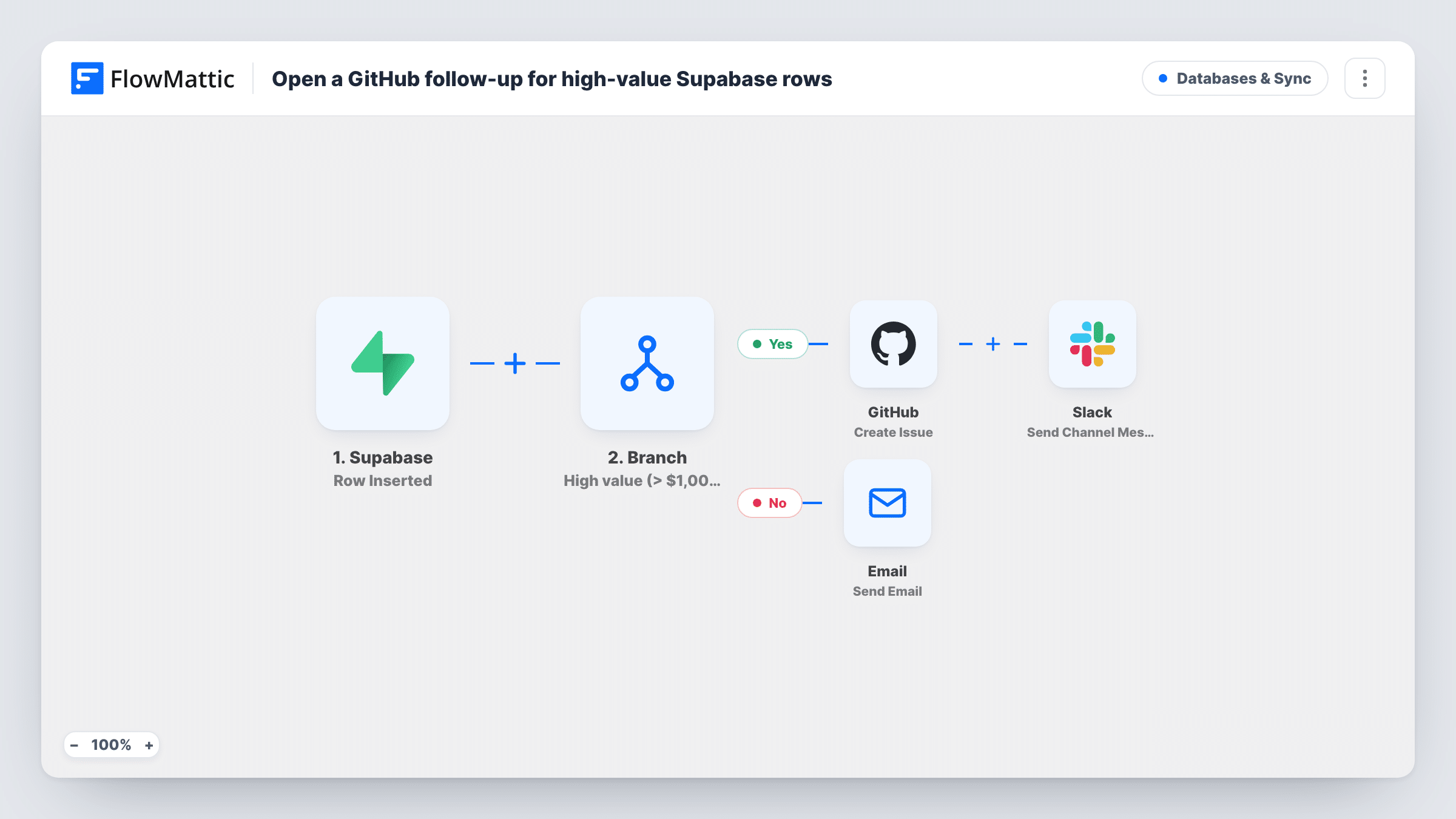
New Supabase rows with an amount above 1000 open a GitHub issue and a Slack alert for your account team. Every other new row triggers a thank-you email to the address in its email column.
 Supabase
 Branch
 GitHub
 Slack
Slack
 Email
Email5 steps Setup ~8 min Used on 555 sites Databases & Sync Free to import
What this workflow does
Your app writes leads, orders or sign-ups straight into Supabase, and nobody looks at the table until something goes wrong. This workflow watches for new rows and sorts them by value: large ones become tracked follow-ups in GitHub, small ones get an automatic reply.
FlowMattic describes the Supabase Row Inserted trigger as firing when a new row is inserted into the table you select. A Branch step then tests whether the row's amount column is greater than 1000. Yes leads to the GitHub Create Issue action, which files a follow-up issue naming the row's name and amount and the email to contact, followed by a Slack post with the same name and amount. No leads to FlowMattic's Email step, which writes to the row's email address to say the record was added.
Only one path runs per row. High-value contacts get no email from this workflow, and smaller ones create no issue. The check compares whole numbers, so an empty amount is read as 0 and a value like 1000.40 is read as 1000; both go down the No path.
SaaS app storing quote requests in Supabase
Your signup form writes quote requests to a Supabase table. Requests above 1000 land as GitHub issues the founders triage, and the rest get a reply email.
Marketplace order table
Orders over 1000 need a manual check before shipping. Each one opens an issue and pings the ops channel, while regular buyers get a receipt-style note.
Grant or funding applications
Applications with a requested amount above 1000 go to a reviewer as GitHub issues. Smaller requests receive a confirmation that they were received.
How this workflow runs
What happens at each step once the workflow is on, and what you need before you import it.
 Supabase Row Inserted
Fires when a row is inserted into the Supabase table you select. Later steps read the row's name, email and amount columns, so your table should use those column names or you remap them.
- Branch Branch
Tests whether the row's amount is greater than 1000. Rows that pass go to GitHub and Slack. Rows that fail, including empty amounts, go to the email step.
- GitHub Create Issue
Yes path. Files an issue in GitHub titled "Follow up" with the row's name and amount, asking someone to contact the row's email. Replace the acme/accounts repository with your own.
- Slack Send Channel Message
Yes path. Sends the high-value row's name and amount to a Slack channel. Choose the channel when you connect Slack, and change the wording if your team wants other columns.
 Email Send Email
No path. Emails the address in the row's email column with a short note that the record was added and you will be in touch. It sends through WordPress mail or your SMTP settings.
What you need
- FlowMatticCore
- Supabase AccountAccount
- GitHub AccountAccount
- Slack AccountAccount
After importing, map your own data. To keep the template universal, not every step is pre-filled. Open each step in the builder and connect your accounts and fields (channels, lists, sheets, recipients) before you switch the workflow on.
Make it yours
Changes worth making after you import it.
- Store amount in Supabase as a numeric column rather than text with a currency sign, then insert a test row of 1500 to watch it take the Yes path.
- Raise or lower the 1000 in the Branch condition to match what counts as high value for your business.
- If high-value contacts should also be acknowledged, copy the Email step onto the Yes path after the Slack step.
Questions about this workflow
Do I need to change the GitHub repository after importing the Supabase template?
Yes. acme/accounts is a sample value. Enter the owner and name of your own repository in the Create Issue step, or issue creation will fail.
Does updating a Supabase row start the workflow?
No. Row Inserted fires for new rows only, so editing a row's amount later does not open an issue.
Which path does a Supabase row with an empty amount take?
The No path. An empty value is compared as 0, which is not greater than 1000, so the email step writes to that row's email address.
Can large Supabase rows be sent to a different Slack channel than usual?
The Slack step only runs for rows over 1000, so choose a dedicated channel for it when you set it up. Smaller rows never post to Slack.
More Databases & Sync workflows
Other ready-to-import templates from the same category.





Import this workflow into your WordPress site
Download the JSON, import it from the Workflows screen and connect your accounts. Every run stays on your server, with no per-task fees.
30-day money-back guarantee Unlimited workflows and runs Self-hosted