

Log every new GitHub issue as a row in Supabase to power custom dashboards
When an issue is opened on GitHub, FlowMattic inserts a row into a Supabase table with the issue number, title, author, link and repository, ready for SQL queries and your own dashboards.
 GitHub
 Filter
 Supabase
3 steps Setup ~5 min Used on 1.6k sites Databases & Sync Free to import
What this workflow does
GitHub's own issue views are fine for working through a backlog, but harder to use for questions like how many issues each repository gets per week or who reports the most. Keeping issues in Supabase, a Postgres database, lets you answer those with SQL or point a chart tool at the table.
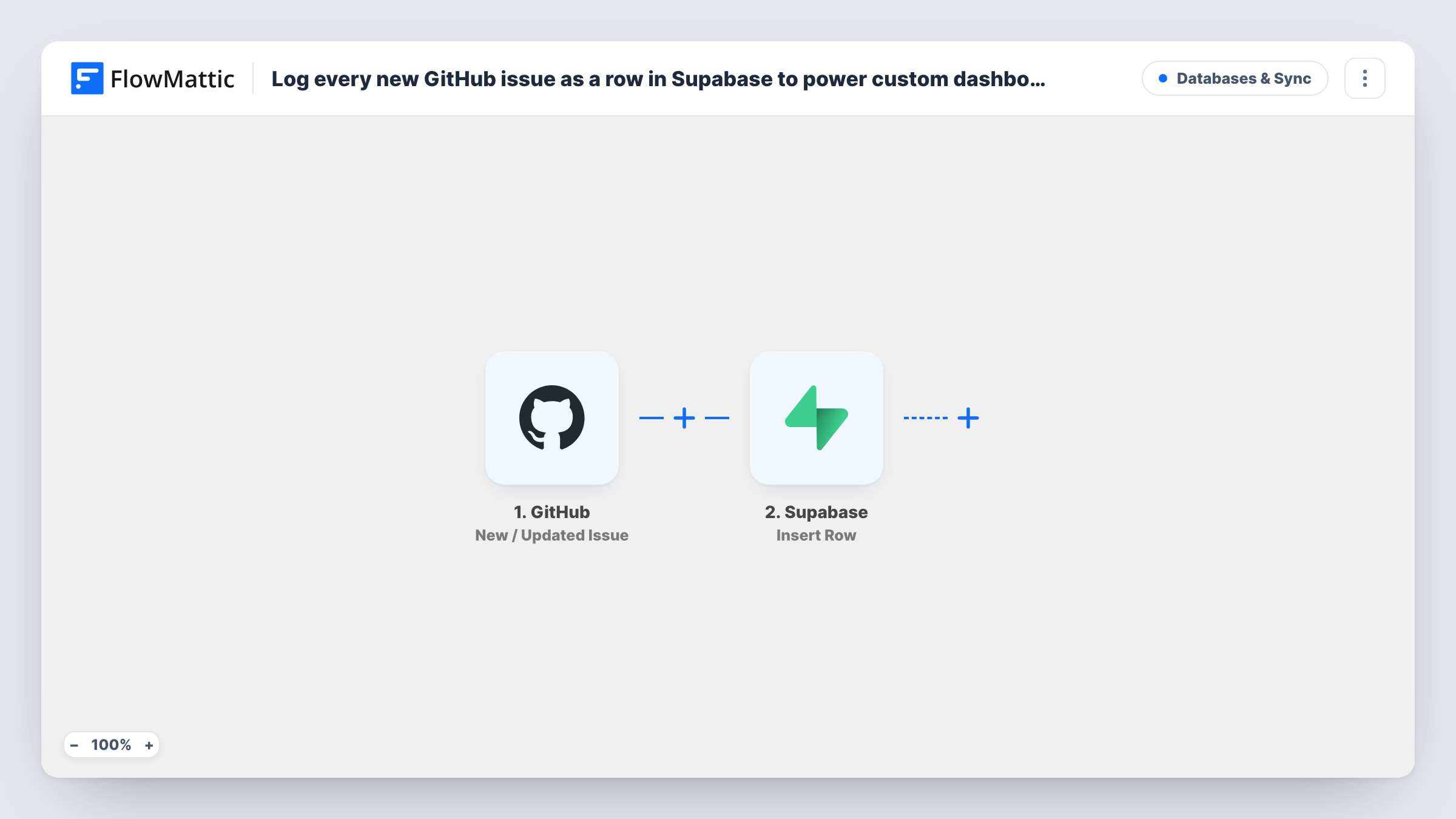
The GitHub New / Updated Issue trigger runs on issue activity in the connected repository. A Filter then continues only when GitHub's action exactly matches opened, case ignored. That keeps edits, closes and reopens from adding extra rows, so each issue is stored once, when it is first opened.
The Supabase Insert Row step writes to a table named github_issues, using JSON mapping. It fills five columns: number, title, author (the reporter's GitHub login), url (the issue's web link) and repo (the repository's full name). Create that table with those column names in Supabase before you import, or edit the table name and JSON to match a table you already have.
The row records the issue as it was when opened. Later title changes, labels or closing don't reach Supabase, because those events stop at the Filter. Open a test issue and check Task History to see Supabase's response.
Issue volume chart across repositories
An engineering lead queries github_issues grouped by repo and week, and shows the counts in a dashboard built on Supabase.
Reporter leaderboard for an open-source project
Maintainers count rows per author to see who files the most issues, and thank frequent reporters in release notes.
Linking issues to your own app data
A SaaS team joins the github_issues table with its customer tables in Postgres, using the issue link stored in the url column.
How this workflow runs
What happens at each step once the workflow is on, and what you need before you import it.
 GitHub New / Updated Issue
Runs on issue activity in the connected GitHub repository, including new issues, edits, closes and reopens. It passes the issue number, title, author, link, repository and the action GitHub reports.
- Filter Continue If Condition Meet
Continues only when GitHub's action field exactly matches opened, ignoring case. Every other issue event ends the run here, so each issue reaches Supabase once.
- Supabase Insert Row
Inserts a row into the github_issues table in Supabase, mapping number, title, author, url and repo from the issue as JSON. The table and those columns must exist in your Supabase project.
What you need
- FlowMatticCore
- GitHub AccountAccount
- Supabase AccountAccount
After importing, map your own data. To keep the template universal, not every step is pre-filled. Open each step in the builder and connect your accounts and fields (channels, lists, sheets, recipients) before you switch the workflow on.
Make it yours
Changes worth making after you import it.
- Create github_issues with number as an integer and the other four columns as text, and add a created_at column with a default of now(), so every row gets a timestamp without changing the mapping.
- Add more keys to the Insert Row JSON, such as the issue body or labels from the trigger, and create matching columns in the table first.
- To keep only bug reports, add a second condition to the existing Filter that the issue's labels contain bug. Open a test issue first to see what the trigger sends for labels.
Questions about this workflow
Do I need to create the github_issues table in Supabase first?
Yes. The Insert Row step writes to a table called github_issues with columns number, title, author, url and repo. Create it before the first run, or change the step to use your own table and column names.
Will closing or editing a GitHub issue update its Supabase row?
No. Those events start the trigger but stop at the Filter, which only lets opened through. The row keeps the values from when the issue was opened.
Does a reopened GitHub issue create a second row?
No. GitHub reports a reopened issue with the action reopened, which doesn't match opened, so the Filter stops it before Supabase.
Are issues opened before I import the workflow added to Supabase?
No. Only issues opened while the workflow is active are inserted. Older issues need a separate one-time import into the table.
More Databases & Sync workflows
Other ready-to-import templates from the same category.





Import this workflow into your WordPress site
Download the JSON, import it from the Workflows screen and connect your accounts. Every run stays on your server, with no per-task fees.
30-day money-back guarantee Unlimited workflows and runs Self-hosted