

Get a Slack alert the moment a new row is inserted into your Supabase table
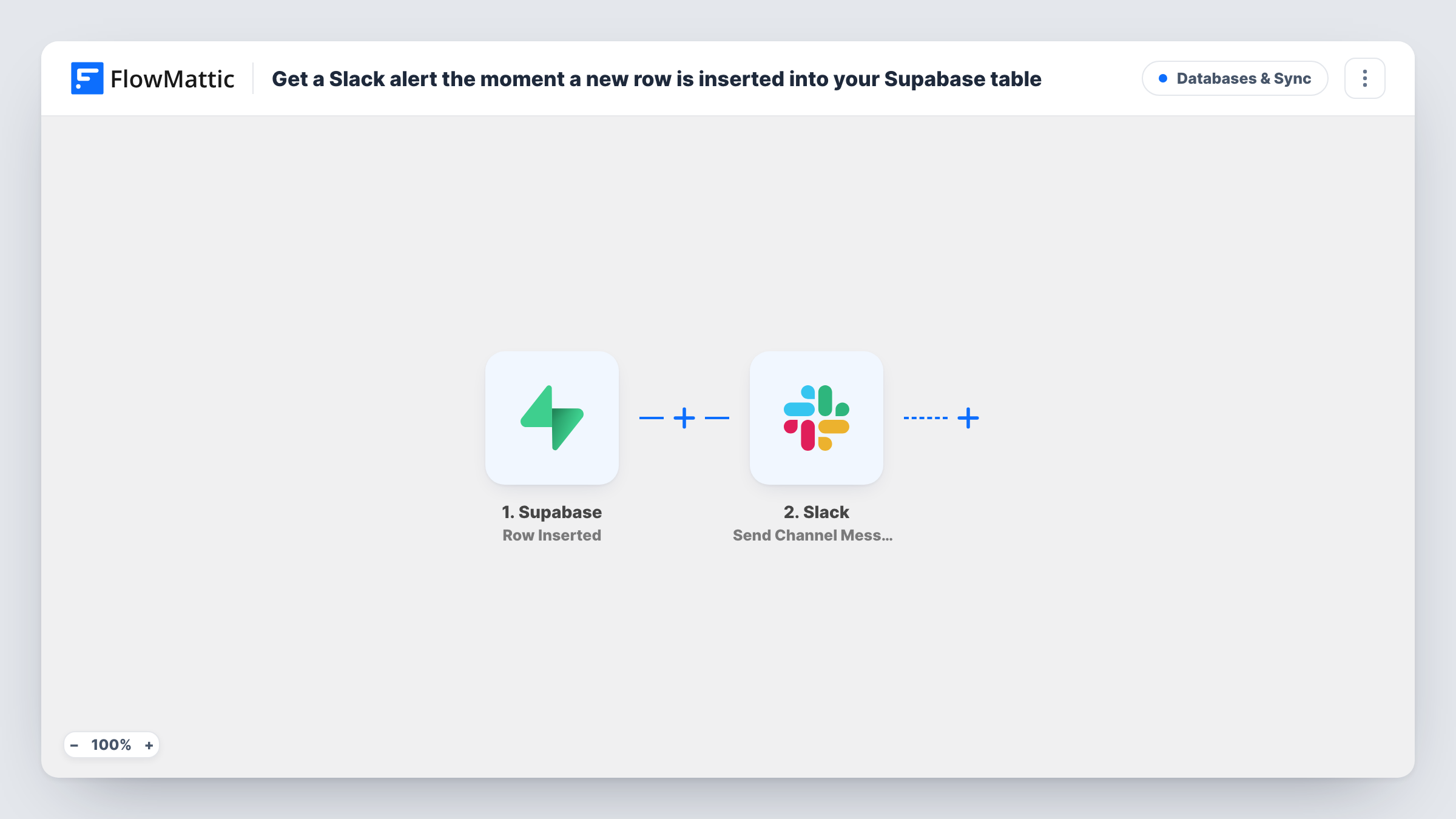
Whenever a new row lands in the Supabase table you select, FlowMattic posts a Slack channel message naming the table and showing the row’s name, email and plan, so your team hears about new records at once.
 Supabase
 Slack
Slack2 steps Setup ~5 min Used on 910 sites Databases & Sync Free to import
What this workflow does
New rows in a Supabase table often mean something your team should act on: a sign-up, a trial, an upgrade request. Watching the table editor all day isn't practical. This workflow puts a short notice in Slack for every insert instead.
The Supabase trigger is Row Inserted. FlowMattic describes it as firing when a new row is inserted into the selected table, so you pick one table and every insert into it starts a run. Updates and deletes don't fire it.
The Slack step is Send Channel Message, and the template ships with its text already written. It names the table and then shows the new record's name, email and plan columns. If your table uses other column names, those parts of the message come out blank until you swap in your own fields. You choose the channel when you connect Slack.
New SaaS sign-ups from your app's users table
Your app writes each new account to a Supabase table with name, email and plan columns, and the team sees every sign-up in a Slack channel as it is inserted.
Waitlist entries for a product launch
A landing page saves waitlist entries to Supabase. Each insert posts to the launch channel, so the founders can watch interest build.
Internal tool requests stored in Postgres
An internal form writes requests into a Supabase table, and the ops team picks them up from the Slack post instead of polling the database.
How this workflow runs
What happens at each step once the workflow is on, and what you need before you import it.
 Supabase Row Inserted
Fires when a new row is inserted into the Supabase table you select. The table name and the new record's columns are passed on, ready to use in the Slack message.
- Slack Send Channel Message
Posts to a Slack channel with prewritten text: the table name, then the record's name, email and plan columns. Pick the channel, connect Slack, and replace any column your table names differently.
What you need
- FlowMatticCore
- Supabase AccountAccount
- Slack AccountAccount
After importing, map your own data. To keep the template universal, not every step is pre-filled. Open each step in the builder and connect your accounts and fields (channels, lists, sheets, recipients) before you switch the workflow on.
Make it yours
Changes worth making after you import it.
- Insert one test row into the Supabase table after import, then compare the captured record fields with the message text and swap any column that doesn't match.
- Only want alerts for paid plans? Add a Filter after the trigger that continues when the plan column equals the value you care about.
- The prewritten Slack text starts with an emoji. Edit the message in the Slack step if your channel prefers plain text.
Questions about this workflow
Does the Supabase trigger also fire when a row is updated?
No. Row Inserted only covers new rows in the selected table. FlowMattic's Supabase integration has a separate Row Updated trigger if you want alerts for changes.
What if my Supabase table has no plan or email column?
Those parts of the Slack message will be empty. Open the Slack step after import and replace them with columns your table does have, using the fields captured from a test insert.
Can new Supabase row alerts go to a private Slack channel?
As shipped, the Slack step is Send Channel Message, meant for public channels. Private channels take Slack's separate Send Private Channel Message action, and a single teammate can be reached with Send Direct Message instead.
Will rows that already exist in Supabase be posted?
No. Only rows inserted after the workflow is turned on start a run, so existing data in the table is left alone.
More Databases & Sync workflows
Other ready-to-import templates from the same category.





Import this workflow into your WordPress site
Download the JSON, import it from the Workflows screen and connect your accounts. Every run stays on your server, with no per-task fees.
30-day money-back guarantee Unlimited workflows and runs Self-hosted