

Append a nightly snapshot of a Supabase table to Google Sheets
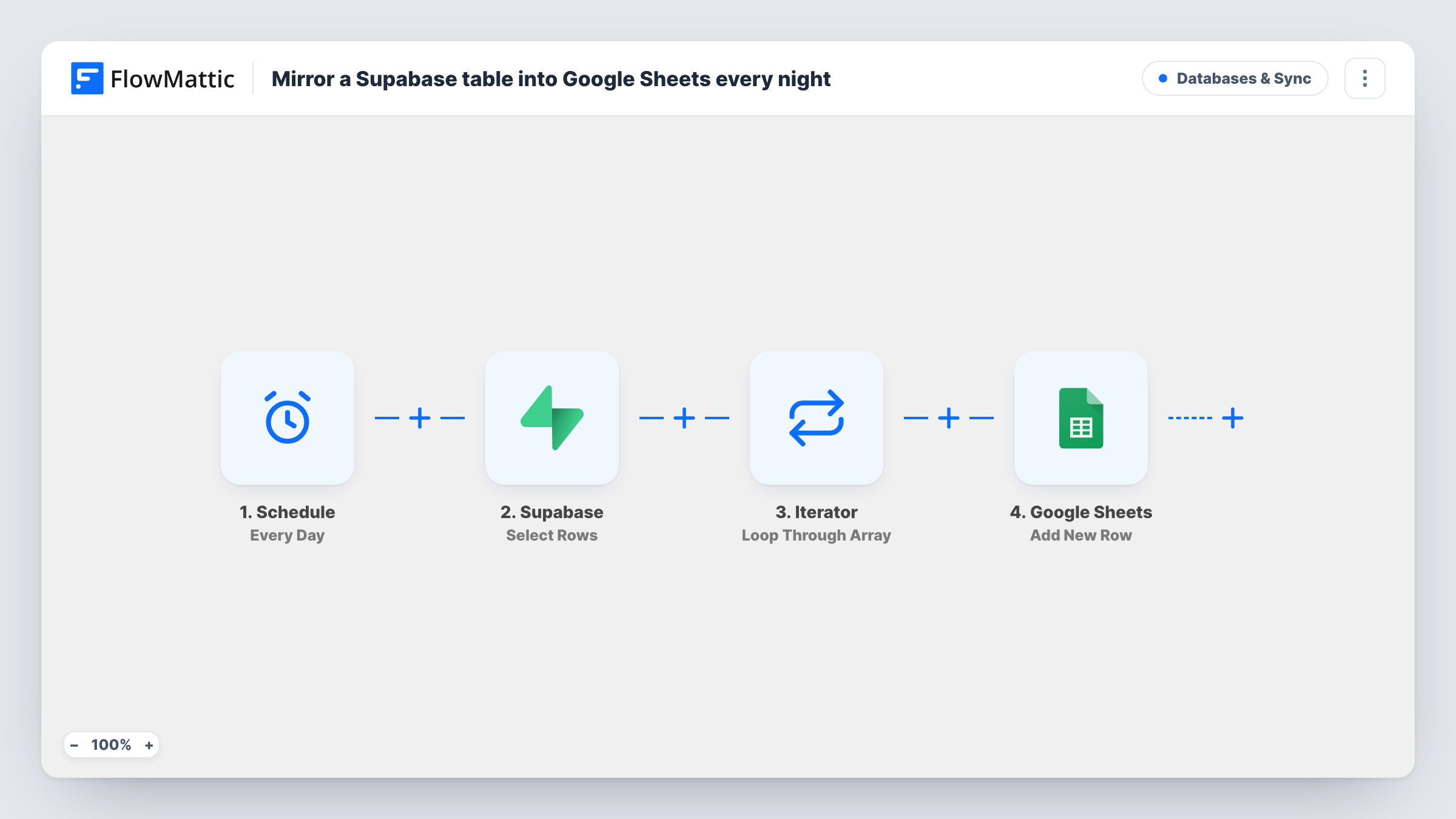
Once a day, FlowMattic reads up to 500 rows from a Supabase table and adds each one to Google Sheets as a new row, so the sheet builds up a copy of the table for every day the workflow runs.
 Schedule
 Supabase
 Iterator
 Google Sheets
4 steps Setup ~8 min Used on 1.5k sites Databases & Sync Free to import
What this workflow does
A spreadsheet copy of a database table is handy for people who don't use Supabase, and a daily copy lets you look back at how the data stood on a given day. This workflow appends the table to Google Sheets each day rather than overwriting it, so earlier snapshots stay in place.
The Schedule trigger runs the workflow every day at the time you set, such as late at night. The Supabase step, Select Rows, then reads rows from a table named customers, with a limit of 500. Change the table name to yours after import, and add filters if you only want some rows.
An Iterator loops through the rows Supabase returned, and for each one the Google Sheets step adds a new row. The Sheets step ships without mapping, so choose the spreadsheet and sheet and map the columns you want, such as ID, name and email.
Each run adds every selected row again, so the sheet grows by up to 500 rows a day. That is the point of a snapshot, but it means the sheet gets large over time. Rows past the limit of 500 aren't read. Run the workflow once by hand and check Task History before leaving it on.
Daily customer list for the finance team
A startup's finance lead filters the sheet's Snapshot Date column, added after import, to see which customers existed on a given day without Supabase access.
Tracking changes in plan or status
A product team compares two days' snapshots by their date column to see which customers moved plans, using a pivot table in Google Sheets.
A simple off-database backup
A small team with a modest customers table keeps a daily copy in Google Sheets as an extra record alongside its regular database backups.
How this workflow runs
What happens at each step once the workflow is on, and what you need before you import it.
 Schedule Every Day
Starts the workflow once a day at the time you choose in the Schedule step. Nothing from Supabase triggers it; it runs on the clock.
- Supabase Select Rows
Reads rows from the Supabase table named customers, up to 500 per run. Change the table name to the one you want to copy, and add filters if you only need some rows.
- Iterator Loop Through Array
Loops through the rows that Select Rows returned, so the step after it runs once for each row in the snapshot.
- Google Sheets Add New Row
Adds one Google Sheets row for each Supabase row in the loop. The step ships unmapped: pick the spreadsheet and sheet, then map the table's columns to yours.
What you need
- FlowMatticCore
- Supabase AccountAccount
- Google Sheets AccountAccount
After importing, map your own data. To keep the template universal, not every step is pre-filled. Open each step in the builder and connect your accounts and fields (channels, lists, sheets, recipients) before you switch the workflow on.
Make it yours
Changes worth making after you import it.
- Add a Date/Time Formatter step between the Schedule trigger and Select Rows using Modify Current Date, then map its date into a Snapshot Date column, so you can tell each day's rows apart.
- Point the workflow at a new tab every month or two, or archive old rows, since the sheet grows by every selected row on each run.
- If the table has more than 500 rows, raise the limit in Select Rows to cover them, keeping in mind each extra row is another sheet row per day.
Questions about this workflow
Does the Google Sheet get overwritten each night?
No. Each run appends a fresh copy of the selected rows below the existing ones, so earlier snapshots stay in the sheet.
What if my Supabase table has more than 500 rows?
Select Rows is set to a limit of 500, so only that many are read per run. Raise the limit in the step, or narrow the Select Rows query so the rows you need fit.
Which Supabase table does the snapshot copy?
The template reads a table called customers. Change the table name in the Select Rows step to the table you want after import.
Can I choose the time the Supabase snapshot runs?
Yes. Set the time of day in the Schedule trigger, for example after your business day ends, so the snapshot reflects the day's final data.
More Databases & Sync workflows
Other ready-to-import templates from the same category.






Import this workflow into your WordPress site
Download the JSON, import it from the Workflows screen and connect your accounts. Every run stays on your server, with no per-task fees.
30-day money-back guarantee Unlimited workflows and runs Self-hosted