Custom Webhook Response: Send Your Own Status, Headers and Data
Reply to a webhook with data from the run: String, JSON or XML bodies, any HTTP status from 200 to 599, extra…


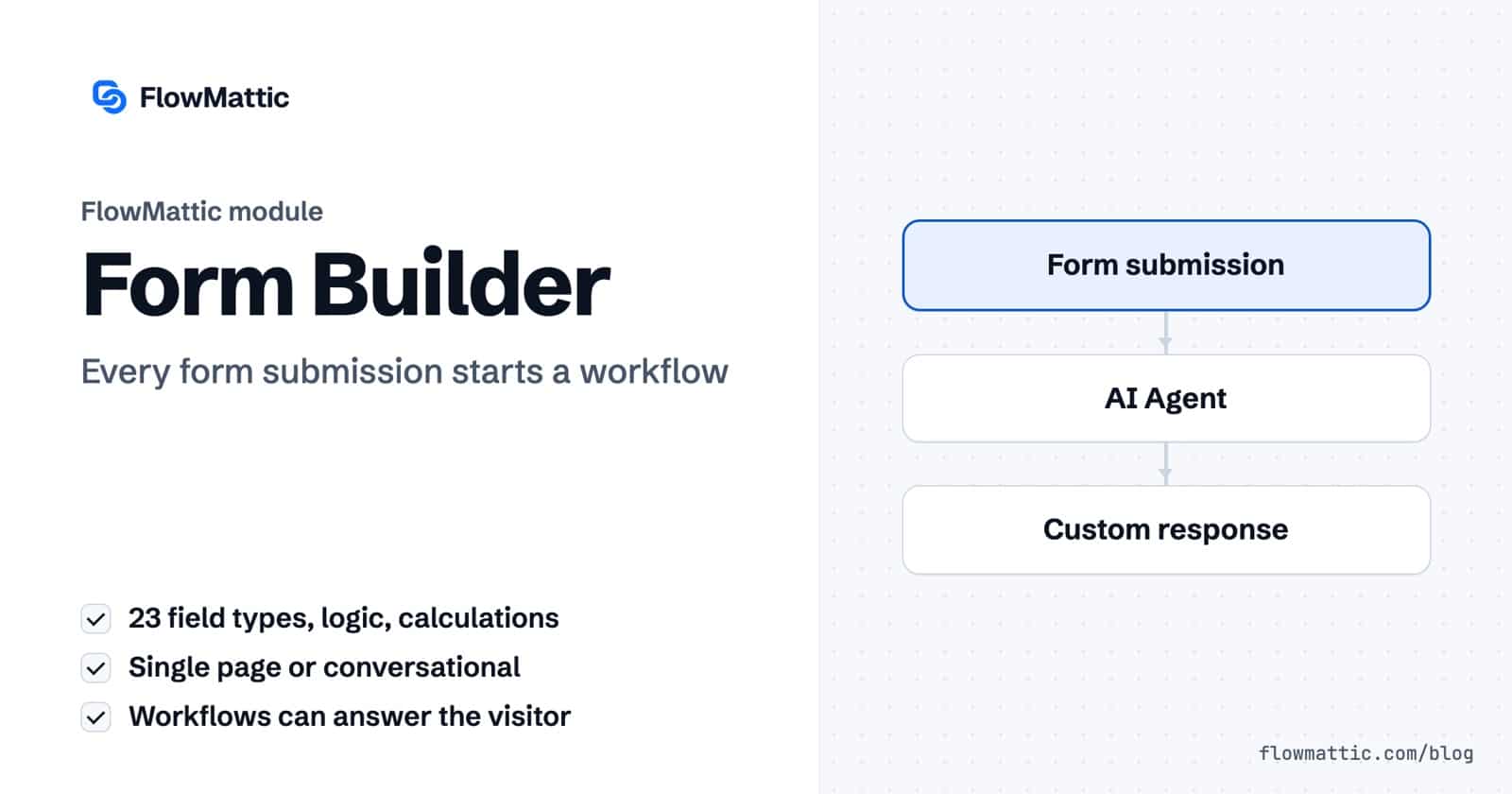
The FlowMattic Form Builder is a WordPress form builder that lives inside the automation plugin for WordPress you already use to run workflows. You build single-page, multi-step or conversational forms, and every submission starts a workflow with every answer attached. There is no connector plugin between the form and the automation.
This guide is for site owners, agencies and marketers who collect leads, orders, applications or feedback on WordPress and want something to happen the moment a visitor clicks Submit. You will see how the builder works, which settings matter, how the form talks back to the visitor from a workflow, and seven workflows you can copy.
The Form Builder is a drag-and-drop form editor that ships with FlowMattic. You open it from FlowMattic → Forms, pick a starter template or a blank form, and design the form in a three-panel editor: the field library on the left, a live preview in the middle and settings on the right.
What makes it different from a standalone WordPress form builder is the second half. The same plugin registers a Form Builder app in the workflow builder with one trigger, New Form Submission, and three actions that let a workflow change what the visitor sees after they submit. Entries are stored in your own WordPress database.
Drag fields from the library onto the canvas. There are 23 field types in five groups:
The Rich Text field gives respondents a small editor with headings, quotes, bold, italic, underline, inline code, bulleted and numbered lists, links and alignment, plus undo, redo and clear formatting. It works on desktop and phones. Answers are cleaned to the editor’s own tags on submit and capped at 64 KB, and Required, Min characters and Max characters count the visible text, not the tags.
A Page Break splits a long form into steps. Under Display method on the Form tab you choose Single page (all questions on one scrolling page) or Conversational (one question at a time with keyboard navigation). Conversational mode adds a welcome screen, a progress display setting and a keyboard shortcuts switch. It is a display mode on the same form, so fields and logic stay as they are.
If you would rather start from a description, the editor can generate a draft form with AI using one of your own AI provider connections.
The Logic tab holds three things. Conditional rules read like a sentence: if a field is, is not, contains, does not contain, is empty, is not empty, or is greater or less than a value, then Show, Hide, Require or Jump to another field. Calculations run a formula such as {{qty}} * {{unit}} over other answers. Answer piping lets a label, help text, thank-you message or redirect URL quote an earlier answer with {{field_key}}. Answers piped into the thank-you message and the respondent’s confirmation email are shown as text, so a link typed into an answer is never sent live from your site, and a Rich Text answer is piped as plain text.
The Settings tab gives you three ways to publish: a Public URL (the form’s own page), a Shortcode such as , and an API endpoint you can POST JSON to. There is also a block for the block editor. The share dialog adds an embed script for other sites with four placements: Inline embed, Popup (on click, after a delay or on exit intent), Slide-in and Bubble, plus a QR code you can download as a PNG.
In the workflow builder, choose Form Builder as the trigger app and New Form Submission as the event. Under Choose Form, pick one form or Any Form. Submit the form once, then click Capture Response to pull the field keys into the workflow.
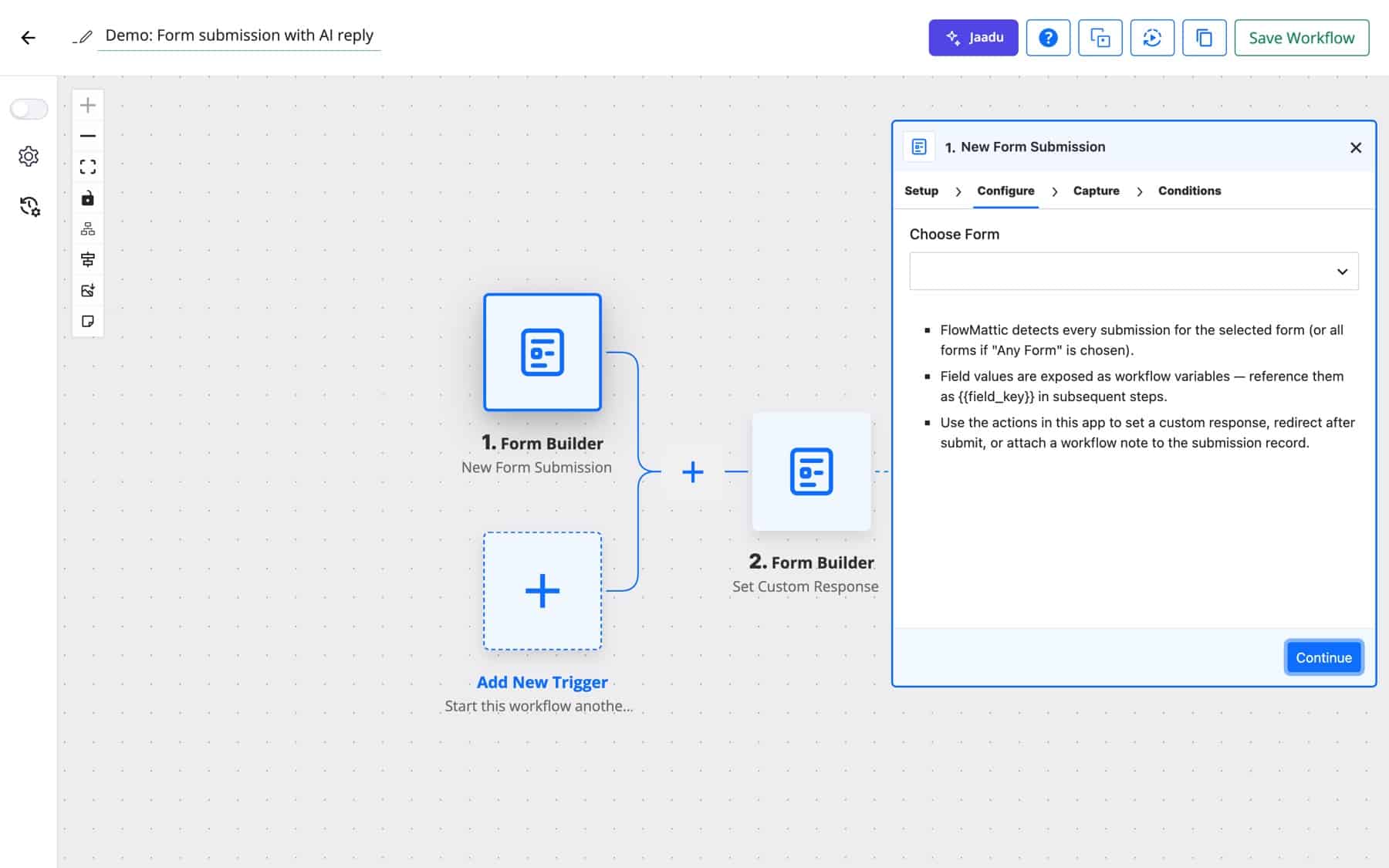
Every field value arrives under its field key, so {{email}} is the visitor’s email. The trigger also adds form_id, form_name, submission_id, submission_at, source_url, user_agent, ip_address and admin_link, a link to the entry in the admin. A Rich Text answer arrives as HTML under its key, with a plain-text copy under <field key>_text (for example {{notes_text}}) for steps such as Slack or Google Sheets that need text without tags.
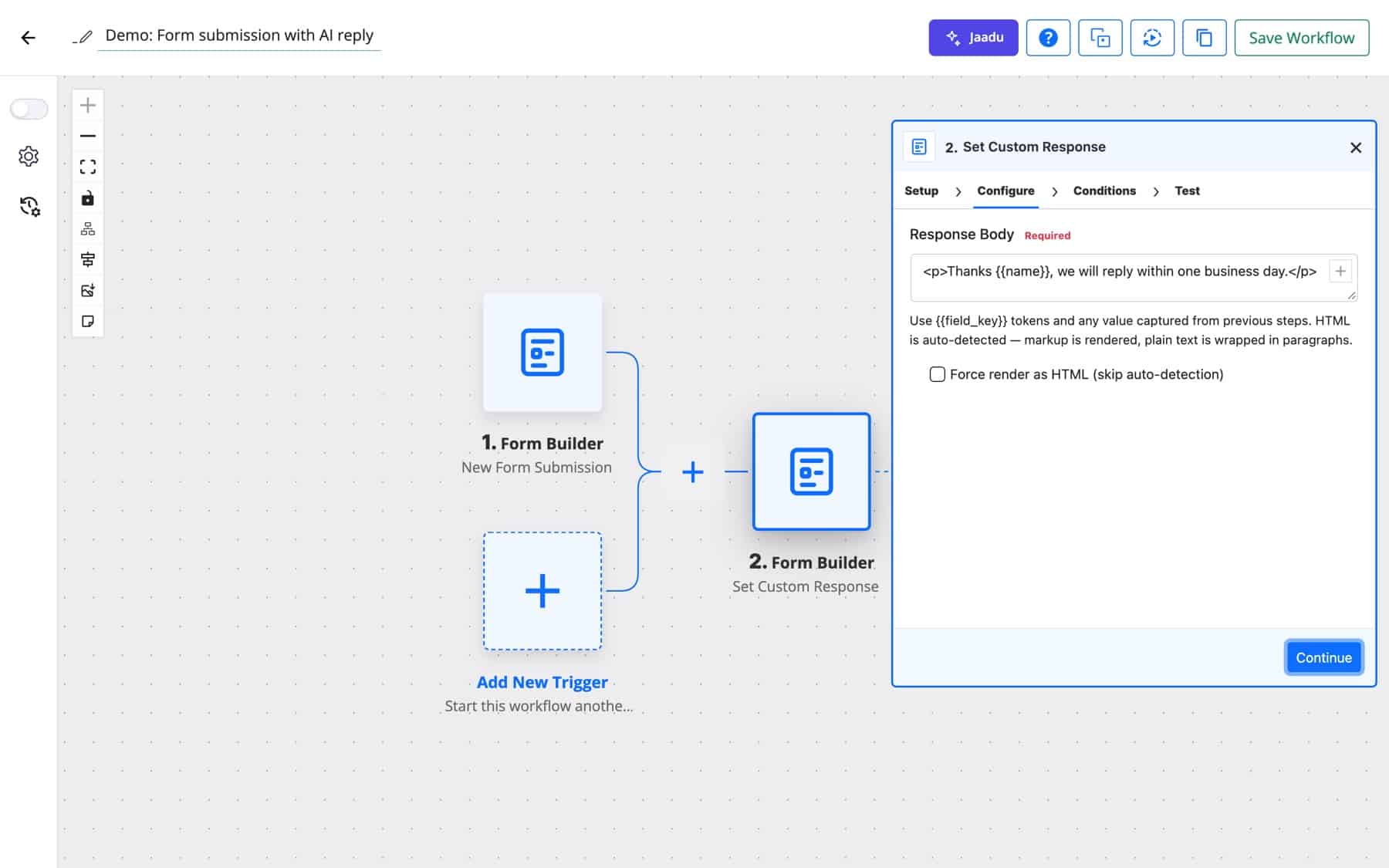
The Form Builder app also has three actions. Because the trigger fires while the submission request is still open, a later step can change the response the visitor sees.
| Action | Fields | What it does |
|---|---|---|
| Set Custom Response | Response Body (required), Force render as HTML | Replaces the success message with your text or HTML. HTML is detected automatically. |
| Set Custom Redirect URL | Redirect URL (required) | Sends this visitor to a URL after submit, including another domain. Works for AJAX and page-reload submissions. |
| Add Note to Submission | Submission ID (optional), Note (required) | Appends an internal note to the entry. Leave Submission ID blank to use the submission that triggered the run. |
Per-form settings live on the Settings tab of the editor. These are the ones that change behaviour:
| Setting | What it does |
|---|---|
| Submission method | Page reload (classic POST) or AJAX (no reload), where the thank-you message replaces the form in place. |
| On submit | Show thank-you message, Redirect to URL or Show another form to chain forms. |
| Allow multiple submissions | When off, a browser that already submitted is told it has already submitted. |
| Save partial responses | Saves answers as the visitor goes so they can resume an unfinished form. |
| Require authentication | Only logged-in users can submit; others see a log-in link. |
| Notifications | Email me on each submission and Send confirmation to respondent, with From name, From email and a Confirmation email template. |
| Webhook URL | POSTs each submission as JSON to a URL, signed with an X-FlowMattic-Signature HMAC header. |
| Access & spam | Enable reCAPTCHA, Close form after date and Limit submissions with a maximum count. |
| Save every submission to a FlowMattic Table | Mirrors each entry into a WP Table, adding columns when you add fields later. |
Every entry is also listed under the form’s Responses view. From a response’s menu you can View Details, Send to Webhook, Trigger a Workflow (replay that entry through any workflow that is switched on) or Delete Response. Export all as CSV downloads every response. Rich Text answers show formatted in the Responses view and the admin notification email, while the respondent’s confirmation email and the CSV export use their plain text. Save partial responses keeps the formatting when a visitor resumes.
A B2B agency collects project enquiries. An AI Agent reads the budget and brief, Add Note to Submission stores the score on the entry, and the contact lands in FluentCRM with a tag.
New Form Submission → AI Agent → Add Note to Submission → FluentCRM
A SaaS site asks visitors to describe their setup and returns a recommendation instantly. The AI step writes HTML, and Set Custom Response puts it where the thank-you message would have been. Set the form’s Submission method to AJAX so it swaps in without a reload.
New Form Submission → AI step → Set Custom Response
An e-commerce store takes refund requests through a form. Human in the Loop emails the manager approve and reject links, and a Router sends the right message for each answer.
New Form Submission → Human in the Loop → Router → Slack · Email
Northwind Events runs RSVPs with a Calculation field for seats times price. The workflow fills a PDF template with the attendee name and seat count, then emails it as an attachment.
New Form Submission → Generate PDF from Template → Send Template Email
Each support entry is saved as a row in a WP Table, a Router reads the category, and the right Slack channel gets a summary that includes the admin_link back to the entry.
New Form Submission → Router → Slack (Billing) · Slack (Technical)
A coaching business qualifies applicants first. A Router checks the answers and Set Custom Redirect URL sends qualified people to a booking page and everyone else to a resources page, with {{name}} piped into the URL.
New Form Submission → Router → Set Custom Redirect URL
Acme’s HR team uses the Job application template with a File Upload for the CV. The workflow posts the application and the CV link to the hiring channel and confirms receipt to the applicant, such as Amelia Okafor at [email protected].
New Form Submission → Slack → Send Email
flowmattic_form_submit_rate_limit)./flowmattic-form/your-form/ by default; you can change the base under Settings → Forms → Form URL slug.No. A form built in FlowMattic is already a trigger: choose Form Builder and New Form Submission, then pick the form. If you already use another form plugin, FlowMattic has triggers for many of those too, so you can keep them.
Yes. Add a Page Break wherever you want a new step, and use Sections and Headings to group questions. You can also switch the display method to Conversational for one question per screen.
In your WordPress database, listed in each form’s Responses view with search and CSV export. You can also mirror every entry into a WP Table or POST it to a webhook URL from the form’s settings.
Yes. Choose Any Form in the trigger and the workflow runs for every Form Builder form. The form_id and form_name fields in the trigger data tell later steps which form the entry came from.
Every form has a built-in honeypot and a per-IP rate limit. For more protection, add reCAPTCHA v3 keys in FlowMattic Settings and turn on Enable reCAPTCHA under the form’s Access & spam settings.
Ready for a WordPress form builder that does more than send an email? See the Form Builder page, then try FlowMattic and connect your first form to a workflow.
Reply to a webhook with data from the run: String, JSON or XML bodies, any HTTP status from 200 to 599, extra…
Post workflow data to any webhook URL as JSON, multipart form data or URL-encoded fields, with nested bracket keys and the receiver's…
Give any app a URL on your WordPress site and turn each request into a workflow run, with signature checks, sample payloads…