Custom Webhook Response: Send Your Own Status, Headers and Data
Reply to a webhook with data from the run: String, JSON or XML bodies, any HTTP status from 200 to 599, extra…


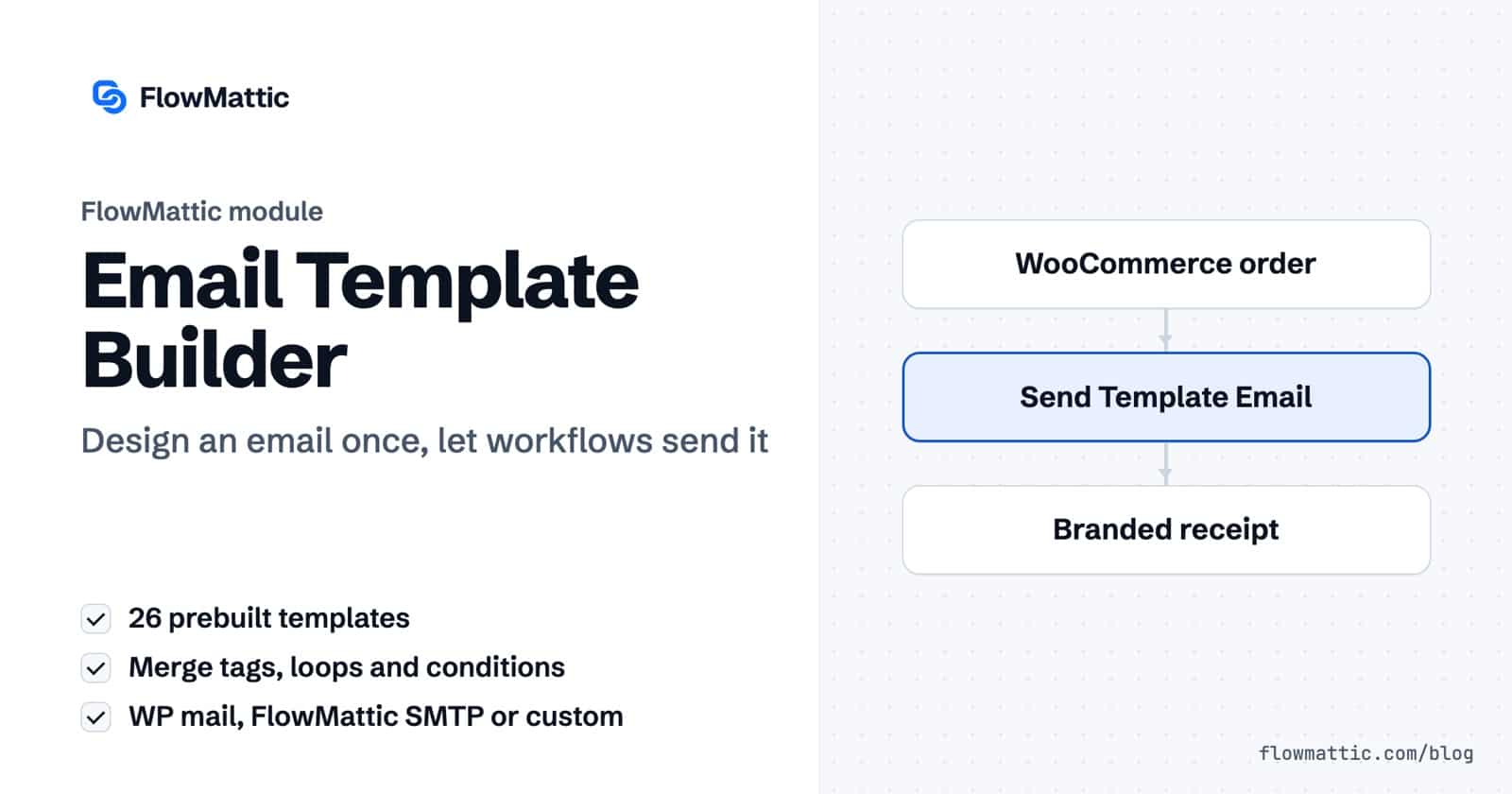
The FlowMattic Email Template Builder is a WordPress email template builder for transactional and marketing emails that your workflows send. You design a responsive email from blocks, add merge tags and loops for the data that changes, and a Send Template Email step delivers it with the customer’s name, order lines or booking details filled in.
It is for store owners who want branded receipts, agencies who send client reports, and SaaS teams with welcome, passcode and reminder emails. This guide covers the editor, the two actions in the Email by FlowMattic app, every send setting, and seven workflows you can build with them.
It is a drag-and-drop WordPress email template builder under FlowMattic → Email Templates. Each template stores a design, a subject, a pre-header and a set of sample dynamic data. Templates do nothing on their own; a workflow step decides when to send one and with whose data.
FlowMattic’s own emails are designs in the same list, so you restyle them in the same editor. The Bookings notifications live here, and the New booking alert shows the invitee’s answers to your custom questions through the {{custom_answers}}, {{answers_block}} and {{answers_list}} merge tags. So do the three Connects credential request emails: the request with its private link, the notice that credentials arrived, and the note that a request is no longer needed.
Sending is handled by Email by FlowMattic, a built-in app with two actions: Send Email for a quick message you write in the step, and Send Template Email for a designed template. The Gmail integration also has a Send Template Email action that uses the same library.
The library has 26 prebuilt templates plus a blank one. They include Welcome, One-time passcode, Reset password, an e-commerce order receipt, Subscription receipt, Reservation reminder, Weekly newsletter, Announcement, Feedback survey and Best sellers. Several are built around a Loop block (product catalog, order invoice, event schedule, job listings), so the pattern for repeating content is ready to copy. A Booking emails group in the same gallery starts a template from one of the Bookings designs. Generate with AI drafts a full email from a prompt using your own AI provider connection.
The add-block menu offers Heading, Text, Button, Image, Avatar, Divider, Spacer, Html, Columns, Container and Loop. Set colours and fonts once as global styles, then override them on a single block when needed.
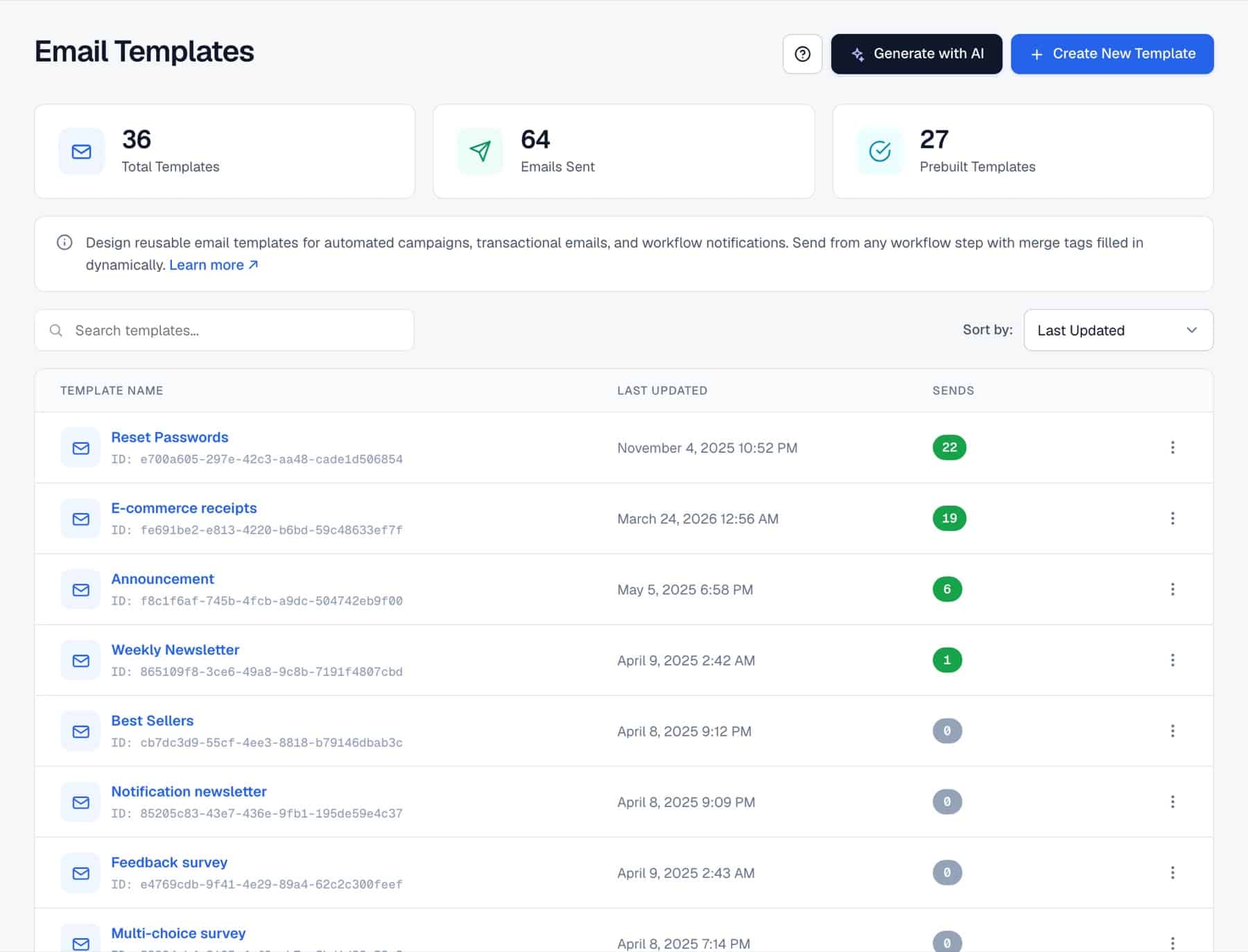
In the Data tab you describe the template’s dynamic data as JSON, for example {"first_name": "Priya", "order_total": "$120"}. Any text can then use {{first_name}}. The subject and pre-header accept the same tags, so the inbox preview can name the customer before the email is opened.
order.items) and a Loop Variable (such as item), then use {{item.name}} in the child blocks. Each array item renders once.Send Test Email sends the template to your inbox with test data first. Then add a step, choose Email by FlowMattic and Send Template Email, pick the template, and map a workflow value into each key under Dynamic Data.
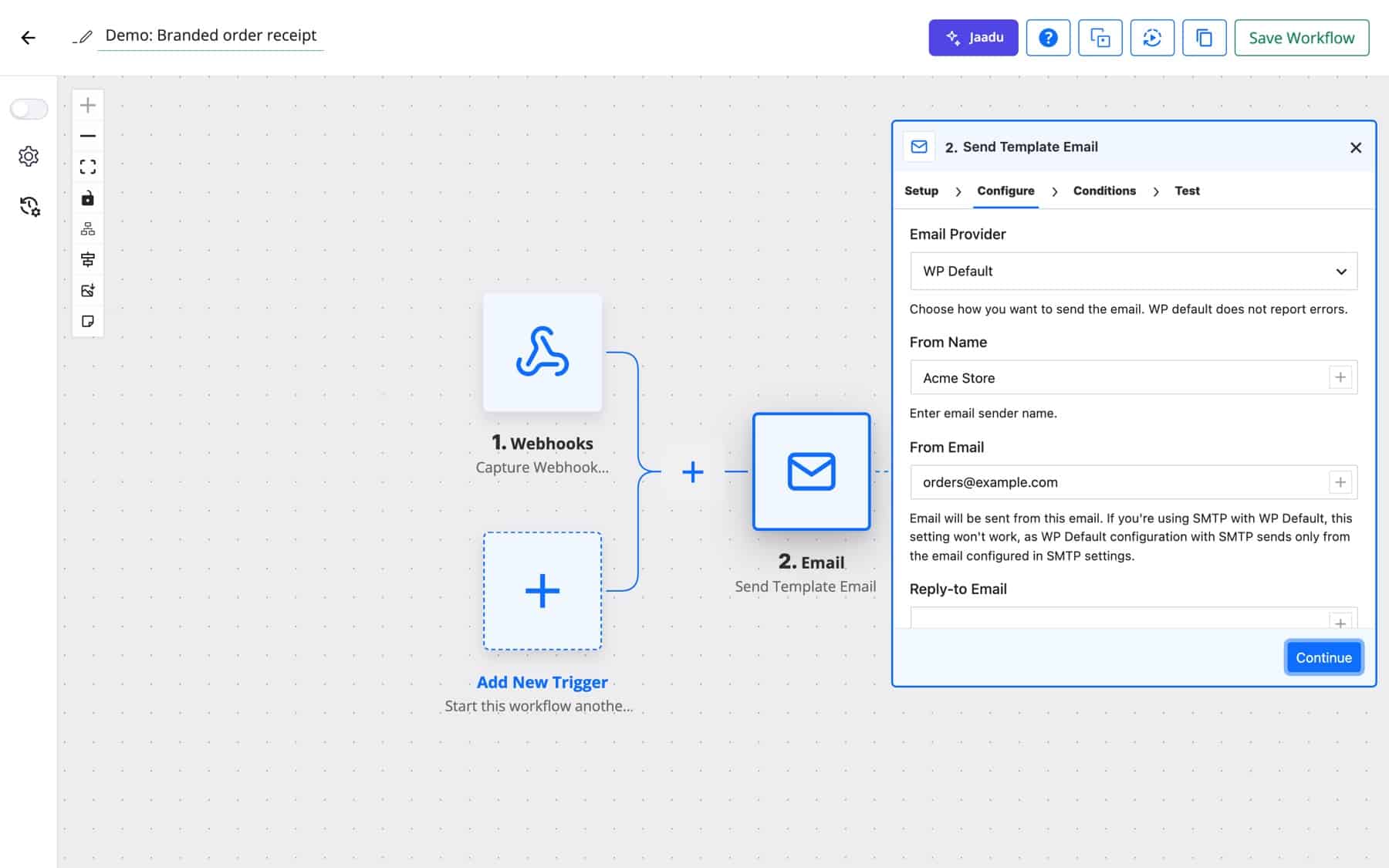
Both actions share the same sending fields. Send Email adds an Email Body editor (type @ to insert a dynamic tag); Send Template Email replaces it with the Email Template picker and its Dynamic Data fields.
| Field | What it does |
|---|---|
| Email Provider | WP Default sends with wp_mail(), so your existing SMTP plugin applies. FlowMattic Default uses the SMTP Configuration in FlowMattic Settings. Custom SMTP asks for a host, username, password, encryption type and port in the step. |
| From Name / From Email | The sender shown in the inbox. |
| Reply-to Email | Where replies go, such as your support address. |
| To Email | The recipient. Required. |
| CC Email / BCC Email | One or more addresses separated by commas, semicolons or new lines, including Name <email>. Invalid addresses are skipped and reported in the step result. |
| Email Subject | The subject line. Required. |
| Attachments | Rows of File Name and File URL. Add more rows with Add More. The URL must point to a file stored on your own site, which is attached from disk; a file on another server is not downloaded. |
| Message ID | A previous message’s ID, to send this email as a reply in the same thread. Some providers ignore it. |
A successful send returns status, message and the new message_id, which a later step can use to reply in the same thread.
The order receipt template uses a Loop block over the order’s line items. Map the items array and the total, and every customer gets a receipt in your brand from your store’s address.
WooCommerce New Order Created → Send Template Email
When a user registers, the Welcome template goes out with their name. A Delay waits three days, then a second template sends getting-started tips.
WordPress New User → Send Template Email → Delay → Send Template Email
An agency renders a PDF invoice and attaches it by mapping the PDF step’s url into an Attachments row. Northwind’s accounts team receives the email and the file together.
Schedule → Generate PDF from Template → Send Template Email
A Monday schedule reads this week’s rows from WP Tables and passes them as one array to the newsletter template’s Loop block. An Iterator sends one copy per subscriber.
Schedule → WP Tables Get Rows → Iterator → Send Template Email
A support workflow drafts an answer with an AI Agent and sends it with Send Email, passing the original email’s Message ID so the reply stays in the customer’s thread.
IMAP Email Received → AI Agent → Send Email (Message ID)
An app posts a login request to a webhook. The workflow generates a six-digit code with Data Transformer’s Generate Random String (Numbers only), sends it with the One-time passcode template, and returns a success response to the app.
Webhook → Data Transformer → Send Template Email → Webhook Response
A purchase request from Yuki Tanaka is routed by amount. Large requests email the finance lead with the manager in CC, while small ones are approved automatically and confirmed to [email protected].
New Form Submission → Router → Send Template Email (CC) · Send Email
coupon_code; keep the values you test at the top level of your data.Yes. The Email Template Builder is a block editor: drag Heading, Text, Image, Button, Columns and other blocks into place and set styles from the sidebar. An Html block is there for the rare case you want raw markup.
Add a Loop block, set its Data Source to the items array and its Loop Variable to a name such as item. Inside it, use {{item.name}} and {{item.price}}; each item in the array renders once.
You choose per step. WP Default uses wp_mail() and any SMTP plugin on your site, FlowMattic Default uses the SMTP Configuration in FlowMattic Settings, and Custom SMTP takes server details in the step itself.
Yes. Add Attachments rows with a file name and a file URL, mapped from an earlier step such as a generated PDF. The file must be stored on your own site, such as in the Media Library; it is attached directly from disk.
Yes. Send Test Email in the editor lets you set test values and send the template to your own inbox. You can also test the Send Template Email step in the workflow builder.
Use one WordPress email template builder for every automated email. See the Email Template Builder page, and pick a FlowMattic plan to get started.
Reply to a webhook with data from the run: String, JSON or XML bodies, any HTTP status from 200 to 599, extra…
Post workflow data to any webhook URL as JSON, multipart form data or URL-encoded fields, with nested bracket keys and the receiver's…
Give any app a URL on your WordPress site and turn each request into a workflow run, with signature checks, sample payloads…