Custom Webhook Response: Send Your Own Status, Headers and Data
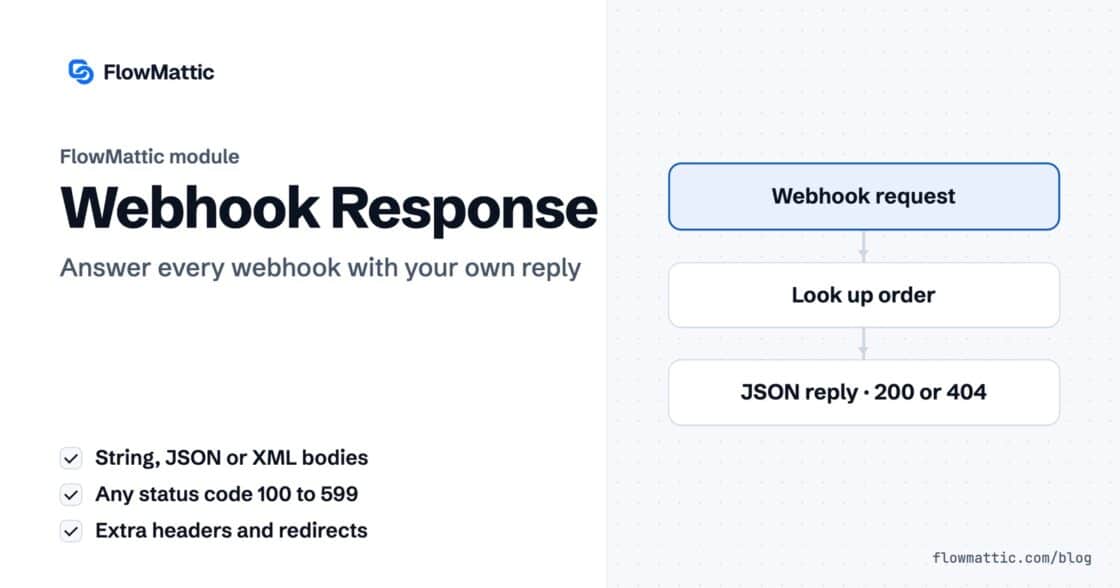
Reply to a webhook with data from the run: String, JSON or XML bodies, any HTTP status from 200 to 599, extra…


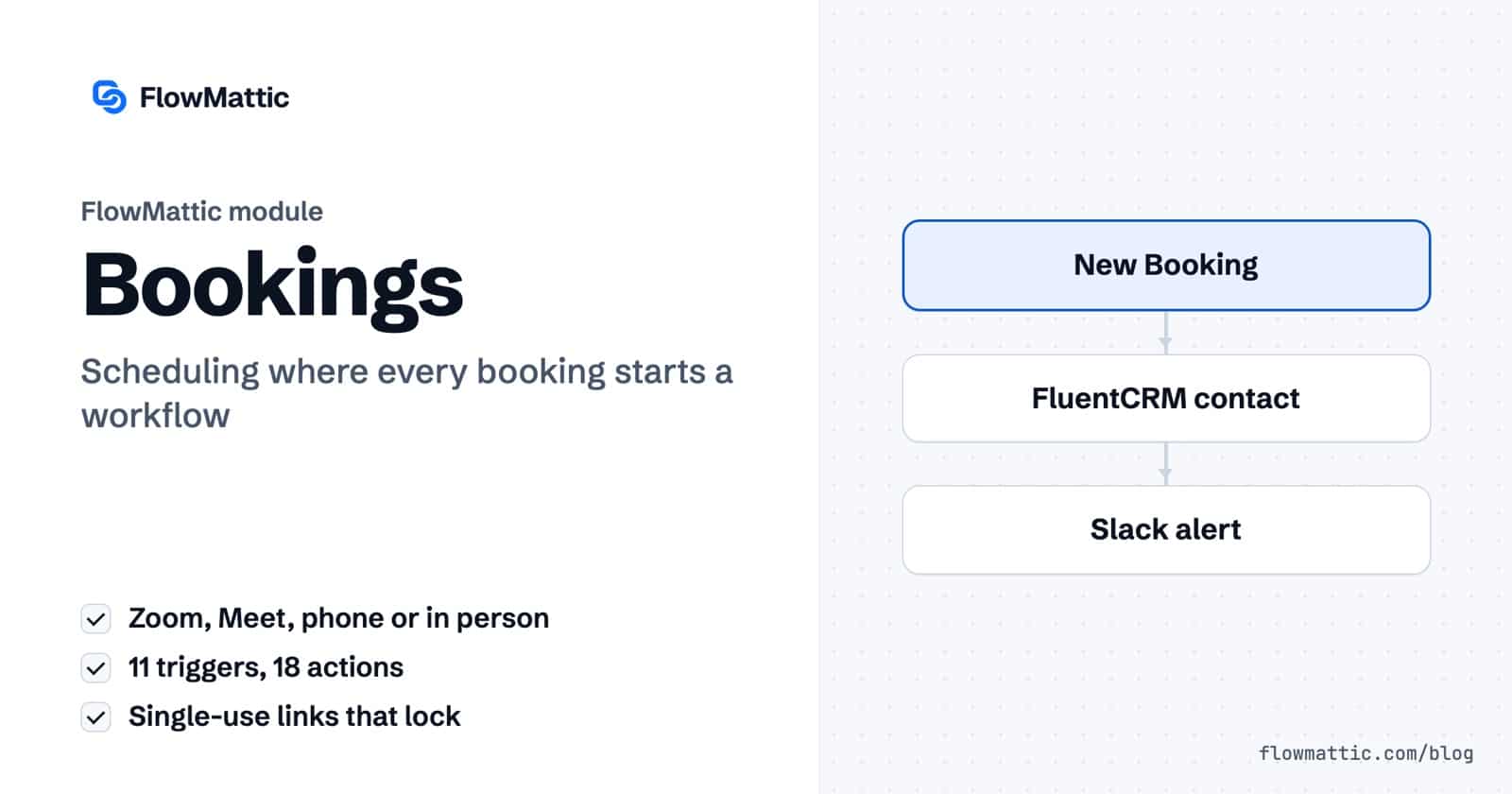
FlowMattic Bookings is a WordPress booking plugin built into the automation plugin for WordPress you use for workflows. You set your availability, share a booking page, and invitees pick a time in their own time zone. Every booking event, from a new booking to a no-show, is a workflow trigger.
It is for consultants, coaches, agencies, clinics and SaaS teams that take calls or appointments and then do the same follow-up by hand. This guide covers how calendars work, the settings that shape availability, the booking emails, the 11 triggers and 18 actions in the FlowMattic Bookings app, and seven workflows to build on them.
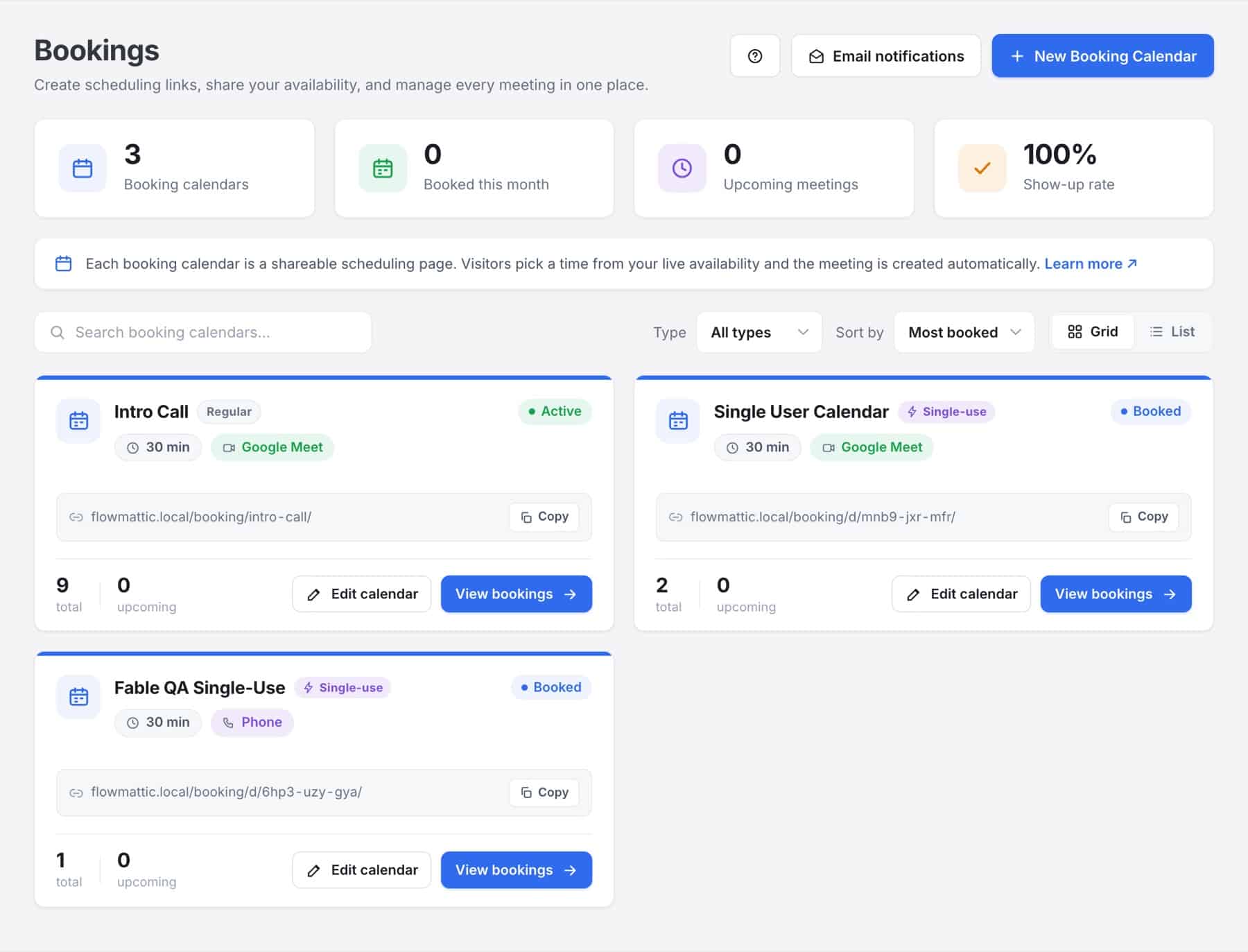
Bookings lives under FlowMattic → Bookings. You create one or more booking calendars; each has a duration, a location, availability rules and its own public page. Bookings are stored in your WordPress database, and the Bookings screen lists them so you can reschedule, cancel, complete or mark a no-show.
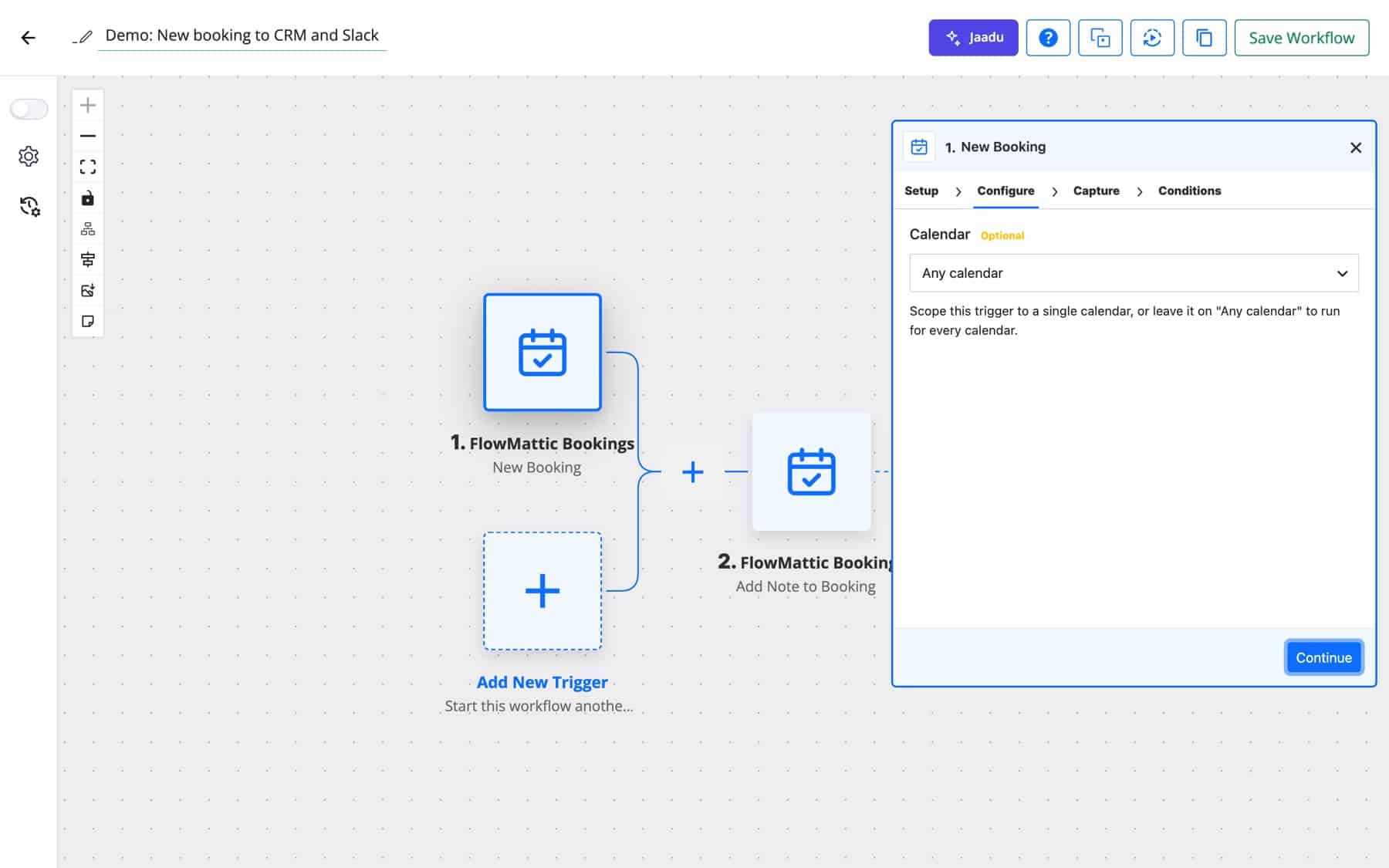
In the workflow builder, the FlowMattic Bookings app connects calendars to everything else. Triggers start a workflow when something happens to a booking or a calendar, and actions let a workflow create, change or look up bookings.
Under Event details, choose a Booking link (a regular page that stays open) or a Single-use link (an unguessable link that locks after one booking). The link type is fixed once the calendar is created. Add a description and a duration (30 minutes by default).
Under Location, pick Zoom, Google Meet, a phone call or in person. For Zoom and Google Meet you select a connected account, and a real meeting link is generated when someone books. For a phone call you choose who places the call; for in person you add the meeting address.
Turn on Let invitees choose to offer two or more of these on one calendar, and the invitee picks one while booking. Each option keeps its own account, address, number or call direction, and the booking, emails and trigger data use the one picked. Every booking keeps the location it was made with, so changing the calendar’s address or number later does not change bookings already made.
Under Availability, choose recurring Weekly hours (several windows per day, copied across days if you like) or a date range for a one-off event. Then shape the week with the rules below. Slots already taken are hidden, buffers included.
Each calendar has its own page at /flowmattic-booking/your-calendar/. You can also embed it with the shortcode or the block. Invitees see times in the time zone their browser reports, or in the calendar’s zone if you lock it for in-person events.
In a workflow, choose FlowMattic Bookings as the trigger, pick an event such as New Booking, and under Calendar choose one calendar or Any calendar. The trigger data includes booking_id, calendar_name, booking_date, booking_time, booking_end, timezone, location, customer_name, customer_email, customer_phone, notes, guests, status and manage_url.
Answers to custom questions arrive as question_1 and answer_1 (and so on), by question ID as answer_<question id>, which stays mapped if you reorder questions, and all together in custom_answers. A checkbox answer also comes as a JSON list in answer_1_list, so an option that contains a comma stays one item.
| Setting | What it does |
|---|---|
| Duration | Length of each meeting. Default 30 minutes. |
| Booking window | How far ahead people can book. Default 60 days. |
| Min. notice | How soon a slot can be booked. Default 4 hours. |
| Buffer before / Buffer after | Gap kept free around each meeting. |
| Max bookings / day | Optional daily cap. 0 means no cap. |
| Timezone | The calendar’s own zone, defaulting to your site’s. |
| Invitee questions | Name and email are always collected. Add a Preparation note, a phone number for phone calls, or Allow additional guests (up to 2, 5 or 10). Custom questions (up to 20) can be Short answer, Paragraph, Dropdown, Single choice or Checkboxes, each required or optional, to qualify leads by budget, service or company size. |
| Notifications & policies | Confirmation email (always on), reminder timing toggles, Allow rescheduling and Allow cancellations. |
| Booking emails | Which email template each booking email uses for this calendar, or the account default. |
| Branding | Logo, accent colour, host name, title and photo, the FlowMattic branding line, and an optional redirect after booking. |
Six emails are built in: Booking confirmation, Reminder (24 hours before), Reschedule notice, Cancellation notice, Follow-up after the meeting (off by default) and a New booking alert to you. Each is a template in the Email Template Builder, set once for the account and overridable per calendar. Confirmations carry a login-free link the invitee can use to reschedule or cancel, when you allow it. The New booking alert shows the invitee’s answers to your custom questions, through the {{custom_answers}}, {{answers_block}} and {{answers_list}} merge tags.
An agency adds each invitee to FluentCRM with a tag for the calendar and posts the time, location, preparation note and custom question answers to Slack, so the account manager is ready before the call.
New Booking → FluentCRM → Slack
When a coach marks a booking as a no-show, the invitee gets a friendly email with a link to book again. Two days later a second, shorter nudge goes out, and a note on the booking records that both were sent.
Booking Marked No-Show → Send Email to Booking → Delay → Send Email to Booking → Add Note to Booking
A consultant marks the session complete. The workflow fills a PDF invoice with the invitee’s details and the duration, emails it, and logs the row in WP Tables.
Booking Completed → Generate PDF from Template → Send Template Email → WP Tables New Record
When HR approves an applicant, the workflow creates a single-use calendar and emails the private link. Once Priya Sharma books her slot, the link locks and nobody else can use it.
New Form Submission → Human in the Loop → Create Single-Use Calendar → Send Email
The built-in reminder email goes out 24 hours before. For a last-minute nudge, a workflow waits until an hour before the start and sends a text message through Twilio, but only for calendars where the 1 hour toggle is on.
New Booking → Filter (send_remind_1h is yes) → Delay → Twilio SMS
A cancellation notifies the host in Slack and updates the contact in the CRM in the same run, so nobody prepares for a call that is not happening.
Booking Cancelled → Slack → FluentCRM
A SaaS team receives demo requests by email. An AI Agent pulls out the sender’s name, email and requested time, and Add Booking puts it on the demo calendar. Yuki Tanaka gets the confirmation at [email protected] straight away.
IMAP Email Received → AI Agent → Add Booking
send_remind_24h and send_remind_1h, so workflows can honour them. The built-in reminder email itself is the 24-hour one.It covers the same job as a hosted scheduler, inside a WordPress booking plugin: a shareable page where people pick a time in their own time zone, with confirmations, reminders and self-service rescheduling. Calendars and bookings live on your WordPress site, and every booking event can start a workflow.
Partly. For Google Meet calendars, an event is created in your connected Google Calendar to generate the Meet link, and rescheduling the booking moves that event to the new time with the same Meet link. Confirmation emails include an add-to-calendar link. Availability does not read other events from Google Calendar or Outlook.
Yes. The confirmation includes a login-free link to move or cancel the meeting. You can turn off Allow rescheduling or Allow cancellations per calendar, and both actions fire their own trigger.
Paste into any page or post, use the block, or link to the calendar’s own page under /flowmattic-booking/.
Yes. The Add Booking action creates a booking on a calendar, and on calendars that let the invitee choose it can pick the location too. Reschedule, Cancel and Update Booking change existing ones by ID or email. That lets forms, chatbots and AI Agents book on a visitor’s behalf.
Take bookings with a WordPress booking plugin that automates what follows. Learn more on the Bookings page, then try FlowMattic to set up your first calendar.
Reply to a webhook with data from the run: String, JSON or XML bodies, any HTTP status from 200 to 599, extra…
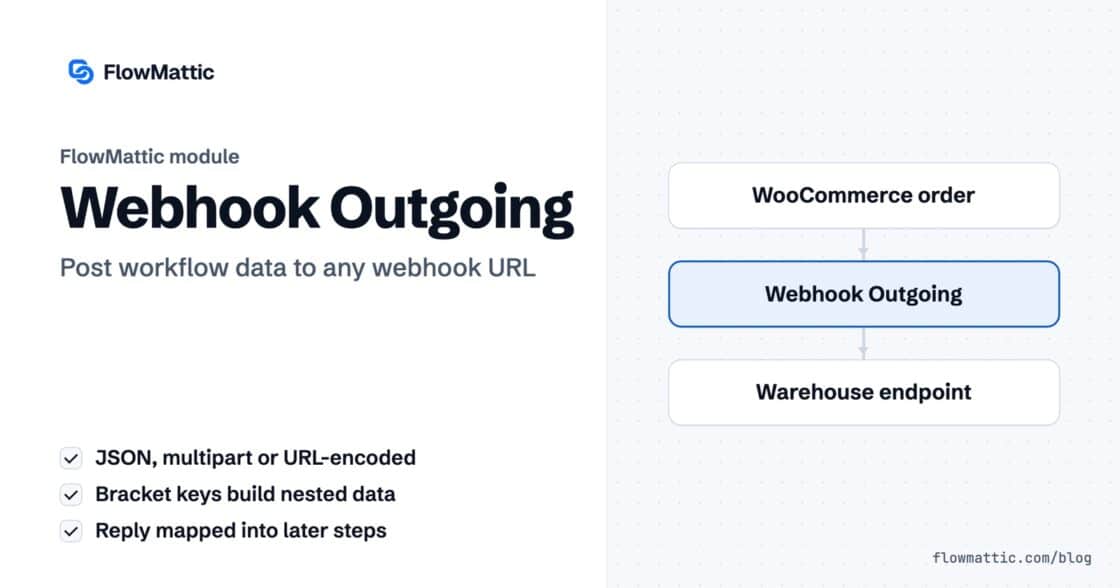
Post workflow data to any webhook URL as JSON, multipart form data or URL-encoded fields, with nested bracket keys and the receiver's…
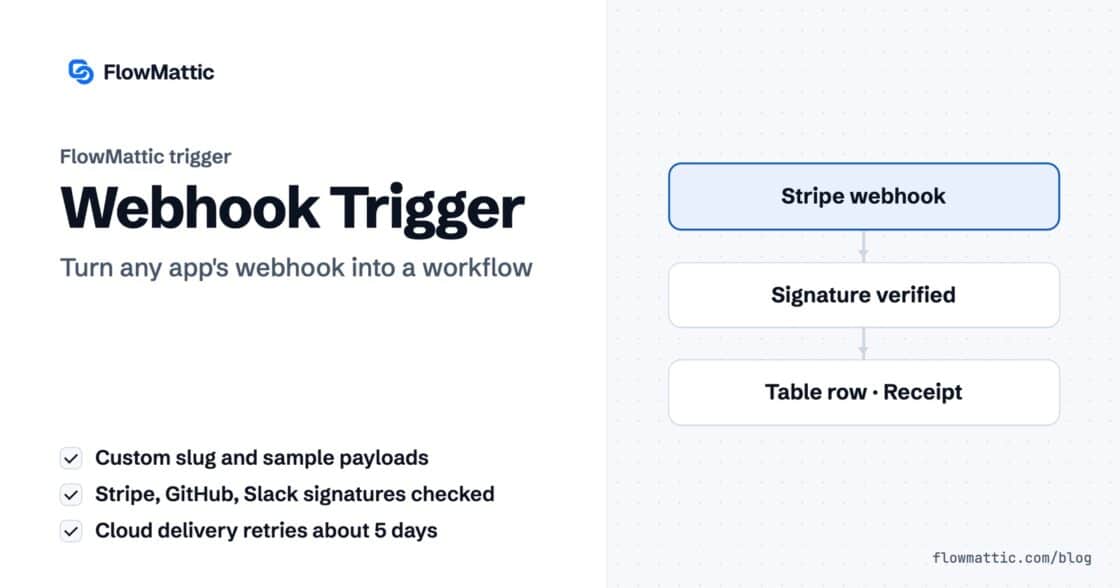
Give any app a URL on your WordPress site and turn each request into a workflow run, with signature checks, sample payloads…