Custom Webhook Response: Send Your Own Status, Headers and Data
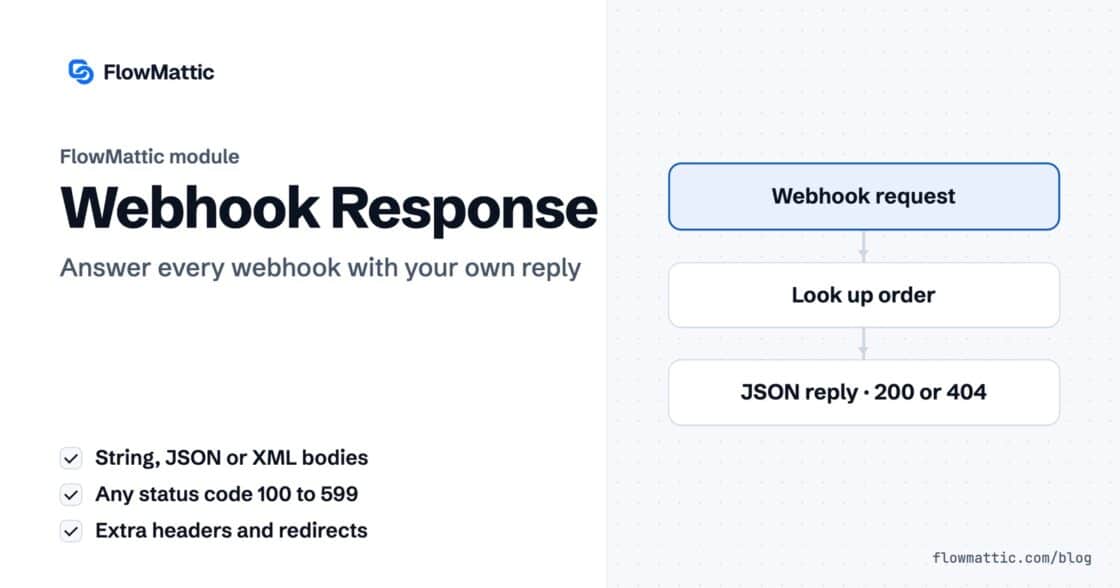
Reply to a webhook with data from the run: String, JSON or XML bodies, any HTTP status from 200 to 599, extra…


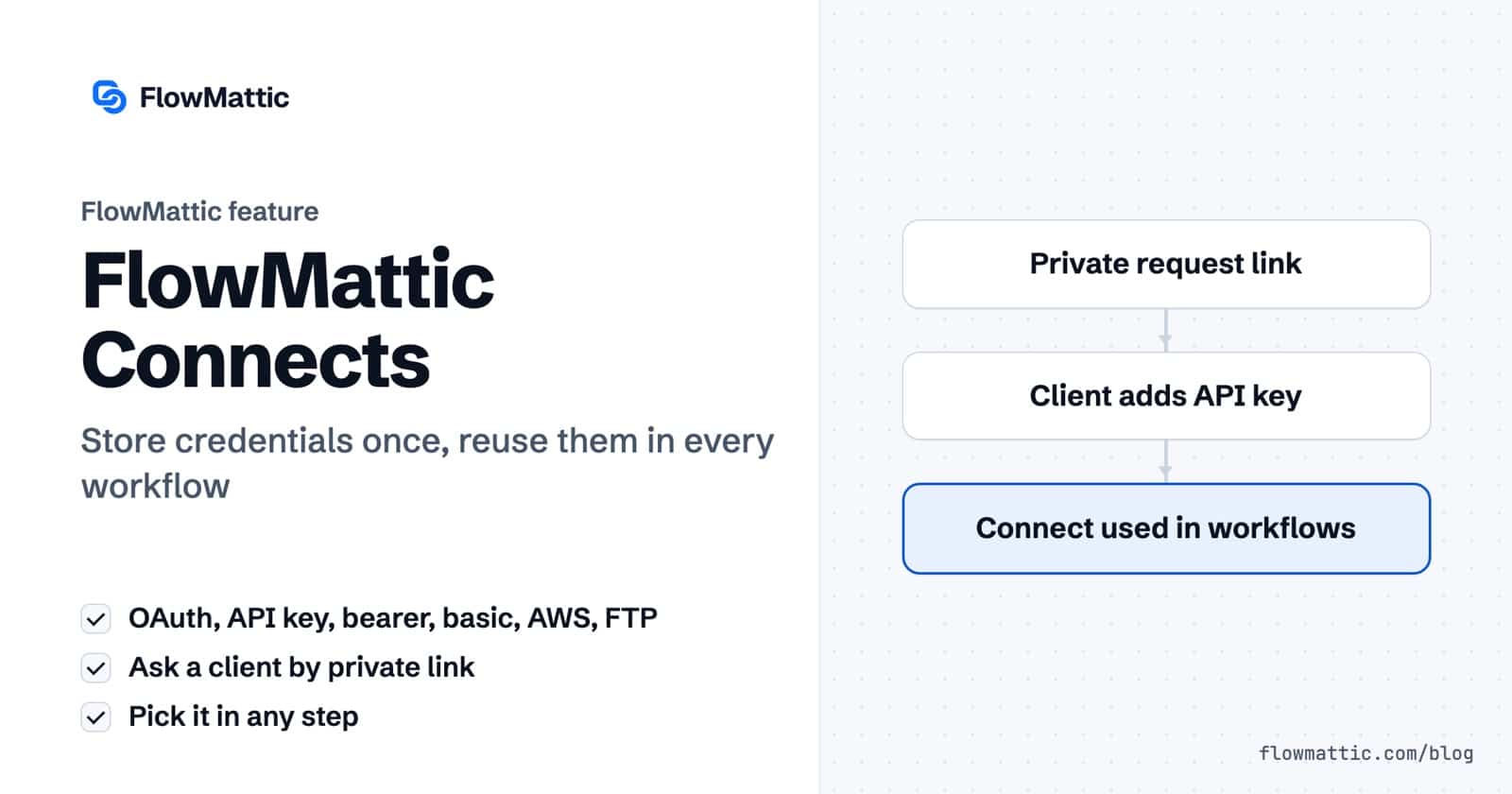
FlowMattic Connects is where your WordPress API credentials live: one saved set of keys, tokens or OAuth sign-in details per app, picked from a dropdown in any workflow step. You authenticate once, and every workflow, custom app and MCP tool on the site reuses the same Connect.
It is built for anyone who connects WordPress to outside apps, and especially for agencies who need a client’s key without asking for it over email. Since FlowMattic 7.3.0 you can send a private, single-use link and let the person who holds the credentials add them directly.
This guide covers how Connects work, every authentication type, the new request-by-link flow, and six ways teams use them.
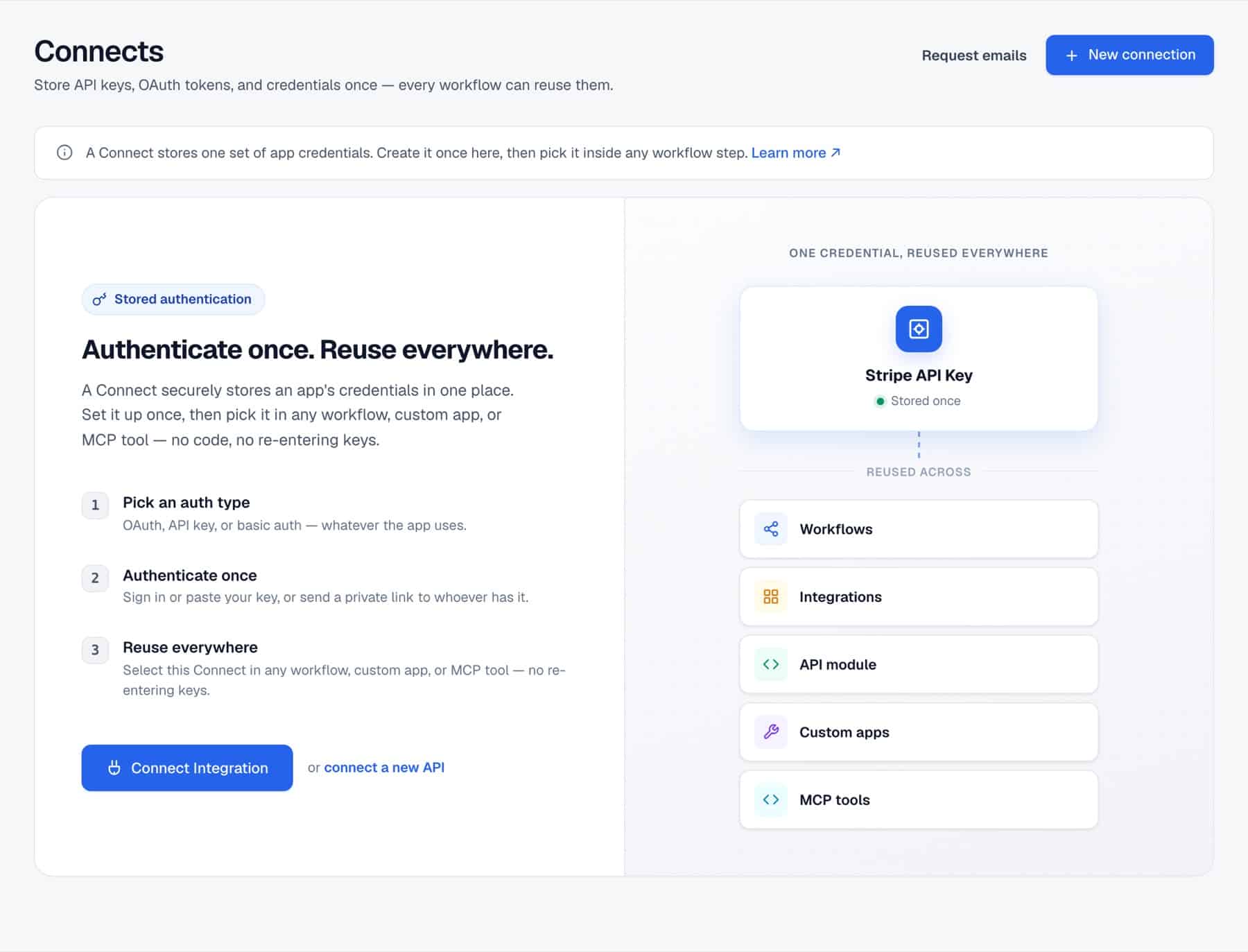
A Connect is one named record that holds the WordPress API credentials for one app or API. You manage them under FlowMattic → Connects, a screen whose job is summed up in its own subtitle: store API keys, OAuth tokens and credentials once, and every workflow can reuse them.
Each Connect has one of two sources. An Integration Connect belongs to an app from the integrations library, and the integration decides which credentials it needs. A Custom Connect is one you build for any other API by choosing the authentication type yourself.
Connects are saved in your own site’s database as base64-encoded JSON. Base64 is an encoding, not encryption, so treat database access and backups with the same care as the keys themselves.
Click New connection. If integrations are installed, the Connect Integration window opens with a searchable list of apps; pick one and either sign in on the provider’s own page (OAuth apps) or paste the key the app asks for. For anything not listed, use App not listed? Connect any API, which opens New Connect with two required fields: Connect Name and Authentication Type.
In the workflow builder, any step that needs credentials shows a Choose Connect dropdown. If the Connect you need does not exist yet, the dropdown can open the Connects screen in a popup; add the Connect there, close the popup, and the dropdown refreshes with it.
For OAuth Connects that return a refresh token, FlowMattic schedules a token refresh before the access token expires, and the refresh runs from FlowMattic’s own job table. If a refresh fails, the stored tokens are left as they were instead of being blanked. Each row has a menu with Rename, Edit Settings and Delete.
A Custom Connect offers six authentication types, each with its own fields on the New Connect form.
| Authentication Type | Fields |
|---|---|
| Basic | API Key / Username and API Secret / Password. The authorization header is generated when the request is sent. |
| API Key | API Key Name (for example apikey), API Key Value, and Add API Key to: Query Param or Header. |
| Bearer Token | Bearer Token / API Key, for access keys such as a JSON Web Token. |
| OAuth 2.0 | Callback or Redirect URL (read-only), Auth URL, Access Token URL, Client ID, Client Secret, optional Scopes, State and Authorization Token Name (Bearer by default), and Client Authentication: send as a Basic Auth header or send client credentials in the body. Saved with Save Connect & Authenticate. |
| FTP / SFTP | Protocol (FTP, FTPS or SFTP), Host, Port, Username, Password, an optional Private Key (SFTP only) and Passive Mode. Saved with Test Connection & Save. |
| AWS Signature V4 | A Bedrock API Key (marked Recommended), or IAM keys: AWS Access Key ID and AWS Secret Access Key. Both need an AWS Region. |
Integration Connects use the same types underneath, but the integration labels the fields in its own words and can ask for a Base URL when the app’s API lives on your own subdomain.
Often the person building the workflow is not the person who holds the key. FlowMattic 7.3.0 lets you ask for it without an email thread full of secrets. This walkthrough shows the whole flow.
Requests work for API keys, bearer tokens, basic auth and OAuth sign-ins. When you set up a Connect of one of those types, the form asks Who has the credentials? with two choices: I have them or Ask someone for them. For OAuth apps the question becomes Whose account should it connect?, answered with Mine, I’ll sign in now or Someone else’s.
Choosing to ask opens a short panel:
Click Create link (or Create link & email them). The Connect is created straight away, so you can already pick it in your workflows. The builder’s connect picker marks it (waiting for credentials) until then. It starts working as soon as they finish, and FlowMattic emails you when that happens.
The link opens a standalone page on your site. They do not need a WordPress login, and they never see your other connections. The page asks only for the fields the Connect is still missing, or shows a Continue with sign-in button for OAuth apps. Once they press Send securely, the values go straight into the Connect and nobody can view them on that page again, including you.
Back on the Connects list, the row shows the request’s state: Waiting for the recipient’s email (or Waiting · link not used yet), Connected by, Link expired, nothing received or Request cancelled. A pending request has Copy link, Resend request email and Cancel request; an expired or cancelled one has Send new link. Cancelling stops the link at once, and the Connect stays, without credentials, until you add them or send a new link.
Got the credentials another way? Editing a Connect with a pending request opens on the request; choose Add them myself and save with Save & close link. Saving closes the link, so nothing sent later can replace your values, and if you asked them by email you can tick a box to let them know they don’t need to do anything. For OAuth apps, the link closes once the sign-in succeeds.
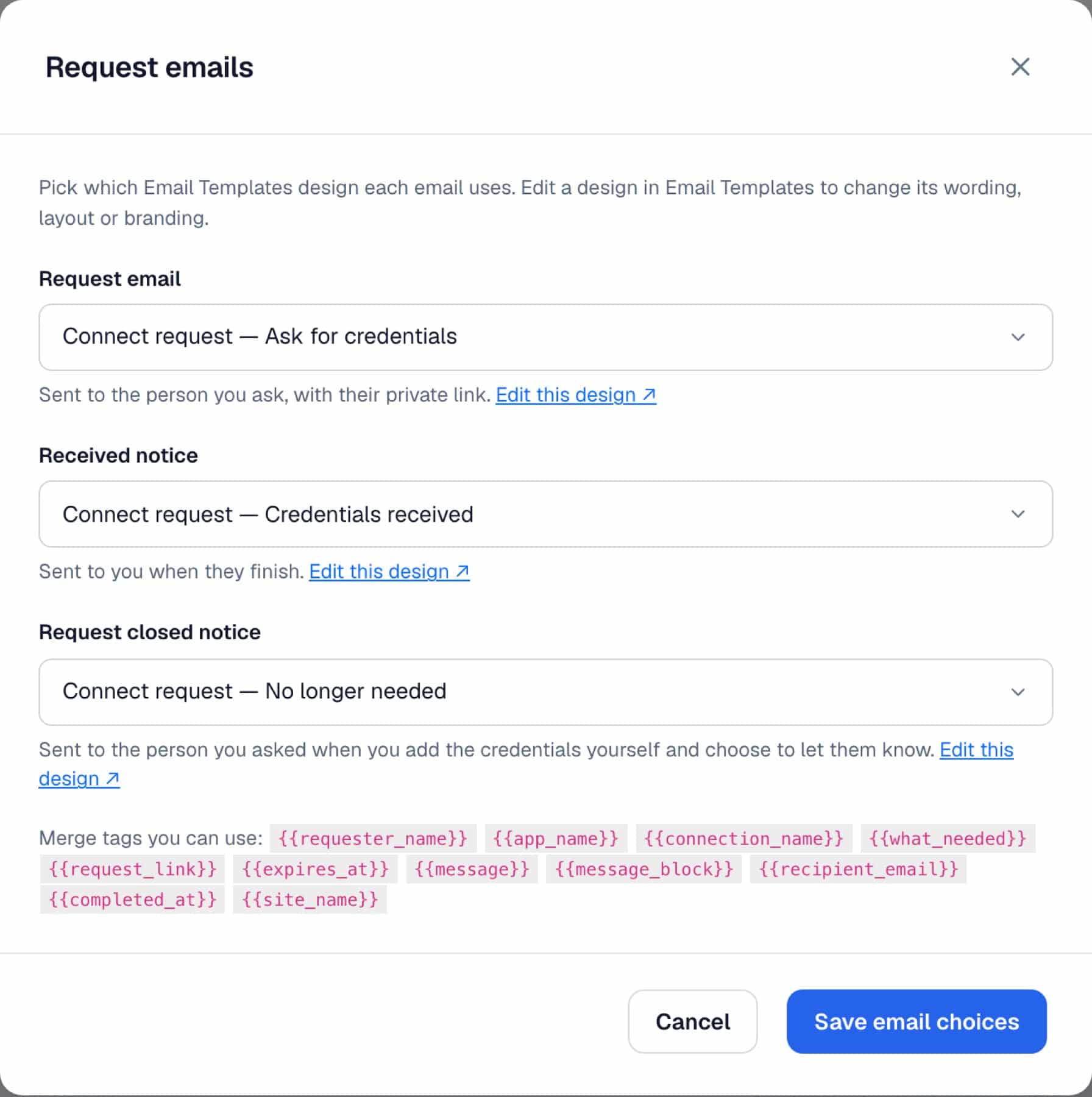
The Request emails button at the top of the Connects screen picks the design for three messages: the Request email sent to the person you ask, the Received notice sent to you when they finish, and the Request closed notice sent to the person you asked when you add the credentials yourself and choose to let them know. Each can use the Built-in design or any design from Email Templates. FlowMattic adds three editable starting designs there, and the picker lists the merge tags you can use, such as {{requester_name}}, {{app_name}}, {{request_link}} and {{expires_at}}.
An agency builds a lead workflow for Acme. Instead of asking Acme’s marketing lead to email their email platform’s API key, the agency creates the Connect with Ask someone for them, enters [email protected] and a 7-day expiry, and wires the Connect into the workflow the same afternoon.
Flow: Request link → Amelia adds the API key → Form submission → Add subscriber
Northwind has its own developer app for a Google service and wants the access to run through it. Choose Someone else’s and Theirs: Northwind’s admin sees the redirect URL to add, enters their client details and signs in.
Flow: Request link → Client adds client ID and signs in → Scheduled report → Update spreadsheet
A WooCommerce shop uses one payment platform key in its refund, reporting and fulfilment workflows. One Connect feeds them all, so when the key is rotated it is edited once under Edit Settings and every workflow uses the new value on its next run.
Flow: WooCommerce order refunded → Payment app action (shared Connect) → Email the customer
Acme’s warehouse system has a REST API with no integration. A Custom Connect with API Key, the key name X-Api-Key and Add API Key to: Header lets the API step call it without the key ever being typed into a step.
Flow: Webhook → API request (Acme warehouse Connect) → WP Tables row
A SaaS support team’s AI provider key sits with the finance lead. The workflow builder sends a request link to [email protected]; the AI Agent step already points at the Connect and starts answering tickets as soon as Yuki submits the key.
Flow: New support email → AI Agent (AI provider Connect) → Reply draft
Internal ops sends a daily export to a logistics partner. An FTP / SFTP Connect with the SFTP protocol and a private key is checked by Test Connection & Save before any workflow uses it.
Flow: Schedule (every day) → Build CSV → Upload to SFTP
No. Your WordPress API credentials are stored in your site’s database as base64-encoded JSON, which is an encoding rather than encryption. Protect database access and backups the way you would protect the keys themselves.
Yes. Create the Connect with Ask someone for them and send the private link. The page it opens needs no login, shows only the missing fields or a sign-in button, and never shows your other connections.
You choose 1, 3 or 7 days when you create it. The link works once and then closes. You can cancel it at any time, and an expired or cancelled request can be replaced with Send new link.
Yes, when the provider issues a refresh token. FlowMattic schedules the refresh before the access token expires and keeps the existing tokens if a refresh fails. If a provider revokes access, connect the app again.
Basic, API Key, Bearer Token, OAuth 2.0, FTP / SFTP and AWS Signature V4. Integrations from the library use these same types with their own field labels.
Connects are included with FlowMattic, alongside nearly 900 integrations that use them. Try FlowMattic on a demo site and set up your first Connect in a couple of minutes.
Reply to a webhook with data from the run: String, JSON or XML bodies, any HTTP status from 200 to 599, extra…
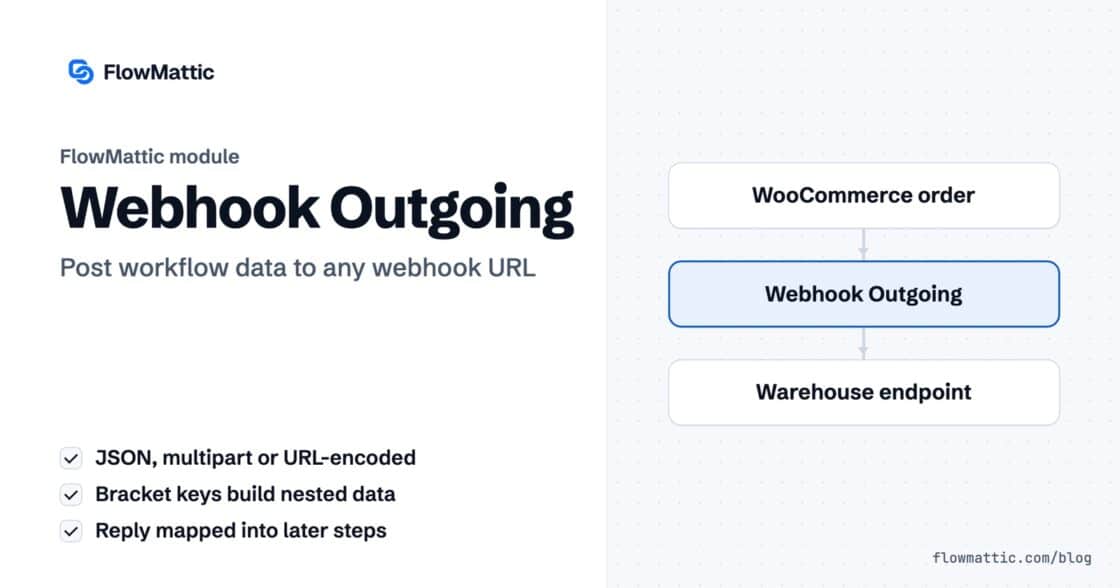
Post workflow data to any webhook URL as JSON, multipart form data or URL-encoded fields, with nested bracket keys and the receiver's…
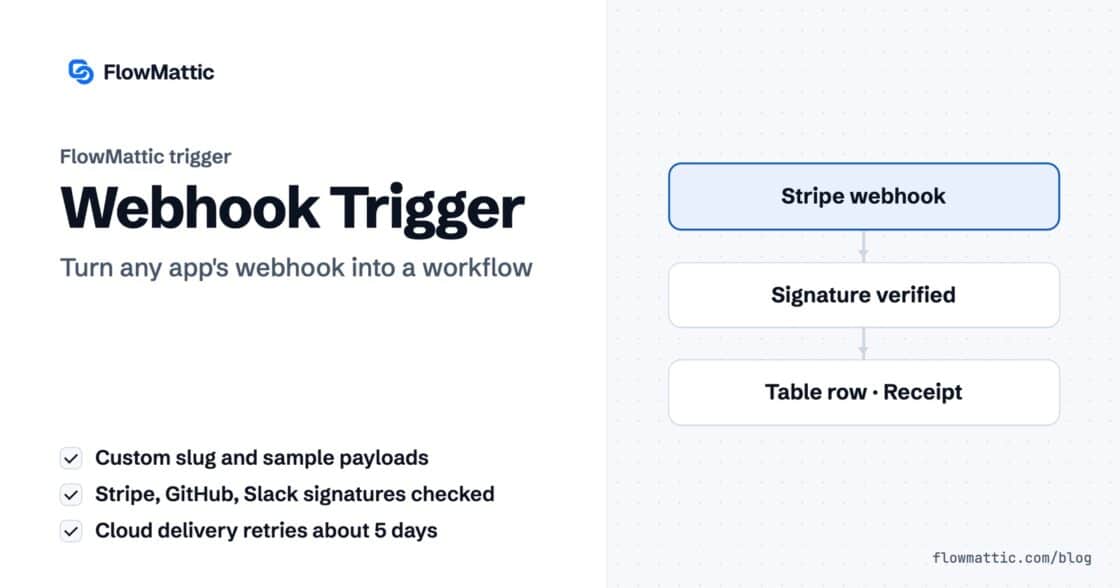
Give any app a URL on your WordPress site and turn each request into a workflow run, with signature checks, sample payloads…