DNS lookup automation for WordPress: MX, SSL, headers and ports
DNS / Domain Tools adds seven checks to any workflow: DNS, reverse DNS, MX, email domain, SSL certificate, HTTP headers and open…


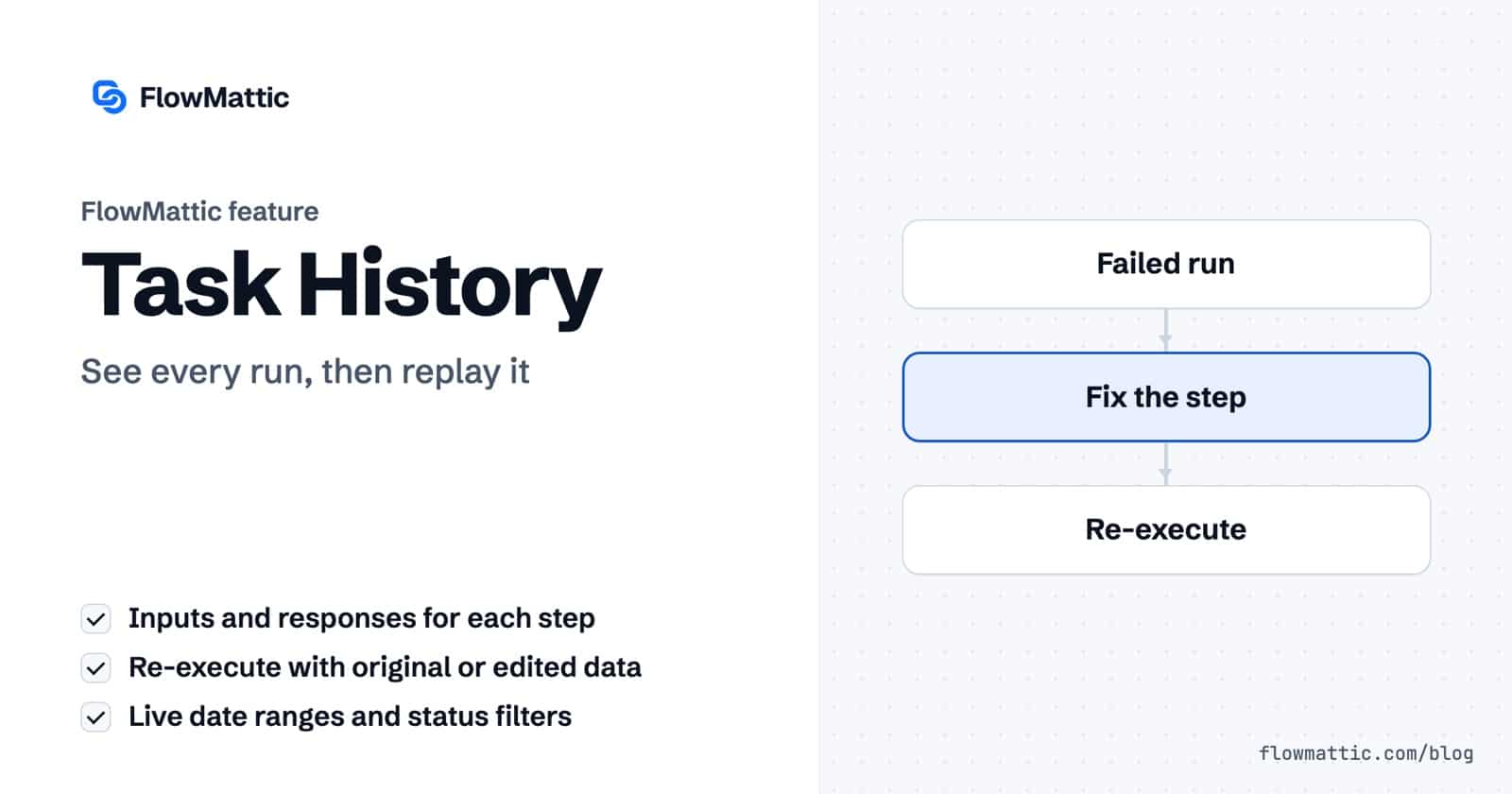
Workflow logs are how you answer “did it run, and what happened?” In FlowMattic, the automation plugin for WordPress, those logs live in Task History: every run of every workflow, each step with the data it was given and the response it got back, and the tools to run it again once you have fixed the cause.
Task History is where you go when a customer says the email never arrived, and it is the proof when it did. This guide walks through the run list, the run details, the statuses, every way to re-execute, and the settings that control retention and failure alerts, with use cases from stores, agencies, SaaS teams and support desks.
Each time a workflow runs, FlowMattic records a task: the trigger data plus one entry per step, written as the run goes. Task History is the screen that lists those tasks. You find it in the FlowMattic menu as History, and it is open to administrators and anyone with the Manage Workflows permission.
The logs are stored in your own WordPress database, not on a FlowMattic server, and they stay there until the cleanup setting removes them. There is no per-task fee, so a busy workflow costs you database rows, not money.
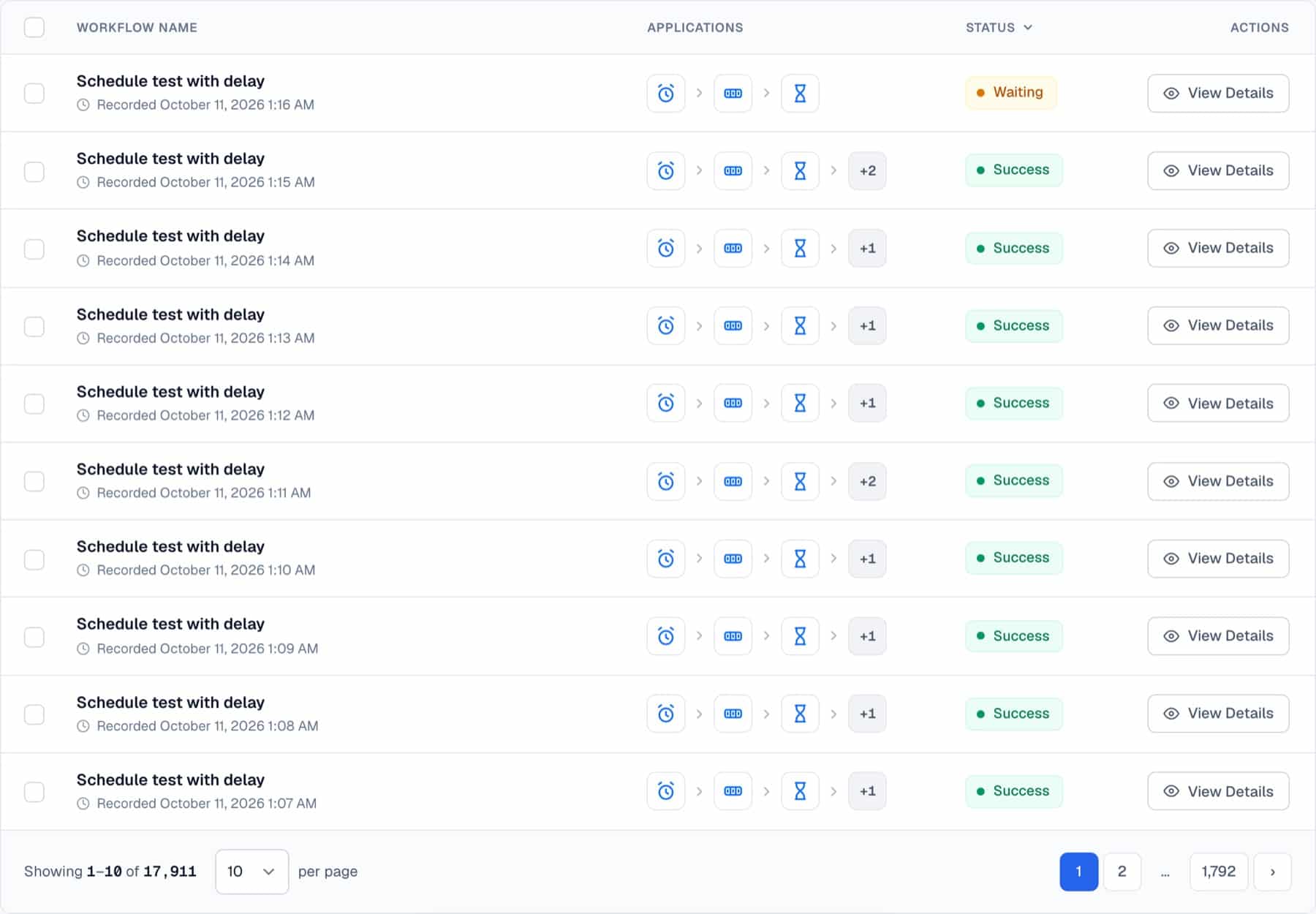
The list shows Workflow Name, the Applications the run used, its Status and a View Details button. Runs started by a test are marked Test Run, and re-executed runs carry a flag with the time they were re-executed. Running and waiting runs update in the list as they progress.
The search box (“Search by workflow name or data…”) matches workflow names and the data inside runs, so you can search a customer’s email address or an order number. Filters opens a dialog with a Workflow picker that searches as you type, a Date Range (Today, Yesterday, Last 7 days, Last 30 days, This month, Last month or Custom range…) and a Status. Tick Use as my default view and Task History opens on those filters each time, for you only. A saved “Last 7 days” keeps moving with the calendar.
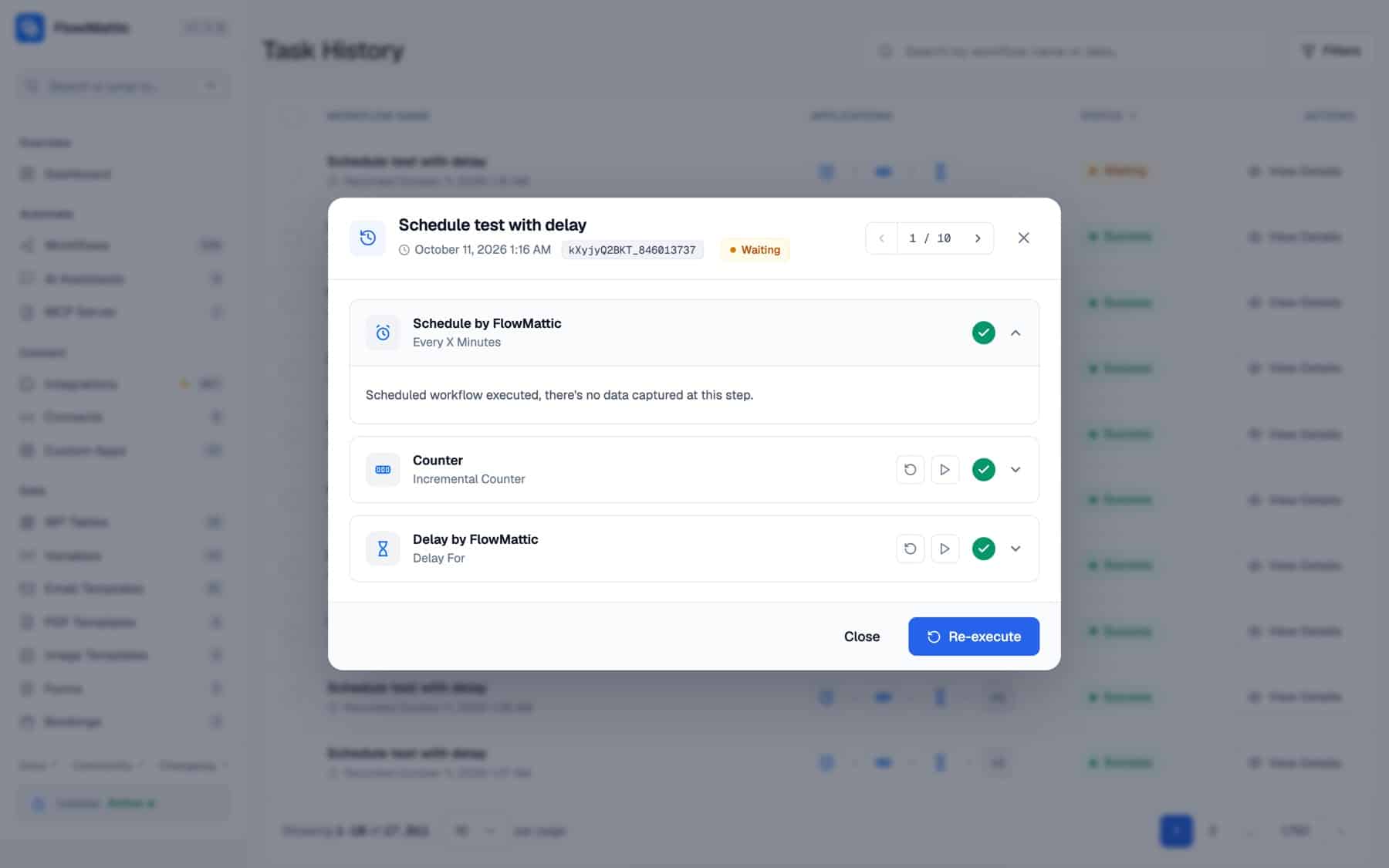
View Details opens the run as a list of step cards, each with its app, its event and a status mark, and Previous Task and Next Task buttons to move through the list. Open a step and two tabs appear. Response Data holds what the step returned, such as an API’s exact error. Request Payload holds the inputs the step ran with, dynamic tags already filled, with passwords, tokens and API keys masked. That lets you compare a live run’s values with a test run of the same step.
A step waiting on a Delay shows when the run will continue and a Cancel Delay button.
FlowMattic does not retry failed steps on its own. Instead, Task History gives you four ways to replay work once the cause is fixed:
One more button sits on the trigger step of any run not started by a Schedule: Use this run’s trigger data in the builder. It loads that run’s real trigger data into the workflow as the captured response, so you can map fields against what the live event sent instead of an old sample.
| Status | What it means |
|---|---|
| Success | Every step after the trigger finished without an error. |
| Failed | A step returned an error and no other step succeeded, or a Stop and Error step ended the run. |
| Partial Failed | Some steps succeeded and at least one failed. |
| Ongoing | The run is executing now. |
| Waiting | The run is paused on a delay, an approval or a queued batch. |
| Interrupted | The run stopped part way and never finished. |
| Skipped | Skip Duplicate Events stopped the run as a repeat of an earlier event. |
When Skip Duplicate Events stops a repeat event, the run is still recorded, with the status Skipped. Its second step reads “Duplicate event skipped” and names the duplicate key and when the first event arrived, so a deduplicated event is never mistaken for a lost one. Re-execute and test runs are never skipped.
| Setting | Where | What it does |
|---|---|---|
| Task History Cleanup (Days) | Settings, Advanced | Deletes runs older than this many days, daily. Default 90, range 1 to 365. |
| Failed Task Notifications | Settings, Notifications | Enable Notifications and a Notification Email to get an email when a run fails. |
| Error Webhook URL | Settings, Notifications | Posts failures to a URL such as a Slack or Discord webhook. |
| Add Task History Item Info | FlowMattic Tools action | Shows your own text in the run’s title in the list, for example an order number. |
| Stop and Error | FlowMattic Tools action | Ends the run as Failed with your own error message, which Task History, the failure email and the Workflow Failed trigger report. |
A store owner searches Task History for the customer’s email, filtered to Today. The run shows the email step failed because the address had a typo. They correct it in the Re-execute dialog and send the receipt again.
Flow: WooCommerce order → Send Template Email (failed) → Re-execute with the corrected email
A spreadsheet API was down for ten minutes, so runs show Partial Failed: the CRM step worked, the sheet step did not. Run from this step on the sheet step finishes each run without creating the CRM contact twice.
Flow: Form submission → CRM (success) → Google Sheets (failed) → Slack; Run from this step on Google Sheets
A SaaS team’s webhook sample was captured months ago and the sender has since added fields. They open a recent live run, load its trigger data into the builder and map the new fields from real values.
Flow: Webhooks by FlowMattic → Task History run → Use this run’s trigger data in the builder → map and save
An agency running one intake workflow for many clients adds the client and plan to each run’s title, so a support question about Northwind is one search away.
Flow: Form submission → Add Task History Item Info (“Northwind, Pro plan”) → CRM → Send Email
Internal ops builds one error-handling workflow on the Workflow Failed trigger. Every failure across the site posts to a team channel with the workflow and the error.
Flow: Workflow Failed → Slack message → WP Tables log row
A support workflow waits three days before sending a “did this solve it?” email. The customer replied on day one, so the agent opens the waiting run and presses Cancel Delay.
Flow: Ticket closed webhook → Delay (3 days, Waiting) → Send Email; Cancel Delay from Task History
With FlowMattic’s MCP Server connected to Claude or another MCP client, the Task History tools let it list runs and read what each step sent and received, so you can ask why last night’s import failed.
Flow: MCP client → FlowMattic MCP Server → Task History tools → answer with the failing step
See the product overview on the Task History page.
In your own WordPress database. Task History reads them from there, and the Task History Cleanup (Days) setting removes runs older than the number of days you choose, 90 by default.
Open the run from Task History and press Re-execute to run it from the trigger, editing any trigger field first if the data was wrong. To skip steps that already worked, use Run from this step on the step that failed.
No. Failed runs are re-executed from Task History when you choose. The only automatic retries are for webhooks delivered through FlowMattic Cloud, which keep trying to reach your site for about five days.
No. Request Payload masks fields such as passwords, tokens, secrets and API keys, both on the screen and in the Task History tools over MCP. Other data, such as names and email addresses, is recorded as it arrived.
It is paused on a Delay, an approval or a queued batch and will continue on its own. A run paused on a Delay can be stopped with Cancel Delay.
Every plan keeps a full log of every run on your own server. See FlowMattic plans.
DNS / Domain Tools adds seven checks to any workflow: DNS, reverse DNS, MX, email domain, SSL certificate, HTTP headers and open…
The FTP app uploads, downloads, moves and deletes files on FTP, FTPS and SFTP servers from any workflow, and starts workflows when…
Share Secrets turns a password or API key into a link that expires after a set time, a set number of views,…

