Workflow logs in WordPress: Task History, re-execute and debug
Task History records every run and every step, with inputs and responses, and lets you re-execute a run, a single step or…


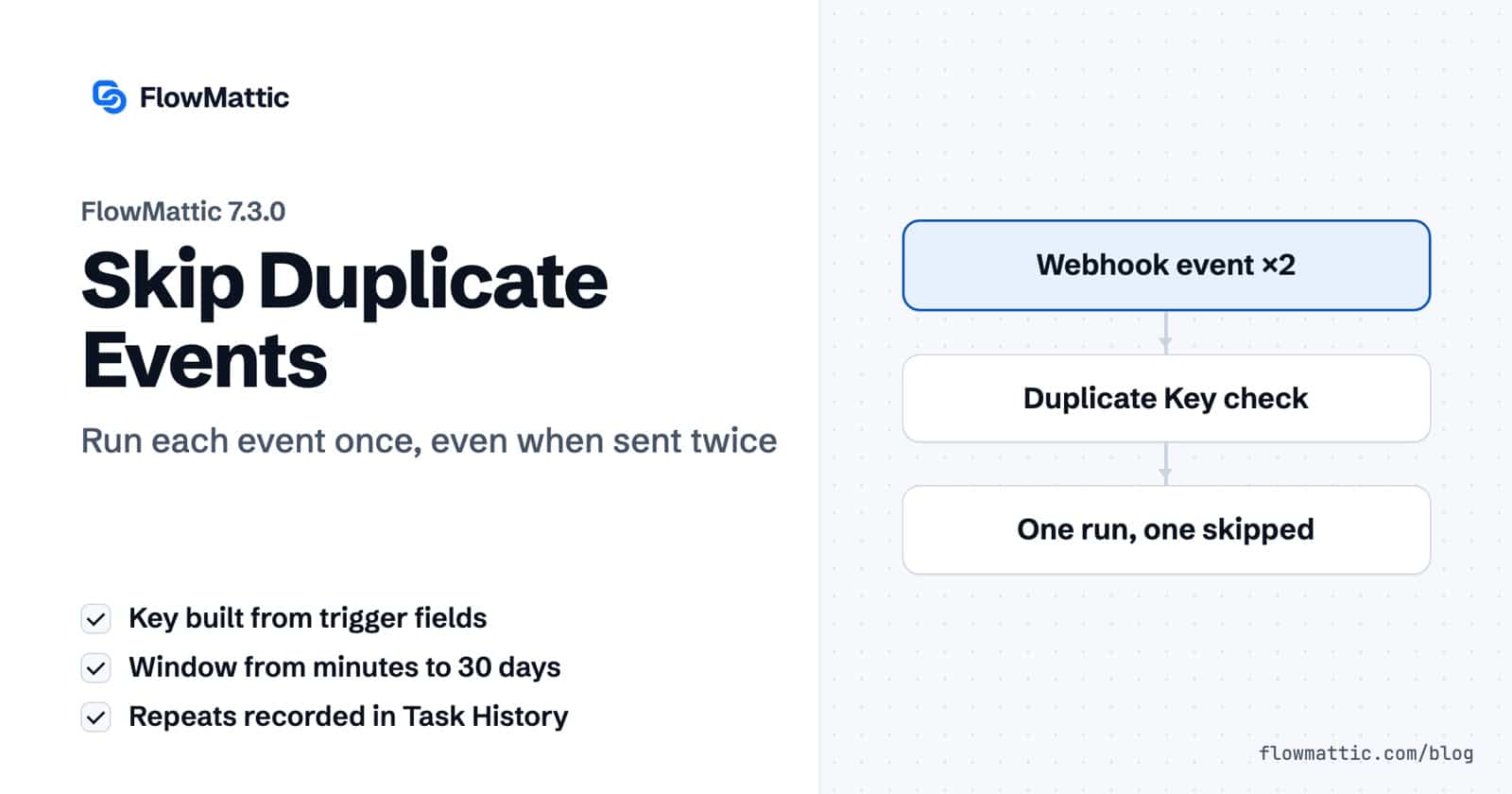
When an app sends the same event twice, a workflow normally runs twice: two order records, two welcome emails, two Slack alerts. Skip Duplicate Events, new in FlowMattic 7.3.0, lets you deduplicate webhook events and every other kind of trigger event at the trigger itself. A repeat that arrives inside a window you choose is recorded and skipped instead of running again.
It is for anyone whose source app can deliver one event more than once: payment providers that resend a webhook, forms that get submitted twice by an impatient visitor, CRMs that send an update and then a near-identical second one. You tell FlowMattic which fields identify one event and how long to remember it. The rest happens before the first action step.
Skip Duplicate Events is a per-trigger setting in the workflow builder. You switch it on, write a Duplicate Key made from fields in the trigger data, and set a window. When an event arrives, FlowMattic fills the key with that event’s values. If the same key already started this workflow inside the window, the new event is skipped.
The setting lives on the trigger’s Conditions tab, next to Enable Conditional Execution. A trigger step has four tabs: Setup, Configure, Capture and Conditions. The option is available on every trigger except the Schedule trigger, which has no incoming event to repeat. In a workflow with several triggers, each trigger keeps its own setting, and the check uses the settings of whichever trigger fired.
You deduplicate webhook events the same way you deduplicate a WooCommerce, form or any other app trigger.
{order_id}, or click a field button to insert it at the cursor.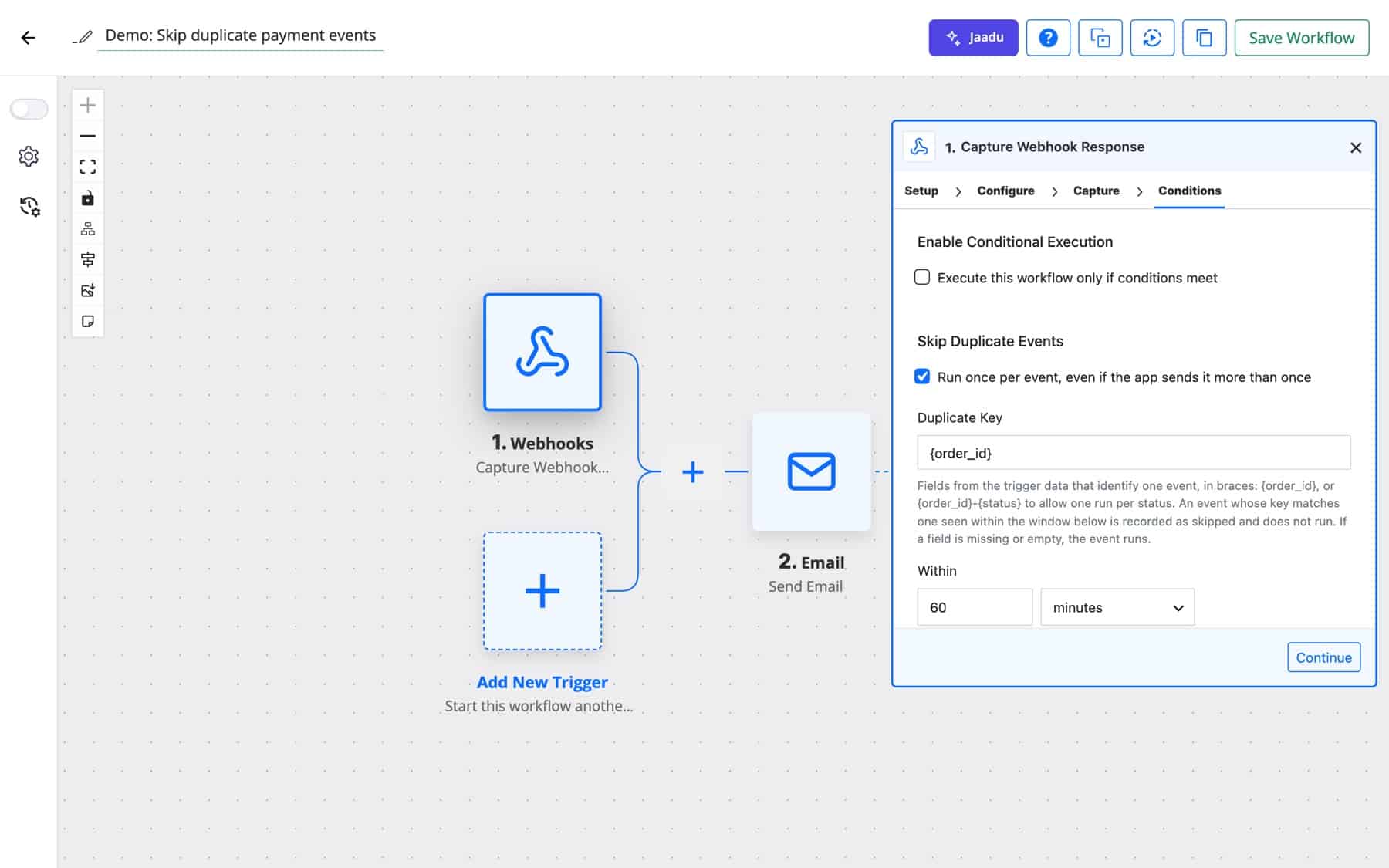
First, the trigger’s own conditions run. If Execute this workflow only if conditions meet is on and the event fails them, the workflow stops there and the event never claims a key.
Next, FlowMattic builds the key from the event. If every field in the key has a value, the event tries to claim it. The claim is a single database insert, so two copies of an event that arrive at the same moment cannot both run. The first one wins and the workflow continues as normal.
A later event with the same key inside the window is a duplicate. Task History records the run with the status Skipped, its trigger data and a second entry titled Duplicate event skipped. Its message names the key and the time the first event started the workflow: “Skipped: an event with the same key (…) already started this workflow at …”. No action step runs, and the skip is not reported as a failure, so no failure email goes out.
Once the window has passed, the next event with that key runs and starts a new window.
| Option | What it does |
|---|---|
| Skip Duplicate Events | Turns the check on for this trigger. Off by default. |
| Duplicate Key | Fields from the trigger data in braces. {order_id} allows one run per order; {order_id}-{status} allows one run per order and status. Tags can also carry the step prefix, such as {webhook1.order_id}. |
| Within | How long a key is remembered. Whole numbers from 1. Default 60. |
| Unit | Minutes, hours or days. Default minutes. Anything longer than 30 days is capped at 30 days. |
Payment providers can send the same event more than once. Acme Supplies keys its payment webhook on the provider’s event ID with a one-day window, so a resend never creates a second shipment.
Flow: Webhook (payment event, key {event_id}) → API by FlowMattic (create shipment) → Send Email
A store’s Order Updated trigger can fire several times while an order is edited. A key of the order ID plus its status lets the workflow react once to each status change and ignore the rest.
Flow: WooCommerce Order Updated (key: order ID and status fields) → Router → Slack Send Channel Message · Google Sheets Add New Row
A SaaS signup service sometimes sends the same account twice. Keying on the email address with a one-day window means Priya Sharma gets one welcome email and one CRM contact.
Flow: Webhook (signup, key {email}) → HubSpot Create Contact → Send Email
A visitor who clicks Submit twice should not become two leads. A ten-minute window keyed on the email field keeps the lead sheet clean without blocking the same person from enquiring again next week.
Flow: Form Builder New Form Submission (key {email}, 10 minutes) → Google Sheets Add New Row → Slack Send Channel Message
An agency’s monitoring tool repeats its alert every few minutes while a client site is down. Keying on the incident ID with a one-hour window gives the team one Slack message per incident instead of a stream.
Flow: Webhook (monitor alert, key {incident_id}, 1 hour) → Slack Send Channel Message
A document system sends “document ready” more than once. Keying on the document ID with a seven-day window stops the AI agent from summarising, and billing tokens for, the same document twice.
Flow: Webhook (key {document_id}, 7 days) → AI Agent Execute Agent → WP Tables New Record
data_object_id.{field} in it switches the check off.For the other logic tools that shape a run, see workflow logic in FlowMattic.
Open the webhook trigger, go to the Conditions tab and turn on Skip Duplicate Events. Set the Duplicate Key to a field that is unique per event, such as the event or order ID, and choose a window. A repeat inside the window is recorded as skipped.
Yes. Every trigger except the Schedule trigger has the setting, including WooCommerce, form, WordPress and app triggers. The key uses whatever fields that trigger captures.
It appears in Task History with the status Skipped, its trigger data and a “Duplicate event skipped” entry that names the key and when the first event arrived. No action step runs, and it does not count as a failed run.
As long as the window you set: 60 minutes by default, up to 30 days. After that, the next event with the same key runs normally.
Skip Duplicate Events ships with FlowMattic 7.3.0, and workflows run on your own server with no per-task fee. See FlowMattic pricing and start keeping each event to a single run.
Task History records every run and every step, with inputs and responses, and lets you re-execute a run, a single step or…
DNS / Domain Tools adds seven checks to any workflow: DNS, reverse DNS, MX, email domain, SSL certificate, HTTP headers and open…
The FTP app uploads, downloads, moves and deletes files on FTP, FTPS and SFTP servers from any workflow, and starts workflows when…