
FTP automation in WordPress: upload, download and watch folders
The FTP app uploads, downloads, moves and deletes files on FTP, FTPS and SFTP servers from any workflow, and starts workflows when…


A delay workflow step pauses a run and picks it up later, so a follow-up lands three days after a purchase or a reminder arrives at 9:00 in the customer’s own time zone. In FlowMattic, the Delay module does this with two actions: wait for a duration, or wait until a date and time.
Timing is half of good automation. Delay suits review requests, trial reminders, booking reminders, and any process where an immediate action would be too early. The rest of the workflow stays on one canvas, and the waiting run is visible in Task History the whole time.
Delay by FlowMattic is a built-in step in the Flow Controls group, described as “Pause the run for a set time before continuing.” It has two action events:
Everything before the Delay runs straight away; everything after it waits. Delay sits alongside the other workflow logic modules and works inside Router routes too.
Behind the scenes, short and long waits are handled differently. A wait of 59 seconds or less happens inside the same run, and the next step follows straight after. A wait of 60 seconds or more is booked in FlowMattic’s own job table: the run is parked, Task History shows it as Waiting, and it resumes at the next step when the job is due. A recovery check also runs every five minutes, so a delayed step whose scheduled job went missing is queued again rather than left waiting for good.
| Setting | Action | What it does |
|---|---|---|
| Delay Unit | Delay For | Seconds, Minutes, Hours, Days or Weeks. |
| Delay Value | Delay For | How many units to wait. Whole numbers only; it accepts a dynamic tag, so the wait can come from earlier data. |
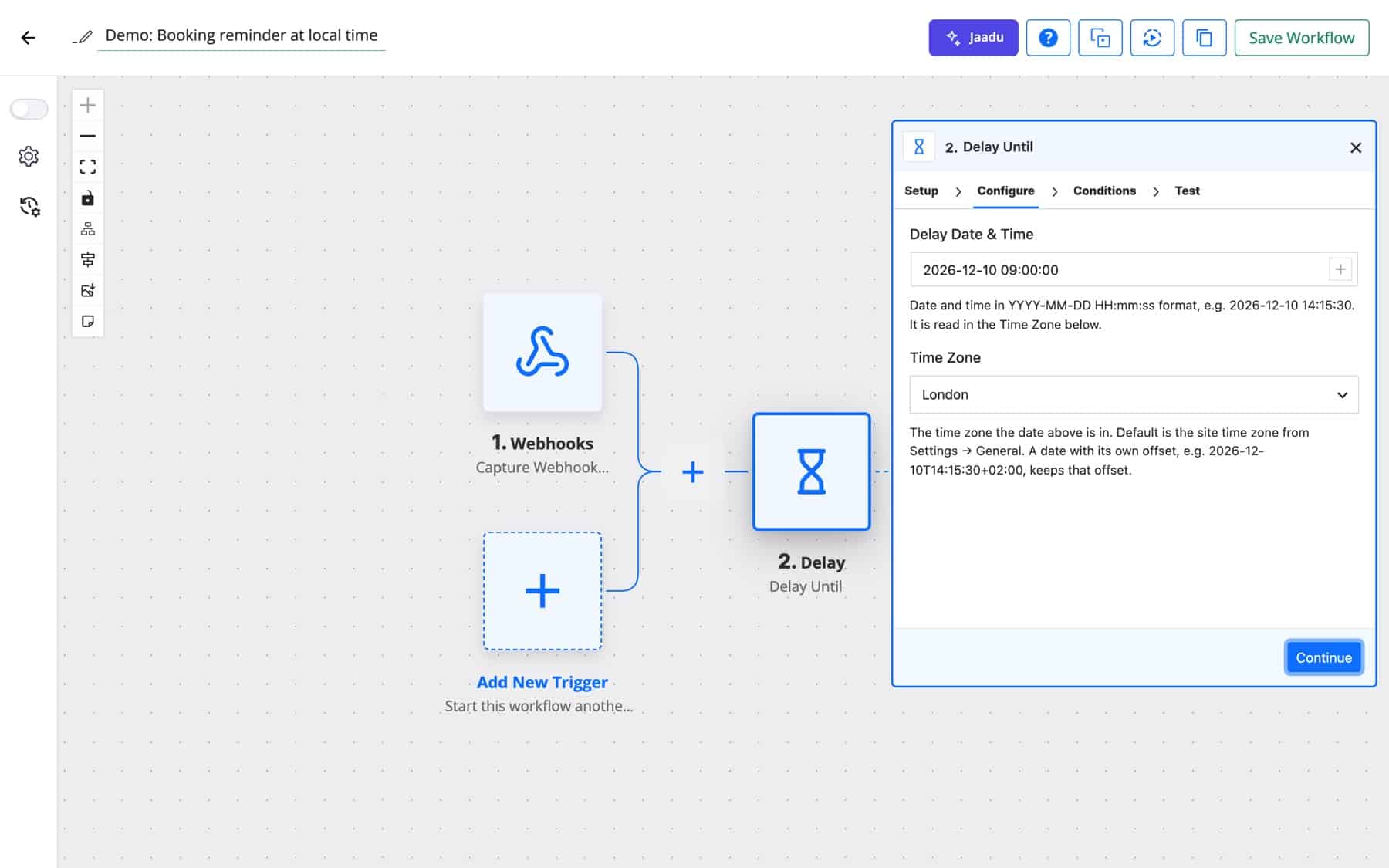
| Delay Date & Time | Delay Until | The moment to resume, in YYYY-MM-DD HH:mm:ss format, for example 2026-12-10 14:15:30. Accepts a dynamic tag. |
| Time Zone | Delay Until | The time zone the date is read in. Defaults to the site time zone from Settings → General; you can pick any region, UTC or a manual offset such as UTC+5.5. Added in 7.3.0. |
A date that carries its own offset, such as 2026-12-10T14:15:30+02:00, keeps that offset whatever the Time Zone setting says. If the Delay Until time has already passed when the step runs, the workflow continues immediately instead of waiting. If the date or time zone can’t be read, or the mapped date is empty, the step fails and the run stops there.
A review request sent at checkout is too early. One week later, the customer has used the product.
WooCommerce new order → Delay For (7 Days) → Send Template Email (review request)
Work out the reminder time from the booking date, then wait until it in the customer’s time zone.
Bookings New Booking → Date/Time Formatter (Add/Subtract Time: minus 1 day) → Delay Until (Time Zone: Europe/London) → Send Email reminder
A SaaS product with a 14-day trial reminds new users on day 12, then follows up with a direct message to sales.
WordPress New User → Delay For (12 Days) → Send Email (trial ending) → Slack Send Channel Message to #sales
Some APIs confirm a request before the data is ready. A short wait before the lookup avoids reading an empty record.
Webhook (export requested) → Delay For (30 Seconds) → API request (download export) → Google Sheets Add New Row
Asking for feedback the moment a ticket closes feels automatic. A day later reads as a genuine check-in.
Fluent Support Agent Closes a Ticket → Delay For (1 Day) → Send Email (survey link)
An agency approves a post during the week and wants the announcement out at the client’s launch time, mapped from the request.
Webhook (launch_at field) → Delay Until ({webhook1.launch_at}, Time Zone: America/New_York) → Slack Send Channel Message → Send Email to the client
An AI Agent drafts a reply to an inbound lead, and a short delay gives your team time to cancel the run from Task History if the draft is off.
Form submission → AI Agent (draft reply) → Slack Send Channel Message (draft for review) → Delay For (2 Hours) → Send Email to the lead
wp-cron.php keeps timing tight.YYYY-MM-DD HH:mm:ss. Use the Date/Time Formatter to reshape a date from another app before the Delay.Delay For goes up to weeks as its largest unit, with any whole number of units. Delay Until waits for whatever date and time you set. Long waits are booked in FlowMattic’s job table, so nothing is held open in the meantime.
Yes. Delay Until has a Time Zone setting with any region, UTC or a manual offset. Leave it at the default to use the site time zone.
The workflow continues immediately. The step records that the time had already passed and moves on to the next step.
Yes. Open the run in Task History while it shows Waiting and cancel the delay. A cancelled delay stays cancelled, and the remaining steps don’t run.
Delay is part of every FlowMattic plan, with unlimited workflows and runs on your own server. Pick a plan and add the right timing to your next delay workflow step.
The FTP app uploads, downloads, moves and deletes files on FTP, FTPS and SFTP servers from any workflow, and starts workflows when…
Share Secrets turns a password or API key into a link that expires after a set time, a set number of views,…
Generate Magic Login Link creates single-use sign-in links from any workflow, valid from 1 minute to 30 days, with a confirmation page…

