FTP automation in WordPress: upload, download and watch folders
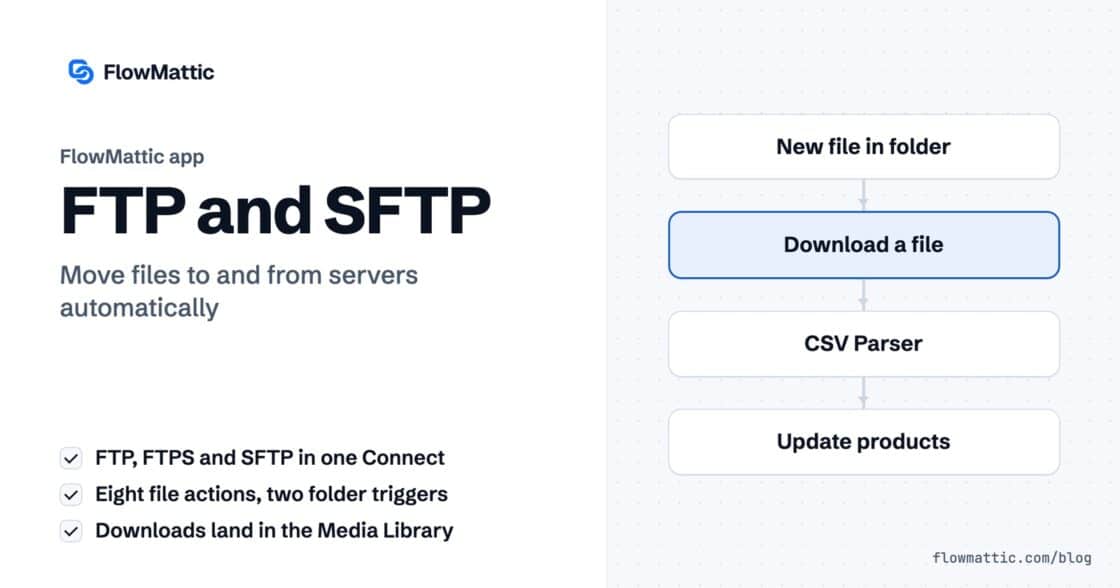
The FTP app uploads, downloads, moves and deletes files on FTP, FTPS and SFTP servers from any workflow, and starts workflows when…



Dates break more automations than almost anything else. One app sends 2026-10-04T09:12:00, the next wants 04/10/2026, a third wants a Unix timestamp, and your customer wants it in their own time zone. FlowMattic’s Date/Time Formatter is a date time formatter built into the workflow builder, with thirteen actions to reformat, shift, compare, convert and calculate dates between the trigger and the action.
It is for store owners sending reminders, agencies building reports on a calendar, SaaS teams tracking trials and anyone moving dates between apps that disagree on format. This guide covers every action, the format options, the fields each one returns, and seven workflows that use them.
Date/Time Formatter is a built-in action app in FlowMattic. You add it as a step, choose an action, map a date from the trigger or an earlier step, and the result becomes a field for the steps that follow. In most actions you can type [current_date] instead of a date to use the moment the step runs.

Every format field is a list of ready-made formats, each shown with an example: YYYY-MM-DD (2025-01-22), DD/MM/YYYY (22/01/2025), MMMM DD, YYYY h:mm a, ISO-style formats with a time zone offset, and Unix timestamps in seconds, milliseconds or microseconds. WordPress Default uses your site’s date and time settings. Custom opens a field where you type any PHP date format, such as l, j F Y.
| Action | Main fields | What it returns |
|---|---|---|
| Add/Subtract Time | Enter Date, Expression, From Format, To Format | output: the shifted date |
| Modify Current Date | Date Output Format, Time Zone, Operation, Time Unit, Time Unit Value | output: now, plus or minus days, hours or minutes |
| Compare Two Dates | Enter Start Date, Enter End Date, Start and End Date Formats | difference, years, months, days, hours, minutes, dates_swapped, same_dates |
| Modify Date Format | Enter Date, From Format, To Format | output: the same date in a new format |
| Calculate Age | Enter Date of Birth, Date Format | years, months, days, hours, age, since |
| Convert Timezone | Enter Date, Input Date Format, From Time Zone, To Time Zone, Date Output Format | output in the target time zone |
| Parse Date | Enter Date, Date Format | Year, month, month name, day, weekday, hour, minute, week of year, quarter, timestamp, leap year and more |
| Check Date Condition | Enter Date, Date Format, Condition, Compare Date | result: yes or no |
| Get Relative Date | Enter Date, Date Format | relative, such as “2 days ago”, “in 3 hours” or “yesterday” |
| Date to Unix Timestamp | Enter Date, Date Format, Output Unit | timestamp in seconds, milliseconds or microseconds |
| Unix Timestamp to Date | Unix Timestamp, Input Unit, Output Date Format | date |
| Get Holiday Date | Select Holiday, Year, Output Date Format | date of the holiday that year |
| Get Recurring Date | Occurrence, Day of Week, Mode, Month, Year or From Date | date, relative, days_until, is_upcoming, month, year |
+8 hours 1 minute, +1 month -2 days or -1 day +8 hours.A salon subtracts one day from each appointment time, then waits until that moment to send the reminder, so Yuki Tanaka hears from them 24 hours ahead.
Flow: FlowMattic Bookings New Booking → Add/Subtract Time (-1 day) → Delay Until → Send Email
Acme’s store runs on UTC but its customers are in London. Convert Timezone turns the order time into local time and a friendly format before the confirmation email goes out.
Flow: WooCommerce New Order Created → Convert Timezone → Send Email
Every signup gets a 14-day trial. Add/Subtract Time with +14 days on [current_date] calculates the end date, which is stored with the account for the follow-up emails.
Flow: Webhook (signup) → Add/Subtract Time → WP Tables New Record
A helpdesk sends each ticket’s creation time. Compare Two Dates against [current_date] gives the age in days and hours, and a Router escalates anything waiting too long.
Flow: Webhook (ticket) → Compare Two Dates → Router → Slack Send Channel Message
An agency’s reports go out on the first Monday of each month. A weekly schedule fires every Monday, Parse Date reads today’s day of the month, and a Filter lets the run continue only when it is 7 or lower.
Flow: Schedule Every Week (Monday) → Parse Date ([current_date]) → Filter → API by FlowMattic GET → Send Email
A marketing team wants the early-access email to go out one week before Black Friday, every year, with no date typed by hand. A daily run finds this year’s Black Friday, subtracts seven days and checks whether that date is today.
Flow: Schedule Every Day → Get Holiday Date (Black Friday) → Add/Subtract Time (-7 days) → Check Date Condition (Is Today) → Filter → Send Email
Many APIs return Unix timestamps in milliseconds. Unix Timestamp to Date with Input Unit set to Milliseconds turns them into dates people can read before they land in a sheet or an AI summary.
Flow: API by FlowMattic GET → Unix Timestamp to Date → Google Sheets Add New Row
Add a Date/Time Formatter step with Modify Date Format. Map the date into Enter Date, set From Format to match it, and choose a To Format from the list or Custom for your own PHP format.
Yes. Convert Timezone takes the date, its input format, a From Time Zone and a To Time Zone, and returns the converted date in the output format you choose.
Use Add/Subtract Time with an Expression such as +7 days, or -1 day +8 hours to combine units. Use [current_date] as the date to count from now.
Yes, in both directions. Date to Unix Timestamp and Unix Timestamp to Date support seconds, milliseconds and microseconds, and the format lists include Unix timestamp formats too.
The date time formatter is one of FlowMattic’s built-in data tools, with no per-run cost. See FlowMattic pricing and stop fixing dates by hand.
The FTP app uploads, downloads, moves and deletes files on FTP, FTPS and SFTP servers from any workflow, and starts workflows when…
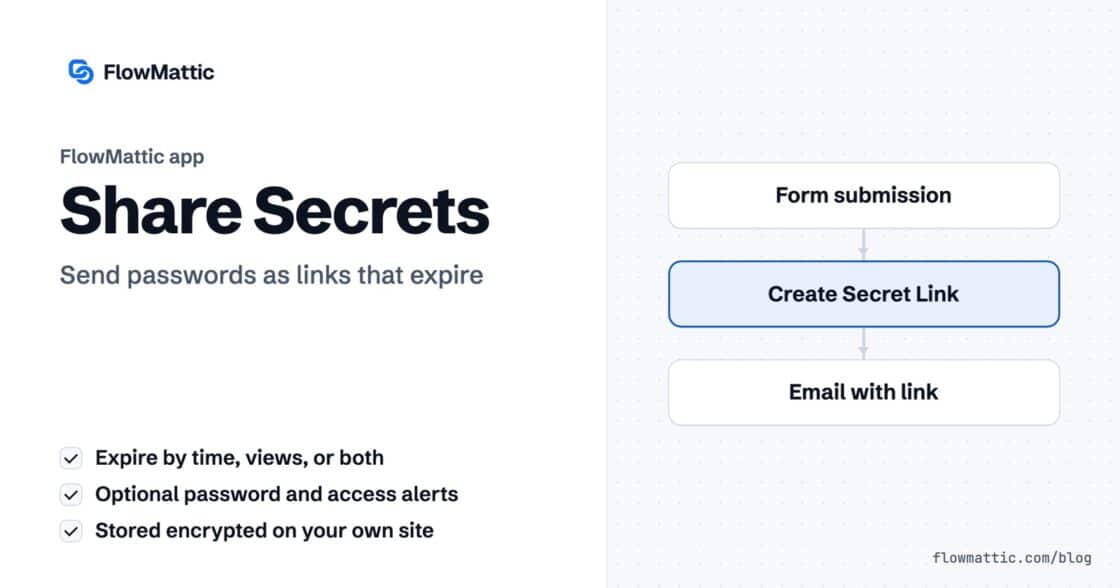
Share Secrets turns a password or API key into a link that expires after a set time, a set number of views,…
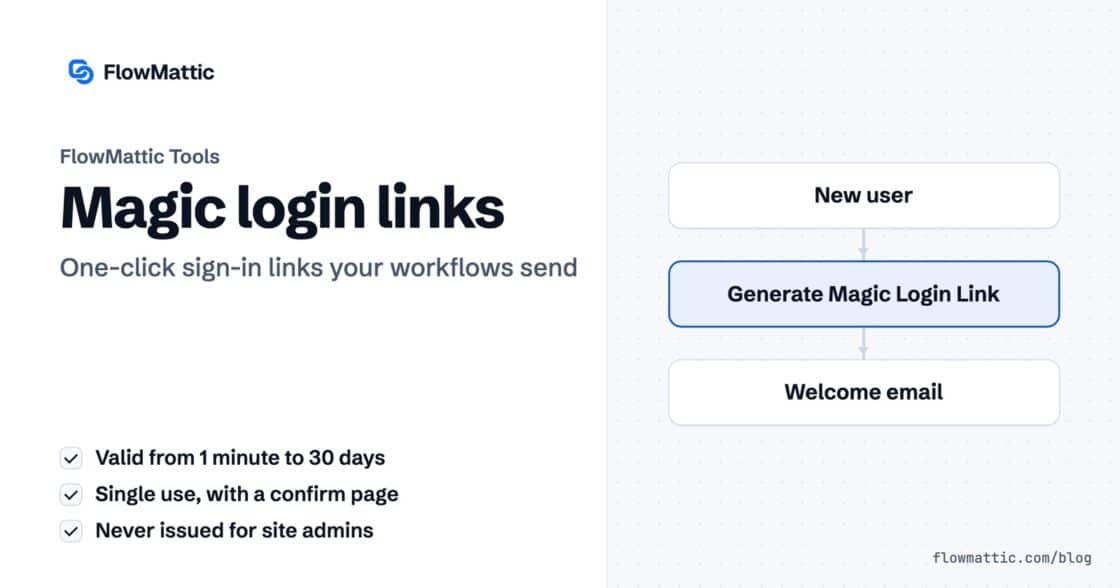
Generate Magic Login Link creates single-use sign-in links from any workflow, valid from 1 minute to 30 days, with a confirmation page…