
FTP automation in WordPress: upload, download and watch folders
The FTP app uploads, downloads, moves and deletes files on FTP, FTPS and SFTP servers from any workflow, and starts workflows when…


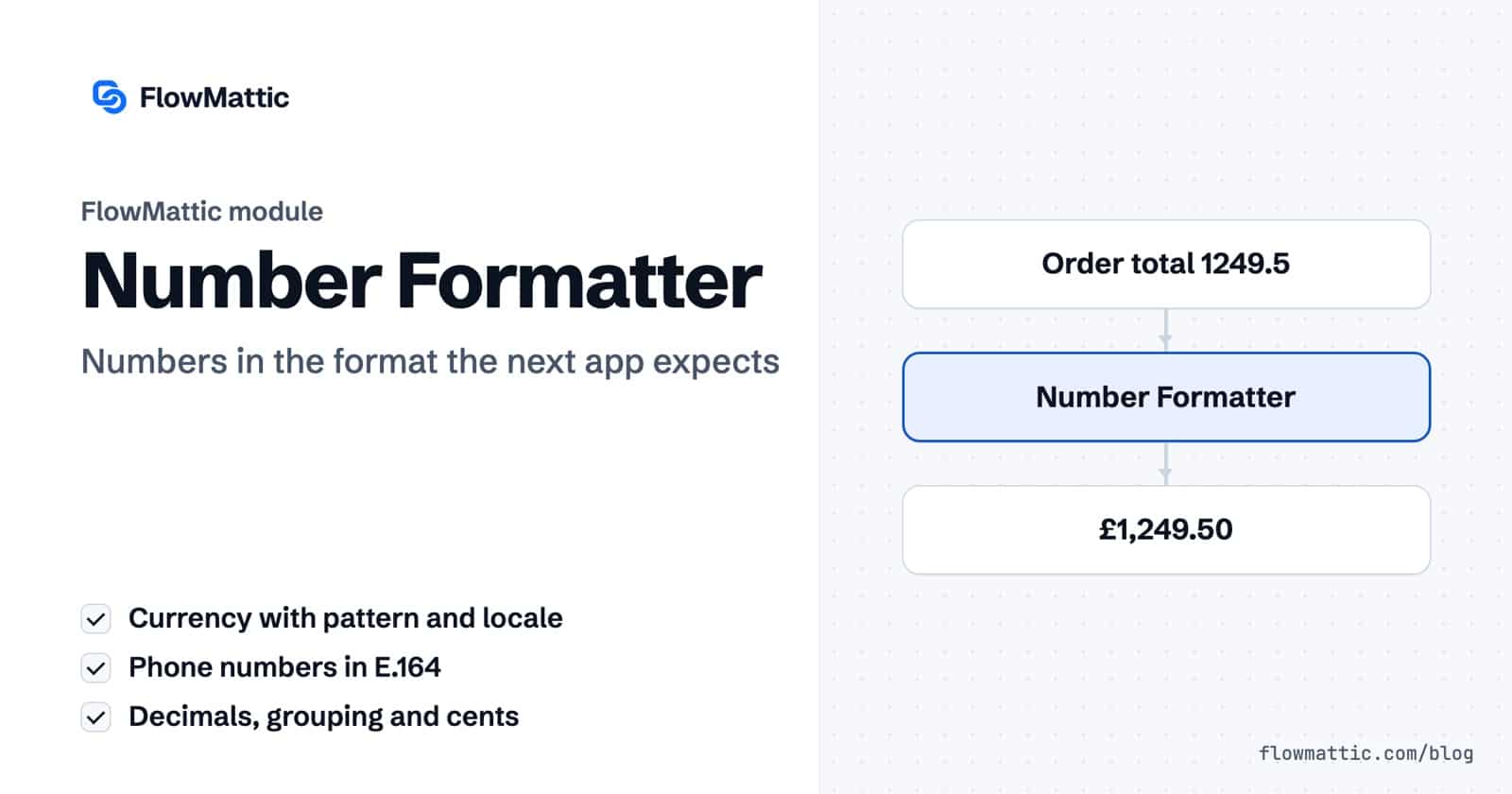
The Number Formatter in FlowMattic turns a raw number from a trigger into the shape the next app expects. One step gives you grouped thousands, a currency string such as £1,249.50, a phone number in E.164, a fixed number of decimal places, or an amount in cents for a payment API.
It is for anyone whose data arrives as 1249.5 or (555) 010-4477 and has to leave looking like something a customer, a CRM or an SMS gateway will accept. This guide covers the five actions, every field, real input and output examples, and the edge cases worth knowing before you build.
It is a built-in action module in the FlowMattic workflow builder. You add it as a step between a trigger and an action, and its output becomes data that every later step can map. In the step picker it sits under Utilities with the description “Format numbers and currency values”, alongside the other data tools.
It has five actions:
formatted_currency, ready for the next step.
Here is what each action returns for typical input:
Format Number      1234567.5, Space                         -> 1 234 567.5
Format Currency    1249.5, GBP, ¤#,##0.00, en_US            -> £1,249.50
Format Currency    1249.5, EUR, #,##0.00¤, de_DE            -> 1.249,50€
Format Phone       (555) 010-4477, US, International        -> +1 555 010 4477
Format Phone       (555) 010-4477, US, E.164                -> +15550104477
Decimal Converter  19.987, 2                                -> 19.99
Minor Unit 49.99, USD -> 4999| Action | Fields | Output |
|---|---|---|
| Format Number | Number, Grouping (Comma or Space) | formatted_number |
| Format Phone Number | Phone Number, New Format (International, National, E.164), Country Code | formatted_phone_number, country, dialing_code, message |
| Format Currency | Amount, Currency, Currency Format, Currency Locale | formatted_currency |
| Decimal Converter | Number, Decimal Places | converted_number |
| Minor Unit Conversion | Amount, Currency Code | converted_amount, currency_code |
Currency takes an ISO 4217 code such as USD, INR or EUR. Currency Format offers ten patterns, from ¤#,##0.00 to #,##0.00¤ and ¤00000.0000. In a pattern, ¤ is where the currency sign goes, 0 pads with zeros, # adds nothing when the number is short, . is the decimal point and , is the thousands separator.
Currency Locale offers twelve locales: English (United States), English (India), French (France), German (Germany), Spanish (Spain), Italian (Italy), Japanese (Japan), Korean (Korea), Portuguese (Portugal), Russian (Russia), Chinese (China) and Arabic (Saudi Arabia). The locale sets the symbols and separator characters, which is why the same amount reads 1.249,50€ in German.
Country Code is the two-letter ISO 3166-1 code, such as US, GB or IN. The module removes a leading + and dialling code if present, strips every non-digit and drops a leading zero. International then fits the digits into that country’s pattern, E.164 returns +, the dialling code and the digits with no spaces, and National groups the digits three, three and the rest.
Many payment and invoicing APIs want integers in the smallest currency unit. Minor Unit Conversion turns 49.99 USD into 4999 and leaves zero-decimal currencies such as JPY as they are.
Flow: WooCommerce new order → Minor Unit Conversion → API Request (POST)
Visitors type phone numbers with brackets, dashes and leading zeros. Format Phone Number with E.164 gives your SMS app one consistent format, and the country field tells you which country the number was formatted for.
Flow: Form submission → Format Phone Number, E.164 → SMS app
A store selling to Germany and the US can format the same total two ways. Route by billing country, then format with de_DE and EUR on one path and en_US and USD on the other.
Flow: WooCommerce new order → Router → Format Currency → Send Email
Totals pulled from an API arrive as long unformatted numbers. Format Number with Comma grouping turns 1234567 into 1,234,567 before the message reaches your team chat.
Flow: Schedule (Every Day) → API Request (GET) → Format Number → Team chat message
An agency collecting leads for several clients can store every number in the same international format, so duplicates match and sales reps can dial straight from the CRM.
Flow: Webhook (Capture Webhook Response) → Format Phone Number, International → CRM create contact
When an AI agent estimates a price, the number can come back with many decimals. Round it with Decimal Converter, then present it with Format Currency before it goes into a reply.
Flow: Form submission → AI Agent → Decimal Converter → Format Currency → Send Email
1249.50 comes out as 1,249.5. For a fixed two decimals with grouping, use Format Currency with the #,##0.00 pattern, which has no currency sign and returns 1,249.50.¤#,##0.00, 1234567.8 reads ₹1,234,567.80, grouped in threes.message.usd isn’t recognised and the amount comes back unchanged.Add a step, choose Number Formatter and pick Format Currency. Map the amount, enter a currency code such as USD, and pick a Currency Format pattern and a Currency Locale. The result is in the formatted_currency field.
Yes. Use Format Phone Number, set New Format to E.164 and give the two-letter country code. The step strips spaces, brackets, dashes and a leading zero, then returns the number as a plus sign, the dialling code and the digits.
Use Minor Unit Conversion with the amount and the uppercase currency code. USD 49.99 becomes 4999. Zero-decimal currencies such as JPY and KRW are returned unchanged, because they have no minor unit.
Format Number keeps only the decimals that exist in the numeric value, and 1249.50 is the same number as 1249.5. To always show two decimals, use Format Currency with the #,##0.00 pattern.
The Number Formatter ships with FlowMattic and runs on your own WordPress site. See the plans and start formatting numbers inside your workflows.
The FTP app uploads, downloads, moves and deletes files on FTP, FTPS and SFTP servers from any workflow, and starts workflows when…
Share Secrets turns a password or API key into a link that expires after a set time, a set number of views,…
Generate Magic Login Link creates single-use sign-in links from any workflow, valid from 1 minute to 30 days, with a confirmation page…

