
FTP automation in WordPress: upload, download and watch folders
The FTP app uploads, downloads, moves and deletes files on FTP, FTPS and SFTP servers from any workflow, and starts workflows when…


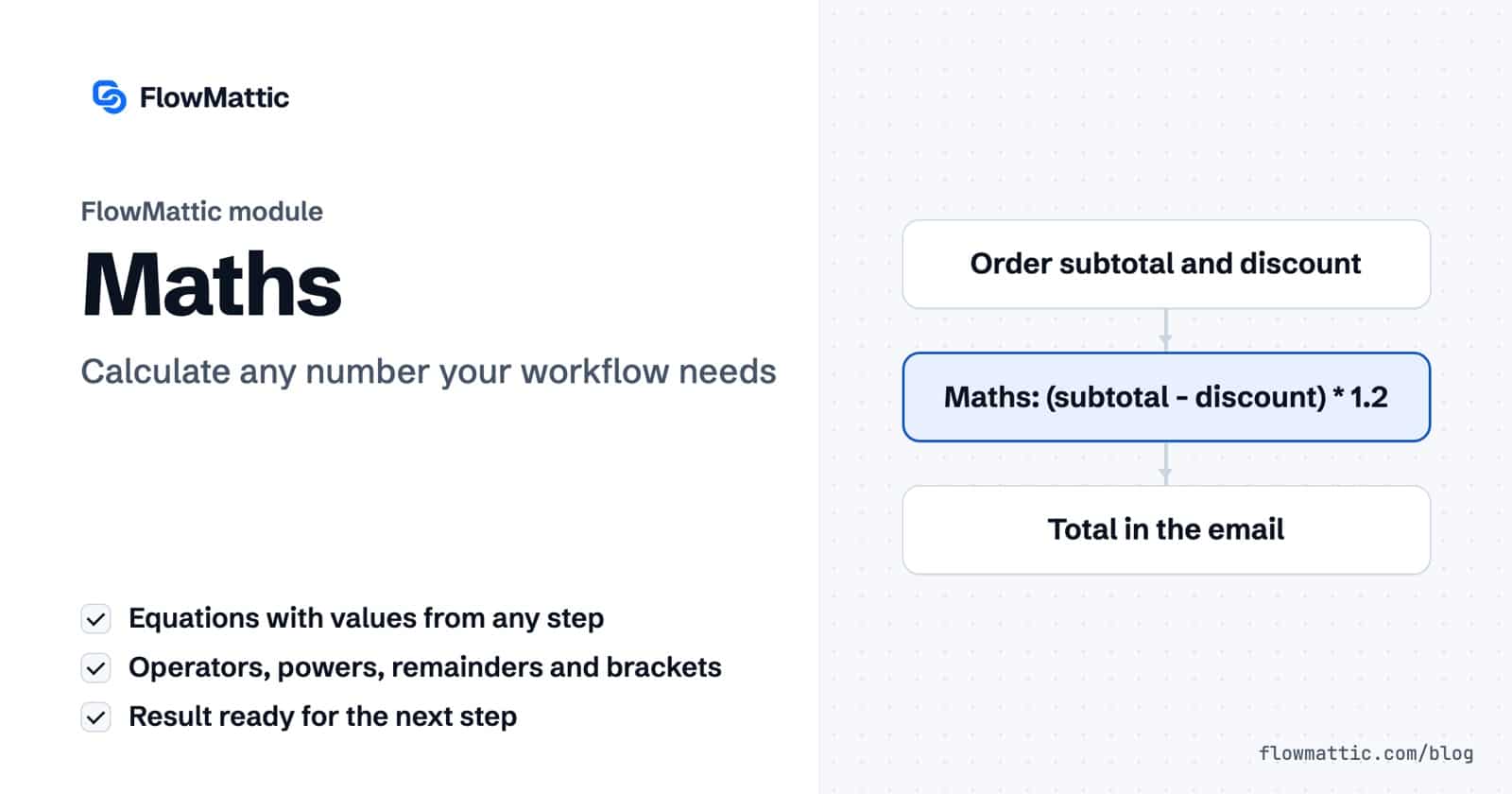
FlowMattic’s Maths module runs math calculations in workflows without a line of code. You write an equation, drop in numbers from the trigger or earlier steps, and the result is ready for the next step: an order total with tax, a commission, a deposit, a score.
It is for store owners, agencies and operations teams who need a number that no app sends them directly. This guide shows how the step works, what an equation may contain, real results, and the limits worth knowing before you rely on it.
Maths by FlowMattic is a built-in action module with one action, Execute Math Equation, and one field, Enter Math Equation. In the step picker it sits under Utilities as “Run calculations on workflow values”, with the other data tools.
Every equation is evaluated on your own WordPress server after FlowMattic fills in any dynamic tags, so math calculations in workflows need no outside service. The step returns status and result, so the answer can be mapped anywhere a number is needed.
result.result into the next step, or format it first.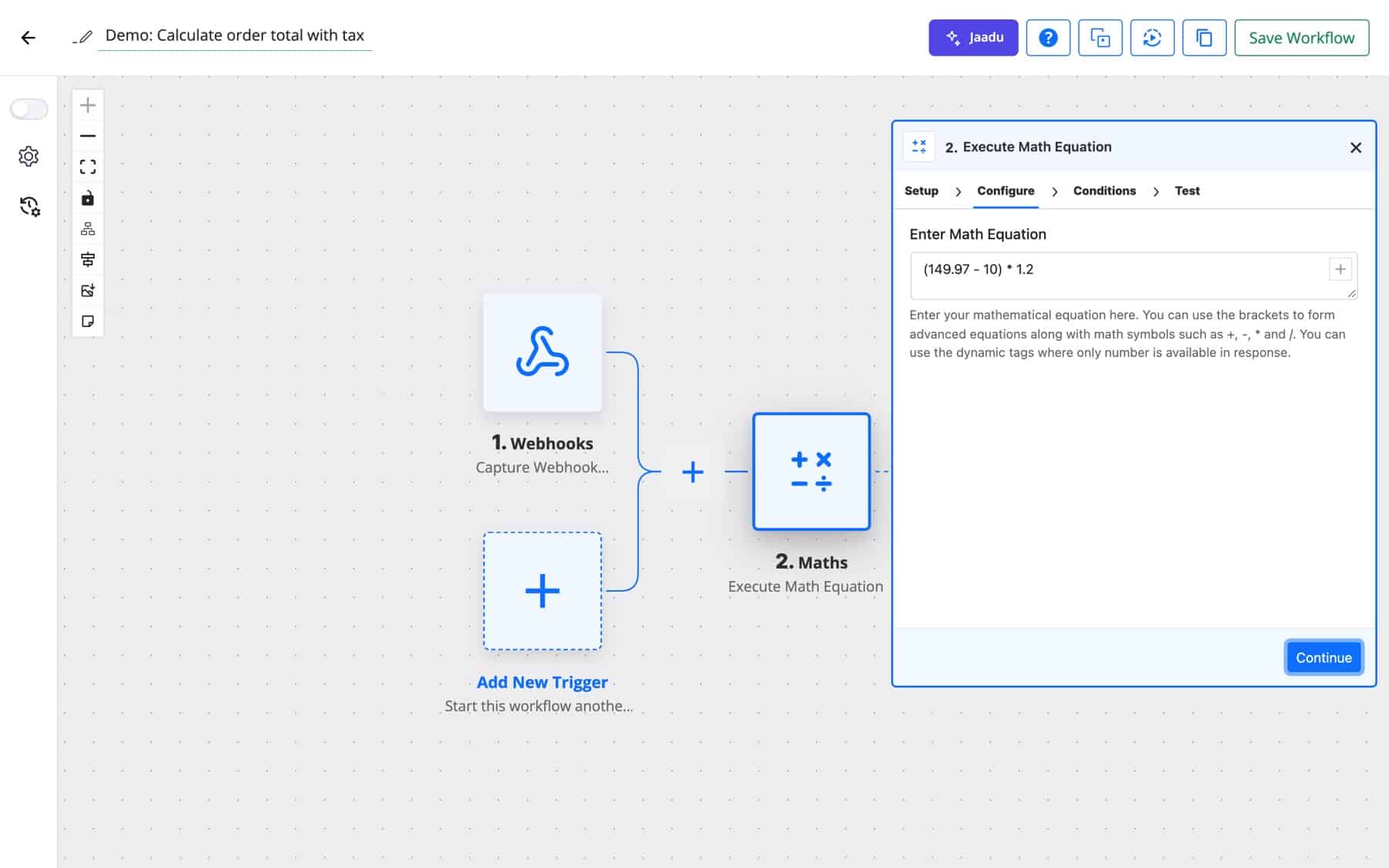
Once the tags are filled in, the equation is plain arithmetic. These are real results from the module:
(49.99 * 3) - 10    -> 139.97
2 ** 3              -> 8
17 % 5              -> 2
10 / 0              -> error: Division by zero
1,249.50 + 1        -> error: Non-arithmetic characters in equation.
round(2.5) -> error: Non-arithmetic characters in equation.| Allowed | Meaning |
|---|---|
0-9 and . | Numbers, with a period as the decimal point |
+ - | Add and subtract; a leading minus makes a negative number |
* / | Multiply and divide |
** | Power, for example 1.05 ** 3 |
% | Remainder of a whole-number division |
( ) | Grouping |
| Spaces and line breaks | Ignored, so you can lay the formula out clearly |
Anything else, such as letters, commas, currency symbols, quotes or function names, is refused before the equation runs. An en dash pasted from a document is turned into a minus sign for you.
A successful run returns "status": "success" and the number in result. A failed run returns "status": "error", result set to “Something went wrong. Please check your math equation.” and a message with the reason.
Subtract the discount and apply 20% tax in one formula, (subtotal - discount) * 1.2, then format the answer as currency for the customer email.
Flow: WooCommerce new order → Maths → Number Formatter (Format Currency) → Send Email
Multiply each order total by the partner’s rate, for example total * 0.15, and record the commission against the order so payouts add up at month end.
Flow: WooCommerce new order → Maths → WP Tables (New Record)
When a booking comes in, calculate the deposit with price * 0.3 and send the amount to your payment provider to create a payment link.
Flow: Bookings (New Booking) → Maths → API Request (POST) → Send Email
A marketing team adds up the answer values from a qualifying form, (q1 + q2 + q3) * 10, then routes hot, warm and cold leads to different follow-ups.
Flow: Form submission → Maths → Router → CRM or Send Email
When a customer upgrades mid-cycle, charge the difference for the days left: (new_price - old_price) * days_left / 30. Round the result before it goes to your billing API.
Flow: Webhook (Capture Webhook Response) → Maths → Number Formatter (Decimal Converter) → API Request (POST)
Each morning, compare stock with your target level using target - stock. A Filter lets the run continue only when the answer is above zero, and the supplier gets the quantity.
Flow: Schedule (Every Day) → API Request (GET) → Maths → Filter → Send Email
Let an AI agent read a purchase request and pull out the quantity and unit price, then let the Maths step multiply them. The total comes from exact arithmetic rather than the model.
Flow: Email received → AI Agent → Maths → Send Email
round(), min(), max() and sqrt() are refused. To round, add a Decimal Converter step from the Number Formatter after the Maths step.0.1 + 0.2 returns 0.30000000000000004. Round before you show a number to a person.1,249.50, $20 or 5 kg breaks the equation. Strip separators and symbols with the Text Formatter first.* 3, or quietly change the answer, as in ( - 10) * 1.2, which returns -12. Give optional fields a default of 0 with the Text Formatter’s Default Value action.% runs, so 7.5 % 2 returns 1.result, so put a Filter on status when they depend on the number.Yes. Add a Maths step, type the formula with + – * / and brackets, and insert values from earlier steps with dynamic tags. The answer comes back in the result field for the next step.
Multiply by the rate as a decimal. 15% of a total is total * 0.15, and a total plus 20% is total * 1.2. To get a percentage share, use part / whole * 100.
No. The equation may contain only numbers, spaces, brackets and the operators + – * / % and **. For rounding, chain the Number Formatter’s Decimal Converter after the Maths step.
The step returns status error with the message “Division by zero”, and the run is marked as failed in Task History. Use a Filter before the Maths step to skip runs where the divisor is zero.
The Maths module ships with FlowMattic and runs on your own server, alongside every other data tool. Compare the plans and start running math calculations in workflows of your own.
The FTP app uploads, downloads, moves and deletes files on FTP, FTPS and SFTP servers from any workflow, and starts workflows when…
Share Secrets turns a password or API key into a link that expires after a set time, a set number of views,…
Generate Magic Login Link creates single-use sign-in links from any workflow, valid from 1 minute to 30 days, with a confirmation page…

