Custom Webhook Response: Send Your Own Status, Headers and Data
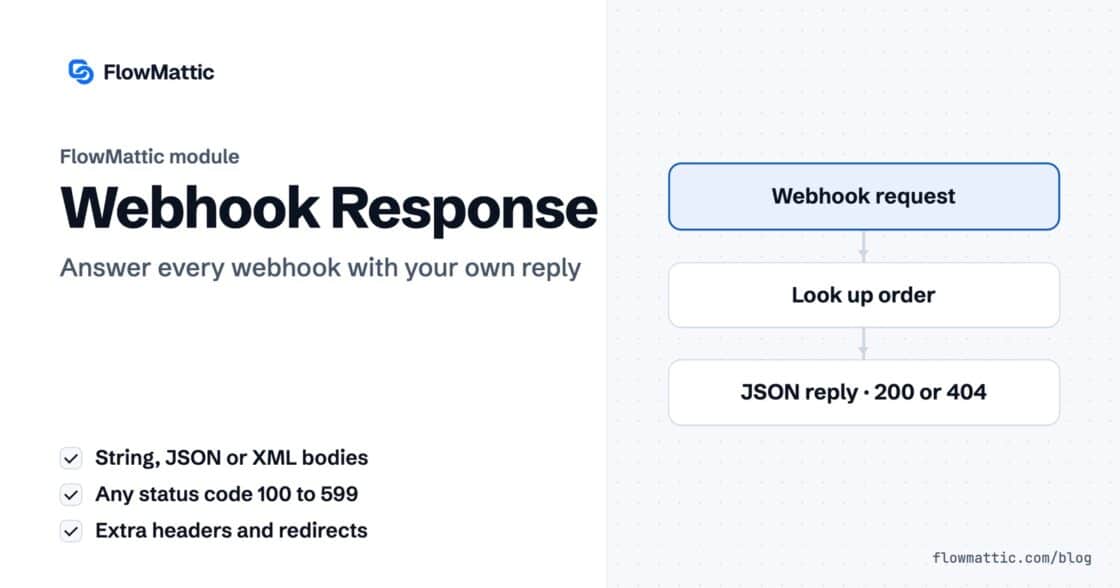
Reply to a webhook with data from the run: String, JSON or XML bodies, any HTTP status from 200 to 599, extra…


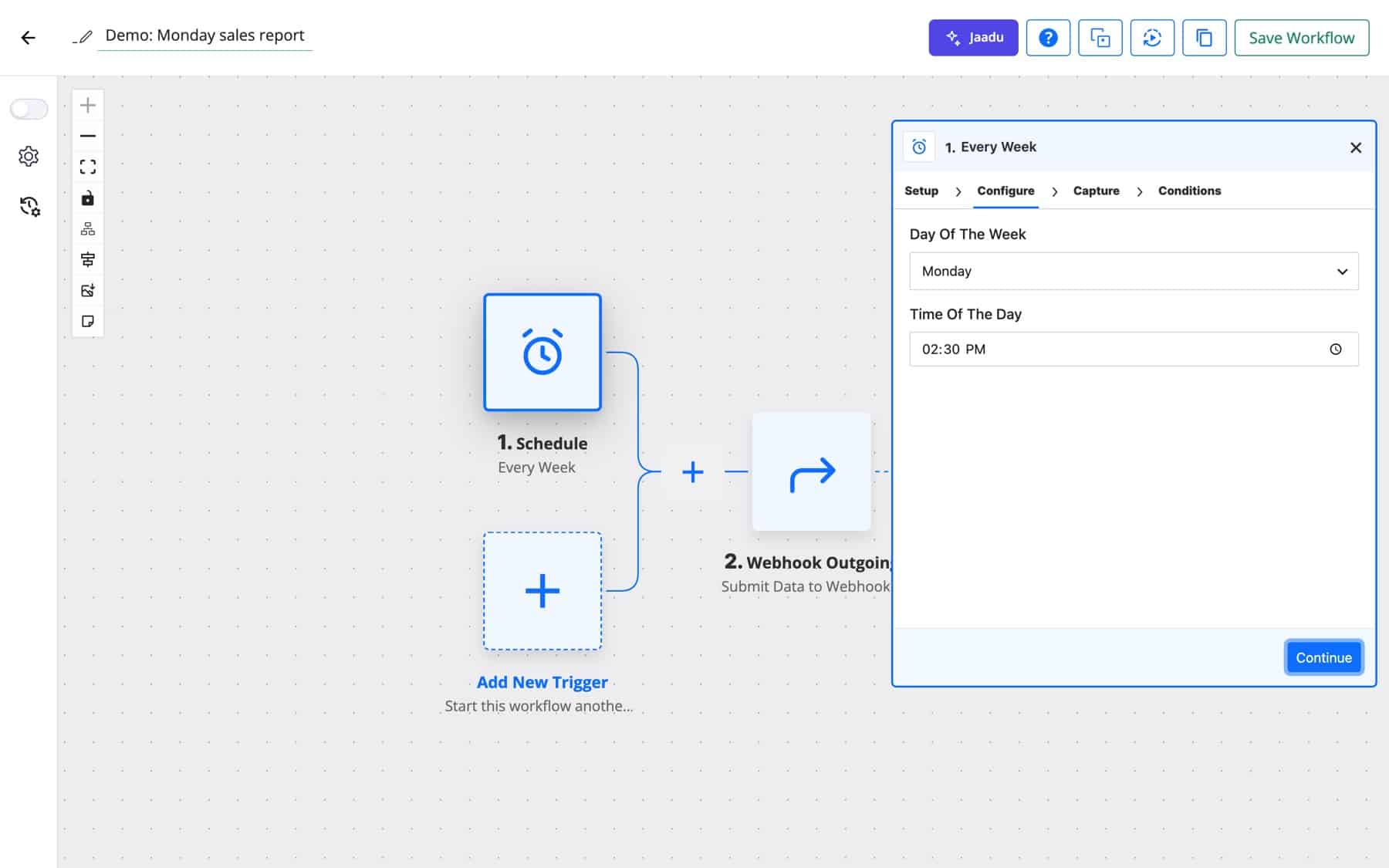
To schedule workflows in WordPress with FlowMattic, you start a workflow with the Schedule trigger and pick how often it runs: every few minutes, hourly, every few hours, daily, weekly or monthly. Everything after the trigger is the same builder you use for any other workflow.
Since FlowMattic 7.3.0, every schedule runs from FlowMattic’s own job table on your site, and when you turn on FlowMattic Cloud’s wake, Cloud wakes the site the moment a run is due, whether or not anyone visits. This guide explains the six schedule types, what wakes your site (WordPress cron or Cloud), the data each run carries, and eight workflows teams run on a timer.
The Scheduler is the Schedule by FlowMattic trigger in the workflow builder. It needs no incoming data; it starts the workflow at the times you set, and each run records when it was due. A schedule can be a workflow’s only trigger or an additional trigger in a multi-trigger workflow.
Your schedules always stay on your site. What wakes the site to run them is a site-wide choice: WordPress cron, or FlowMattic Cloud, which you can switch on once the site is connected to Cloud.
| Event | Settings | Notes |
|---|---|---|
| Every X Minutes | Minutes (1 to 59), Trigger on Weekends? | For frequent checks and queue sweeps. |
| Every Hour | Trigger on Weekends? | Hourly syncs and polls. |
| Every X Hours | Every X Hours, Trigger on Weekends? | Any number of hours from 1 to 24. |
| Every Day | Time Of The Day, Trigger on Weekends? | Runs once a day at the time you set. |
| Every Week | Day Of The Week, Time Of The Day | Runs on the chosen weekday, weekend days included. |
| Every Month | Day Of The Month, Time Of The Day | Runs on the chosen date each month. |
With Trigger on Weekends? unticked, fires that fall on a Saturday or Sunday in the site’s time zone are skipped, so the workflow holds until Monday. Since 7.2.3 the box is respected on every-X-minutes, hourly, every-X-hours and daily schedules, so tick it on any workflow that should keep running at the weekend.
WordPress has no clock of its own. wp-cron checks for due jobs when someone loads a page, so on a quiet site a 09:00 report runs when the first visitor arrives. That is fine for busy sites and for jobs where a few minutes do not matter.
Since 7.3.0, every FlowMattic timing (schedules, Delays, API Polling, booking reminders, approval timeouts, connection token refreshes and clean-ups) runs from FlowMattic’s own job table instead of WordPress’s single cron list. Each job is claimed before it runs, so it never runs twice. On every site, with or without Cloud:
To run on time with no visitor needed, connect the site to FlowMattic Cloud, an optional add-on you can start on its Free plan, and turn on the wake. Cloud wakes the site the moment the next timing is due: on the minute on the Free plan, to the second on paid plans, with no limit on schedules. Only the time of the next timing is sent to Cloud; your workflows stay on your site.
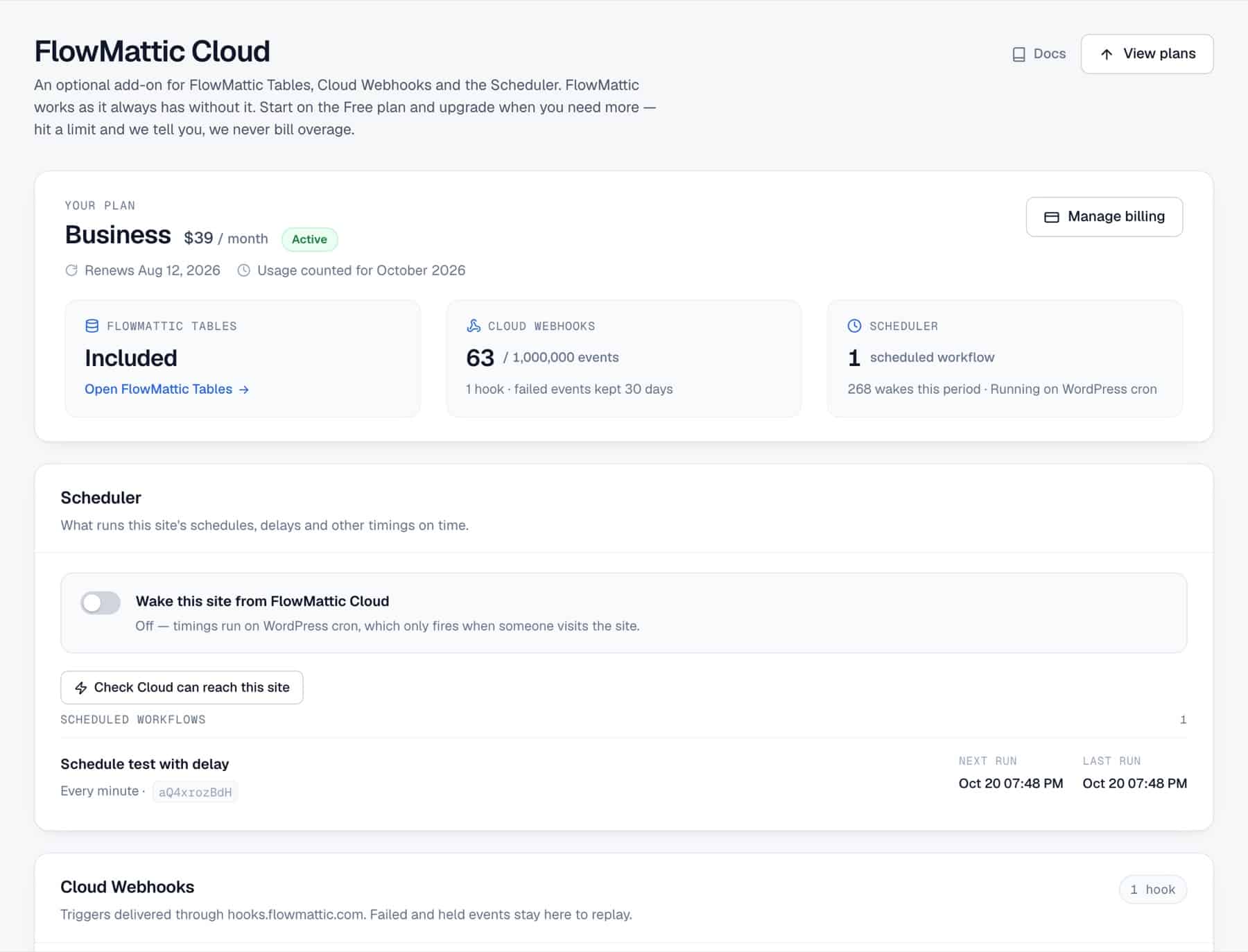
The switch is Wake this site from FlowMattic Cloud in the Scheduler card on the FlowMattic Cloud screen, or Wake This Site For Timings under Settings → Advanced Settings. The Scheduler card lists each scheduled workflow with its Next run and Last run, with Check Cloud can reach this site and Re-sync with Cloud buttons.
Switching it off hands the timings back to WordPress cron; nothing in the workflows changes. If Cloud stops waking the site for 10 minutes, for example because the site is unreachable, you see a notice in the admin and get an email, timings keep running through WordPress cron, and a second email follows once Cloud reaches the site again.
Every scheduled run includes five fields in its trigger data, visible in Task History and available as dynamic tags:
fire_id: an ID for this run of the schedule.scheduled_for: when the run was due, as a Unix timestamp.fired_at: when it actually started, as a Unix timestamp.timezone: the time zone the schedule follows.source: cloud when FlowMattic Cloud woke the site, wp_cron otherwise.Comparing scheduled_for with fired_at shows how late a run started, and a report can use scheduled_for to name the period it covers.
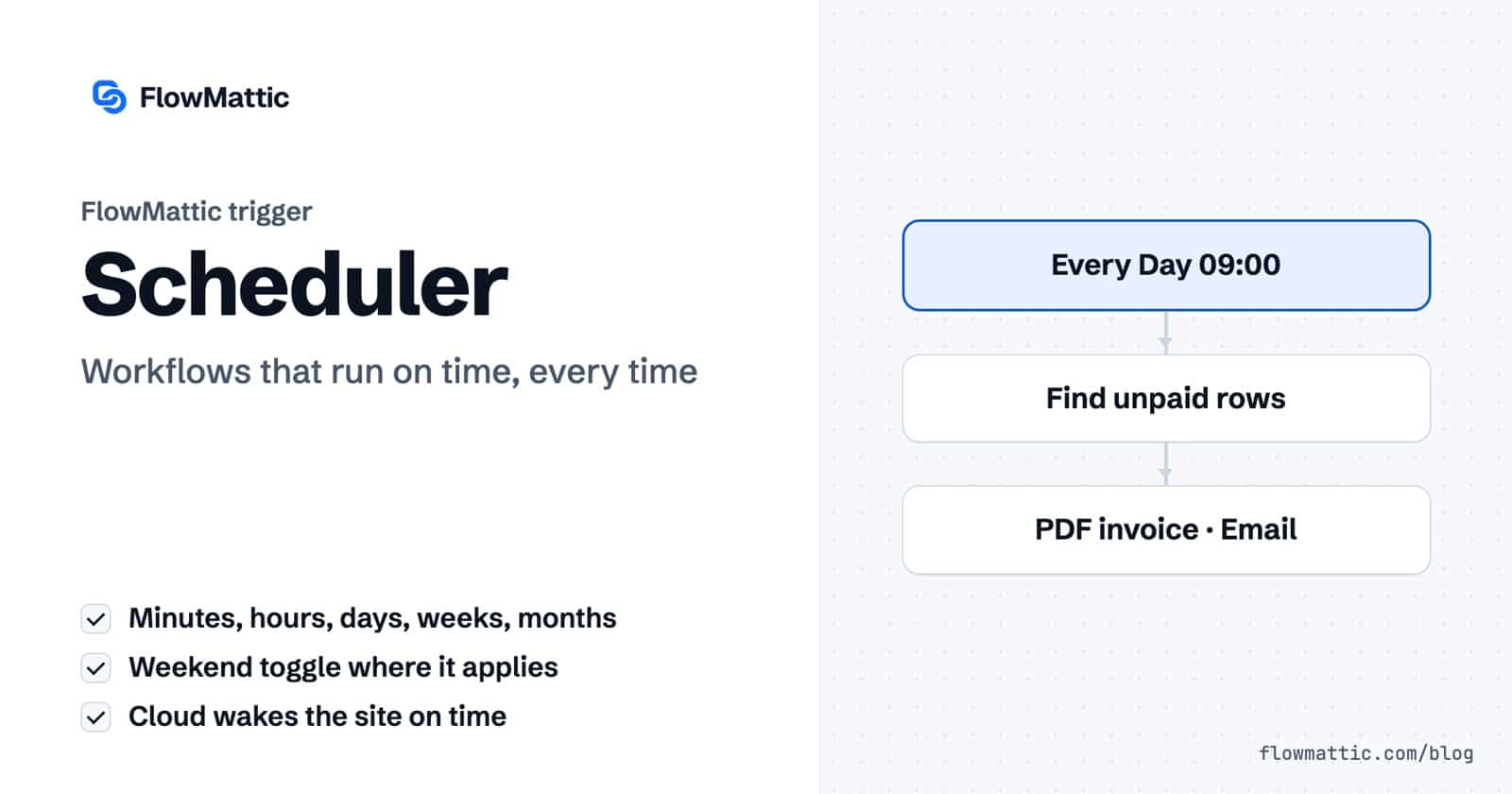
An e-commerce business reads unpaid rows from a table each morning, loops through them with an Iterator, renders a PDF invoice for each and emails it.
Flow: Every Day 09:00 → WP Tables find records → Iterator → PDF invoice → Email
Every Monday a workflow pulls the last seven days of WooCommerce orders, an AI Agent writes a short summary, and it goes to the founders by email and to the team chat.
Flow: Every Week (Monday 08:00) → Get orders → AI Agent summary → Email and chat message
A shop checks stock every 30 minutes on weekdays only, and a Filter lets the alert through only when a product drops below its threshold.
Flow: Every X Minutes (30, weekends off) → Get products → Filter (low stock) → Alert
On the 1st of each month, an agency’s workflow gathers the previous month’s form leads, builds a PDF report and emails it to the client contact, Amelia Okafor.
Flow: Every Month (day 1, 07:00) → Get entries → PDF report → Email
Internal ops keeps a price list in a spreadsheet. Every hour the workflow reads new rows and writes them into a WP Tables table, so the site always shows the latest list.
Flow: Every Hour → Google Sheets get rows → Iterator → WP Tables insert or update
At 02:00 every day, the workflow finds posts in the trash and expired coupons, deletes them and writes a line to a log table.
Flow: Every Day 02:00 → Find items → Delete → Log row
A membership site looks up members whose plan ends in seven days and sends each one a reminder with a renewal link.
Flow: Every Day 10:00 → Find expiring members → Iterator → Reminder email
A product team calls its own API four times a day and posts the numbers to a chat channel, with scheduled_for in the message so each digest names its window.
Flow: Every X Hours (6) → API request → Chat message
Connect the site to FlowMattic Cloud, which you can start on its Free plan. With Wake this site from FlowMattic Cloud turned on, Cloud wakes the site the moment a schedule is due, so no page load is needed. On WordPress cron alone, schedules run on the first page load after they are due.
Yes. Choose Every X Minutes and enter 5. Any value from 1 to 59 minutes works, with or without weekends.
Yes. Since 7.3.0, times follow the site time zone across daylight-saving changes on every site, whether WordPress cron or FlowMattic Cloud wakes it.
Yes. Turn off Wake this site from FlowMattic Cloud and timings run through WordPress cron again. Your schedules stay on your site either way, so nothing needs to change in the workflows themselves.
The Schedule trigger is part of every FlowMattic plan. Try FlowMattic and set your first workflow to run on its own.
Reply to a webhook with data from the run: String, JSON or XML bodies, any HTTP status from 200 to 599, extra…
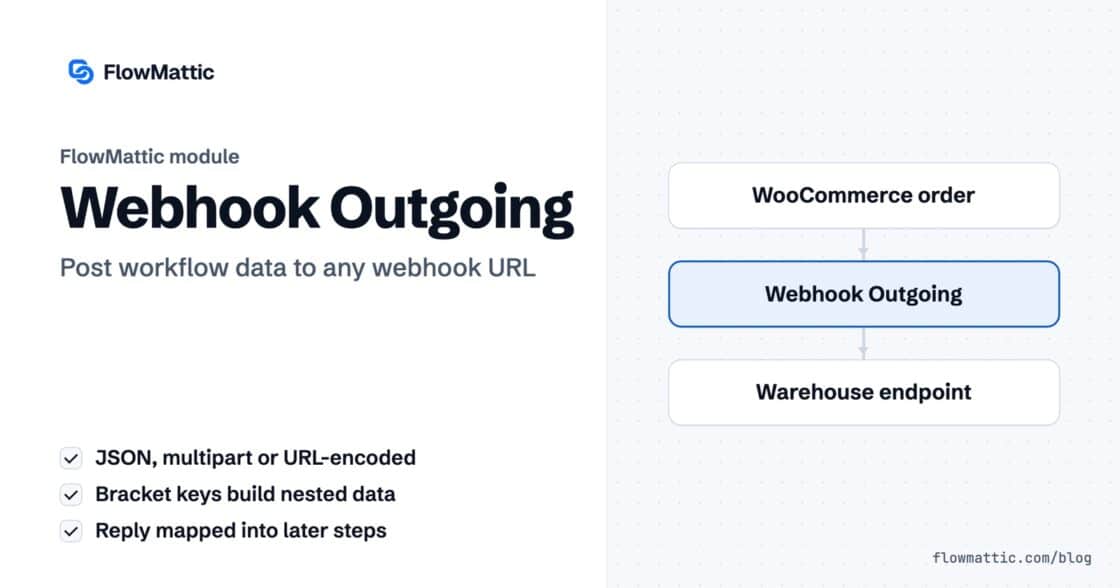
Post workflow data to any webhook URL as JSON, multipart form data or URL-encoded fields, with nested bracket keys and the receiver's…
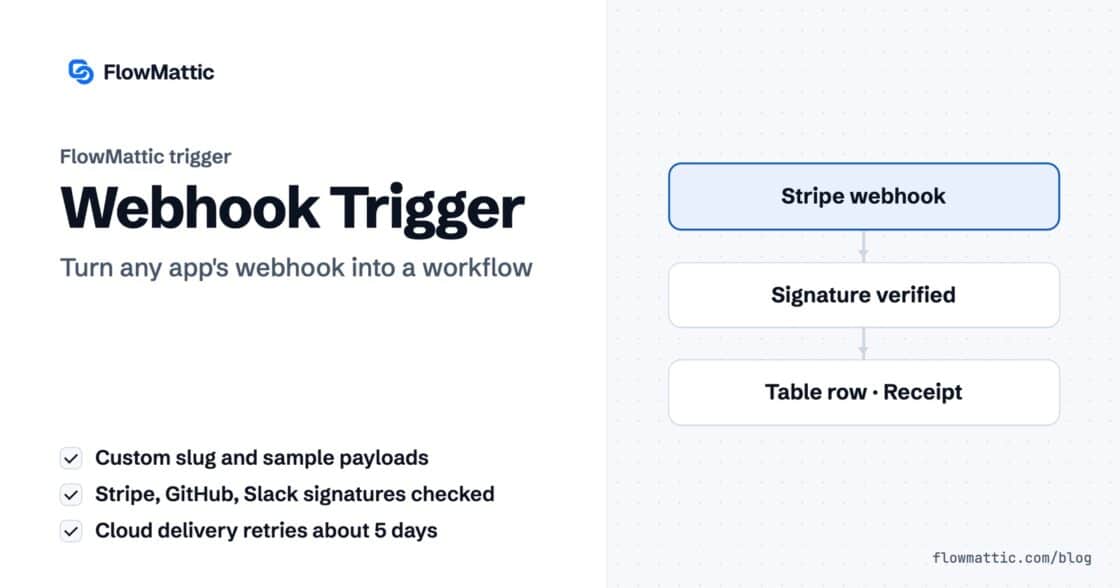
Give any app a URL on your WordPress site and turn each request into a workflow run, with signature checks, sample payloads…