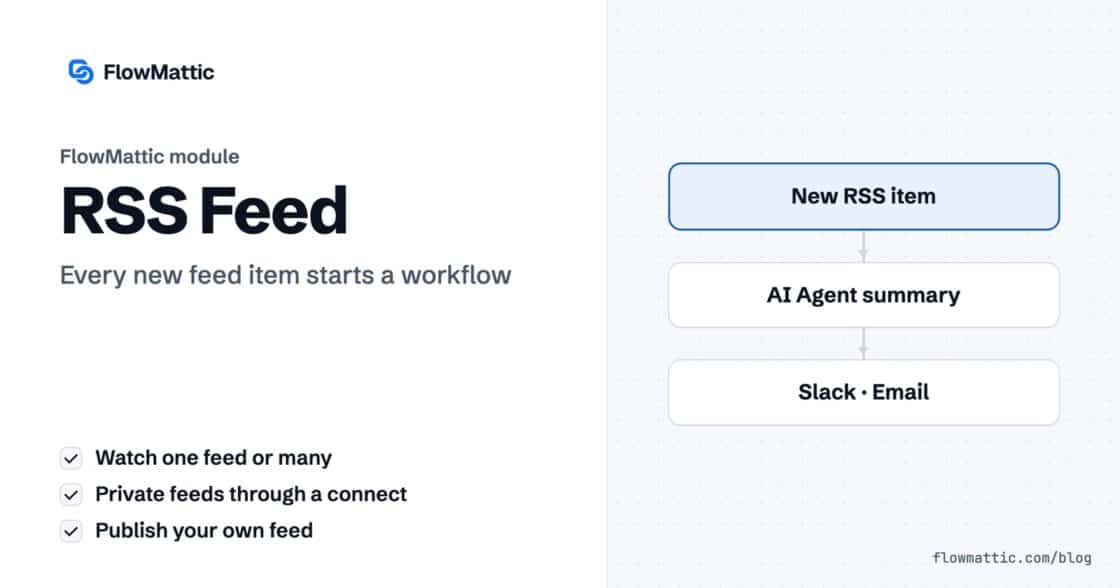
RSS Feed Automation in WordPress: Watch, Read and Publish Feeds
Watch any RSS feed and run a workflow for each new item, read feeds on demand, or publish a feed of your…


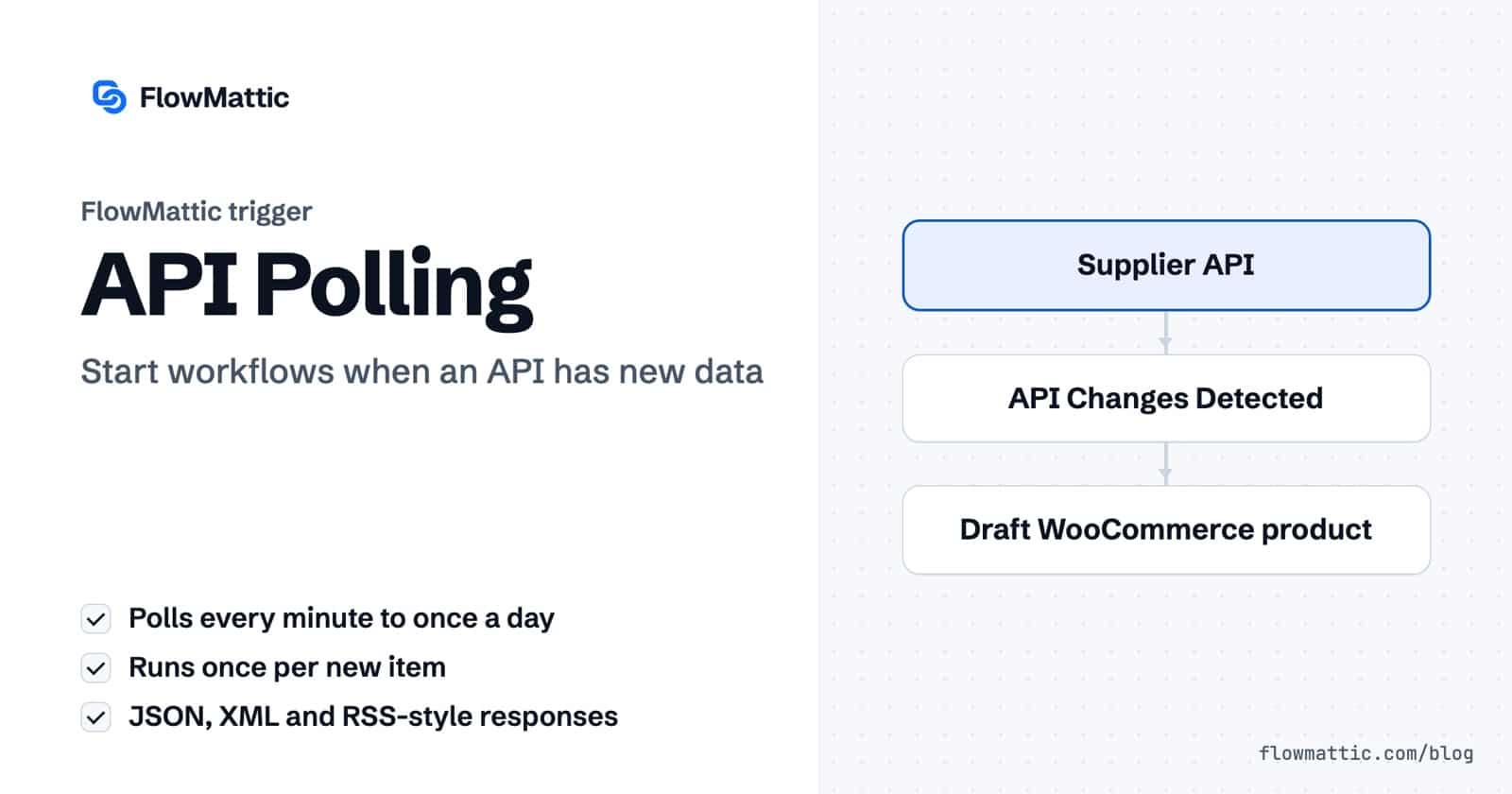
The API polling trigger in FlowMattic starts a workflow when an API’s data changes, for apps that cannot send webhooks. You give it an endpoint and a frequency; FlowMattic calls the API on that schedule, spots new items at the top of the list, and runs the workflow once for each one.
It suits supplier catalogues, job boards, helpdesks, internal tools and any REST endpoint that lists records newest first. This guide covers the fields, how change detection works, and seven workflows built on it.
API Polling is a built-in trigger app in the FlowMattic workflow builder with one event, API Changes Detected. Where a webhook trigger waits for an app to call your site, API Polling does the calling: it fetches the endpoint at a set interval and compares the answer with what it saw last time.
It reads JSON and XML responses, including RSS-style feeds where items sit under channel. It can authenticate with any saved Connect that uses OAuth, a bearer token, basic auth or an API key header.
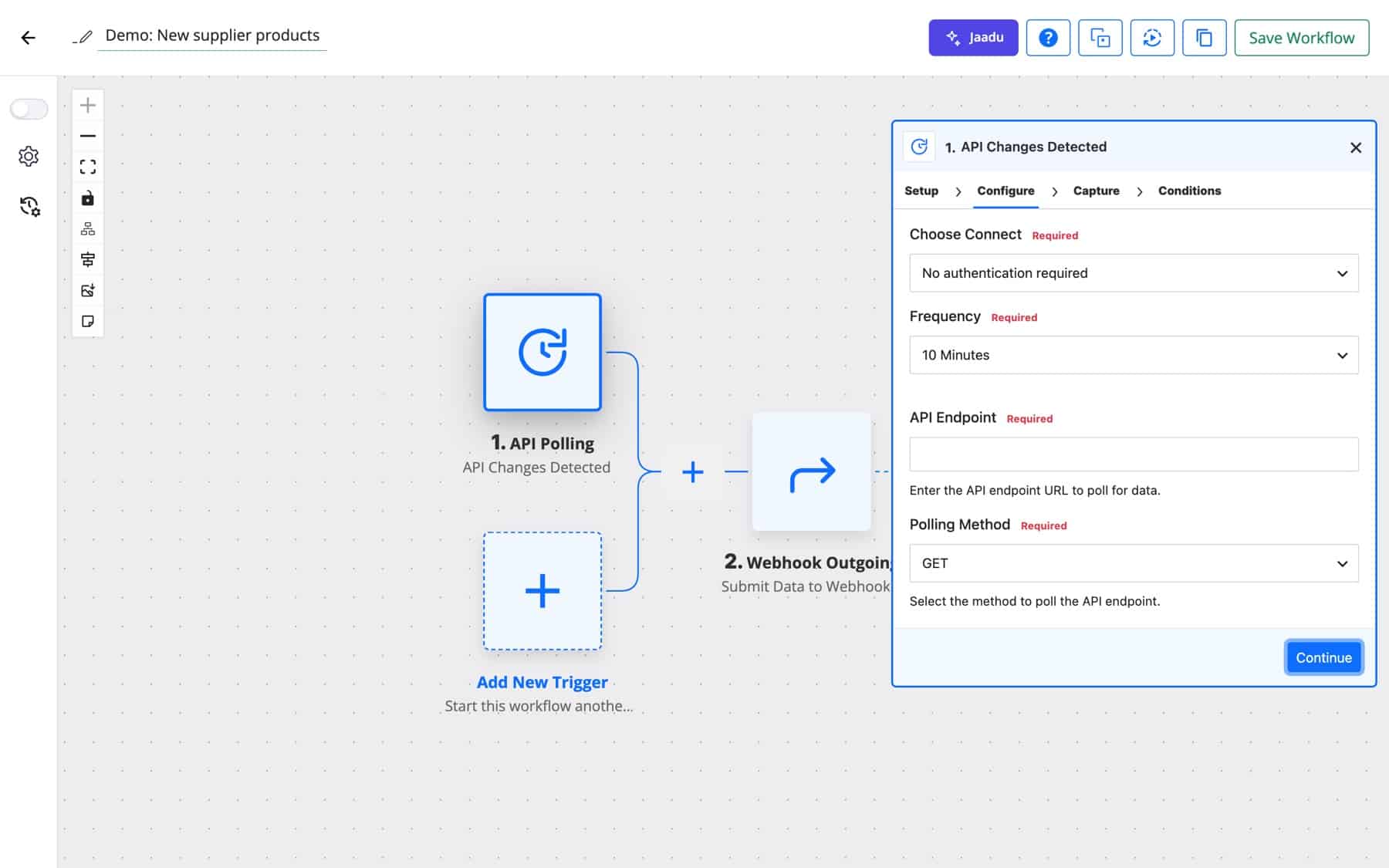
On each poll, FlowMattic compares the first item in the list with the item it stored last time. If nothing changed, the run ends quietly. If the top item is different, it walks down the list until it reaches the stored item and treats everything above it as new. The workflow then runs once per new item, oldest first, and the newest item becomes the new reference point.
Fields that change on every request without meaning anything, such as request_id and an RSS feed’s build and publish dates, are left out of the comparison.
| Field | What it does |
|---|---|
| Choose Connect | A saved Connect for authentication, or No authentication required. |
| Frequency | 1, 2, 5, 10, 15 or 30 minutes, 1, 2, 3, 6 or 12 hours, or 1 day. The default is 10 minutes. |
| API Endpoint | The URL to poll. Required. |
| Polling Method | GET or POST. Required. |
| Item Index Key | The key that holds the array of items, such as results, items or posts. Leave it empty to let FlowMattic pick from common names. |
| Headers | Extra request headers as key and value rows. |
| Parameters | With GET, added to the URL as a query string. With POST, sent as a JSON body; values that are valid JSON are sent as structured data. |
When the Item Index Key is empty, FlowMattic looks for familiar list names, among them results, items, posts, products, articles, files and tags. Setting the key yourself removes the guesswork.
A shop’s supplier publishes a product API but no webhooks. Polling every hour with products as the Item Index Key creates a draft WooCommerce product for each new item, ready for review.
Flow: API Changes Detected (products) → Create WooCommerce product (draft) → Email the buyer
A recruitment agency mirrors a partner’s vacancies on its own site. Each new job becomes a WordPress post in the jobs category.
Flow: API Changes Detected (jobs) → Create post → Share to social
A support team polls its helpdesk’s ticket list every 5 minutes with a bearer-token Connect. An AI Agent tags each new ticket by topic and urgency, and urgent ones reach the on-call channel.
Flow: API Changes Detected (tickets) → AI Agent → Router → Chat alert or log
A SaaS team exposes recent sign-ups on an internal endpoint. Polling every 15 minutes sends each new account to the CRM with its plan and company.
Flow: API Changes Detected (users) → CRM create contact → Welcome sequence
An agency’s client runs an older CRM with a read-only API. New leads are copied into a WP Tables table that the agency’s dashboards read from.
Flow: API Changes Detected (leads) → WP Tables new record
A marketing team polls a reviews API twice a day. Each new review goes to an AI Agent for sentiment, and negative ones become a follow-up task.
Flow: API Changes Detected (reviews) → AI Agent sentiment → Filter (negative) → Task
A publisher’s partner feed is XML behind an API key header. API Polling reads the XML, finds the item list and runs once per new entry.
Flow: API Changes Detected (XML items) → Create draft post
It is a trigger that calls an API on a schedule and starts a workflow when the response contains something new. Use it for apps that offer an API but no webhooks.
As often as every minute or as rarely as once a day, with steps of 2, 5, 10, 15 and 30 minutes and 1, 2, 3, 6 and 12 hours in between. The default is 10 minutes.
No, only for items that are new since the last poll. FlowMattic walks the list from the top until it reaches the item it stored last time and runs once for each newer item, oldest first.
Yes. Pick a saved Connect that uses OAuth, a bearer token, basic auth or an API key header, or add the headers yourself in the Headers rows.
API Polling is included in every FlowMattic plan. Try FlowMattic and connect your first API that has no webhooks.
Watch any RSS feed and run a workflow for each new item, read feeds on demand, or publish a feed of your…
Run a workflow every few minutes, hourly, daily, weekly or monthly. Connect FlowMattic Cloud and it wakes your site the moment a…
Reply to a webhook with data from the run: String, JSON or XML bodies, any HTTP status from 200 to 599, extra…