
FTP automation in WordPress: upload, download and watch folders
The FTP app uploads, downloads, moves and deletes files on FTP, FTPS and SFTP servers from any workflow, and starts workflows when…


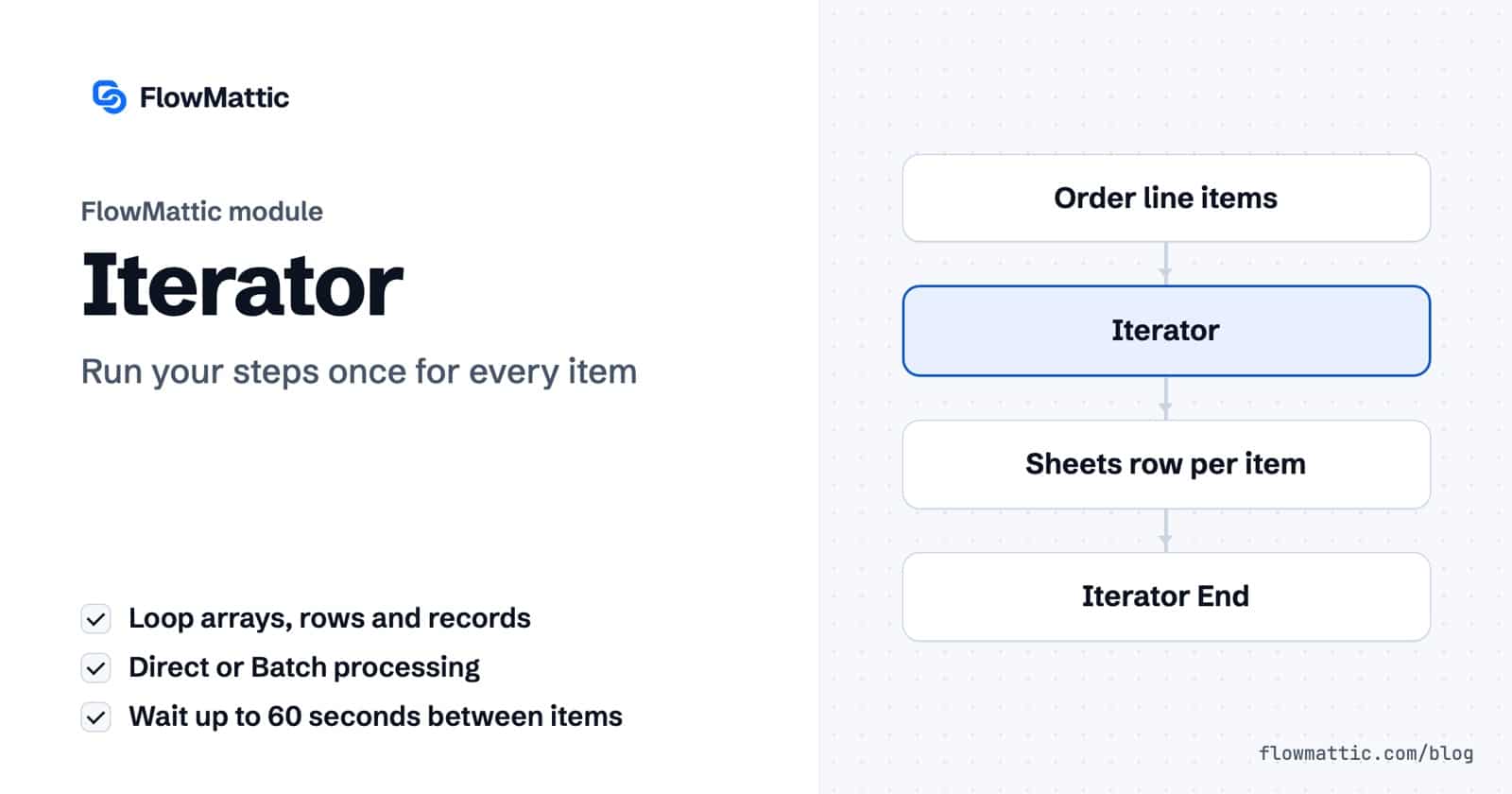
To loop through array data in FlowMattic, you use the Iterator. Point it at a list (the line items of an order, rows from a table, records returned by an API) and the steps after it run once for every item. When the loop is done, the steps after an Iterator End run once, with everything you collected along the way.
Most real data arrives in lists, while most actions handle one record at a time. The Iterator bridges the two without code. With the Wait Between Items setting added in FlowMattic 7.3.0, it also paces the loop so you stay under an API’s rate limit.
Iterator by FlowMattic is a built-in step in the Flow Controls group, described as “Run the next steps once for every item in a list.” Its action event is Loop Through Array. Two companion steps complete the loop:
Together they cover the usual loop pattern: for each item, do something, keep a note of the result, then report once at the end. The Iterator sits with the other workflow logic modules in the builder.

For each pass, the Iterator gives the steps inside the loop:
array_item_number: the position of the item, starting at 1.current_array_item: the whole item as JSON.sku, quantity and price for an order line.If there is no Iterator End, every step after the Iterator runs once per item, right to the end of the workflow.
| Setting | What it does |
|---|---|
| Iteration Array (required) | The list to loop over: a dynamic tag holding a JSON array, or a JSON array you type. |
| Simple Response | “Retrieve the data in simple format”. On by default. When on, nested arrays inside each item are split into individual fields; when off, they stay as JSON text. |
| Iteration Processing Method | Direct processes all items in one go (faster). Batch processes the list in the background, a chunk at a time, for lists large enough to time out the server. |
| Batch Size | Items per chunk. Required when Batch is selected. |
| Wait Between Items (seconds) | Optional pause before each item after the first, from 0 to 60 seconds, decimals allowed. Leave it empty for no wait. |
Iterator Storage has its own fields. Store as String uses Create the String: on each pass, the text you build is appended to what is already stored. Store as Array uses Data Parameters, key and value pairs that become one array entry per pass; after the loop, the output is a JSON list of all entries.
A store owner wants each product sold as its own row for stock planning, plus one Slack message per order.
WooCommerce new order → Iterator (line items) → Google Sheets Add New Row → Iterator End → Slack Send Channel Message
A SaaS team syncs the day’s sign-ups to its CRM, whose API allows about one request per second. Wait Between Items set to 1 keeps the loop under that limit.
Schedule (daily) → API request (new sign-ups) → Iterator (Wait Between Items: 1) → HubSpot Create Contact
Internal ops keeps invoices in WP Tables. Each morning, every overdue row gets its own reminder email.
Schedule (daily) → WP Tables Find Multiple Records (status: overdue) → Iterator → Send Email to the row's contact
An agency checks each client’s site and sends a single summary. Iterator Storage collects one entry per site, and the email after Iterator End includes the whole list.
Schedule (weekly) → API request (client list) → Iterator → API request (site check) → Iterator Storage (Store as Array: site, status) → Iterator End → Send Email report
A product team receives reviews in batches. An AI Agent writes a one-line takeaway for each, and Store as String builds a digest for Slack.
Webhook (review batch) → Iterator → AI Agent (one-line takeaway) → Iterator Storage (Store as String) → Iterator End → Slack Send Channel Message
Marketing uploads a CSV with thousands of subscribers. The Batch method spreads the work over background requests so the import doesn’t time out.
Webhook (file URL) → CSV Parser (Parse CSV File) → Iterator (Batch, Batch Size: 50) → Mailchimp Add New Member
A support team polls a ticket API and only wants alerts for urgent tickets. A Filter inside the loop skips the rest of the steps for any item that doesn’t match, and the loop moves on.
Schedule → API request (open tickets) → Iterator → Filter (Continue If: priority Exactly matches urgent) → Slack Send Channel Message
admin-ajax.php in the background. Hosts or security plugins that block requests from the site to itself will stall it. While batches are queued, the run shows as Waiting in Task History.Capture a sample request so the webhook’s fields are available, then add an Iterator and map the array field into Iteration Array. The steps after the Iterator can then use each item’s fields.
Add an Iterator End step after the steps that should repeat. Everything after Iterator End runs once, after the last item. Use Iterator Storage inside the loop if that final step needs the results.
Set Wait Between Items. It pauses before each item after the first, up to 60 seconds, with decimals allowed, so 0.5 means at most two items a second. You don’t need a Delay step inside the loop.
Yes. The run records the Iterator’s settings (method, batch size and any wait) and the steps executed for each item, so you can trace which item caused a problem.
The Iterator is included in every FlowMattic plan, with unlimited workflows and runs on your own server, so a loop over a thousand items costs nothing extra. Try FlowMattic on a live demo site and build your first loop.
The FTP app uploads, downloads, moves and deletes files on FTP, FTPS and SFTP servers from any workflow, and starts workflows when…
Share Secrets turns a password or API key into a link that expires after a set time, a set number of views,…
Generate Magic Login Link creates single-use sign-in links from any workflow, valid from 1 minute to 30 days, with a confirmation page…

